
How to Clear MyKey: Step-by-Step Guide
Clearing MyKey is a straightforward process that allows you to reset your vehicle’s MyKey settings. By following the steps outlined below, you’ll learn how to disable MyKey restrictions and regain full access to your vehicle’s features, ensuring that you can enjoy all functionalities without limitations. MyKey is a valuable feature for parents or vehicle owners who wish to set restrictions for secondary drivers, but there may come a time when you want to clear these settings entirely.
Understanding MyKey

MyKey is an innovative security feature offered by Ford that allows vehicle owners to set specific restrictions for secondary drivers, often used by parents for younger or inexperienced drivers. This feature can limit the vehicle’s speed, prevent the audio system from exceeding a certain volume, and activate seatbelt reminders, making it an essential tool for enhancing safety on the road. MyKey can be particularly useful for ensuring that new drivers adhere to safe driving practices, but it can also impose restrictions that may feel unnecessary to the primary driver. Understanding how MyKey works is crucial for anyone looking to manage their vehicle’s access effectively and safely.
Preparing to Clear MyKey
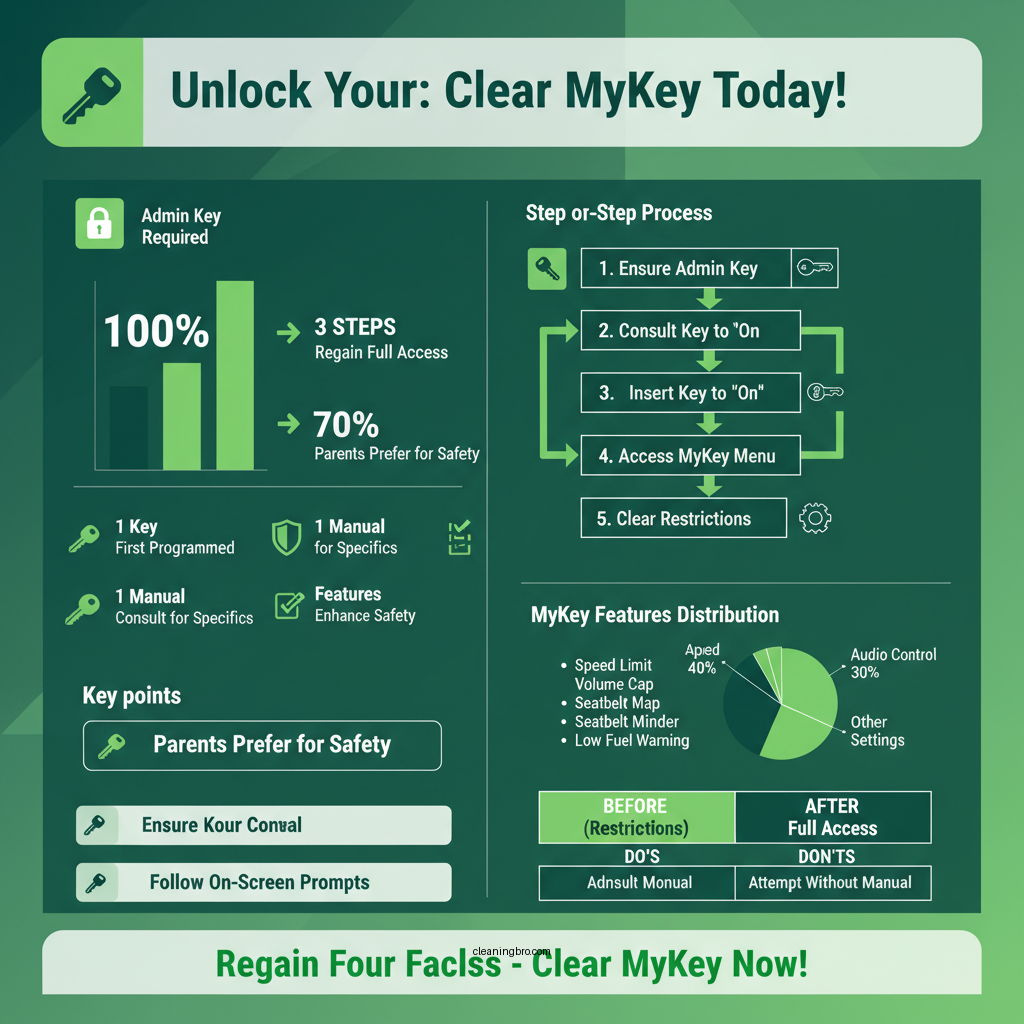

Before you proceed with clearing MyKey, it is essential to ensure that you have the admin key available, as MyKey restrictions can only be cleared using this key. The admin key is typically the key that was first programmed with the vehicle, and it has full access to all features. Additionally, it is advisable to consult your vehicle’s manual for specific MyKey instructions related to your model, as the process may vary slightly between different Ford vehicles. Familiarizing yourself with the manual can help prevent any confusion during the clearing process.
Steps to Clear MyKey
1. Insert the Admin Key: Begin by inserting the admin key into the ignition of your vehicle. Turn the key to the “On” position without starting the engine. This step is crucial as it activates the vehicle’s electrical systems, allowing you to access the MyKey menu.
2. Access the MyKey Menu: Using the dashboard display, navigate to the MyKey menu. This can typically be done by pressing the “Menu” or “Settings” button, followed by selecting “MyKey.” This menu will show you all registered MyKeys and associated restrictions.
Top MyKey Features and Settings
| # | Feature | Description | Benefit |
|---|---|---|---|
| 1 | Speed Limiting | Limits maximum speed | Enhances safety for inexperienced drivers |
| 2 | Volume Control | Restricts audio system volume | Prevents distractions while driving |
| 3 | Seatbelt Reminder | Activates reminders if seatbelts are not fastened | Promotes safer driving habits |
| 4 | MyKey Notifications | Alerts if a MyKey is activated | Keeps the primary driver informed |
| 5 | MyKey Usage Report | Tracks driving habits of secondary drivers | Provides insights for better driving practices |
Disabling MyKey Settings
Once you are in the MyKey menu, select the option to “Clear MyKey.” The system will then prompt you to confirm your choice. Make sure to review any warnings or messages displayed, as this action will remove all MyKey restrictions. After confirming your selection, the system will process your request. You should receive a notification indicating that the process is complete, and all MyKey restrictions have been removed.
Troubleshooting Common Issues
While the process of clearing MyKey is relatively simple, you may encounter some common issues. If the MyKey option doesn’t appear on your dashboard, double-check that you are using the correct admin key, as only the admin key can clear MyKey settings. If you are still experiencing difficulties, try restarting your vehicle and attempting the clearing process again. Additionally, ensuring your vehicle’s software is up to date can help avoid potential glitches in the system.
Verifying MyKey is Cleared
After clearing MyKey, it is essential to ensure that all restrictions have been lifted. Test the vehicle’s speed and volume settings to confirm that they are no longer limited. Recheck the MyKey menu to ensure that no MyKeys are registered. This verification step is crucial, as it confirms that you have regained full access to your vehicle’s features.
In conclusion, clearing MyKey is a straightforward process that can be accomplished by following the steps outlined above. By understanding how MyKey functions, preparing adequately, and executing the clearing process correctly, you can enjoy unrestricted access to your vehicle once again. If you encounter any issues or have further questions, don’t hesitate to consult your vehicle’s user manual or contact customer support for additional assistance.
Frequently Asked Questions
What is MyKey and how does it work in Ford vehicles?
MyKey is a feature in Ford vehicles that allows owners to set specific restrictions on secondary keys. It enables you to limit speed, adjust audio volume, and enforce seatbelt use, making it ideal for parents wanting to monitor young drivers. By programming the MyKey feature through the vehicle’s settings, you can enhance safety and control over how the vehicle is used.
How can I clear MyKey settings from my Ford vehicle?
To clear MyKey settings, insert the key you want to reset into the ignition and turn it on without starting the engine. Access the vehicle’s menu using the dashboard controls, navigate to the MyKey settings, and select the option to ‘Clear MyKey.’ This process will restore the key to its original settings, removing any restrictions previously set.
Why would I want to clear MyKey on my Ford?
You may want to clear MyKey if you no longer need the restrictions for a secondary driver, such as when transitioning the vehicle to a new owner or when the young driver has gained more experience. Clearing MyKey allows you to regain full functionality of the key without any speed or volume limitations, enhancing your driving experience.
Which Ford models are equipped with the MyKey feature?
MyKey is available in many Ford models including the Ford F-150, Ford Explorer, Ford Escape, and Ford Edge from model years 2010 and onwards. However, specific features may vary by model and year, so it’s important to check your vehicle’s manual or consult with a Ford dealer for detailed information on MyKey availability.
What should I do if I can’t clear MyKey on my Ford vehicle?
If you’re unable to clear MyKey, first ensure that you’re using the correct key that was programmed with MyKey restrictions. If issues persist, try disconnecting the vehicle’s battery for a few minutes to reset the electronic systems. If the problem continues, consult your owner’s manual or visit a Ford dealership for assistance, as they can help troubleshoot any technical issues.
References
- https://www.wikiwand.com/en/MyKey
https://www.wikiwand.com/en/MyKey - https://www.ford.com/support/how-tos/mykey/
https://www.ford.com/support/how-tos/mykey/ - How-To Articles | Browse By Topic | Ford Owner Support
https://www.ford.com/support/how-tos/mykey/how-to-clear-mykey/ - How-To Articles | Browse By Topic | Ford Owner Support
https://www.ford.com/support/how-tos/mykey/faq/ - Google Scholar Google Scholar
https://scholar.google.com/scholar?q=how+to+clear+mykey - Google Scholar Google Scholar
https://scholar.google.com/scholar?q=Ford+MyKey+information - https://www.mayoclinic.org/healthy-lifestyle/consumer-health/in-depth/driving-safety/art-20043977
https://www.mayoclinic.org/healthy-lifestyle/consumer-health/in-depth/driving-safety/art-20043977 - Glucosamine Sulfate – StatPearls – NCBI Bookshelf
https://www.ncbi.nlm.nih.gov/books/NBK558930/ - https://www.cdc.gov/motorvehiclesafety/index.html
https://www.cdc.gov/motorvehiclesafety/index.html - https://www.nhtsa.gov/road-safety/mykey
https://www.nhtsa.gov/road-safety/mykey