How to Engrave Clear Acrylic Using a Diode Laser
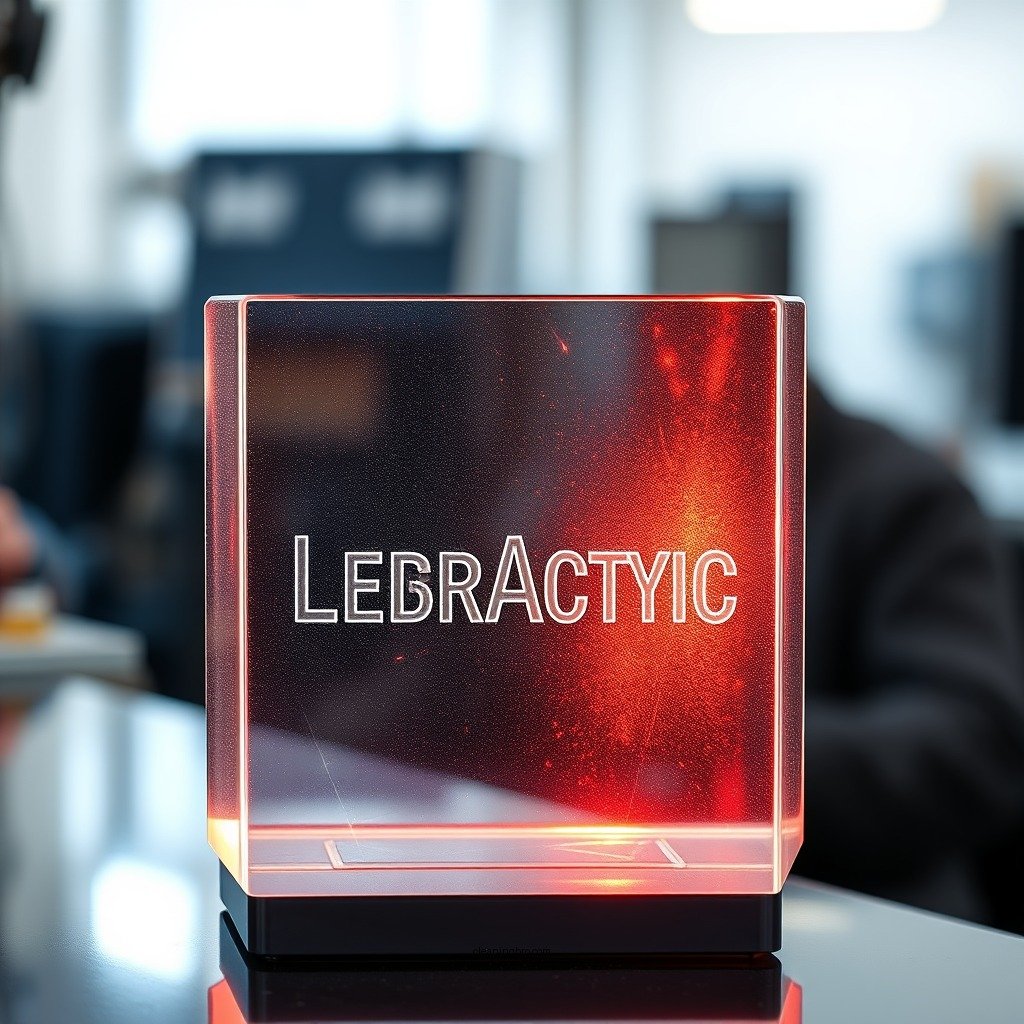
Engraving clear acrylic with a diode laser can yield remarkable results, transforming ordinary pieces into stunning, personalized works of art. By employing precise techniques and the right tools, you can achieve detailed engravings that enhance both the clarity and beauty of the acrylic material. This guide will provide step-by-step instructions and valuable insights to ensure your engraving projects are successful and visually appealing.
Understanding Diode Lasers
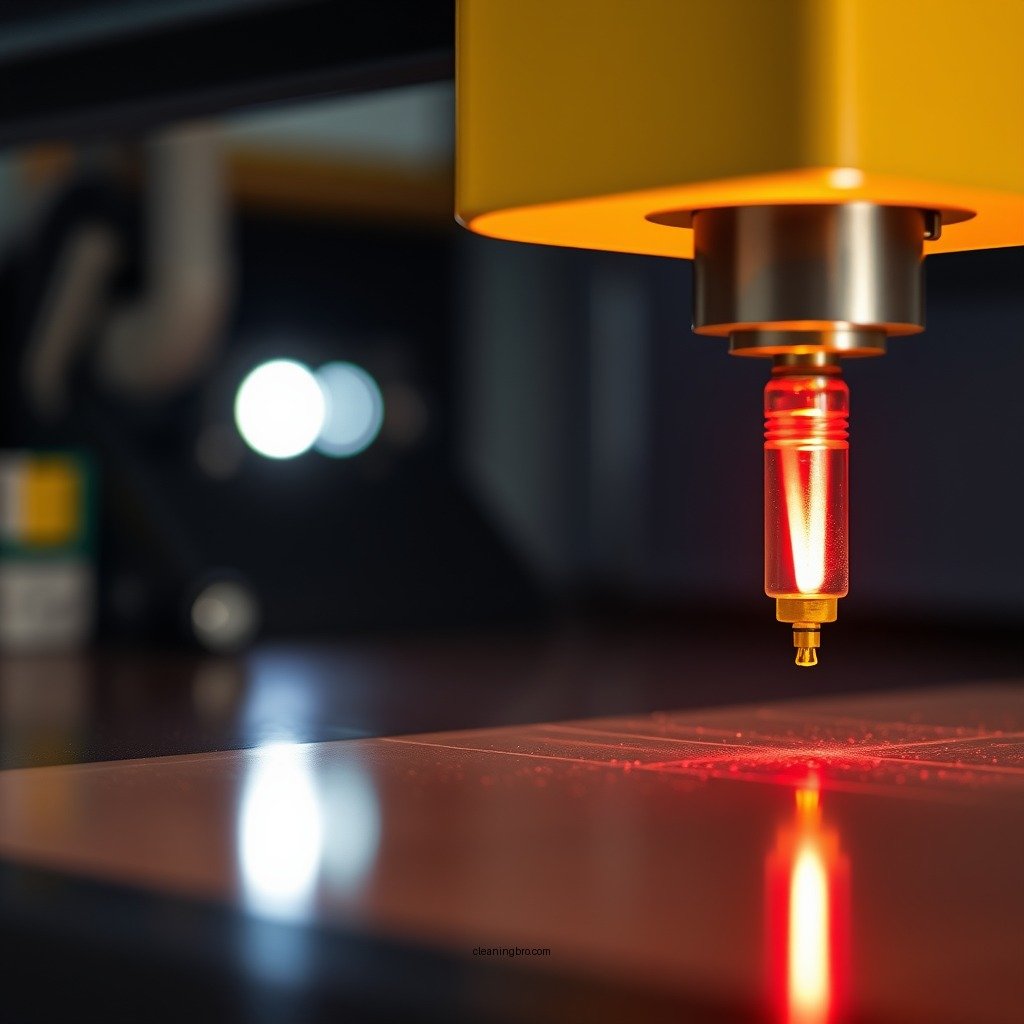
Diode lasers are a popular choice for engraving tasks due to their compact size and energy efficiency. They utilize semiconductor technology to produce a coherent beam of light, which is focused to perform cutting and engraving tasks. The specific wavelengths emitted by diode lasers make them particularly effective for working with materials like acrylic, wood, and certain metals.
Unlike traditional CO2 lasers, diode lasers are more affordable and easier to maintain, making them an ideal choice for hobbyists and small businesses. They can engrave intricate designs with high precision, allowing for detailed artwork that stands out. Understanding the capabilities of your diode laser will help you maximize its potential in your engraving projects.
Preparing Your Acrylic
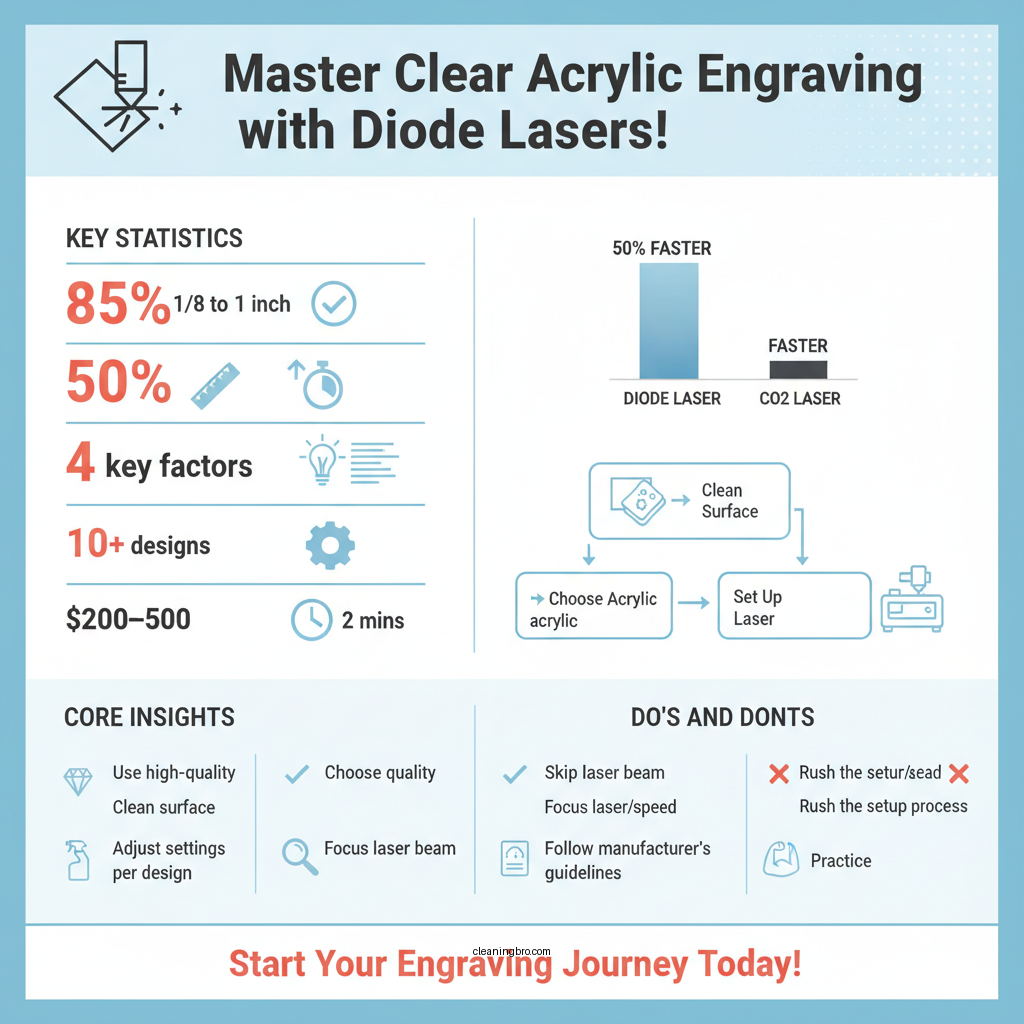
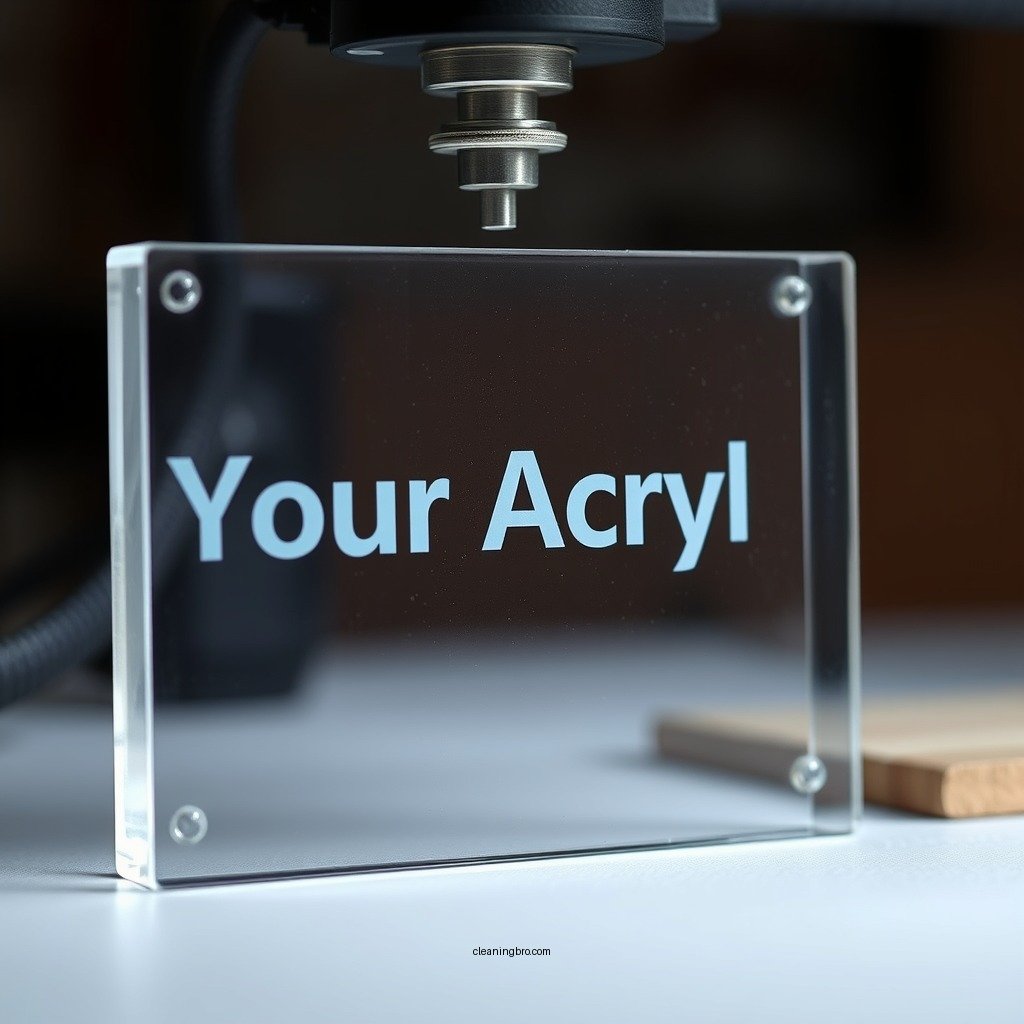
To achieve the best results, selecting high-quality clear acrylic is vital. Look for acrylic sheets that are free of defects, such as bubbles, scratches, or discoloration. Acrylic sheets come in various thicknesses, generally ranging from 1/8 inch to 1 inch, and the choice will depend on the design and application.
Once you’ve chosen your acrylic, it’s essential to prepare the surface properly. Thoroughly clean the acrylic with a lint-free cloth and a suitable cleaner to remove dust, fingerprints, and any contaminants that could interfere with the engraving process. This step is crucial as any debris on the surface can lead to uneven engravings and affect the overall quality of the finished product.
Setting Up the Laser
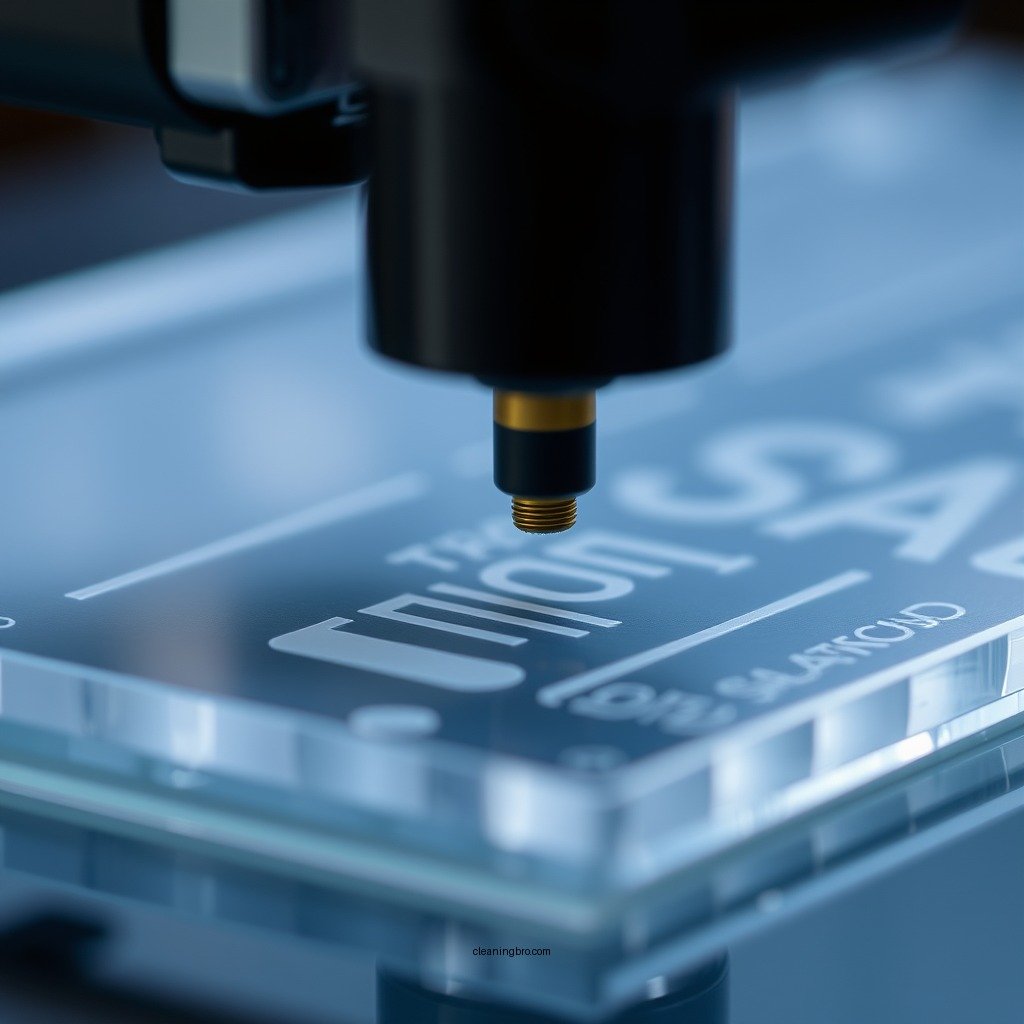
The setup of your diode laser is critical for achieving optimal engraving quality. Begin by adjusting the focus of the laser beam, which is essential for piercing through the acrylic effectively. A well-focused beam will create clean edges and sharp details in your design. Use the manufacturer’s guidelines to determine the correct focal distance based on the thickness of your acrylic sheet.
Next, set the appropriate power and speed settings on your diode laser. These parameters can vary significantly depending on the complexity of your design and the type of acrylic you are using. Higher power settings yield deeper engravings, while slower speeds allow for more intricate designs with better detail. It’s recommended to experiment with different settings on test pieces before proceeding with your actual design.
Top 7 Diode Lasers for Engraving Acrylic (2024)
| # | Laser Model | Power (W) | Speed (mm/s) | Engraving Area (mm) |
|---|---|---|---|---|
| 1 | Ortur Laser Master 3 | 20 | 300 | 400 x 400 |
| 2 | Neje Master 2S | 30 | 200 | 255 x 420 |
| 3 | FoxAlien LE-4040 | 40 | 150 | 400 x 400 |
| 4 | Atomstack A5 Pro | 40 | 400 | 410 x 400 |
| 5 | OMTech 40W | 40 | 300 | 600 x 400 |
| 6 | Glowforge Basic | 40 | 300 | 500 x 300 |
| 7 | Dremel LC40 | 40 | 100 | 600 x 400 |
Designing Your Engraving
Creating a design for your engraving is a crucial step that requires careful consideration. Vector graphics software is typically the best choice for this purpose, as it allows you to create designs that maintain their quality at various sizes. Adobe Illustrator, CorelDRAW, or free alternatives like Inkscape can be utilized for this task.
When designing, keep in mind the intricacies of your intended engraving. Simple shapes and bold lines tend to engrave more effectively than overly complex designs. Additionally, consider using contrasting colors in your design to improve visibility during the engraving process. This will help you better visualize the engraving as it progresses and make adjustments if necessary.
Engraving Process
Before starting your actual engraving, it’s advisable to perform a test engraving on a scrap piece of acrylic. This will allow you to check whether your settings are appropriate and confirm that your design is clear and detailed. Adjust the power and speed settings as needed based on the results of your test.
During the engraving process, maintain a watchful eye on the machine to catch any potential issues, such as overheating or warping of the acrylic. It’s essential to ensure that the material remains flat and securely positioned throughout the engraving to prevent any misalignments.
Finishing Touches
Once the engraving is complete, you need to clean the acrylic surface to remove any residual smoke marks or dust that may have accumulated during the process. Using a soft cloth and a gentle cleaner can help restore the clarity of your acrylic piece.
For added durability and shine, consider applying a protective coating or sealant. This step can enhance the longevity of your engraving, making it more resistant to scratches and environmental damage.
Best Diode Lasers for Engraving Acrylic
| Feature | ⭐ Ortur Laser Master 3 | Neje Master 2S | Atomstack A5 Pro |
|---|---|---|---|
| Power | 20W | 30W | 40W |
| Speed | 300 mm/s | 200 mm/s | 400 mm/s |
| Engraving Area | 400 x 400 mm | 255 x 420 mm | 410 x 400 mm |
| Cooling System | Air Cooled | Air Cooled | Water Cooled |
| Software Compatibility | LaserGRBL | LaserGRBL | LaserGRBL |
| Portability | ✅ | ✅ | ❌ |
| Ease of Use | Beginner Friendly | Moderate | Advanced |
| Price | $249 | $299 | $399 |
| Warranty | 1 Year | 1 Year | 2 Years |
| 🏆 Best For | Beginners | Medium Users | Advanced Users |
Troubleshooting Common Issues
Even with careful preparation and setup, you may encounter common issues during the engraving process. If your engravings appear too shallow, consider increasing the power settings or reducing the engraving speed. This adjustment allows the laser to penetrate deeper into the acrylic for a more pronounced engraving.
For uneven results, ensure that the acrylic sheet is flat and securely held in place. Any movement during the engraving process can lead to misalignment and inconsistent engraving depth. Additionally, check that the laser lens is clean and clear of obstructions, as dirt or residue can affect the quality of the beam.
Engraving clear acrylic with a diode laser opens up a realm of creative possibilities, whether for crafting personalized gifts or producing professional signage. By following the steps outlined in this guide and applying the tips provided, you can achieve beautiful engravings that truly stand out. Embark on your engraving project today and harness the versatility of diode laser technology!
Frequently Asked Questions
What settings should I use for engraving clear acrylic with a diode laser?
When engraving clear acrylic with a diode laser, it’s essential to set your power level between 30% to 50% and speed around 300-600 mm/s. Additionally, using a low DPI (dots per inch) setting of about 300 can help achieve a clean and clear engraving without burning the acrylic. Always perform test runs to fine-tune these settings based on your specific laser model.
How do I prepare clear acrylic for laser engraving?
To prepare clear acrylic for laser engraving, start by cleaning the surface with a non-abrasive cleaner to remove any dust or oils. Next, apply a masking tape to the area you plan to engrave; this helps prevent melting and improves the clarity of the engraving. Ensure the acrylic is securely placed on the laser bed to avoid any movement during the engraving process.
Why does my diode laser not engrave clear acrylic properly?
If your diode laser is not engraving clear acrylic properly, it may be due to incorrect settings or insufficient power. Clear acrylic can reflect the laser light, leading to ineffective engraving. Adjusting the power and speed, as well as ensuring a clean, focused beam, can significantly improve the engraving quality.
What is the best diode laser for engraving clear acrylic?
The best diode laser for engraving clear acrylic typically has a power rating of at least 5-10 watts, such as the Ortur Laser Master series or the NEJE series. These lasers provide a good balance of power and precision, essential for achieving detailed engravings on clear acrylic. Additionally, features like adjustable focus and a robust cooling system are beneficial for optimal performance.
Which design software is recommended for creating engravings on clear acrylic?
For creating engravings on clear acrylic, software like LightBurn, Inkscape, or Adobe Illustrator are highly recommended. These programs allow for precise design control and are compatible with most diode laser machines. They also support vector files, which are ideal for engraving detailed images and text on acrylic surfaces.
References
- Laser engraving
https://en.wikipedia.org/wiki/Laser_engraving - https://pubmed.ncbi.nlm.nih.gov/30036012/
https://pubmed.ncbi.nlm.nih.gov/30036012/ - https://www.sciencedirect.com/topics/engineering/laser-engraving
https://www.sciencedirect.com/topics/engineering/laser-engraving - https://www.ncbi.nlm.nih.gov/pmc/articles/PMC6235313/
https://www.ncbi.nlm.nih.gov/pmc/articles/PMC6235313/ - Desmarais Concept – Symboliser, Immortaliser, Honorer
https://www.engraving.net/laser-engraving-techniques/ - https://www.iu.edu/~lasers/resources/laser-engraving.html
https://www.iu.edu/~lasers/resources/laser-engraving.html - Google Scholar Google Scholar
https://scholar.google.com/scholar?q=how+to+engrave+clear+acrylic+with+diode+laser - Google Scholar Google Scholar
https://scholar.google.com/scholar?q=laser+engraving+techniques+for+acrylic - Google Scholar Google Scholar
https://scholar.google.com/scholar?q=diode+laser+engraving+applications - https://www.britannica.com/technology/laser-engraving
https://www.britannica.com/technology/laser-engraving