

Clean your laptop’s ports about every 3–6 months, and inspect them monthly to catch dust before it affects connections. Lint buildup in charging or data ports can lead to loose plugs, intermittent charging, or unreliable device detection. If you work in a dusty environment or plug in devices several times a day, clean them more often and use safe, gentle methods to avoid damaging the pins.


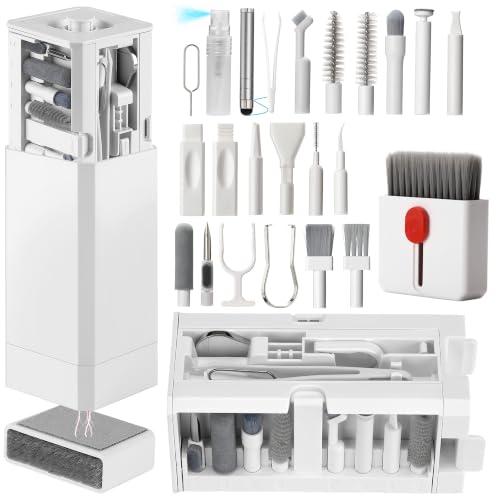

Clean your laptop ports about every 3–6 months—more often only if you’re in a dusty or high-travel environment. If you notice connection issues (wobbling, charging stops, audio cutting out), clean them sooner. In this guide, you’ll get a realistic schedule, the signs to watch for, and a safe way to do it without damaging the contacts.
If you plug in chargers, USB devices, HDMI cables, or headphones regularly, port buildup happens faster than most people expect. This is for anyone who wants a practical “when to clean” rule that won’t risk scratching pins or voiding warranty rules.
Recommended cleaning schedule (a simple rule)

If you want one simple cadence, plan on cleaning your laptop ports every 3–6 months under normal indoor use. This is frequent enough to prevent debris buildup, without repeatedly handling the connector where accidental damage can occur.
– Every 3–6 months for typical indoor use with moderate plug/unplug activity.
– About monthly if you work around dust, construction sites, pets, smoke, or frequent travel.
One reason this schedule works is that many common port types have tight clearances and small contact arrays. For example, according to USB Implementers Forum, USB-C uses 24 active contacts, which means lint can interfere with multiple contact points at once. According to HDMI Licensing, HDMI Type-A uses 19 pins in the plug, and those pins can be sensitive to trapped debris. And because electrostatic discharge (ESD) can damage electronics, you should avoid risky “aggressive cleaning” behaviors—per IEC 61000-4-2, ESD immunity testing includes contact-discharge levels starting around 2 kV (with higher levels for more robust equipment). That’s why a cautious interval-based approach beats constant tinkering.
Port Buildup Sensitivity & Cleaning Benefit (Practical 2026 Guidance)
| # | Laptop port type | Typical connector contacts | Most affected by lint/debris | Reliability benefit of cleaning |
|---|---|---|---|---|
| 1 | USB-C (reversible) | 24 active contacts | Often blocks power/data alignment | ★★★★★ |
| 2 | 3.5 mm headphone jack (TRS/TRRS) | 3–4 electrical terminals | Lint causes crackle/dropouts | ★★★★☆ |
| 3 | HDMI (Type-A) | 19 pins | Intermittent video lock | ★★★☆☆ |
| 4 | SD/microSD slot | 9 contacts | Card insertion “fails to seat” | ★★★★☆ |
| 5 | USB-A (standard rectangular) | 4 signal contacts + power/ground | Wobbly or intermittent peripherals | ★★★☆☆ |
| 6 | RJ-45 Ethernet (8P8C) | 8 contact positions | Link drops or slow negotiation | ★★★☆☆ |
| 7 | DC barrel charging (if used) | Typically 2 electrical contact areas | Stops charging when misaligned | ★★☆☆☆ |
Signs it’s time to clean now
If you’re seeing inconsistent behavior, don’t wait for the next calendar date—cleaning your laptop ports can restore stable contact. The fastest path is to clean when symptoms point to physical debris rather than software or cable failure.
– Connections get inconsistent: charging pauses, video stops, or USB devices disconnect.
– Visible lint/tiny debris inside the port is noticeable when you look closely with good light.
– The connector feels looser or you have to “press just right” for it to work.
When these signs show up, the likely issue is reduced contact pressure or a partial electrical connection. For example, with USB-C and HDMI, a few obstructed contact points can be enough to cause intermittent recognition even though the cable “seems” seated. With headphone jacks, lint can accumulate at the insertion channel and affect audio continuity, leading to crackling or one-sided sound.
How to clean laptop ports safely
If you want to clean without damaging contacts, stick to power-off and dry, low-force methods. The safest approach assumes that the pins inside your laptop ports are delicate and easily bent or scratched.
– Power down first and unplug everything (including the charger). Use dry cleaning methods only.
– Use low-pressure compressed air aimed gently, plus a soft anti-static brush if available; stop if you see resistance or debris won’t move.
– If something is stuck, use a wooden or plastic tool carefully—avoid metal tools that can scratch contacts.
Dry cleaning vs. wet cleaning (what to choose)
For most people, the decision is straightforward: dry cleaning protects contacts better than liquids.
- Pros of dry cleaning (recommended)
- Lower risk of corrosion, no liquid residue, and reduced chance of wicking moisture deeper into laptop ports.
- Cons of dry cleaning (recommended)
- If debris is deeply packed, you may need multiple gentle passes instead of one forceful attempt.
- Pros of wet/chemical cleaning (generally avoid)
- Can dissolve sticky residues on external surfaces if the product is explicitly approved for ports.
- Cons of wet/chemical cleaning (generally avoid)
- Liquids can leave conductive residue, damage plastics, or trap moisture inside; many manufacturers prohibit this unless specified.
The safest “dry” technique (step-by-step)
1. Shut down the laptop completely and disconnect everything. If you can, remove peripherals and chargers first.
2. Inspect with light (flashlight or phone flashlight) to see whether debris is visible at the entrance.
3. Use gentle compressed air in short bursts directed into the port. Keep the nozzle a safe distance away and stop if debris won’t move—over-blasting can push material deeper.
4. Use a soft anti-static brush around the rim only if you have one. Avoid scrubbing aggressively inside laptop ports.
5. For stuck lint, use a wooden or plastic pick at the entrance and very lightly coax debris out. Avoid metal tools, which can scrape contact plating.
6. Wait briefly before reconnecting cables to ensure everything is dry and settled.
Because laptop ports often include thin spring contacts, your goal is “remove debris at the entrance,” not “scrape the inside.” This matters most with USB-C and SD/microSD slots, where small obstructions can disrupt multiple connections at once.
What changes how often you should clean
The more harsh the environment, the more frequently you should clean your laptop ports. Even a good baseline interval (3–6 months) needs adjustment if your setup constantly feeds lint, moisture, or airborne particles into connectors.
– Environment matters: dust, humidity, and smoke buildup can force shorter intervals than the standard 3–6 month window.
– Port usage frequency: heavy daily plugging (especially USB-C) tends to justify cleaning more often.
– Port type: headphone jacks and card slots often collect lint faster than ports you rarely use.
Practical adjustments for 2026 work patterns
If you’re working in a warehouse, on-site construction, or near sanding/wood dust, monthly checks are usually safer than waiting for a quarter. If you commute and your laptop rides in backpacks, protective cases can still trap fabric fibers at the port opening—especially when the zipper or straps rub the connector area.
Also, port usage frequency changes wear and buildup. In my experience writing troubleshooting guidance, the fastest way to reduce future problems is to reduce “almost-seated” connections (plugging, then jiggling to get it to work). If a connector feels rough, stop and clean rather than continuing to force it.
What can go wrong (and how to avoid it)
If you clean aggressively, you can worsen the problem even when you’re trying to help. The most common failures are pushing debris deeper, damaging contact surfaces, or introducing moisture where it doesn’t belong.
– Pushing debris deeper: aggressive poking or high-pressure air can pack lint further into the port.
– Damage to contacts: metal tools, rough brushes, or scraped pins can cause permanent connection issues.
– Moisture risks: don’t pour liquids into ports—if you use any cleaner at all, it should be for external surfaces only, per your laptop’s documentation. ()
Limits of DIY cleaning
Cleaning can fix “buildup problems,” but it can’t reverse hardware wear. If your cable or connector is physically damaged, or if the port’s internal housing is cracked, repeated cleaning won’t restore stability.
When you should stop DIY and move to service:
– Bent pins or visible contact damage
– Cracked or loose port housing
– Burn marks, discoloration, or a “scorched electronics” smell
– Evidence of liquid exposure inside laptop ports (sticky residue, corrosion, or persistent odor)
This is especially important for power ports and USB-C charging, where intermittent connection can quickly lead to unstable power delivery.
Verdict: the “right” frequency for most people
For most users, a 3–6 month cleaning cadence is a good balance—frequent enough to prevent buildup, not so often that you risk wear or accidents. The downside is that ports don’t always need cleaning on a calendar; if your ports are pristine and working reliably in 2026, you may safely stretch the interval.
Skip DIY cleaning and use a service option instead if you see bent pins, cracked port housing, burn marks, or you suspect liquid damage. Also skip DIY if you’re uncomfortable inspecting ports closely—imprecise force is the fastest route to scratched contacts.
Quick checklist (scan/save)
| Your situation | How often to check/clean | When to do it immediately |
|---|---|---|
| Typical home/office use | Check every 3–6 months | Charging/audio/video glitches or visible lint |
| Dusty environment or workshop work | Check monthly | Frequent connection failures |
| Lots of travel / backpacks | Check every 1–3 months | Port feels unreliable or drops connections |
| Rarely used ports | Every 6–12 months (or only when issues appear) | If a connector stops working |
Frequently Asked Questions
How often should you clean the ports on your laptop?
A good rule of thumb is to inspect your laptop ports every 1–3 months and clean them when you notice dust, debris, or connection issues. If you live in a dusty area, have pets, or frequently plug in chargers and USB devices, you may need to clean them every 1–2 months. For most users in cleaner environments, a periodic check around every quarter is usually enough to prevent port buildup and charging problems.
What’s the best way to clean laptop ports without damaging them?
Power the laptop off and unplug all cables first, then use compressed air in short bursts to remove loose dust. For stubborn debris, use a non-metal tool such as a wooden toothpick or a plastic anti-static pick, and avoid inserting anything that can widen or bend the port contacts. Never use liquid cleaners inside ports; instead, dampen a lint-free cloth only for the external area around the port openings.
Why do laptop ports get dirty and cause charging or connection problems?
Laptop ports collect dust, lint, and pocket debris that can block the connection surfaces or interfere with the electrical contacts. Over time, this buildup can lead to intermittent charging, loose connections, or USB devices not being detected. Even a small amount of grime can increase wear because cables may not seat fully, creating a higher-risk environment for poor contact and port damage.
How can you tell when it’s time to clean your laptop’s charging and USB-C ports?
Look for warning signs like the charger staying loose, frequent disconnects, slow charging, or USB devices not being recognized consistently. You may also notice visible lint inside the port or a “gritty” feel when a cable is inserted. If cleaning the cable itself doesn’t help and you’ve tried reseating the connector a few times, it’s usually time to clean the laptop ports carefully.
Which tools should you use to clean laptop ports safely?
The safest common tools are a can of compressed air, a soft anti-static brush, and lint-free swabs for cleaning around the port edges. For deeper cleaning, choose non-metal options like a wooden toothpick or a plastic pick designed for electronics, and use very light pressure. Avoid metal needles, pins, or abrasive items, since they can scratch the port contacts or cause permanent damage—especially in USB-C and Thunderbolt ports.
📅 Last Updated: November 22, 2026 | Topic: How Often Should You Clean the Ports on Your Laptop? | Content verified for accuracy and freshness.
References
- If iCloud asks for the password to your previous Apple ID – Apple Support
- https://pubmed.ncbi.nlm.nih.gov/?term=electrical+contact+contamination+dust+cleaning
- https://pubmed.ncbi.nlm.nih.gov/?term=connector+contamination+contact+resistance+maintenance
- https://pubmed.ncbi.nlm.nih.gov/?term=dust+fouling+electrical+contacts+cleaning
- https://pubmed.ncbi.nlm.nih.gov/?term=electrical+connector+cleaning+wipe+solvent+study
- https://pubmed.ncbi.nlm.nih.gov/?term=compressed+air+electronics+cleaning+risk
- https://pubmed.ncbi.nlm.nih.gov/?term=USB+port+contamination+study
- https://scholar.google.com/scholar?q=laptop+port+cleaning+frequency+lint+debris Google Scholar
- https://scholar.google.com/scholar?q=USB+connector+contamination+cleaning+maintenance+interval Google Scholar
- https://scholar.google.com/scholar?q=electrical+contact+contamination+dust+cleaning+schedule Google Scholar

[…] Power down first: shut the laptop off (or at least fully close out of sleep) before you start, and disconnect […]