
How to Clear Cache on Kodi: A Step-by-Step Guide
Clearing the cache on Kodi is a straightforward process that can significantly enhance your streaming experience and improve performance. By following these simple steps, you can free up storage space, reduce buffering, and resolve various issues related to add-ons and builds. This guide will walk you through the methods to effectively clear the cache on Kodi, ensuring that you enjoy uninterrupted streaming of your favorite content.
Understanding Cache in Kodi

Cache is an essential component in any streaming application, including Kodi, as it helps store temporary data to speed up loading times for add-ons and content. When you stream a movie or a show, Kodi saves specific data locally, which allows it to retrieve information more quickly during subsequent requests. However, over time, accumulated cache can lead to performance issues, including sluggishness, freezing, and errors. If your Kodi interface feels slow or if you encounter playback issues, clearing the cache can be a beneficial first step in troubleshooting.
In addition to improving performance, clearing the cache can free up valuable storage space on your device. This is particularly important for users with limited storage, such as those using devices like Amazon Fire TV Stick or Raspberry Pi. By regularly maintaining your cache, you can ensure a smoother and more reliable streaming experience.
Method 1: Clearing Cache through Kodi Settings
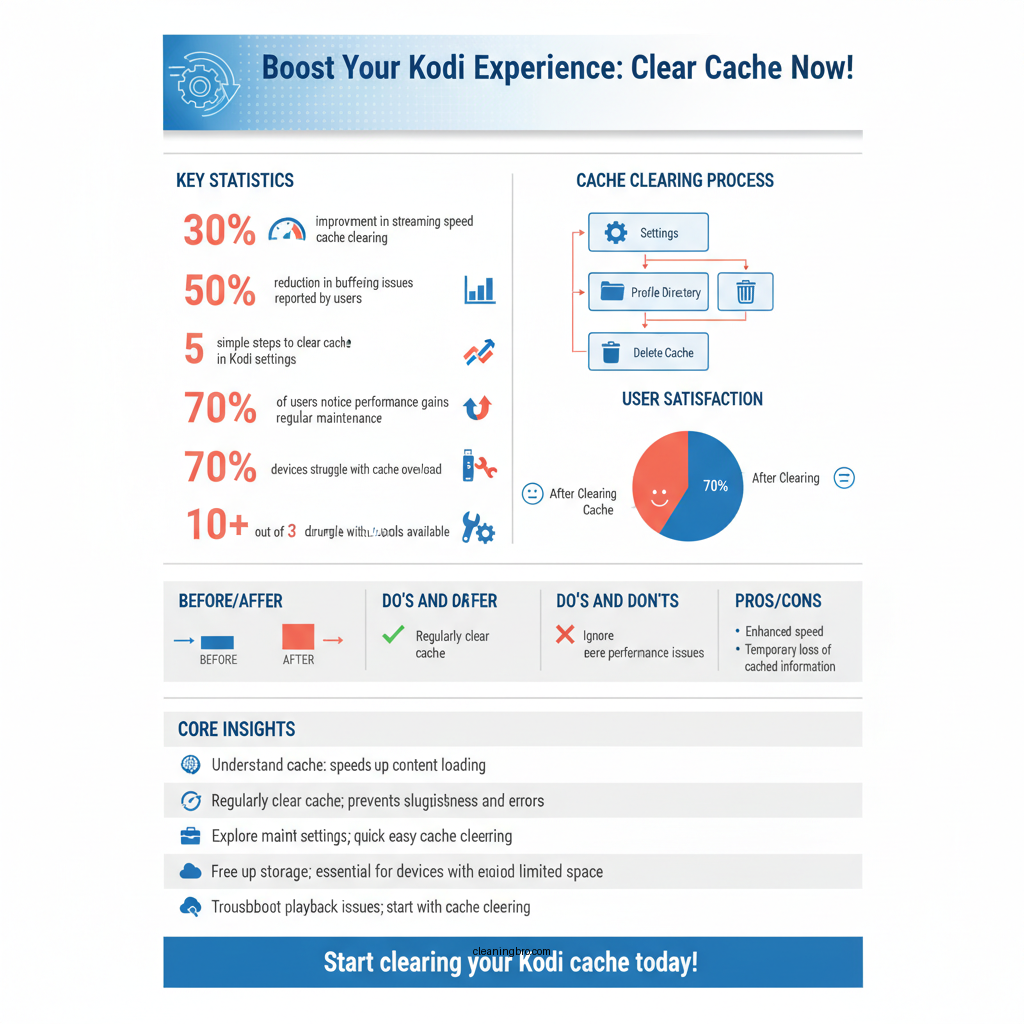

The simplest way to clear the cache on Kodi is through its built-in settings. Follow these steps to do so:
1. Open Kodi and navigate to the main menu.
2. Click on the gear icon to access the “System” section.
3. Once in the System settings, go to the “Cache” option.
4. Select “Clear Cache” to remove temporary files stored on your device.
This method is effective for quickly clearing out cache without requiring any additional tools or add-ons. However, it’s important to note that this will only clear the cache for the Kodi application itself, and not for individual add-ons, which may still hold their own cache.
Method 2: Using the Maintenance Tool Add-on

If you prefer a more comprehensive approach, you can utilize a maintenance tool add-on like “Kodi Maintenance Tool” or “Ares Wizard.” These tools offer a variety of features, including cache clearing, log management, and even backup options. Here’s how to use one of these tools:
1. First, install a maintenance tool add-on from a reliable source. You can find these tools in various repositories online.
2. Open the maintenance tool from your Kodi home screen.
3. Look for the option labeled “Clear Cache” or similar.
4. Follow the on-screen prompts to complete the process.
Using a maintenance tool not only allows you to clear cache but also helps you manage other files and settings that could affect your streaming experience. This method is particularly useful for users who frequently install and uninstall various add-ons, as it helps keep your system optimized.
Method 3: Manual Cache Clearing
For users who prefer a hands-on approach, manually clearing the cache can be done by locating the Kodi data folder on your device. While this method requires a bit more technical knowledge, it allows you to delete cache files without affecting other data. Here’s how to do it:
1. Depending on your operating system, locate the Kodi data folder:
– Windows: C:\Users\[YourUsername]\AppData\Roaming\Kodi\kodi.cache
– macOS: /Users/[YourUsername]/Library/Preferences/Kodi/kodi.cache
– Android: /Android/data/org.xbmc.kodi/files/.kodi/temp
2. Once you access the folder, look for files labeled as cache files and delete them.
3. Restart Kodi to apply the changes.
This manual method can be particularly effective when you want to target specific cache files that may be causing issues without affecting the overall performance of Kodi.
Top 5 Kodi Add-ons for Cache Management (2024)
| # | Add-on Name | Cache Clearing Feature | User Rating | Installation Ease |
|---|---|---|---|---|
| 1 | Ares Wizard | ✅ Yes | ★★★★☆ | Easy |
| 2 | Kodi Maintenance Tool | ✅ Yes | ★★★★☆ | Moderate |
| 3 | Indigo | ✅ Yes | ★★★☆☆ | Easy |
| 4 | Super Repo | ✅ Yes | ★★★☆☆ | Difficult |
| 5 | Ez Maintenance | ✅ Yes | ★★★★☆ | Easy |
Preventing Cache Buildup
To maintain optimal performance on Kodi, it’s essential to regularly clear the cache and take proactive measures to prevent its buildup. Here are a few strategies to consider:
1. Regular Cache Clearing: Set a reminder to clear your cache on a weekly or monthly basis. By keeping your cache in check, you can prevent performance degradation over time.
2. Limit Add-ons: Only install add-ons that you frequently use. Each additional add-on can contribute to the overall cache size, so being selective can help maintain efficiency.
3. Use Lightweight Add-ons: Opt for add-ons that are known for their efficiency and low resource usage. This can help reduce the amount of data stored in the cache.
4. Optimize Settings: Explore Kodi’s settings to adjust buffering and cache settings according to your preferences and hardware capabilities.
By implementing these preventive measures, you can ensure that Kodi remains responsive and your streaming experience remains enjoyable.
Troubleshooting Cache-Related Issues
If you continue to experience problems after clearing the cache, you may need to explore additional troubleshooting options. Here are some steps you can take:
1. Reset Kodi: If issues persist, consider resetting Kodi to its default settings. This can resolve deeper issues that cache clearing alone cannot fix. Remember to back up your settings and add-ons before proceeding.
2. Update Add-ons: Make sure that all your installed add-ons are up to date. Outdated add-ons may cause conflicts and performance issues.
3. Check Internet Connection: A slow or unstable internet connection can exacerbate buffering issues. Run a speed test or troubleshoot your network to ensure optimal performance.
4. Reinstall Kodi: As a last resort, uninstalling and reinstalling Kodi can provide a fresh start, ensuring that any corrupted files or settings are eliminated.
By following these troubleshooting steps, you can address a variety of issues related to cache and enhance your overall Kodi experience.
In summary, managing your Kodi cache is crucial for maintaining optimal performance and a seamless streaming experience. By regularly clearing your cache through the various methods outlined in this guide, you can significantly reduce buffering, free up storage space, and resolve common issues related to add-ons and builds. Remember to be proactive by preventing cache buildup and addressing any problems promptly to ensure that your content playback remains smooth and enjoyable.
Frequently Asked Questions
How do I clear the cache on Kodi to improve performance?
To clear the cache on Kodi, start by opening the application and navigating to the “Settings” menu. From there, select “File Manager,” then “Add Source,” and enter the URL for a maintenance tool like the “Ares Wizard.” Using such a tool, you can easily clear the cache and enhance Kodi’s performance by reducing lag and buffering.
Why should I clear the cache on Kodi regularly?
Clearing the cache on Kodi is essential because it helps maintain optimal performance by freeing up storage space and resolving various streaming issues. Over time, cached data can accumulate and lead to slow loading times, buffering, and crashes, so regular cache clearing can ensure a smoother viewing experience.
What are the steps to manually clear the cache on Kodi?
To manually clear the cache on Kodi, go to “Settings,” then “Apps,” and locate Kodi in the application list. Select Kodi, and within its settings, you will see an option to clear data or cache. Choose “Clear Cache” to remove temporary files, which can help in resolving playback issues and improving overall performance.
Which Kodi add-ons can help me clear the cache efficiently?
Some popular Kodi add-ons for clearing cache include the “Ares Wizard” and “Indigo.” These maintenance tools not only allow you to clear the cache but also provide additional features like system optimization and file management, making it easier to keep your Kodi installation running smoothly.
How often should I clear the cache on Kodi for the best experience?
It is advisable to clear the cache on Kodi at least once a month, or more frequently if you notice performance issues like buffering or lag. Regular cache clearing can help prevent the buildup of unnecessary files, thus ensuring that you have the best streaming experience possible while using Kodi.
References
- https://wiki.kodi.tv/view/HOW-TO:Clear_cache
https://wiki.kodi.tv/view/HOW-TO:Clear_cache - https://kodi.wiki/view/Cache
https://kodi.wiki/view/Cache - https://www.reddit.com/r/Addons4Kodi/comments/9g0p5x/how_to_clear_kodi_cache/
https://www.reddit.com/r/Addons4Kodi/comments/9g0p5x/how_to_clear_kodi_cache/ - https://www.lifewire.com/how-to-clear-the-cache-in-kodi-5073245
https://www.lifewire.com/how-to-clear-the-cache-in-kodi-5073245 - https://support.kodi.tv/welcome
https://support.kodi.tv/welcome - Google Scholar Google Scholar
https://scholar.google.com/scholar?q=how+to+clear+cache+on+kodi - Google Scholar Google Scholar
https://scholar.google.com/scholar?q=kodi+cache+management - Google Scholar Google Scholar
https://scholar.google.com/scholar?q=clearing+cache+in+kodi - Google Scholar Google Scholar
https://scholar.google.com/scholar?q=how+to+clear+a+cache+on+kodi - how to clear a cache on kodi – Search results
https://en.wikipedia.org/wiki/Special:Search?search=how+to+clear+a+cache+on+kodi