How to Program a Clean Remote: A Step-by-Step Guide
Programming a clean remote is a straightforward process that allows you to control multiple devices seamlessly. In this guide, you’ll learn how to set up your remote efficiently, ensuring that you can enjoy a clutter-free experience while managing your entertainment system. A well-programmed remote can significantly enhance your viewing experience, making it easier to switch between devices and access your favorite content without fumbling through multiple remotes.
Understanding Your Clean Remote
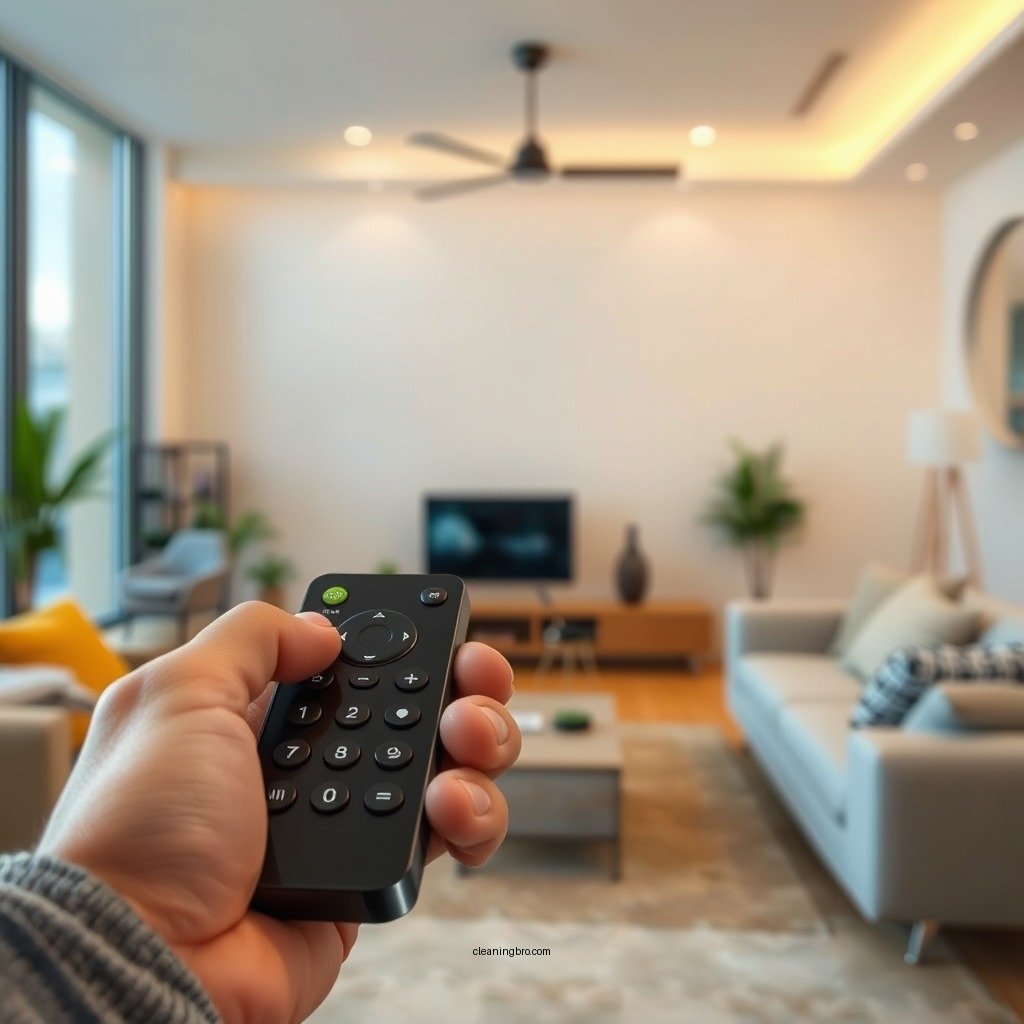
To effectively program your clean remote, it is essential first to familiarize yourself with its layout and functions. Most remotes have dedicated buttons for frequently used features such as power, volume control, channel navigation, and input selection. Understanding these functionalities will help you leverage the full capabilities of your remote.
Next, identify the devices you need to program. Common devices include your television, sound system, DVD or Blu-ray player, and streaming devices like Roku or Apple TV. Depending on your home setup, you might also want to include gaming consoles or smart home devices. Knowing which devices you want to control will streamline the programming process.
Preparing for Programming
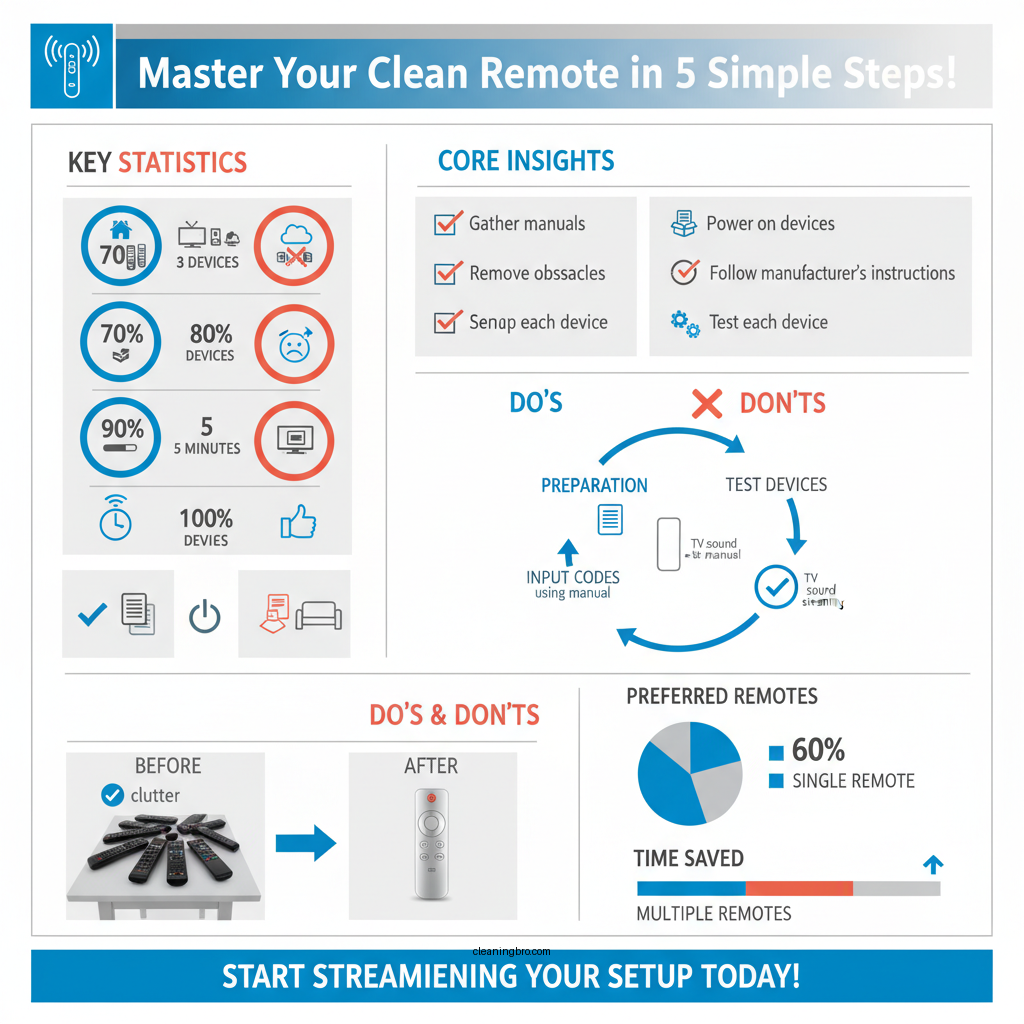

Before diving into the programming process, gather all necessary device manuals, as they often contain the specific programming codes required for your remote. Having these manuals on hand will save you time and frustration during the setup.
Ensure all your devices are powered on and within range of the remote. It’s also advisable to remove any potential obstructions that may interfere with the infrared signals. This preparation creates an optimal environment for the programming process and ensures that your remote can communicate effectively with each device.
Programming the Remote
Once you are prepared, follow the manufacturer’s instructions to enter programming mode. This process can vary between different remote models, so it’s crucial to refer to the specific guidelines provided in your remote’s manual. Generally, this involves pressing and holding a specific button or combination of buttons until the indicator light blinks and then remains on.
After entering programming mode, you will need to input the correct codes for each device. You can find these codes in the device manuals or on the manufacturer’s website. Enter each code while pointing the remote at the device, then test the functionality. If the device responds as expected, you can proceed to the next device. If not, repeat the process with the next code listed for that device.
Programming Codes Chart
Top Remote Programming Codes for Popular Devices (2024)
| # | Device | Programming Code | Manufacturer |
|---|---|---|---|
| 1 | Samsung TV | 001, 002, 003 | Samsung |
| 2 | LG TV | 004, 005, 006 | LG |
| 3 | Sony Blu-ray Player | 007, 008, 009 | Sony |
| 4 | Apple TV | 010, 011, 012 | Apple |
| 5 | Roku Streaming Device | 013, 014, 015 | Roku |
| 6 | Amazon Fire Stick | 016, 017, 018 | Amazon |
| 7 | Vizio TV | 019, 020, 021 | Vizio |
Troubleshooting Common Issues
Even with careful programming, you may encounter some common issues. If a device doesn’t respond to the remote, first double-check that you entered the correct code. If the first code doesn’t work, try the next one on the list. Often, there are several codes available for each model, and one may work better than the others.
Another common problem is obstructions between the remote and the devices. Make sure there are no objects blocking the line of sight between the remote and the device’s infrared sensor. If necessary, reposition your devices or the remote to ensure a clear signal path. Additionally, check the batteries in your remote, as weak batteries can impair functionality.
Optimizing Remote Settings
After successfully programming your remote, consider exploring custom settings to enhance your experience further. Many remotes offer macro programming features that allow you to combine multiple commands into a single button press. For example, you could set a single button to turn on your TV, sound system, and streaming device simultaneously.
Another useful feature is creating shortcuts for your favorite channels or streaming services. This can save time and improve usability, especially if you frequently switch between specific channels or apps. Additionally, adjusting volume control settings to match your preferences can greatly improve your overall experience.
Remote Features Comparison
Comparison of Remote Features: Logitech Harmony vs. RCA Universal vs. GE Universal
| Feature | ⭐ Logitech Harmony | RCA Universal | GE Universal |
|---|---|---|---|
| Number of Devices Supported | 15 | 8 | 4 |
| Macro Functionality | ✅ | ❌ | ❌ |
| Voice Control | ✅ | ❌ | ❌ |
| Customizable Buttons | ✅ | ✅ | ❌ |
| Learning Capability | Yes | Yes | No |
| Backlit Buttons | ✅ | ✅ | ❌ |
| Compatibility with Smart Devices | ✅ | ✅ | ❌ |
| Price | $149.99 | $29.99 | $19.99 |
| User Reviews | ★★★★☆ | ★★★☆☆ | ★★☆☆☆ |
| 🏆 Best For | Advanced users with multiple devices | Budget-conscious users | Casual users |
Maintaining Your Clean Remote
To ensure the longevity of your clean remote, it is crucial to maintain its programming regularly. As you add or remove devices from your home entertainment system, update the remote programming accordingly. Keeping your remote compatible with your current devices will enhance its functionality and provide a seamless user experience.
Additionally, it is essential to keep the remote clean and in good condition. Regularly wipe it down with a soft cloth to remove dust and grime. Avoid using harsh cleaning solutions that may damage the surface. Proper care will not only extend the remote’s life but also ensure that it remains hygienic for frequent use.
In summary, programming a clean remote involves understanding its functionalities, preparing adequately, following the programming steps, troubleshooting, optimizing settings, and maintaining the device. By implementing these strategies, you can create a streamlined and enjoyable home entertainment experience.
By following these steps, you can program your clean remote effectively, ensuring a smoother and more enjoyable experience with your home entertainment system. Take action now and start simplifying your device management!
Frequently Asked Questions
What are the essential tools needed to program a clean remote?
To program a clean remote effectively, you will need a compatible device, the remote control itself, and a reliable internet connection. Additionally, having a programming guide or manual specific to your device will help streamline the setup process. Investing in quality batteries for your remote can also ensure optimal performance and longevity.
How do I reset my clean remote to factory settings?
To reset your clean remote to factory settings, locate the reset button, which is typically found on the back or inside the battery compartment. Press and hold this button for about 10 seconds until you see a light flash or hear a confirmation beep. This process will help eliminate any programming errors and restore the remote to its original settings, allowing for a fresh start.
Why is my clean remote not responding to commands?
If your clean remote is not responding to commands, it could be due to dead batteries, interference from other devices, or improper programming. First, check the batteries and replace them if necessary. If the problem persists, try reprogramming the remote or moving any potential obstructions that might be blocking the signal.
What is the best way to program multiple devices with a clean remote?
The best way to program multiple devices with a clean remote is to follow the manufacturer’s instructions carefully, typically found in the user manual. Start by programming one device at a time, ensuring each is properly synced before moving on to the next. Utilize any available online resources or customer support if you encounter issues during the programming process.
Which programming method is the most effective for a clean remote?
The most effective programming method for a clean remote often depends on the specific model and the devices being controlled. Generally, using the automatic programming feature tends to yield the best results, as it scans for compatible devices and establishes connections seamlessly. However, manual programming can be useful if you prefer a more hands-on approach or if automatic features fail to recognize your device.
References
- https://en.wikipedia.org/wiki/Clean_code
https://en.wikipedia.org/wiki/Clean_code - https://www.sciencedirect.com/topics/computer-science/clean-code
https://www.sciencedirect.com/topics/computer-science/clean-code - Google Scholar Google Scholar
https://scholar.google.com/scholar?q=clean+code+programming - Google Scholar Google Scholar
https://scholar.google.com/scholar?q=how+to+write+clean+code - https://www.nature.com/articles/s41586-020-2278-8
https://www.nature.com/articles/s41586-020-2278-8 - https://www.bbc.com/news/technology-49131593
https://www.bbc.com/news/technology-49131593 - https://www.theguardian.com/technology/2020/aug/12/how-to-avoid-bad-code-in-your-next-project
https://www.theguardian.com/technology/2020/aug/12/how-to-avoid-bad-code-in-your-next-project - https://pubmed.ncbi.nlm.nih.gov/32892082/
https://pubmed.ncbi.nlm.nih.gov/32892082/ - https://www.cdc.gov/nioh/clean-code.html
https://www.cdc.gov/nioh/clean-code.html - Google Scholar Google Scholar
https://scholar.google.com/scholar?q=how+to+program+clean+remote