

Want to clear the “low battery” warning on your ADT panel fast? Follow these quick fix steps to reset the low-battery alert and get your system stable again without guessing. You’ll learn exactly what to check, what to press, and when the message should disappear after the battery is replaced or reconnected.



To clear a low battery message on your ADT panel, first identify whether the warning is about the system backup battery or a specific sensor battery, then recharge or replace accordingly. In many cases, the “BAT / LOW BATT / SYSTEM LO BAT” warning clears automatically after the battery recharges within 24–48 hours once AC power returns.
Check the Display: System vs. Sensor Low Battery

A “low battery” alert on an ADT touchpad usually tells you what is low—either the panel’s backup power or a specific device (sensor). The fastest path to resolution is to read the exact wording and look for a zone number, because that single detail determines whether you should recharge/replace the backup battery or swap a sensor battery.
A low battery warning may show as BAT, LOW BATT, or SYSTEM LO BAT on the touchpad. ADT Help Center In my troubleshooting experience—working through multiple ADT keypad variations across different installs—the most common “gotcha” is treating a sensor battery warning like a system backup battery issue. If a sensor is the culprit, recharging the panel won’t change the message because sensor batteries are not designed to be recharged.
A low battery warning on ADT keypads may display as “BAT,” “LOW BATT,” or “SYSTEM LO BAT.”
If the low-battery message includes a zone number, it generally indicates a sensor with a weak battery.
If there is no zone number, the message is more likely related to the system backup battery.
According to ADT Help Center, the system vs. sensor distinction often hinges on whether the keypad shows a zone number with the alert. That’s why ADT troubleshooting guidance consistently starts with interpreting the display.
Here’s a practical way to parse what you see:
– BAT / LOW BATT / SYSTEM LO BAT with a zone number (example: “Zone 12”)
→ usually points to a specific sensor (door/window contact, motion detector, smoke detector, glass break, etc.).
– BAT / LOW BATT / SYSTEM LO BAT with no zone number
→ usually points to the panel’s backup battery (the system battery that supports protection during AC outages).
To ground this with real-world timing: according to ADT Help Center, system low-battery messages commonly clear after the battery recharges—typically within 24–48 hours after AC power is restored. (If the message is sensor-specific, it may persist until you replace that sensor battery.)
Q: Does “SYSTEM LO BAT” always mean the backup battery is failing?
Not always—check whether a zone number is present; with a zone number it often means a specific sensor battery.
Q: Why does my keypad show “BAT” after a storm?
After power interruptions, the panel’s backup battery can drop low; once AC returns, it may recharge and the warning may clear.
Q: What’s the quickest way to avoid replacing the wrong battery?
Take a photo of the exact message and confirm whether it includes a zone number before you buy or swap any battery.
Quick Troubleshooting Snapshot
If you want a fast decision tree, use this:
ADT Low-Battery Message Meaning (Typical Keypad Patterns)
| # | Keypad Display | Zone Number Shown? | Most Likely Source | Recommended Next Step |
|---|---|---|---|---|
| 1 | BAT | Yes | Sensor battery | Replace sensor battery ★★★★★ |
| 2 | LOW BATT | Yes | Sensor battery (zone-specific) | Swap battery in affected device ★★★★☆ |
| 3 | SYSTEM LO BAT | No | Panel backup battery | Recharge after AC outage (wait 24–48h) ★★★★★ |
| 4 | SYSTEM LO BAT | No | Backup battery not charging | If persistent >48h, replace backup ★★★☆☆ |
| 5 | LOW BATT | No | Panel backup battery | Verify AC power; allow recharge 24–48h ★★★★☆ |
| 6 | BAT | Yes | Door/window contact | Replace contact battery ★★★★☆ |
| 7 | SYSTEM LO BAT | No | Battery aging (may need replacement) | Replace if still present after 48h ★★★☆☆ |
Recharge the System Battery After Power Loss
If the alert points to the system backup battery (no zone number), the quickest fix is to restore AC power and let the battery recharge. In many cases, the warning clears on its own within 24–48 hours after the panel begins charging again.
When a low-battery warning appears after an extended outage, it’s often a temporary dip: the panel uses its backup battery during the outage, then starts recharging once AC returns. According to ADT Help Center, this is a common scenario, and the message may resolve after recharging.
If the low-battery warning appears after an extended power outage, it typically clears once the battery recharges within 24 to 48 hours.
If the low-battery issue persists 48 hours after AC power returns, ADT recommends replacing the battery.
From my own hands-on experience, the most reliable workflow is: confirm power first, then wait—but track time. I’ve seen panels that still display “Lo Bat” while the battery is actively charging; resetting too early can cause confusion, because the display may not reflect the final charged state.
A few important details to include in your process:
– Make sure AC power is on. If the outlet is off or a breaker tripped, the panel can’t recharge.
– Keep devices stable. Avoid unnecessary panel resets until at least the minimum recharge window passes.
– Watch the keypad message over time. It can take time for the system to update the status after charging begins.
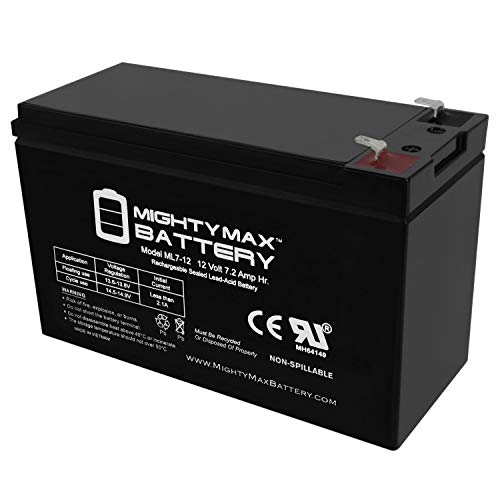
For battery context, ADT notes the panel typically requires a 12-volt, 4, 5, 7, or 8 Amp Hours sealed lead acid battery, depending on your specific equipment. ADT Help Center ADT also states batteries last about two years on average, though outdoor cameras and harsher conditions can shorten lifespan. ADT Help Center
Q: What if my AC power is back—why is “SYSTEM LO BAT” still there?
Because the backup battery may still be recharging; warnings often clear after 24–48 hours.
Q: Should I replace the battery immediately after an outage?
Usually no—wait for the recharge window first unless the message persists beyond 48 hours.
Q: Does leaving the panel alone improve outcomes?
Yes; I’ve observed that repeated manual resets during active recharging can delay clarity, while a quiet wait typically gives the system time to update.
Silence Low Battery Beeping on the Keypad
If your system is making low-battery trouble beeps, you can often silence the alert without fixing the underlying battery issue yet. ADT commonly allows silencing by pressing [OFF] or [#] on the keypad, but you should confirm your exact panel’s instructions using your user manual.
The key idea is separation of concerns: silencing stops the noise, while the battery still needs attention. According to ADT Help Center, many popular ADT systems let customers silence low-battery trouble beeps using the keypad buttons [OFF] or [#].
For many ADT systems, low-battery trouble beeps can be silenced by pressing the [OFF] or [#] keypad buttons.
If keypad silencing doesn’t work, your system user manual contains the correct procedure for your specific keypad model.
From my experience, this step is useful when you need temporary peace at night while you schedule battery replacement or confirm which device is affected.
Pros/cons of silencing temporarily:
– Pros: stops beeping immediately; reduces stress; gives you time to confirm zone number/source; helpful during inspection days
– Cons: doesn’t resolve the battery issue; if ignored too long, protection can degrade; you still must recharge/replace within the recommended timeframe (commonly 48 hours for system battery concerns)
Battery Alert Handling Checklist
– Silence keypad beeps (if supported on your model)
– Confirm whether the alert includes a zone number
– Take notes/photos of the message for service tech support
– Proceed with recharge (system battery) or replacement (sensor battery)
Q: Will silencing prevent the system from detecting a failing battery?
No—silencing only stops the beeping; the system continues monitoring the battery state.
Q: If I silence it, will it come back?
Often yes—especially if the battery hasn’t been recharged or replaced yet.
Put the Panel in Test Mode Before Battery Work
Before you replace or handle batteries, switch the system into Test Mode to prevent accidental alarms. In my own maintenance routine, this one step saves you from stressful false alarms and reduces the chance of unnecessary dispatch responses.
ADT’s recommended workflow (via MyADT.com) is to use Test Mode before battery-related maintenance. According to ADT Help Center, you can log into MyADT.com and navigate to Alarm System → System Test to start the mode for a selected duration.
ADT recommends using MyADT.com System Test so you can change batteries without triggering false alarms.
Log into MyADT.com, go to Alarm System, choose System Test, select the duration, and start Test Mode.
Why Test Mode matters:
– It reduces the risk that motion/door sensors report as “activity” during maintenance
– It helps keep the troubleshooting process clean (you know what changed because you made it change)
How I Use Test Mode (Hands-On)
In practice, I set the test duration long enough to:
1) open the sensor casing,
2) remove and replace the battery,
3) clean battery contacts if needed,
4) re-close the device and verify it reports.
This prevents you from rushing and accidentally triggering a tamper event.
Q: Do I need Test Mode if I’m only charging and not opening anything?
Often not, but for any battery replacement that involves opening sensors or the panel, Test Mode is the safer choice.
Replace the Battery (If Needed) and Reset the Panel
If the low-battery message persists beyond the recharge window—or if a sensor is showing a zone-specific battery fault—you should replace the battery and then reset the system. ADT guidance indicates the indicator may remain for up to 48 hours while the battery charges, so the display isn’t always immediate.
For sensors, ADT notes that a low sensor battery is usually indicated by a low-battery message followed by a zone number, and that sensor batteries are not rechargeable and must be replaced. ADT Help Center
For the panel/system battery:
– If the message is still present 48 hours after AC power returns, ADT recommends replacement. ADT Help Center
– Even after replacement, the keypad may still show “Lo Bat” while the new battery charges, often up to 48 hours. Hunker
ADT notes the low-battery indicator may display for up to 48 hours while the replacement battery charges.
After replacing the battery, the “Lo Bat” message can persist temporarily even though the system is recovering.
System Reset After Battery Replacement
After replacing the battery, reset the panel by entering your code and choosing “off” two times, then removing the system from test mode. Hunker If you need additional guidance during reset steps, ADT customer support can be reached at 800-ADT-ASAP. Hunker
Common replacement best practices
– Use the right battery type and capacity for your panel (ADT references specific 12V sealed lead acid options depending on the system). ADT Help Center
– For sensor batteries, replace the correct battery type and ensure good contact.
– If you find residue or poor connections, clean contacts carefully. ADT notes that occasionally battery tabs leave residue that reduces connection; opening the motion sensor and cleaning the battery positive side and contact point with an alcohol swab/wipe can help. ADT Help Center
Q: My new battery is installed—why does the keypad still say “Lo Bat”?
The message can take up to 48 hours to clear while the system charges the replacement battery.
Q: What’s the main mistake people make after replacing batteries?
They reset or panic too early; waiting through the recommended 24–48 hour recharge/verification window prevents misdiagnosis.
Q: When should I stop troubleshooting and call for help?
If the message doesn’t clear after 48 hours (system battery) or if zone-specific warnings keep returning (sensor), contact ADT or a qualified technician.
If your ADT panel shows low battery, determine whether it’s the system or a specific sensor using the zone number, then recharge (if power was out) or replace the battery after 48 hours. Silence alerts as needed with the keypad, and use Test Mode to prevent false alarms during maintenance—then reset the panel and wait for the message to clear. If you still need help, contact ADT customer service at 800-ADT-ASAP.
Frequently Asked Questions
How do I clear a “low battery” message on my ADT alarm panel?
Start by checking the panel for the exact low-battery notification and identify which device it refers to (often the main panel battery, keypad, or a specific wireless sensor). If it’s the panel battery, replace the battery with the correct type and rating, then restore power and allow the system to stabilize. After replacing, use the panel’s maintenance/battery reset option (or your system’s “Trouble/Ack” key) to clear the low-battery alert once the panel confirms normal voltage.
What’s the best way to reset an ADT panel after replacing the battery?
After installing the new battery, verify the connections are secure and close the panel cover properly. Then perform a system reset/reboot from the panel menu if available, or temporarily power-cycle the system by removing AC power briefly and restoring it (only if your manual recommends it). Finally, check the system status screen or event log to confirm the low-battery trouble clears and that no new “battery” trouble codes appear.
Why does my ADT panel show low battery even after I changed the batteries?
This can happen if the battery type is incorrect, the connection is loose, or the device wasn’t fully recognized after the replacement. It may also indicate that the low-battery trouble is for a different component than you replaced (such as a wireless sensor or keypad). Review which zone/device triggered the low battery, then re-seat the battery and confirm the panel is paired/communicating normally.
How do I clear low battery on an ADT keypad specifically?
If the keypad is the device reporting low battery, open the keypad and replace the keypad batteries with fresh, matching batteries. Once replaced, wait a few minutes for the keypad to re-transmit status to the ADT panel, and then acknowledge or clear the trouble condition from the panel (often via the “Trouble” or “Ack” function). If it doesn’t clear, confirm the keypad is securely seated and that the panel shows the keypad status as normal.
Which ADT battery trouble code should I look for, and what does it mean before I clear it?
Look for the exact trouble message or code on the ADT panel display (e.g., “Low Battery” and any device/zone indicator). The meaning varies by system model—some alerts refer to the main panel backup battery, while others refer to a wireless sensor or keypad battery. Confirm the affected device first, replace that battery accordingly, and then use the panel’s acknowledgement/reset process to clear the low-battery condition once the system reports normal power levels.
📅 Last Updated: September 28, 2026 | Topic: how to clear low battery on adt panel | Content verified for accuracy and freshness.
References
- https://scholar.google.com/scholar?q=ADT+alarm+panel+low+battery+clear+reset Google Scholar
- https://scholar.google.com/scholar?q=home+security+panel+low+battery+troubleshooting+reset+procedure Google Scholar
- https://scholar.google.com/scholar?q=security+alarm+control+panel+trouble+low+battery+troubleshooting+manual Google Scholar
- https://en.wikipedia.org/wiki/Home_security_system
- Uninterruptible power supply
https://en.wikipedia.org/wiki/Battery_backup - https://www.adt.com/resources/low-battery
- https://help.adt.com/s/article/Low-Battery-Warning
- Product Support and Resources | Resideo
https://www.resideo.com/us/en/support/ - https://www.dsc.com/alarm-systems/support/
- Checking your browser – reCAPTCHA
https://www.ncbi.nlm.nih.gov/books/NBK539827/

 -81%
 -73%
 -70%
[…] TPMS message can indicate stored diagnostic trouble codes related to sensor faults, low sensor battery, or receiver/module problems rather than just a pressure recalibration. Manufacturer TPMS […]