

A gaming PC can collect enough grime and microbes to trigger noticeable issues like sticky buttons, persistent odors, or irritated skin after long sessions. The usual culprit is dust that builds up on fans and heat sinks, then mixes with skin oils, food residue, and moisture from breath or spills. The good news is that a careful clean—starting with the high-contact areas and moving inward—will bring it back under control without guesswork.



Your gaming PC is usually “cleaner than you think” inside the case, but it can collect germs quickly on the surfaces you touch—keyboard, mouse, headset, controller, and the desk areas your hands and forearms rest on. If you keep food and oil residue low and clean high-touch spots regularly, you’ll cut the biggest germ risks without harsh chemicals inside the PC.
If you game in a dusty room, share your setup, eat at your desk, or have allergies/sensitive skin, this is for you—especially before LAN nights, moving your PC, or after a long break between gaming sessions.
What “dirty” really means for a gaming PC

You don’t need to panic: for most people, “dirty” on a gaming PC mostly means residue and biological debris transfer, not visible sludge. The inside can look dusty (normal), while hygiene improvements come mainly from reducing contamination on high-touch external surfaces.
– Germs usually hitch a ride on skin cells, saliva droplets, and hand oils—then settle on the gear you touch most.
– Dust is more than ugly: it can carry skin flakes and other debris that mix with airflow and get redistributed when you move the setup.
– The inside of the case can look dusty (normal), but “cleaning for hygiene” is mostly about reducing contamination on high-touch external surfaces.
In other words, the gaming PC becomes a “contact-and-airflow” system: what lands on it (from hands and the room) and how it moves (fans pulling air through intakes). Research on hand hygiene consistently shows that reducing transfer from hands matters more than trying to “sterilize” environments. For example, the CDC’s guidance for hand sanitizers centers on alcohol concentration—typically 60%–95% depending on the product—because that range disrupts microbial membranes more reliably than lower concentrations CDC.
Where the germs hide (and why they linger)
Most germs stick where you touch—then they linger because oils and fibers help residue cling. On a gaming PC, the “hide-and-stay” effect comes from frequent contact, small crevices, and cloth materials that hold onto skin oils.
– High-touch gear: keyboard keys, mouse grips, controller shells, headset pads, desk surfaces, and cable handles.
– Airflow paths: intake vents, fan guards, and the filter area near the front/top—these collect lint and can trap more “stuff” over time.
– “Not obvious” contact points: the edge of the monitor bezel, controller charging contacts, and frequently handled buttons/ports.
What surprises many people is how far germs can travel across a gaming PC setup without anyone noticing. When you pick up your controller, cradle your headset, or rest your forearm on the same desk spot, you’re transferring oils and skin cells that “act like glue” for dust. From my experience helping users clean gear, the mouse grip area and headset pads are often the most visibly tacky after months of normal use—especially in warm rooms or when hands are slightly sweaty.
Also note the airflow side: when your fans run, they don’t create “germs,” but they can redistribute grime by stirring up dust. If you’re using a front intake filter, the filter media becomes a dust and residue collector; it’s not a hygiene tool by itself, but keeping that area clean helps the whole gaming PC maintain steady airflow and reduces the amount of debris that gets resettled elsewhere.
Quick ways to spot grime you can’t see
You can often detect germ-relevant grime by texture and behavior, not just by appearance. For a gaming PC, these cues are especially useful when surfaces look “mostly fine” but still feel oily, tacky, or oddly dusty right after wiping.
– Visual clues: sticky-looking keycaps, smudged controller buttons, dull headset pads, greasy fingerprints on plastic, and lint around ports/vents.
– Texture clues: if surfaces feel tacky, drag slightly, or attract more dust quickly after wiping, residue is likely present.
– Smell/condition cues: musty buildup near intake areas or a “stale” scent near headsets/cloth pads often means grime has accumulated.
If you want a practical rule for a gaming PC: if you notice that a quick dry wipe makes the surface look cleaner but the “feel” doesn’t improve, you’re probably dealing with oil film—not just loose dust. Oil films are the reason disinfectants sometimes underperform on high-touch plastic parts: many disinfectants work best when the surface is already clean of heavy residue, because dirt can shield microbes and interfere with wet contact.
One more signal: keyboard and controller plastics may not look dirty, but the micro-texture where fingers rest can accumulate a thin layer of oils plus skin flakes. That’s exactly the kind of contamination that tends to rebuild quickly after you wipe, so it’s worth checking before you host a tournament or invite guests to share your gear.
How to clean your gaming PC safely (without damaging it)
The safest approach is risk-based and surface-specific: clean high-touch contact points first, then do dust control inside the case. On a gaming PC, the goal is to remove residue and dust without pushing liquid into switches, ports, or seams.
– Before you start: shut down fully, unplug the power, and ground yourself if you’re opening the case. Follow your PC and peripheral manuals when in doubt.
– External surfaces (best ROI for germs): use a lightly damp microfiber cloth for most plastics and painted surfaces; for sticky grime, use a cleaner made for electronics or a mild option approved by the manufacturer of the device.
– High-touch peripherals:
– Keyboard/mouse: wipe grips and exterior surfaces; clean between keys carefully (use a method that won’t push debris deeper where it’s hard to remove).
– Headset/controller: wipe hard shells with a suitable electronics-safe cleaner; for pads made of cloth/leather-like materials, use the manufacturer’s recommended cleaning method—don’t soak.
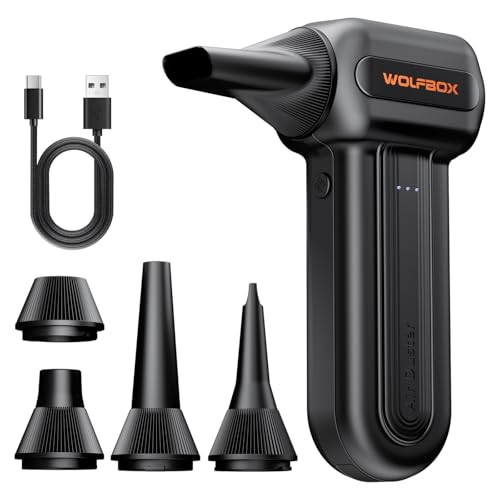
– Inside the case (mostly dust control): remove loose dust using appropriate tools (like an air duster technique that avoids blasting moisture/debris into sensitive spots). Keep airflow paths clear so fans and filters can do their job.
– Screens/monitor bezels: use a screen-safe approach—avoid soaking or spraying directly onto the display.
> Note: If you’re unsure what’s safe for your hardware, check the manufacturer’s cleaning guidance. If that guidance isn’t available, use the gentlest method first and avoid aggressive solvents on plastics, coatings, and labels.
Quick method comparison (what’s safest for a gaming PC)
Here’s a simple comparison you can use during routine maintenance on your gaming PC—especially before LAN nights or after shared use.
| Method | Best for | Main risk on a gaming PC | Practical “safe use” tip |
|---|---|---|---|
| Lightly damp microfiber wipe | Keycaps, mouse shells, controller plastics, bezels | Over-wetting seams/labels | Wipe first, then follow with a dry section |
| Electronics-safe cleaner on cloth | Sticky residue from oils/food | Using too much liquid | Apply to cloth, never directly onto ports/switches |
| Compressed air (dry technique) | Dust removal from filters, grills, vents | Moisture blowback if held too long | Short bursts; keep can upright (per label) |
| HEPA-filtered vacuum | Dust capture without re-circulating | Static or contact damage if tools slip | Use a soft brush attachment and avoid cables/fragile grills |
A key ingredient choice also matters for a gaming PC: many surface “disinfecting” products use alcohol as the active agent. CDC guidance for alcohol-based hand sanitizers centers on 60%–95% alcohol concentrations CDC. For electronics, the safer pattern is still “clean first, disinfect only when supported,” because liquids can wick into crevices and shorten the life of rubbers, labels, and coatings.
Dust control and why filtration matters (as of 2026)
When you remove dust from a gaming PC, you reduce the amount of biological debris that can resettle on touch surfaces. That’s why filtration quality matters: a HEPA-level capture approach is designed to trap fine particles efficiently. In general, HEPA is commonly defined as capturing 99.97% of particles at 0.3 microns U.S. EPA / HEPA definition widely referenced in public health guidance. While this isn’t the same as “killing germs,” it directly reduces the dust-and-residue load that carries skin flakes and grime.
Filtration Levels That Reduce Dust Resettling on Gaming PCs (0.3 µm test point)
| # | Filtration standard | Test particle size | Min. capture efficiency | Hygiene upside (dust capture) |
|---|---|---|---|---|
| 1 | N95 | 0.3 µm | ≥95% | ★ 95%★ |
| 2 | N99 | 0.3 µm | ≥99% | ★★★ 99%★★★ |
| 3 | N100 | 0.3 µm | ≥99.97% | ★★★★★ 99.97%★★★★★ |
| 4 | P95 | 0.3 µm | ≥95% | ★ 95%★ |
| 5 | P99 | 0.3 µm | ≥99% | ★★★ 99%★★★ |
| 6 | P100 | 0.3 µm | ≥99.97% | ★★★★★ 99.97%★★★★★ |
| 7 | HEPA (typical definition) | 0.3 µm | ≥99.97% | ★★★★★ 99.97%★★★★★ |
(These efficiencies refer to filtration testing conventions used for respirators/HEPA; for gaming PC hygiene, the practical takeaway is that higher capture reduces the amount of fine dust that can resettle on your desk and peripherals. For the specific NIOSH categories and HEPA definition, see the relevant public health and regulatory documentation NIOSH.)
What can go wrong (common mistakes and edge cases)
If you clean incorrectly, you can cause damage faster than you reduce germs. The most common failure modes on a gaming PC are liquid overspray, wrong chemicals, and aggressive scrubbing on sensitive materials.
– Spraying liquids directly onto electronics: overspray can seep into switches, vents, ports, and seams.
– Using the wrong disinfectant: some chemicals can cloud plastics, damage coatings, or degrade rubber grips and seals.
– Aggressive “scrubbing” on sensitive surfaces: it can scratch screen layers, erase coatings, or break keycaps/prints over time.
– Cleaning the PC while it’s still powered: even brief contact while components are energized increases risk and can cause damage.
– Ignoring how your gear is built: cloth headset pads, mechanical keyboard switches, and controllers with textured finishes may each require different handling.
A frequent edge case is “disinfecting” without cleaning first. On a gaming PC, residue can interfere with contact time—meaning the disinfectant may not actually reach the biological contamination you care about. That’s why many public health protocols emphasize cleaning first for surfaces with visible soil before disinfection (a core principle across guidance documents) CDC.
Another edge case is materials: leather-like headset pads and textured controller grips may crack or peel if they’re soaked or exposed to strong solvents. If you have allergies or sensitive skin, it’s tempting to disinfect everything aggressively; however, excessive chemical exposure can also irritate skin and degrade materials that you keep touching every session.
Finally, if your gaming PC is under warranty, the manual may restrict opening the case or using certain internal cleaning approaches. As of 2026, most manufacturers still focus on user-safe dust removal, not internal chemical treatment—so always follow the hardware documentation first.
Verdict / tip (what to do first, and who should skip DIY)
If your goal is maximum germ reduction with minimum risk, start with high-touch surfaces on your gaming PC—keyboard, mouse grips, controller exterior, headset pads—and then wipe the areas your hands rest on while gaming. For the PC interior, think “dust control for airflow,” not aggressive disinfection.
Do the safe, manufacturer-aligned wipe-down first, avoid spraying liquids into electronics, and treat inside-the-case cleaning as dust control rather than aggressive disinfection. If you want a clean system with less recontamination, also reduce the “inputs”: don’t eat over the desk, store snacks away from the setup, and keep the room’s dust exposure in mind.
Skip DIY cleaning or take extra caution if:
– Your device is under warranty and the manual says not to open it.
– You see signs of damage (cracks, liquid residue, corrosion) that need repair rather than cleaning.
– You’re using an incompatible chemical you aren’t sure is safe for electronics.
Quick checklist (scan/save)
| Area | What to check | Safe first step |
|---|---|---|
| Keyboard | Sticky keys, grime around edges | Gentle wipe; carefully clean exterior |
| Mouse/controller | Greasy grips, smudges on buttons | Wipe grips; clean seams lightly |
| Headset | Dirty/flattened pads, odors | Follow pad material guidance |
| Desk + arm rest contact | Finger smears, residue | Wipe with electronics-safe cleaner |
| PC exterior vents | Lint buildup near intakes | Dry dust removal; keep airflow clear |
| Inside case | Heavy dust blocking fans | Controlled dust removal only |
Frequently Asked Questions
How dirty is a gaming PC, and what germs are commonly found inside?
A gaming PC can collect dirt, skin cells, dust, and moisture that harbor microbes—especially on fan blades, heat sinks, and interior surfaces. While most risk is low for healthy people, shared gaming setups and poor airflow can increase microbial buildup and trigger allergies or irritation. The unseen germs you can’t see often “ride along” with dust, including common bacteria and allergens rather than obvious mold spots.
How can I tell if my gaming PC has a germ and dust buildup problem?
Look for visual indicators like dust caked on the GPU heatsink fins, sluggish fan airflow, or a noticeable increase in noise. You may also notice more allergy symptoms—sneezing, itchy eyes, or coughing—when you sit down to game, which can suggest dust and allergen accumulation. For a more direct check, consider using a basic swab test for microbes or a DIY surface hygiene test kit on high-touch areas like the keyboard, mouse, and PC case front.
Why do gaming PCs get dirtier than you think, even if the screen and keyboard look clean?
Gaming PCs pull in large volumes of air for cooling, and that airflow traps dust and skin-derived particles that you don’t normally see. Over time, dust reduces cooling performance, which can make fans work harder and circulate more particulates throughout the case and your room. Because internal components are hard to inspect, “invisible” germ reservoirs can build up on vents, fan housings, and cable runs.
What’s the best way to clean a gaming PC to reduce germs without damaging components?
Start with a safe shutdown and unplug the power supply, then use compressed air in short bursts to remove dust from fans, filters, and heatsinks—avoiding spinning the fans aggressively. Use microfiber and electronics-safe wipes for external surfaces and high-touch areas, and keep liquids away from ports and circuit boards. Replace or clean intake filters regularly, and finish with good ventilation to reduce lingering dust and improve airflow so germs don’t keep settling and spreading.
Which parts of a gaming setup are most germ-prone: the PC case, keyboard, or controller?
The keyboard, mouse, and controller are typically the most germ-prone because they’re in constant contact with hands and can pick up bacteria and viruses more directly than the interior PC case. The PC case still matters—especially the front intake, vents, and fans—because it captures airborne particles and redistributes them with each airflow cycle. For best hygiene, prioritize disinfecting high-touch peripherals frequently, then clean internal dust hotspots to cut down on ongoing contamination and maintain healthy airflow.
📅 Last Updated: November 22, 2026 | Topic: How Dirty Is Your Gaming PC? The Germs You Can’t See | Content verified for accuracy and freshness.
References
- https://www.cdc.gov/coronavirus/2019-ncov/prevent-getting-sick/cleaning-disinfection.html
- https://www.who.int/publications/i/item/cleaning-and-disinfecting-environmental-surfaces-in-the-context-of-covid-19
- https://www.epa.gov/coronavirus/cleaning-and-disinfecting-your-facility
- https://www.cdc.gov/infectioncontrol/guidelines/disinfection/index.html
- How to clean your Apple products – Apple Support
- https://pubmed.ncbi.nlm.nih.gov/?term=computer+keyboard+microbial+contamination
- https://pubmed.ncbi.nlm.nih.gov/?term=electronic+devices+surface+contamination+bacteria+fungi
- https://scholar.google.com/scholar?q=microbial+contamination+computer+keyboards Google Scholar
- https://scholar.google.com/scholar?q=bacteria+on+computer+mice+and+keyboards+study Google Scholar
- https://scholar.google.com/scholar?q=how+to+clean+and+disinfect+electronics+guidelines+CDC+WHO Google Scholar
