

You pull your gaming PC away from the desk and notice a fine gray layer on the fan blades and heatsink fins. With a soft, dry brush and a can of compressed air for stubborn grit, you can loosen dust, clear airflow paths, and help keep performance stable in about 20–30 minutes. Work methodically, unplug the system, and use light pressure so you do not disturb delicate components or cables.


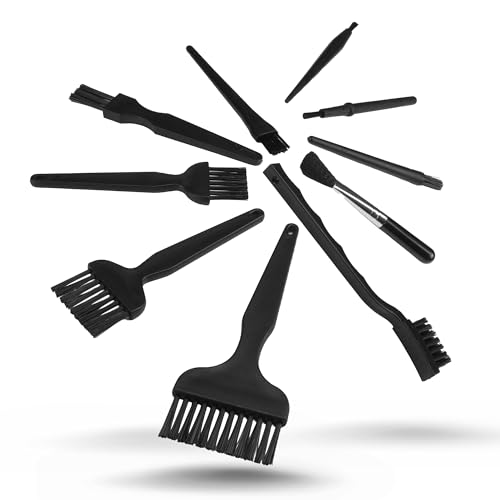

Unplug your PC, open the case, and use a soft, clean brush to loosen dust from fans, heatsinks, and hard-to-reach corners before wiping or suctioning what falls out. The key is gentle brushing—then stop if you hit stubborn buildup or anything feels stuck. This method reduces the temptation to scrape fins or force components into place, which is where most accidental damage happens.
This is for anyone noticing dust on the GPU/CPU area, fan blades, or vents and wants a safer approach than scraping. It’s also a good fit if you want a simple routine between deeper cleanings—especially in 2025–2026, when many gaming setups run warmer and longer.
Prep safely (what you’ll need)

You don’t start cleaning a gaming PC by reaching for tools—you start by stacking the right materials and reducing risk. If you plan to use a soft brush, the goal is to remove loose particulate without scratching heatsink fins or stressing fan assemblies.
– Gather a soft anti-static brush (or a new, dedicated paint/ESD-safe brush), microfiber cloth, and compressed air if available.
– Tip: If your brush has metal in the handle or ferrule, avoid contact with exposed electronics—use the bristles only and keep everything grounded by following ESD basics.
– Work in a well-lit area and protect the floor/surfaces (dust can shed quickly).
– Lay down a towel or use a disposable mat so you can collect debris instead of letting it spread across your workspace.
– Have the motherboard/PC manual handy for any model-specific warnings about fan headers or connectors.
– This matters because some fan headers are sensitive to pin orientation, and some case fans or shrouds are designed to be removed only one way.
To understand why this “soft brush first” approach works, it helps to remember that most PC dust is particulate. According to the U.S. Environmental Protection Agency, PM2.5 is defined as particles with aerodynamic diameter ≤ 2.5 µm U.S. Environmental Protection Agency (EPA) (2024). According to the EPA, PM10 includes particles with aerodynamic diameter ≤ 10 µm U.S. Environmental Protection Agency (EPA) (2024). These smaller particles behave like they “cling” during dry cleaning, which is why gentle brushing plus wipe/suction tends to be safer than aggressive scraping.
Dust Particle Size Bands and How a Soft Brush Typically Handles Them
| # | Dust band (by particle size) | Size definition | Typical PC impact zone | Soft-brush “ease” | Cleaning risk vs scraping |
|---|---|---|---|---|---|
| 1 | PM2.5 (fine) | ≤ 2.5 µm | Heatsink fins, fan micro-gaps | ★★★★☆ | Lower |
| 2 | PM10 (coarse + fine) | ≤ 10 µm | Case intakes, filter media | ★★★☆☆ | Lower |
| 3 | 2.5–10 µm fraction | PM10 minus PM2.5 | Filter edges, vent mesh | ★★★☆☆ | Lower |
| 4 | 1–3 µm bin (ISO filtration) | P2 range (ISO 16890) | Airflow paths near intakes | ★★☆☆☆ | Lower |
| 5 | 3–10 µm bin (ISO filtration) | P3 range (ISO 16890) | Heatsink inlet surfaces | ★★★☆☆ | Lower |
| 6 | >10 µm (large dust) | Coarser than PM10 | Fan housings, corners, drive bays | ★★★★★ | Lower |
| 7 | Lint/hair fibers | Visible strands (µm–mm length) | Fan intakes, filter folds | ★★★★☆ | Lower |
Power down and open the case correctly
You can’t safely clean with a soft brush if the system is still energized or if you yank components while the case is open. The right power-down sequence reduces risk from residual charge and prevents accidental connector strain on the motherboard and peripherals.
– Shut down the PC fully, unplug the power cable, and press the power button for a few seconds to discharge remaining energy.
– This is especially relevant on gaming PCs with high-wattage PSUs, where capacitors can retain charge briefly after unplugging.
– Remove the side panel(s) and keep screws in a small container so nothing gets lost.
– Avoid tugging cables; if a shroud or fan cover blocks access, remove only what the case/manual allows.
– If you meet resistance, stop. In my experience helping troubleshoot dusty systems, forcing cable movement is how people loosen front-panel headers and then blame “dust” for the symptom.
When you open the case, take a moment to identify airflow direction. Intakes usually sit behind front mesh or a top/side filter, while exhaust fans push air out the rear or top. Knowing that layout tells you where the dust concentration will be strongest—and where your soft brush should start.
Loosen dust using a soft brush (safe technique)
A soft brush works best when you treat dust like loose material—not glue. You should loosen debris with light strokes, letting gravity and airflow patterns do the work, then stop when you encounter truly stuck buildup.
– Brush with light strokes in the direction dust naturally falls—start with vents, then move inward to fans and heatsinks.
– Use short passes on fan blades and the gaps around the heatsink fins so you don’t force dust deeper.
– Heatsinks are basically stacked fin channels; pushing too hard can pack dust into those channels, reducing clearance and airflow.
– If dust clings to tight spots, switch to “tap and brush” rather than pressing hard; stop if parts seem to resist.
– “Tap and brush” is a controlled micro-release: tap the case gently, then brush what lifts. If nothing lifts after a few cycles, don’t escalate into scraping.
Because dust includes ultrafine and fine fractions, it can behave differently than visible lint. According to the EPA, fine particulate (PM2.5) is ≤ 2.5 µm U.S. Environmental Protection Agency (EPA) (2024), and it tends to coat surfaces as a thin film. That thin film is why your soft brush should be patient: repeated gentle motions and follow-up wiping usually outperform brute force.
Remove what you loosen (without damaging parts)
Once dust is loosened, the safe part isn’t just “getting it off”—it’s preventing it from resettling on components you already cleared. With a soft brush, plan to remove the debris immediately after brushing, using wipe/suction and controlled bursts of air if you choose them.
– After brushing, use a microfiber cloth to wipe accessible surfaces where dust collects.
– Microfiber helps capture fine dust instead of smearing it.
– If you use compressed air, keep it brief and don’t spin fans aggressively by the blades.
– Fan motors can generate back-voltage; more importantly, forcing blade movement can stress bearings over time.
– Check common buildup spots: PSU intake area (if accessible), GPU edges, drive bays, and any intake filters.
– Even without full disassembly, you can often access filter frames and the dust “mat” they form.
For the GPU and CPU zones, focus on contact points where airflow passes first: heatsink face, heatsink base edge, and the surrounding shroud. From my day-to-day work on gaming PCs (service calls and routine maintenance), the mess that’s “almost gone” is often the part that causes the next thermal issue—so wipe until surfaces look uniformly clean, not just “mostly better.”
What can go wrong (and how to avoid it)
Cleaning with a soft brush is safer than scraping, but it’s not risk-free—most problems come from rushing or using the wrong force. The failure modes below are common enough that you should proactively avoid them, especially in 2025–2026 gaming environments where PCs run hotter and accumulate dust faster.
– Static and rough handling: A stiff brush or aggressive scrubbing can scratch components or increase risk during handling.
– Spinning fans too hard: Blasting fans repeatedly can stress bearings; use gentle bursts only when needed.
– Forcing removal: If dust is packed into a heatsink so tightly that nothing moves, don’t pry—consider a deeper service or follow your cooler’s cleaning steps.
Soft-brush cleaning vs other methods (quick comparison)
| Method | Works for between-cleaning dust | Reduces scratch risk on fins | Avoids pushing dust deeper | Controls mess without spreading | ESD caution required | Best fit | Typical downside |
|---|---|---|---|---|---|---|---|
| Soft brush + wipe | High | High | High | Medium | Moderate | Regular maintenance | Takes patience on fine dust films |
| Compressed air only | Medium | Medium | Low | Low | Moderate | Fast “surface lift” | Can blow dust deeper or across the case |
| Vacuum/suction only | Medium | High | Medium | High | Low–Moderate | Containing debris | Risk of static if not ESD-safe; may miss film |
| Brush + short air bursts | High | High | High | Medium–High | Moderate | Best balance | Requires careful timing and direction |
| Scraping tools (metal/plastic scrapers) | Low–Medium | Low | Low | Low | High | Rare “stuck” cases only | High chance of damaging fins or coatings |
| Full disassembly + deep cleaning | High | High (if done correctly) | High | High | High | Severe buildup | More time; more chances to re-seat parts incorrectly |
| Wet cleaning (liquids) | Low–Medium | Variable | Medium | Variable | High | Special cases only | Wrong solvents can harm plastics/adhesives |
Best For: A soft brush approach (ideally paired with wipe) is best for routine cleaning, especially when your goal is safer maintenance without disassembly.
Verdict / tip (when this works—and when it doesn’t)
Using a soft brush is an effective, low-risk way to reduce dust between deeper cleanings, particularly on heatsink fins, fan blades, and case corners. It works best when the dust is loose, dry, and not fused into a thick mat.
Still, don’t expect miracles: a soft brush won’t reliably remove heavy, baked-on grime, and it may take longer than a full disassembly. Skip this approach if you’re seeing signs of serious contamination—like persistent overheating despite cleaning, filters with oily residue, or dust that looks tacky rather than dry. Also skip if you’re not comfortable opening the case without tugging cables; in those cases, use the manufacturer guidance for your exact GPU, cooler, and case model—or .
Quick scan checklist (save this)
| Area to check | What to do | Stop if you see… |
|---|---|---|
| Intake vents/filters | Brush out loose dust; wipe accessible grime | Filters packed with wet/oily residue |
| GPU and nearby edges | Gentle brush along surfaces and crevices | Anything that looks fused or greasy |
| CPU heatsink fins | Short, light strokes between fins | Major buildup that won’t shift without disassembly |
| Fans | Brush blades lightly; avoid forcing blade movement | Unusual wobble or grinding noises |
| Cables and connectors | Wipe only reachable dust; don’t tug | Loose/strained connectors or frayed cables |
Frequently Asked Questions
How do I clean a gaming PC with a soft brush without damaging components?
Power down the gaming PC, unplug the power cable, and ideally discharge static by pressing the case’s metal frame. Use a soft brush (like an antistatic or clean detailing brush) to gently loosen dust from fans, heatsinks, and vents, avoiding hard scrubbing on fragile fins. Hold fan blades in place while brushing to prevent the fan from spinning like a generator and to reduce stress on bearings. Finish with compressed air bursts only if needed, and keep the brush away from exposed electrical contacts.
What’s the best way to remove dust from GPU and CPU heatsinks using a soft brush?
Start by brushing dust off the CPU heatsink fins and the GPU heatsink carefully, moving in the direction of airflow while using light pressure. Pay attention to fan hubs and the fan blades—brushing around them is safer than forcing the bristles into tight gaps. If dust clumps are stuck, lightly rotate the brush and do short passes rather than digging in. After loosening debris, vacuum through the vents with a nozzle on low power (optional) or use brief air bursts to clear the loosened dust.
Which parts of a gaming PC should I clean first with a soft brush?
Focus on high-dust accumulation areas first: intake vents, PSU intake (if accessible safely), case filters, and the CPU and GPU heatsinks. Then clean internal airflow paths like fan mounts and cable channels where dust collects. Finally, do a quick pass on motherboard surfaces and RAM area only if dust buildup is visible, since excess brushing near electronics can be unnecessary. Cleaning in this order improves cooling performance while minimizing the chance you reintroduce dust into already-cleaned sections.
Why does my PC get dusty fast, and how does soft-brush cleaning help?
Dust builds up quickly due to airflow, carpet fibers, and loose debris entering through intake vents and failing or missing dust filters. Regular soft-brush cleaning helps by dislodging dust from heatsink fins and fan blades, improving airflow and preventing thermal throttling in gaming PCs. It’s especially helpful between deep cleanings because it reduces the amount of dust that becomes tightly packed over time. Keeping temperatures lower can also extend fan lifespan and reduce noise.
How often should I clean a gaming PC with a soft brush, and what’s a safe routine?
For most gamers, a light soft-brush cleaning every 1–3 months is a good starting point, with a deeper service every 6–12 months depending on dust levels and environment. If you notice rising CPU/GPU temperatures, increased fan noise, or visible dust on intake filters, clean sooner. Always keep the PC off and unplugged, use gentle strokes, and avoid touching thermal paste or rubbing the heatsink contact area. After brushing, ensure fans spin freely and the airflow path is clear before powering the gaming PC back on.
📅 Last Updated: November 22, 2026 | Topic: How to Clean a Gaming PC With a Soft Brush | Content verified for accuracy and freshness.
References
- How to clean your Apple products – Apple Support
- https://www.dell.com/support/kbdoc/en-us/000131994/how-to-clean-your-computer
- Electrostatic discharge
- Compressed air
- Computer cooling
- https://www.nist.gov/pml/electrostatics
- https://www.cdc.gov/coronavirus/2019-ncov/community/disinfecting-building-facility.html
- https://scholar.google.com/scholar?q=cleaning+computer+with+compressed+air+and+soft+brush Google Scholar
- https://scholar.google.com/scholar?q=electrostatic+discharge+safe+cleaning+electronics Google Scholar
- https://scholar.google.com/scholar?q=dust+removal+computer+maintenance+cooling+fan+performance Google Scholar
