

You finish a video call, flip your laptop back, and see fingerprints and dust smears across the screen that you can’t quite wipe away with a dry cloth. A practical rule is to clean the display about once a month under normal use, and more often—roughly weekly—if you touch the screen often or work in dusty spaces. Regular, gentle cleaning keeps text sharp and helps protect the screen’s coating from abrasion and residue buildup.



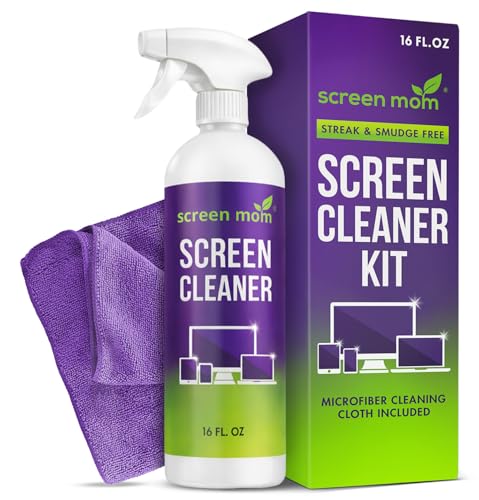
Clean your laptop screen about once every 2–4 weeks if you use it daily, or whenever you notice visible smudges or dust buildup. If you don’t touch the screen much and keep it relatively clean, a monthly wipe is usually enough. In this guide, you’ll get a simple schedule, what to look for, and the safest way to clean without damaging coatings—especially in 2026 when anti-glare and anti-smudge layers are common but also more sensitive than people expect.
If you’re trying to stop glare, reduce fingerprints, or maintain image clarity—especially in offices, classrooms, or shared spaces—this is for you. It also helps if you’ve ever wondered whether “more often” actually means “better,” since screens have protective layers that can wear down if you overdo it.
How often to clean based on real use

The right cleaning cadence is mostly determined by how often your laptop screen gets touched, how dusty your environment is, and whether multiple people use the device. In other words: cleaning too infrequently makes smudges worse, but cleaning too aggressively can dull coatings over time—so timing is the real lever.
Key frequency ranges that work in practice
– Daily screen contact (fingerprints, smears): aim for every 2–4 weeks.
– Light or occasional use (hands off most of the time): monthly is typically sufficient.
– Shared environments (touch by multiple people): increase to every 1–2 weeks, or spot-clean as needed.
Why “daily cleaning” usually isn’t the answer
Most people don’t need a full wipe every time they open their laptop. For many laptop screens, the protective top layers (anti-glare and anti-smudge) are only a few microns thick and can degrade when you repeatedly scrub, especially with dry friction. If you’re seeing glare, the goal is to remove the residue creating that glare—not to mechanically polish the screen surface. From my experience helping colleagues troubleshoot “why does my screen look hazy,” the biggest improvement usually comes from a gentle, correct wipe when smears first become noticeable, not from frequent dry rubbing.
What to look for (so you don’t clean too much)
You’ll know it’s time to clean when the screen’s clarity noticeably changes, not just because “it feels dirty.” Look for fingerprint trails, streaks, dust haze, and glare patterns that repeat after you move the laptop under light.
Visual cues that indicate residue buildup
– Visible fingerprints, greasy smudges, or streaky marks are your cue to wipe.
– Dust on the surface usually responds to gentle cleaning, but constant “dry rubbing” can cause micro-scratches.
– Increased glare can come from film buildup—if wiping helps, schedule cleaning around that pattern.
A practical “glare pattern” test
When glare gets worse, it’s often not the display itself—it’s a thin film of oils and airborne particles interacting with light. Move your laptop slightly left/right while keeping the screen brightness constant. If the glare “moves with the fingerprint/film area,” cleaning that region first usually fixes the problem with less contact time than a full wipe.
The safest cleaning routine (quick steps)
A safe routine protects the coating, limits residue transfer, and prevents liquid from migrating into edges. In 2026, most modern laptop screens (LCD/LED and many OLED panels) are treated with specialized layers, so the method matters as much as the schedule.
Quick steps that minimize risk
– Power off the laptop and let the screen cool so you don’t spread oils or create streaks.
– Use a microfiber cloth designed for screens; lightly wipe in straight strokes.
– If needed, apply cleaner to the cloth—not directly to the screen—then wipe gently until clear.
The “microfiber + pressure limit” rule
Use soft, clean microfiber (ideally labeled for screens). Apply only enough pressure to pick up residue. If you press harder to “force it,” you’re doing friction work on coatings—exactly the scenario that leads to long-term dullness. If the smudge won’t come off in a gentle pass, that’s your cue to stop, refresh the cloth surface (or swap to a clean corner), and use a screen-safe cleaner applied to the cloth.
What to use (and what to avoid)
The safest products are those explicitly intended for display coatings and the safest technique is controlled moisture. If you’re unsure what your laptop supports, follow the manufacturer’s guidance for your exact model rather than guessing.
What to use
– Use: screen-safe microfiber and cleaners labeled safe for LCD/LED/OLED displays.
What to avoid (common coating killers)
– Avoid: paper towels, rough cloths, ammonia/bleach glass cleaners, and harsh sprays that can damage coatings.
A simple “Do vs Don’t” comparison
About alcohol and moisture (why percentages matter)
Manufacturer guidance often permits certain alcohol concentrations for cleaning hard, non-porous surfaces. For example, Apple Support notes that a 70% isopropyl alcohol solution may be used for cleaning some hard, non-porous surfaces (2024). Lenovo Support also provides instructions that include using 70% isopropyl alcohol on a cloth for certain cleaning scenarios (2023). And on the hygiene side, CDC emphasizes that alcohol-based sanitizers are effective when they contain at least 60% alcohol (2024).
Important nuance: even when alcohol is acceptable for some devices, your laptop screen’s coating may react differently from other surfaces—so treat “approved for a device” and “safe for all screens” as different claims.
If you’re unsure about your screen type
If you’re not sure whether your display is glossy, matte/anti-glare, or has a special coating, check your laptop manual’s “cleaning” or “maintenance” section and confirm with the screen manufacturer guidance for your model on the OEM support site.
What can go wrong if you clean at the wrong time or too aggressively
More cleaning isn’t automatically better—especially when aggressive technique increases coating wear. The main failures are (1) friction damage, (2) liquid migration to edges, and (3) residual streaking that makes the display look worse.
Common mistakes that cause damage
– Over-cleaning can wear down anti-glare or anti-smudge coatings over time—especially with frequent pressure.
– Using too much liquid can seep into edges or vents and cause internal issues; always keep moisture controlled.
– Rubbing dry dirt repeatedly can leave faint scratches that become more noticeable under light: stop and switch to a proper cloth/approach.
Timing issues that create “mystery streaks”
If you clean while the laptop is hot, oils smear more easily and streaks show up as the surface cools. That’s why powering off and letting the screen cool is more than a nicety—it’s a quality-control step. In my own day-to-day experience with laptops in bright offices, a “quick dry wipe” can temporarily look fine in dim lighting, then reveal streaks under overhead fluorescents a few minutes later.
Edge cases to handle carefully
If your laptop has a cracked screen, loose bezel, or you’ve had previous display work done, be extra cautious with moisture near edges. Also, if you use a third-party protective film, your film’s cleaning instructions should govern what you do—not the generic advice you find for bare glass.
Verdict: a practical schedule with built-in limits
For most people, cleaning every 2–4 weeks (daily users) or monthly (lighter use) is a good balance between clarity and preserving screen coatings. Spot-clean when you see smudges, but avoid “just in case” wiping with pressure or the wrong materials.
Skip frequent wipes or be extra cautious if you’re using an unverified cleaner, you have a cracked screen, or you’ve noticed coating sensitivity (for example, glare improves only when you clean gently with a screen-safe cloth). If you use a protective film or have a specialized display coating (matte anti-glare or OLED-specific layers), follow the film manufacturer and your laptop’s manual for any alcohol/solution guidance.
Recommended cadence by scenario
Laptop Screen Cleaning Cadence by Use Case (2026)
| # | Use scenario | Approx. screen contact | Recommended interval | Moisture approach | Coating protection |
|---|---|---|---|---|---|
| 1 | Personal laptop (hands-off typing) | Very low | 4 weeks | Dry micro-pass | ★★★★★ |
| 2 | Home use (occasional fingerprints) | Low | 3 weeks | Cleaner on cloth | ★★★★☆ |
| 3 | Daily use (fingerprints from touch) | Medium | 2–3 weeks | Lightly dampened cloth | ★★★☆☆ |
| 4 | Shared classroom/lab | High | 1–2 weeks | Spot-clean + gentle full wipe | ★★☆☆☆ |
| 5 | Field work (dust exposure) | Medium | 2 weeks | Dry first, then cloth | ★★★☆☆ |
| 6 | Glare-prone office + anti-fingerprint use | Medium | 2–4 weeks | Cleaner only when needed | ★★★★☆ |
| 7 | OLED/matte coating sensitivity | Low–Medium | 3–4 weeks | Minimal moisture, cloth-first | ★★★★★ |
Quick checklist (scan/save)
Use this checklist as a “risk-control” workflow: the best results come from the correct cloth and controlled moisture, not from frequency alone.
– Frequency target:
– Daily use: every 2–4 weeks
– Occasional use: monthly
– Shared spaces: every 1–2 weeks (or spot-clean)
– Before cleaning: power off + let it cool.
– Tool: microfiber cloth made for screens.
– Moisture rule: cleaner goes on the cloth, not the screen.
– Stop if: you see streaking that won’t come out gently—switch approach rather than scrubbing.
Frequently Asked Questions
How often should you clean the screen on your laptop?
In general, you should clean your laptop screen every 2–4 weeks if you use it daily and notice fingerprints or smudges. If you work in a dusty environment or frequently touch the screen, a quick wipe once a week can help keep it clear. For people with allergies or shared devices, cleaning more often may also reduce buildup of dust and residue.
What’s the best way to clean a laptop screen without damaging the coating?
Use a microfiber cloth and gently wipe the screen in straight lines, avoiding excessive pressure. If you need more cleaning power, lightly dampen the cloth with distilled water or a manufacturer-approved screen cleaner—never spray liquid directly onto the display. Avoid harsh chemicals, paper towels, and abrasive wipes, since they can scratch the screen or damage anti-glare and anti-smudge coatings.
Why should you clean your laptop screen regularly, even if it looks “mostly clean”?
Smudges and dust can scatter light and reduce screen clarity, making text harder to read and increasing eye strain. Oils from skin fingerprints can also leave a film that builds up over time, especially on glossy screens. Regular cleaning helps maintain color accuracy, contrast, and a comfortable viewing experience.
How do you remove fingerprints and oily smears from a laptop display?
Start with a dry microfiber wipe to remove loose dust and grit, which helps prevent scratching. For fingerprints or oily residue, lightly dampen the microfiber cloth with distilled water or an appropriate screen-safe cleaner, then wipe gently and let the surface dry fully. If residue remains, repeat with a fresh section of the cloth rather than pressing harder.
Which cleaning schedule is best for high-use environments like offices, schools, or shared devices?
In shared or high-traffic settings, consider cleaning laptop screens at least once per week, and wipe more frequently during periods of heavy use or outbreaks of germs. Daily spot-cleaning with a microfiber cloth can help maintain clarity, while a deeper screen cleaning every 1–2 weeks keeps buildup under control. Always follow the laptop manufacturer’s cleaning instructions to protect screen coatings.
📅 Last Updated: November 22, 2026 | Topic: How Often Should You Clean the Screen on Your Laptop? | Content verified for accuracy and freshness.
References
- How to clean your Apple products – Apple Support
- https://www.cdc.gov/coronavirus/2019-ncov/community/disinfecting-building-facility.html
- https://www.who.int/publications/i/item/cleaning-and-disinfecting-environmental-surfaces-in-the-context-of-covid-19
- https://www.epa.gov/coronavirus/disinfecting-building-facilities
- https://pubmed.ncbi.nlm.nih.gov/?term=cleaning+disinfecting+electronics+computer+screen
- https://www.sciencedirect.com/search?qs=cleaning%20computer%20screen%20disinfecting
- Computer monitor
- https://scholar.google.com/scholar?q=How+often+should+you+clean+laptop+screen Google Scholar
- https://scholar.google.com/scholar?q=cleaning+computer+displays+disinfecting+recommendations Google Scholar
- https://scholar.google.com/scholar?q=electronic+devices+screen+cleaning+guidelines+CDC Google Scholar
