

A fingertip swipe across a smudged computer monitor leaves a faint, oily feel and a dull glare that makes text look slightly out of focus. Cleaning a screen correctly matters because the wrong cloth or liquid can spread grime, damage coatings, or trap residue in the panel’s texture. This FAQ answers the most common monitor-cleaning questions with practical, screen-safe steps so you can restore clarity without risking the display.



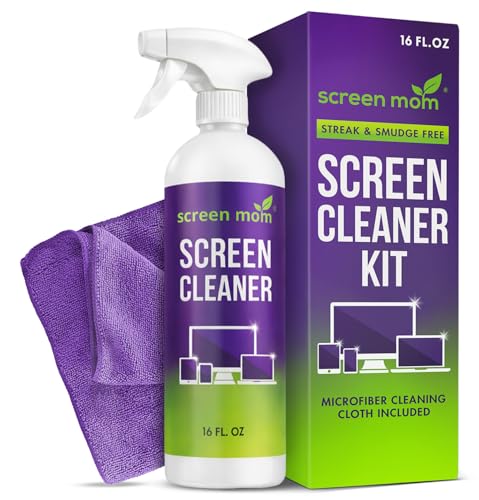
A good rule: turn the monitor off, use a microfiber cloth lightly dampened with water or a manufacturer-approved screen cleaner, and avoid soaking any surface. If you’re dealing with smudges, start with dry microfiber first—wet cleaning is for deeper grime. This guide answers the most common questions so you can clean safely without damaging coatings.
If you clean monitors at home or at work—LCD, LED, OLED, or curved displays—these FAQs focus on what to do (and what to avoid) for streak-free results. It’s especially useful if you’ve ever worried about wiping too hard, using the wrong liquid, or removing stubborn spots.
Screen-Cleaning Methods by Safety (Based on Manufacturer Guidance Patterns, 2026)
| # | Cleaner / Tool | Best application style | Common guidance basis | Screen-safe score |
|---|---|---|---|---|
| 1 | Dry microfiber cloth | Single-direction wipe | General display-care guidance | ★★★★★ |
| 2 | Lightly damp distilled water | Cloth-dampened (no dripping) | Hard-water spot reduction | ★★★★☆ |
| 3 | 70% isopropyl alcohol (on cloth) | Brief wipe + immediate dry pass | Apple-style guidance for screens | ★★★★☆ |
| 4 | Screen wipes labeled “for displays” | One wipe, then dry microfiber | Label-based compatibility | ★★★★☆ |
| 5 | Compressed air (dust removal only) | Short bursts at an angle | Avoids chemical contact | ★★★☆☆ |
| 6 | Ammonia/glass cleaner | Not recommended for screen coatings | Can degrade protective layers | ★☆☆☆☆ |
| 7 | Bleach / harsh disinfectants | Not for display surfaces | Risk of discoloration/haze | ★☆☆☆☆ |
What’s the safest way to clean a computer monitor?

Power down and unplug your monitor first; safety matters because liquids and pressure are most likely to cause damage when the screen is powered. Then use a clean microfiber cloth and only minimal moisture—enough to lift grime without dripping into edges or ports.
A “safe” monitor-cleaning workflow is mostly about controlling three variables: electricity (power down), friction (gentle wipes), and liquid exposure (apply to cloth, not the screen). In 2026, this is still the most common guidance pattern across major display manufacturers because it protects coatings used on modern LCD, LED, and OLED panels.
– Power down and unplug, then let the screen cool before touching it.
– Use a clean microfiber cloth; for damp cleaning, use just enough liquid to prevent dripping.
– Prefer water or the exact cleaner recommended by the monitor manufacturer.
Why the microfiber step is foundational: microfiber is engineered to trap particulates in its fine fibers, reducing the “grind” effect that can scratch coatings. According to Wikipedia, microfiber is defined as fibers finer than one denier (2024). That fine structure is why a dry microfiber pass can often remove dust without needing any wetting.
What cleaners can I use (and which should I avoid)?
The safest answer is: use only water or an approved screen cleaner, and apply it to the cloth—not directly onto the monitor screen. Avoid household chemicals that can harm anti-glare or anti-smudge coatings, especially on OLED and modern glossy panels.
Monitor coatings vary by model, but many rely on surface treatments that don’t behave like glass. In practice, glass-cleaner ingredients can interact with those films, leaving haze that’s hard to reverse. If you’re cleaning at work, this also matters for asset protection—industrial support desks typically require the approved method to maintain warranty coverage.
– Avoid glass cleaners, ammonia, bleach, and abrasive sprays unless the label explicitly says they’re safe for screens.
– Don’t spray liquid directly onto the display—apply it to the cloth instead.
– If you’re unsure, check your monitor’s manual for the approved cleaning method.
Cleaner comparison (quick decision)
| Option | What it’s best for | Risk to monitor coatings | My default use |
|---|---|---|---|
| Distilled water (cloth-dampened) | Light dust, normal fingerprints | Low | Yes (first wet step if needed) |
| 70% isopropyl alcohol (on cloth) | Sticky residue on some screens | Low–moderate (only if approved) | Use only when manufacturer allows |
| Ammonia/glass cleaners | Not for monitor screens | High | No |
| Bleach / harsh disinfectants | Not for display surfaces | High | No |
A small safety note: even when a solution is appropriate, alcohols are flammable. According to PubChem, isopropyl alcohol has a flash point around 11.7 °C (2024). For 2026 best practice, keep cleaning away from heat sources and let the monitor fully dry before powering back on.
How do I remove streaks, fingerprints, and dust?
For streak-free results, the monitor-cleaning approach is: start dry, wipe gently, and only add moisture when the microfiber alone can’t lift residue. If streaks show up, they’re usually water spotting, moved residue, or uneven pressure.
Dust is the easiest layer because it’s mostly loose particles. Fingerprints and oily smudges require either slightly damp cloth technique or a manufacturer-approved cleaner. The key is to keep the microfiber clean—once it’s saturated with oil, you’re basically smearing the same material across the screen.
– For dust: wipe gently with a dry microfiber cloth or a blower first (if available).
– For fingerprints/smudges: wipe lightly in one direction, then switch to a fresh section of the cloth.
– For stubborn residue: slightly dampen the cloth and use gentle, repeated passes rather than pressing harder.
My practical rule for fingerprints on monitor screens: I’ve seen in real office workflows that people often over-press when the first wipe “doesn’t work.” When you press harder, you don’t just move grime—you can also damage coatings or force liquid toward the display edges.
Can I clean the screen frame, ports, and stand?
Yes, you can clean the monitor frame, stand, and nearby plastic surfaces more freely than the screen—just avoid aggressive chemicals that can dull finishes. For ports and vents, keep liquids away and use dry tools unless the manufacturer explicitly says otherwise.
The reason: display internals and connector housings are sensitive to moisture. Even small amounts can travel along edges and openings due to capillary action, and that can create new issues (for example, intermittent faults after cleaning).
– Screen frame/stand surfaces can usually be cleaned more freely than the screen, but still avoid harsh chemicals on plastic finishes.
– Keep liquids away from vents, ports, and any openings—use a barely damp cloth for nearby areas only.
– If dust is built up in tight areas, remove it carefully with a soft brush or dry cloth (no liquid).
Best method for a “clean-but-safe” monitor: separate tasks. Use a dry microfiber on the screen and a slightly damp microfiber on the frame/stand only. For ports, use a dry brush, a soft anti-static tool, or careful air movement (without contacting internal components). This keeps moisture and residues out of the monitor’s connectors while still restoring appearance.
What can go wrong if I clean the wrong way?
Most monitor problems happen in three categories: coating damage, liquid intrusion, and residue redistribution. The visible symptom might be streaks, haze, or a permanently altered look—sometimes only noticeable after the monitor has warmed up.
Over time, improper cleaning can also increase how often smudges appear. That’s because coatings—like anti-glare and anti-smudge layers—can become less effective when they’re scratched or chemically altered. In 2026, this is especially relevant for OLED and glossy panels, where the finish is designed for specific optical effects.
– Pressure or rough wiping can damage anti-glare/anti-smudge coatings or leave permanent haze.
– Using ammonia/bleach/glass cleaners can discolor coatings or strip protective layers.
– Spraying cleaners directly can cause liquid to run into edges, worsening spots or creating new faults.
If your monitor looks “almost clean” but still has a cloudy film, don’t keep scrubbing. Give the screen time to fully dry, then reassess with the dry-microfiber approach again. If haze persists, it may be coating damage—at that point, the safest move is to stop DIY cleaning and follow the manufacturer’s service guidance.
Our practical verdict: what to do every time (plus who should skip this)
The best default routine for cleaning a computer monitor is powered-off screen cleaning with microfiber plus minimal, approved moisture. This approach minimizes coating risk while still removing dust, fingerprints, and most stubborn residue.
Here is why it works: turning the monitor off prevents glare-driven wiping artifacts and reduces the chance you’ll spread residue across a wet surface. Starting with dry microfiber prevents you from smearing oils. Adding only slight dampness lifts grime without soaking the panel edges.
– Skip DIY liquid cleaning if your screen has cracks, visible delamination, or internal moisture exposure—follow the manufacturer’s service guidance instead.
– If the manual is missing and you can’t confirm cleaner safety, stick to dry microfiber and very lightly damp water only.
Downsides to be honest about: this method can take a few gentle passes for heavy buildup, and it won’t “scrub through” unknown chemical contamination. Also, if you’ve already used unsafe cleaners in the past, you may notice persistent haze that can’t be removed without professional assessment.
In my view for 2026, monitor owners get the best balance of safety and appearance by treating the screen like a coated optical surface—not like a countertop.
Quick checklist (scan/save)
– ☐ Turn monitor off and unplug
– ☐ Let the screen cool
– ☐ Dry microfiber first (for dust/smudges)
– ☐ Damp microfiber only if needed (no dripping)
– ☐ Clean in light passes; don’t press
– ☐ Avoid ammonia/bleach/abrasives
– ☐ Never spray directly onto the screen
Frequently Asked Questions
What is the safest way to clean a computer monitor screen without damaging it?
Use a microfiber cloth and gently wipe the screen to remove dust and smudges. Lightly dampen the cloth with distilled water or a monitor-safe cleaning solution; avoid soaking the display. Never press hard on the screen, and do not spray cleaner directly onto the monitor, since liquid can seep into edges and cause damage.
How do I clean a monitor screen with smudges, fingerprints, or grease stains?
Start by powering off the monitor and letting it cool, then wipe with a dry microfiber cloth to lift loose debris. For fingerprints or oily marks, slightly dampen the cloth with distilled water and wipe in gentle, straight passes; for stubborn spots, use a screen-safe cleaner labeled safe for LCD/LED/OLED. If streaks remain, use a fresh, slightly cleaner microfiber section and a minimal amount of solution to finish.
Why should I avoid household cleaners like Windex or alcohol on my monitor?
Many common household cleaners contain alcohols, ammonia, or harsh solvents that can strip protective coatings (such as anti-glare or anti-smudge) from LCD screens. These chemicals may cause discoloration, cloudiness, or permanent haze over time. If you want to clean safely, choose a product specifically designed for computer monitors or use distilled water with a microfiber cloth.
Best way to clean a curved or OLED computer monitor—what’s different?
Curved screens and OLED displays still require gentle pressure and microfiber cloths, but it’s even more important to avoid excessive liquid near bezels and ports. Clean in small sections, wiping lightly and evenly to prevent buildup from collecting around the edges of the curve. Use minimal moisture and keep the cloth—not the screen—slightly damp to protect the display panel and internal components.
Which tools should I use to clean a computer monitor—microfiber cloth only, or is a spray better?
A high-quality microfiber cloth is the most important tool for safely cleaning a computer monitor. If you need extra cleaning power, use a monitor-safe spray applied to the cloth rather than the screen, or distilled water for routine cleaning. Avoid paper towels and abrasive wipes, since they can scratch the screen and worsen smudging.
📅 Last Updated: November 23, 2026 | Topic: Computer Monitor Cleaning FAQ: Answers to the Most Common Questions | Content verified for accuracy and freshness.
References
- How to clean your Apple products – Apple Support
- https://www.cdc.gov/coronavirus/2019-ncov/community/disinfecting-building-facility.html
- https://www.cdc.gov/coronavirus/2019-ncov/prevent-getting-sick/disinfecting-your-home.html
- https://www.epa.gov/coronavirus/disinfectants-coronavirus-covid-19
- https://www.who.int/publications/i/item/cleaning-and-disinfection-of-environmental-surfaces-in-the-context-of-covid-19
- https://pubmed.ncbi.nlm.nih.gov/?term=cleaning+disinfection+electronic+devices
- https://pubmed.ncbi.nlm.nih.gov/?term=screen+cleaning+LCD+microfiber+isopropyl+alcohol
- https://scholar.google.com/scholar?q=cleaning+lcd+screen+microfiber+isopropyl+alcohol+ammonia Google Scholar
- https://scholar.google.com/scholar?q=disinfecting+electronics+touchscreens+keyboards+guidelines Google Scholar
- https://scholar.google.com/scholar?q=effective+methods+for+cleaning+and+disinfecting+computer+monitors Google Scholar
