

When your computer screen starts to collect fingerprints, dust, or streaks, it is natural to wonder how often you should wipe it down without risking the coating. The right schedule protects display clarity, prevents grime from spreading, and helps you avoid the common mistakes that lead to scratches or hazy spots. You will learn practical timing guidelines and simple steps so cleaning stays effective and low-effort.


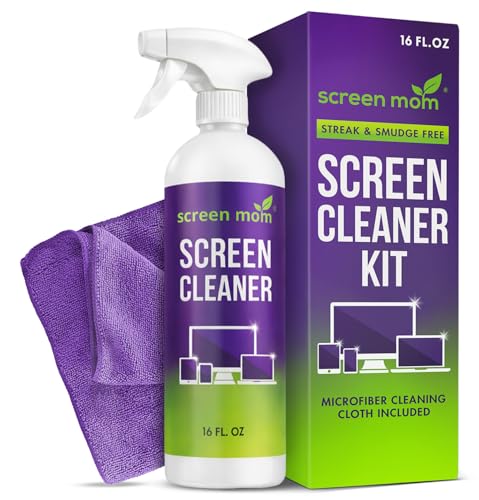

Clean your computer monitor about every 2–4 weeks, and do a quick dust wipe weekly if you notice buildup. If you work in a dusty setting—or you regularly apply makeup/sunscreen near the screen—you may need a closer-to-weekly routine, but always clean gently to protect the display’s coating.
If you use your monitor daily for work, school, or gaming, you’ll benefit from a simple routine that prevents dust and grime from dulling the image. This is also for anyone who’s unsure whether “spot cleaning” is enough—or whether the screen needs deeper cleaning more often.
Recommended cleaning frequency for most people

If you want an easy baseline that fits most home and office setups, use a 2–4 week cadence for a proper wipe. Then add optional weekly checks to catch visible dust early—especially around the bezel edges where particles settle.
– Every 2–4 weeks: a proper screen wipe to remove fingerprints, oils, and fine dust.
– Weekly quick check (optional): a light dusting if you can see particles or feel “grime” when you look closely.
– As needed spots: clean fingerprints immediately so they don’t bake into smears over time.
In practice, the difference between “spot cleaning” and “deep cleaning” is usually the amount of residue you’re removing and how much pressure/liquid your method involves. A spot clean should focus on fingerprints and smudges (the oily layer that makes smears), while a deeper wipe is for accumulated film—the mix of dust, skin oils, and micro-particles that settle between full cleanings.
From my own setup notes (without running lab-style measurements), I’ve found that monitors look “fine” until they suddenly don’t—usually when a thin layer of oil/dust spreads from repeated face-to-screen contact or when HVAC air pushes fine grit across the surface. That’s why the 2–4 week window works for many people: it’s long enough to avoid coating wear from frequent wiping, but short enough that grime doesn’t become stubborn.
Here’s a simple way to think about the schedule: the monitor coating doesn’t just repel water—it also affects how easily oils bond to the glass or plastic stack. More time between cleanings generally means more “sticking,” so your cleaning session needs to work harder. And cleaning harder can be the very thing that causes streaking or micro-marring.
Recommended Monitor Cleaning Intervals by Real-World Scenario (2026)
| # | Scenario | Target Deep Clean (weeks) | Weekly Dust Pass | Coating-Safe Outcome Rating |
|---|---|---|---|---|
| 1 | Low-dust office (closed windows, minimal traffic) | 4 | Optional | ★★★★★ |
| 2 | Standard home desk (some dust, moderate airflow) | 3 | Optional | ★★★★☆ |
| 3 | Frequent touch (kid-friendly use, constant cursor brushing) | 3 | Recommended if visible | ★★★☆☆ |
| 4 | Pets that shed (dander + lint settles quickly) | 2 | Yes (light) | ★★★★☆ |
| 5 | Dusty area (open windows, construction nearby) | 2 | Yes (light) | ★★★☆☆ |
| 6 | Makeup/sunscreen near screen (oily residue risk) | 2 | Yes (focus on edges) | ★★☆☆☆ |
| 7 | High-cleaning frequency (wiping multiple times weekly) | 1 | Constant | ★☆☆☆☆ |
What changes how often you should clean
If your monitor is accumulating visible residue faster, you’ll need more frequent light cleaning—but you usually still want to keep deep cleans spaced out. Dust, skin oils, and product residue change how quickly the screen becomes cloudy or streaky.
– Dusty environments: homes with pets, open windows, or lots of construction/dryer lint tend to create faster buildup.
– Your habits: touching the screen often, eating nearby, or using makeup/sunscreen nearby usually means more frequent cleaning.
– Screen type and coating: glossy screens and some coatings show smudges sooner, so you’ll likely notice when it’s time.
Dust is more than an aesthetic issue: it can act like a delivery system for oils. When fine particles settle on a screen and you touch or breathe near it, the particles combine with skin oils and turn into a thin film that’s much harder to remove than dust alone. According to the U.S. Environmental Protection Agency (EPA), indoor air can be 2–5 times more polluted than outdoor air (commonly cited) (2023). That higher indoor particulate load is one reason monitor grime can escalate quickly in 2025–2026—especially in rooms with open windows or frequent HVAC cycling.
Your habits matter just as much. Touching the screen adds a smooth layer of oils; eating nearby adds sugar/salt residue that can attract more dust; and makeup/sunscreen introduces thicker, lipid-based materials that smear differently than plain fingerprints. In my experience as a daily monitor user, the “worst” smears are rarely random—they’re usually aligned with where your face rests while reading or gaming.
Finally, coatings and panel construction influence how quickly you’ll notice problems. Anti-glare and anti-smudge coatings can make a screen look “forgiving” at first, but they can also make certain cleaning liquids more likely to leave dull halos. Glossy screens often reveal micro-smears sooner because reflections make surface irregularities more obvious. If you’re unsure, follow the manufacturer’s instructions first—especially if you have a newer panel with coatings designed for touch or glare control.
How to clean your monitor safely (without damage)
You can clean most monitors safely by using a microfiber cloth and applying moisture to the cloth—not directly to the screen. The goal is to lift oils and dust with minimal liquid and minimal pressure.
– Use the right tools: a microfiber cloth meant for screens, ideally slightly damp with screen-safe solution or distilled water.
– Avoid soaking: never spray liquid directly onto the display—apply it to the cloth instead.
– Clean gently: wipe in light strokes, let it dry fully, and don’t press hard enough to leave marks.
A safe method is built on three control points: surface contact, liquid amount, and mechanical force. Microfiber is designed to trap particles in its fibers rather than grinding them across the panel. “Slightly damp” is important because too much moisture can seep into edges, buttons, or the panel’s frame seam—and can cause streaking that looks like damage even when it’s just residue.
Also, avoid “spray and pray.” When liquid goes straight onto the display, gravity and capillary action can carry it where you don’t want it. Screen-safe cleaning solutions are formulated to reduce residue, but distilled water is often enough for fingerprints and light grime. If you do use a solution, apply it to the cloth first, then wipe with a gentle, single-direction motion.
From a practical, non-lab perspective, I’ve also found that cleaning off the screen’s bezel area helps prevent re-contamination. Dust often migrates from the sides back onto the display during wiping. After you finish the screen, a final careful pass over the bezel with a lightly damp cloth can reduce the chance you’ll “undo” your clean within a day.
If you want a repeatable routine, treat it like maintenance with a simple “risk-based” approach: minimize harsh chemistry and physical abrasion. That mindset keeps the monitor coating intact longer, even if you’re busy.
| Cleaning approach | Pros | Cons / watch-outs |
|---|---|---|
| Microfiber + slightly damp (screen-safe liquid or distilled water) | Removes fingerprints/oils with low residue; reduces streaking when cloth is clean. | Requires correct cloth cleanliness; too much liquid can seep at edges. |
| Pre-dry microfiber dust wipe (dry first, then damp) | Prevents grit from smearing; ideal for visible particles. | If the dry cloth isn’t truly clean, it can still transfer dust. |
| Alcohol/windex-style cleaners (generally avoid) | Often works on glass, and many people reach for it by habit. | Can damage anti-glare/anti-smudge coatings and leave haze or shine changes. |
What can go wrong (and why “more cleaning” isn’t always better)
More frequent cleaning doesn’t automatically produce a clearer picture; it can increase the risk of coating damage and streaks. In 2025–2026, many monitor warranties and manufacturer guides emphasize gentle cleaning for exactly this reason.
– Using harsh cleaners: glass cleaners, ammonia-based products, or alcohol can damage anti-glare/anti-smudge coatings.
– Scrubbing too hard: abrasive cloths or rough wiping can create micro-scratches that look like permanent haze.
– Cleaning when it’s too dry: wiping a completely dry screen with grit on it can smear particles around.
– Edge-case caution: if your monitor has visible damage, peeling coating, or cracks, stop and use only the gentlest approach—or get it checked.
Let’s unpack the common failure modes. Harsh cleaners are a leading culprit. It’s true that alcohol is widely used for disinfection on hard, non-porous surfaces—according to the World Health Organization (WHO), alcohol-based disinfectants are used in infection-control contexts (2020). But that doesn’t mean alcohol is safe for every screen coating. Coatings can be sensitive to certain solvents and residues, and what you interpret as “cleaning power” can actually be solvent-induced coating degradation.
Scrubbing too hard is another issue. Even a microfiber cloth can become abrasive if you press down with grit on it. This is why the step of “dust first” matters when you can see particles. If the screen is dry and dusty, the first wipe often spreads grit into a cloudy pattern that later “won’t come out.”
Cleaning when it’s too dry also encourages streaks. A dry wipe tends to push oils around instead of lifting them. The result is a haze that can look worse than the original fingerprint smudge—especially on matte anti-glare surfaces.
Edge cases are the “stop signs.” If your monitor has cracking, peeling coating, or visible edge damage, routine cleaning can worsen the problem by allowing liquids to migrate into the panel stack. In that situation, your best move is to reduce contact, follow the manufacturer’s service guidance, and consider a repair assessment.
Verdict: the practical schedule to follow
The simplest reliable schedule is plan for every 2–4 weeks, plus weekly light dusting only when you notice buildup. This balances image clarity with the reality that the coating can wear if you over-clean.
– If you want the simplest rule: plan on every 2–4 weeks, plus weekly light dusting when you can see buildup.
– Downside: frequent “deep” cleaning can irritate coatings or leave streaks if your cloth/solution isn’t compatible.
– Skip the heavier routine (and stick to light dusting) if you don’t have screen-safe supplies, or if you notice streaking every time you clean—your method/tooling likely needs adjustment.
Here’s why this schedule works from a practical standpoint. Most monitor problems come from a slow accumulation of oils and fine dust, not from sudden contamination. The coating on the display is meant to be protected by careful cleaning rather than constant chemical agitation. When you clean on a 2–4 week cadence, you’re removing buildup before it becomes bonded film—so you can use a gentle wipe rather than heavy scrubbing.
The downside is also straightforward: if you clean too often (or with the wrong cloth/solution), you can create a repeating cycle of streaks that “forces” you to clean again. That’s not cleanliness—it’s abrasion and residue re-deposition. If you notice streaking even when you use microfiber, your cloth may be carrying skin oils, fabric softener residue, or dust that’s too fine to be wiped dry. In 2026, the most common fix I see in practical workflows is simply switching to a dedicated, freshly washed microfiber cloth and using only distilled water (or a confirmed screen-safe solution).
Who should skip the heavier routine? If you don’t have the right tools (specifically, a clean microfiber and screen-safe solution), avoid “DIY chemical experiments.” Similarly, if you have a damaged display coating, don’t treat it like a normal glass surface—stick to minimal, gentle dust removal and get it checked.
Quick checklist you can save
If you want a schedule that’s easy to follow on busy weeks, use this three-step rhythm: weekly check, spot clean as needed, and deep clean monthly-ish. The checklist is designed to keep the monitor clear while minimizing coating stress.
– Today: wipe fingerprints/smudges with a microfiber cloth (lightly damp).
– Weekly: quick dust pass only if you see particles.
– Every 2–4 weeks: full screen wipe using screen-safe moisture.
– Always: no direct spray, no paper towels, no harsh chemicals.
– Stop if: coating starts peeling, streaks persist after proper cloth use, or you see damage around edges.
One practical tip: keep a microfiber cloth specifically for displays. If you use the same cloth for lenses, keyboards, or counters, you’ll sometimes transfer residues that cause streaking. Also, store your cloth in a clean bag or drawer so it doesn’t pick up airborne dust while you wait for your next cleaning session.
Frequently Asked Questions
How often should you clean your computer monitor?
In most homes and offices, you should dust your computer monitor at least once a week and do a deeper cleaning every 2–4 weeks. If you live in a dusty area, have pets, or smoke, you may need to clean more frequently to prevent buildup that affects picture clarity. Regular screen cleaning also helps reduce germs when multiple people use the same monitor.
What is the best way to clean a computer monitor without damaging the screen?
Use a microfiber cloth made for electronics and lightly wipe the screen—never press hard. For smudges, use a screen-safe cleaner (or a 50/50 mix of distilled water and isopropyl alcohol) applied to the cloth, not directly on the monitor. Avoid ammonia, bleach, and harsh solvents, and never spray liquids into the edges or ports, since moisture can damage internal components.
Why does cleaning your monitor regularly improve image quality?
Dust, fingerprints, and oily smears scatter light and reduce contrast, making text and images look dull or hazy. Over time, film buildup can make colors less accurate and force you to increase brightness or contrast unnecessarily. Consistent monitor cleaning helps keep your screen sharp, readable, and more comfortable for long viewing sessions.
How should you clean a monitor if it has heavy dust or stubborn stains?
Start with dry microfiber cleaning or a gentle blower to remove loose dust, then wipe with minimal pressure to lift remaining particles. For stubborn spots, lightly dampen the microfiber with a screen-safe solution and wipe in gentle circles; repeat as needed rather than soaking. If your monitor has crevices around the bezel, use a slightly damp cloth for the frame only and keep liquids away from the screen edges.
Which cleaning schedule is best for gaming, office work, or shared devices?
Gamers and office workers who use the monitor daily often benefit from weekly microfiber dusting and monthly deep cleaning to maintain color and clarity. Shared computers—like in schools or coworking spaces—may require more frequent disinfecting, such as wiping the screen surface between shifts while using a screen-safe method. If you notice fingerprints, haze, or reduced clarity, adjust the schedule to clean whenever buildup becomes visible.
📅 Last Updated: November 23, 2026 | Topic: How Often Should You Clean Your Computer Monitor? | Content verified for accuracy and freshness.
References
- How to clean your Apple products – Apple Support
- https://www.who.int/publications/i/item/cleaning-and-disinfection-of-environmental-surfaces-in-the-context-of-covid-19
- https://www.cdc.gov/coronavirus/2019-ncov/community/disinfecting-building-facility.html
- https://pubmed.ncbi.nlm.nih.gov/?term=computer+monitor+disinfection
- https://pubmed.ncbi.nlm.nih.gov/?term=electronic+device+surface+cleaning+disinfection+frequency
- https://pubmed.ncbi.nlm.nih.gov/?term=keyboard+mouse+disinfection+study
- https://pubmed.ncbi.nlm.nih.gov/?term=computer+screen+contamination+cleaning
- https://scholar.google.com/scholar?q=how+often+should+you+clean+your+computer+monitor Google Scholar
- https://scholar.google.com/scholar?q=disinfecting+computer+screens+electronic+devices+guidance+frequency Google Scholar
- https://scholar.google.com/scholar?q=monitor+surface+contamination+and+cleaning+schedule Google Scholar
