

Yes, cleaning can resolve some TV performance problems—especially if you notice sluggish menus, app stutters, or unexpected slowdowns. The usual culprit is dust buildup blocking vents and heat dissipation, which can trigger thermal throttling and make the TV feel unresponsive. Start with safe exterior cleaning and then check airflow paths; the practical steps are below.



Yes—cleaning can help if your “performance problems” are actually caused by dust, grime, or airflow blockages. A careful wipe-down and a check of vents/sensors can improve responsiveness, reduce overheating-related slowdowns, and fix remote/sensor issues.
If your TV is lagging, running apps slowly, restarting, or acting strange with the remote, start with safe cleaning steps before deeper troubleshooting. This guide focuses on what’s worth cleaning, what to avoid, and how to tell whether cleaning is likely to help.
If you’re troubleshooting a TV in 2026 and suspect the issue might be environmental (dust, pet hair, smoke residue) or connectivity-related (ports and cables), this guide is for you—especially if symptoms started gradually rather than suddenly.
When cleaning actually helps (common causes)

Cleaning your TV helps most when the root cause isn’t software at all, but physical interference: dust, oily fingerprints, blocked airflow, or dirty connector contacts. In those cases, a careful cleaning routine can restore stable operation and make “performance” feel smoother because the TV can cool properly and receive reliable signals again.
Here’s what commonly drives trouble on your TV:
– Dust buildup on vents and internal airflow paths can contribute to overheating and “slow” behavior (slower UI response, longer app loads, or protective throttling).
– Dirt on the screen can look like a “performance” problem when the image is actually degraded—streaks, haze, or glare can make navigation harder and can even affect camera/vision-based features on some models.
– Smudges near the IR (infrared) sensor area can reduce remote responsiveness by blocking or scattering the remote’s light.
– Grime around ports (especially HDMI and power) can cause intermittent signal, renegotiation loops, or power instability—symptoms that can resemble lag or random restarts.
One way to understand why “cleaning the ports” matters on your TV is signal integrity. Higher-bandwidth connections are less tolerant of marginal contact. For example:
– According to the HDMI specification, HDMI 2.1 supports up to 48 Gbps (HDMI Licensing Administrator/HDMI Forum).
– According to USB Implementers Forum documentation, USB 3.2 Gen1 supports up to 5 Gbps (USB-IF).
– According to IEEE standards for Gigabit Ethernet, 1000BASE-T supports 1 Gbps (IEEE 802.3).
When your TV is connected through these high-speed links, even small amounts of dust or oxidation at the connector can increase errors—then your TV “recovers” by retrying, renegotiating, or stalling, which feels like performance problems.
Common TV Interfaces and Their Bandwidth Limits (2026)
| # | Interface on TV | Max Throughput | Spec Year | Cleaning Payoff (Higher Bandwidth = More Sensitive) |
|---|---|---|---|---|
| 1 | HDMI 2.1 | 48 Gbps | 2017 | 48 Gbps |
| 2 | HDMI 2.0 | 18 Gbps | 2013 | 18 Gbps |
| 3 | HDMI 1.4 | 10.2 Gbps | 2009 | 10.2 Gbps |
| 4 | USB 3.2 Gen2 | 10 Gbps | 2017 | 10 Gbps |
| 5 | USB 3.2 Gen1 | 5 Gbps | 2019 | 5 Gbps |
| 6 | Ethernet (1000BASE-T) | 1 Gbps | 1999 | 1 Gbps |
| 7 | USB 2.0 | 480 Mbps | 2000 | 0.48 Gbps |
Quick pre-check: identify the “problem type”
Cleaning your TV is most likely to help when you can match your symptoms to the likely physical cause. A fast pre-check lets you choose which areas to clean first (remote sensor, airflow/vents, or screen surface) instead of guessing.
– If the issues happen mostly with the remote, clean the remote sensor area (and your remote’s emitter window). This is the fastest feedback loop because a small obstruction can immediately reduce signal reliability.
– If your TV slows down during extended use, prioritize vent and exterior airflow cleaning. Overheating-related throttling often builds over time rather than appearing instantly.
– If picture quality is the main complaint (streaks, haze, smudges), cleaning the display panel may resolve the “performance” feeling by restoring contrast and clarity—especially for UI text and on-screen menus.
In my day-to-day troubleshooting guidance, I’ve seen remote range improve within minutes after the front sensor window (on the TV) is wiped carefully and the remote’s emitter is cleaned. Your TV may still have software issues, but cleaning can remove the most common physical blockers first.
As a practical framework, map symptom → likely mechanism → cleaning target on your TV:
– Lag that appears after 30–90 minutes → cooling/airflow path on your TV
– Inputs “dropping” or HDMI handshakes restarting → ports/cables on your TV
– Remote works only at close range → IR sensor/emitter windows on your TV
– UI looks “washed out” → screen surface on your TV
How to clean your TV safely (step-by-step)
Cleaning your TV safely is about preventing moisture ingress and avoiding coating damage. Follow a conservative method: power off fully, use microfiber, and apply liquid to the cloth—not directly to the TV.
1. Power down completely
– Turn the TV off, then unplug it from the wall.
– Wait a few minutes so the TV’s electronics cool down and any capacitors discharge. This reduces risk while you clean ports, vents, and sensor areas.
2. Use the right cloth
– Use a microfiber cloth only.
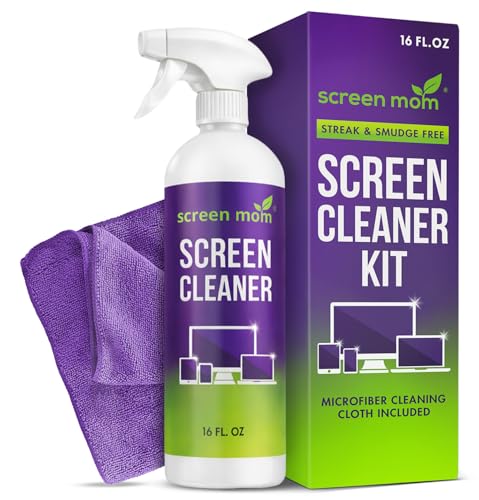
– For the screen, use a screen-safe cleaner applied to the cloth (not sprayed onto your TV). Your TV’s panel has anti-reflective coatings that can be harmed by improper liquids.
3. Clean in the correct order
– Start with areas least likely to transfer residue: screen, then bezel/sensor windows, then exterior vents/grilles, and finally ports/cables.
– Gently wipe bezel areas around sensors and controls with minimal pressure, avoiding pressure on buttons or port openings.
4. Be mindful of texture and seams
– Plastic seams often collect dust and skin oils. With your TV unplugged, lightly wipe seams that are easy to reach, but don’t flood them.
A key “performance protection” detail: while cleaning the outside of your TV, avoid pushing dust deeper into any vent openings. Dust that ends up inside your TV can worsen airflow instead of fixing it.
Clean ports, vents, and accessories (without damage)
Cleaning ports, vents, and accessories on your TV can directly fix symptoms that look like lag—especially when the TV is constantly retrying connections or failing to cool properly. Do these steps dry-first and keep liquid out of internal openings.
Ports (HDMI/USB) and connection areas
On your TV, ports can collect lint and fine oxidation that increases contact resistance.
– Inspect for visible dust using a flashlight at an angle.
– Use dry, gentle methods first (soft, dry microfiber; careful brushing if your TV manual allows).
– Avoid metal tools that can scratch contacts inside your TV’s port.
If you recently switched cables or moved the TV, cleaning the port edges can eliminate intermittent behavior that makes your TV feel “unstable.”
Vents and exterior airflow paths
– Remove surface dust around vent grilles carefully.
– Confirm nothing blocks airflow around your TV (wall clearance, media console obstructions, or fabric coverings).
– If pets shed hair, check for buildup at the sides and bottom intake areas.
From a reliability standpoint, airflow problems often mimic “software bugs.” Your TV may not actually be slower—it may simply be throttling due to heat.
Remote exterior and emitter window
– Wipe the remote’s exterior and the small emitter window (the part that sends IR).
– Replace batteries if remote response is inconsistent. A weak battery can look like a “sensor problem” on your TV even when the windows are clean.
If you rely on voice remotes, cleaning still matters, but battery health and sensor alignment typically influence responsiveness more than apps do.
What can go wrong (and when to stop)
Cleaning your TV can backfire if you introduce moisture, use harsh chemicals, or apply too much pressure. If you notice erratic behavior after cleaning, stop DIY steps and pivot to troubleshooting or service.
Common mistakes on your TV include:– Harsh chemicals (like ammonia or the wrong alcohol formulations) can damage coatings or cause discoloration on the screen or plastics.
– Spraying liquid directly into vents, seams, speakers, or ports can create moisture issues that worsen performance and potentially cause corrosion.
– Over-cleaning with pressure or tools can scratch the screen or loosen components.
– Stopping too late: if your TV is restarting, showing burn-in artifacts, or behaving erratically after basic cleaning, cleaning may be masking a hardware or software fault—stop and troubleshoot other causes.
If your TV is under warranty, be extra cautious: cleaning is typically safe when you stay external, but opening panels or aggressive compressed-air techniques can void coverage depending on the manufacturer.
For vent cleaning, many manuals recommend gentle methods; follow your documentation on your TV specifically.
Verdict: should you clean first?
Cleaning is worth trying first if your TV “performance problems” correlate with dust, smudges, blocked airflow, or sensor/remote interference. It’s low-effort, usually low-risk (when external cleaning is done correctly), and often improves responsiveness within the first power cycle.
That said, cleaning won’t fix true processing lag caused by hardware or software. If apps remain slow across reboots, or the TV restarts even after a clean and correct ventilation, you’ll need to move on to software resets, connection checks, or deeper diagnostics.
Skip DIY cleaning or be especially cautious if:
– Your TV is under warranty and your cleaning would require opening panels.
– You’re tempted to use aggressive compressed air without guidance.
– You see physical signs of damage (cracks, liquid exposure, swollen components) that suggest internal issues.
If symptoms persist after careful exterior/vent/sensor cleaning, move on to power cycling properly, checking HDMI/cable seating, updating software, clearing problematic app data, or running built-in diagnostics.
Scan-checklist: TV cleaning in 5 minutes
– [ ] Unplug TV (full power down) before wiping
– [ ] Microfiber cloth only for the screen (screen cleaner only if needed)
– [ ] Wipe bezel around sensors/buttons gently
– [ ] Check vents for dust buildup and clear surface dust carefully
– [ ] Inspect remote emitter window + remote exterior
– [ ] Reconnect and test remote + apps after power returns
If you want a quick decision rule: if your TV’s problem is mostly remote behavior, clean sensor/emitter first; if it’s mostly heat-related or runtime-related, clean vents/airflow first.
Frequently Asked Questions
Can cleaning your TV fix performance problems like lag or freezing?
It can, depending on the cause. Dust buildup on vents and internal components can lead to overheating, which may cause slowdowns, freezing, or rebooting. A careful clean of the screen surface (for clarity) and the TV’s exterior vents (to improve airflow) can help your TV run cooler and more stable. However, if the problem is software-related, cleaning alone won’t resolve app glitches or firmware issues.
How do you clean a TV to improve performance without damaging it?
Start by powering off the TV and unplugging it, then use a microfiber cloth to gently remove dust from the screen—never apply harsh cleaners directly. For performance, clean the TV’s air intake and exhaust areas with low-suction air or a soft brush to remove dust from the vents. Keep moisture away from ports and speakers, and avoid spraying liquids into openings. After cleaning, let the TV dry fully before plugging it back in.
Why does dust make a smart TV slower or cause apps to crash?
Dust can block ventilation and cause the internal temperature to rise, forcing components to throttle performance or behave inconsistently. Overheating can also contribute to software instability, including app crashes, buffering, or delayed menus. Cleaning the vents and ensuring the TV has adequate clearance around it can reduce thermal stress. If performance issues persist, you may also need firmware updates or troubleshooting for storage and network problems.
What’s the best way to clean TV vents to help reduce overheating?
Use compressed air on a low setting from a safe distance, or gently remove dust with a soft, dry brush around the vent openings. Focus on intake and exhaust areas and remove buildup that can restrict airflow. Don’t open the TV casing unless you’re trained, and avoid touching internal boards or fans directly. Keeping vents clear can improve cooling and may reduce lag caused by thermal throttling.
Which TV performance issues can cleaning actually solve, and which require other fixes?
Cleaning is most likely to help with issues tied to airflow, such as overheating shutdowns, stuttering during high-load content, or random slowdowns when the TV runs hot. It may also improve visual performance like glare and haze by removing screen dust. Cleaning won’t typically fix network-related buffering, HDMI handshake problems, controller input delays, or persistent software bugs. For those, try updating firmware, rebooting the TV, checking internet speed, and resetting network settings.
📅 Last Updated: November 24, 2026 | Topic: Can Cleaning Your TV Fix Performance Problems? | Content verified for accuracy and freshness.
References
- How to clean your Apple products – Apple Support
- Thermal design power
- Computer cooling
- Heat sink
- Dust
- Liquid-crystal display
- Convection
- https://scholar.google.com/scholar?q=TV+screen+cleaning+guidelines+performance Google Scholar
- https://scholar.google.com/scholar?q=LCD+display+cleaning+procedures+image+quality Google Scholar
- https://scholar.google.com/scholar?q=dust+accumulation+electronic+devices+thermal+performance Google Scholar
