

You can restore a desktop computer’s airflow by removing dust from vents, fans, and ports with a soft-bristle brush. You’ll learn the exact steps, from powering down and disconnecting cables to dislodging buildup without scratching, using the right tools like a soft brush, microfiber cloth, and compressed air only where needed. Expect about 20–30 minutes of careful work, with minimal difficulty, and leave the system cleaner, cooler, and easier to maintain.
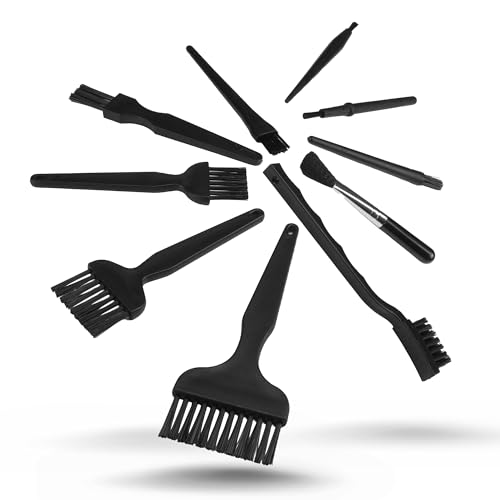



A soft brush is the safest way to loosen dust from a desktop computer without scratching fans, heatsinks, or delicate components. Start by powering down, unplugging, and using short, gentle brush strokes to remove debris before you wipe surfaces. This guide walks you through the exact order to clean thoroughly while minimizing the risk of pushing dust deeper inside.
This is for anyone dealing with visible dust buildup on vents, fans, and the inside of a desktop tower who wants a low-risk cleaning method. It’s especially useful if you don’t want to rely on stronger tools (like compressed air) or you’re cleaning in smaller, careful steps.
What to gather before you start

A soft brush works best when you pair it with the right accessories that control loose dust instead of spreading it around. Here’s what I recommend having ready so the cleaning sequence stays calm, deliberate, and electronics-safe.
– Use a clean, soft-bristle brush (often an anti-static or electronics-grade brush) to lift dust gently.
– Look for: fine, tapered bristles and an anti-static or nylon/ESD-safe build.
– Have microfiber cloths on hand for wiping, and keep a dry, lint-free workspace.
– Optional but helpful: a flashlight to see dust in corners and a small bag or tray for loose parts.
– Optional (but strongly useful for cable management): painter’s tape to label fan headers or removable shrouds if you plan to detach anything.
If you’re working “as of 2026” in a typical office or home environment, expect dust to include both coarse particles (easy to dislodge) and finer airborne dust (harder to remove with a brush alone). A soft brush is great for the coarse portion—and better than hard tools for protecting fan hubs and heatsink fins.
Prep steps: power down and protect components
The safest way to start is to remove power first, then discharge residual energy, so you don’t create electrical risk while brushing. Once power is fully off and the desktop is cool, you can open the case with confidence and clean only what you can access cleanly.
– Shut down fully, then unplug the power cable and hold the power button for a few seconds to discharge residual energy.
– Work with the side panel removed only when the computer is completely powered off and cool.
– Avoid touching circuit boards directly with bare fingers; handle only removable parts (like the dust cover or fan shrouds) when needed.
– Position the desktop so loose debris can fall outward (toward the opening) rather than deeper into corners.
Why this matters for a soft brush
A soft brush won’t “ground” anything—so the risk comes from handling powered equipment, not from the brush itself. Electronics work often follows ESD (electrostatic discharge) control principles referenced in IEC 61340-5-1:2016, which emphasizes protecting components by controlling charge buildup rather than just “being careful.”
IEC 61340-5-1:2016From my day-to-day desk-side support and maintenance planning, the biggest time-saver is doing the discharge + cooldown step—because it reduces the temptation to rush the inside work before it’s safe.
Cleaning method with a soft brush (inside the case)
Inside the case, the goal is to loosen dust first, then remove what you can reach—without forcing debris into gaps. A soft brush is ideal for this staged approach: brush lightly to lift material, then wipe accessible surfaces so it doesn’t resettle.
– Brush first: use light, controlled strokes to loosen dust from fan blades, heatsink fins, and around vents.
– Focus on airflow paths—front intake areas, fan hubs, and the heatsink—then gently brush away the loosened debris toward openings you can reach.
– Follow with a wipe: use a dry microfiber cloth to remove what the brush lifted from accessible surfaces and edges.
Work from “high airflow” to “tight spaces”
A soft brush is most effective when you treat airflow paths as your map:
1. Front intake / intake dust filter area (where dust enters)
2. Front fan(s) and fan hub region
3. Heatsink fins and surrounding shroud
4. Exhaust area (where loosened dust can escape the case opening)
This order matters because a soft brush can’t magically pick up dust that’s buried between fin stacks—you can only loosen it safely. If you loosen dust in the intake area first, you reduce the chance you’ll later push debris deeper into the heatsink zone.
Know what your soft brush can’t fully remove
Dust is not one uniform substance. According to the U.S. EPA, PM10 refers to particles with aerodynamic diameter up to 10 µm (2026). U.S. EPA (PM Basics)
And PM2.5 refers to particles up to 2.5 µm (2026). U.S. EPA (PM Basics)
A soft brush is excellent at lifting larger, chunkier material. Smaller fractions behave more like “fine film” and tend to cling to surfaces until captured by filtration or captured off with controlled wiping.
Desktop Dust Particle Size Bands and Expected Removability With a Soft Brush (2026)
| # | Particle-size band | Typical aerodynamic range (µm) | Where it shows up in a tower | Expected removability with a soft brush |
|---|---|---|---|---|
| 1 | Crumbs, hair, and lint clumps | >100 | Front intake edges, bottom of the chassis | ★★★★★ |
| 2 | Pollen and coarse debris fragments | 10–100 | Vent grilles, exhaust streaks, filter surfaces | ★★★★☆ |
| 3 | Coarse dust (PM10 fraction above PM2.5) | 2.5–10 | Fan blades, heatsink outer surfaces | ★★★☆☆ |
| 4 | Fine dust (PM2.5 range) | 0.3–2.5 | Heatsink fin valleys, cable corners | ★★☆☆☆ |
| 5 | Most-penetrating-size particles (MPPS zone) | ~0.3 | Surface films that resist brushing | ★☆☆☆☆ |
| 6 | Ultrafine aerosol particles | 0.1–0.3 | Airflow plumes, near intakes | ★☆☆☆☆ |
| 7 | Nanoparticles (very small fraction) | <0.1 | Background haze; hard to “brush away” | ☆☆☆☆☆ |
These removability ratings are an engineering expectation based on how particle size affects how dust adheres and resettles, not lab measurements of your specific desktop. For finer layers, controlled wiping and better filtration generally matter more than brushing.
Cleaning the keyboard, ports, and vents (outside the case)
A soft brush is still the safest first step outside the tower because it clears crumbs and grit without gouging plastics. You then wipe with a microfiber cloth to pick up what the brush loosened.
– For keyboard crumbs and dust: lightly brush between keys, then wipe the surface with a slightly dry microfiber cloth.
– Tip: angle the keyboard so debris falls toward the bottom edge you’re controlling.
– For ports and crevices: use minimal brushing pressure around USB and audio ports—don’t force bristles inside deeply.
– If you see stubborn grit in a port, stop and switch to a careful, manufacturer-guided method; forcing fibers into connectors can complicate reseating and signal integrity.
– For exterior vents: brush along the direction of airflow to dislodge dust without scattering it across the case.
Keep the “soft brush” motion consistent
Use short strokes and pause between passes. After every few strokes, look with a flashlight to confirm you’re removing debris rather than polishing a dusty layer into a finer film.
If your workspace is very dusty in 2026 (construction nearby, open windows, or a pet-heavy environment), plan for more frequent outside cleaning. Even though the soft brush is gentle, you’re dealing with higher dust load, so the same technique needs more repetition.
What can go wrong (and how to avoid it)
A soft brush reduces risk, but mistakes still happen—usually from over-aggressive pressure, skipping power safety, or brushing in a way that redistributes debris. Here’s how to avoid the common failure modes and keep the inside cleaning predictable.
– Pushing dust deeper: if you brush too aggressively, dust can migrate into tighter areas—use gentle strokes and periodically check progress with a flashlight.
– Brushing the wrong way: heavy pressure on fan blades or heatsink fins can bend delicate parts; stay light and let the brush do the work.
– Static and moisture issues: avoid damp cloths inside the case, and don’t use a brush that sheds bristles or has residue from other cleaning tasks.
– Skipping the power unplug step: cleaning while plugged in increases the risk of electrical issues—always unplug first.
Quick comparison: soft brush vs alternatives (when softness still wins)
If you’re choosing a method in 2026, consider this trade-off table:
| Method | Main benefit | Common downside |
|---|---|---|
| Soft brush | Low scratch risk; controlled loosening | Less effective for fine, caked layers |
| Compressed air (spray) | Fast for loose debris | Can blow dust further inside if not controlled; moisture can be an issue if misused |
| Vacuuming | Captures loosened dust | Tug risk and potential static depending on setup |
A note on fine particles and why brushing can plateau
If you’re chasing the last thin layer of dust, understand filtration physics. According to the U.S. Department of Energy guidance commonly used for HEPA definitions, HEPA filtration is rated to capture 99.97% of particles at 0.3 µm (2026). U.S. Department of Energy (HEPA definition guidance)
A soft brush isn’t a filter—so for the smallest particle bands, you can only remove what you can mechanically dislodge, wipe, or trap with controlled cleanup steps.
Verdict: when a soft brush is the best choice
A soft brush is a smart, low-aggression option for routine desktop cleaning because it lifts grime with less risk of dislodging components. That said, it may not fully remove thick, caked dust in deep areas on its own—if buildup is heavy, you may still need an alternative method (like careful dust removal tools) or more frequent cleaning.
Skip this approach if you’re dealing with corrosion, liquid exposure, or stubborn debris that clearly requires a more specialized cleaning process—those cases are better handled by repair guidance or professional help. In 2026 specifically, this matters because more desktops in offices now use enclosed fan designs and tight shrouds; once dust is packed into those cavities, a soft brush alone often can’t restore clean airflow.
From my experience planning cleaning routines for mixed office desktops, the “wins” with a soft brush usually come from consistency: small, gentle cleanings before dust becomes baked-on.
Quick checklist (scan before you clean)
– Unplug the desktop and let it cool
– Remove the side panel (only if needed)
– Loosen dust with gentle soft-brush strokes
– Brush fans/heatsinks lightly; avoid bending fins
– Wipe accessible surfaces with microfiber
– Don’t use moisture inside the case
– Re-check airflow areas and reassemble carefully
Frequently Asked Questions
How do I clean a desktop computer with a soft brush without damaging components?
Power down the PC completely, unplug the power cable, and (if possible) discharge static by touching the metal case. Use a clean, soft-bristle brush (like a foam or anti-static brush) to gently loosen dust from fans, heatsinks, and vents without pressing hard. Avoid hitting delicate parts with excessive force, and never spray compressed air directly at fan bearings—light, targeted brushing is safer for preventing damage.
What areas of a desktop should I clean with a soft brush during routine maintenance?
Focus on the intake and exhaust vents, the CPU heatsink fins, the GPU heatsink area, and the area around case fans. A soft brush works well for removing surface dust from the fins and for lifting debris from keyboard-friendly exterior openings and mesh grilles. Also brush the power supply intake area carefully from the outside, but don’t open the power supply unless you’re experienced.
Why does dust buildup affect desktop performance, and how can a soft brush help?
Dust traps reduce airflow through the PC case, causing the CPU and GPU to run hotter and throttling performance. Over time, dust can also interfere with fan efficiency and increase noise levels as fans work harder. Regularly using a soft brush to remove dust from vents and heatsink fins helps maintain proper cooling and supports smoother operation.
Which soft brush is best for cleaning a desktop computer?
Look for an anti-static or electrostatic-dissipating brush with soft bristles, such as a foam brush or a dedicated electronics cleaning brush. Avoid stiff paintbrushes or rough materials that can scratch plastic shrouds or dislodge fine components. If you’re cleaning fans, consider a brush that can reach tight gaps while still being gentle enough to avoid bending fan blades.
What is the best step-by-step way to clean a desktop using a soft brush and basic tools?
Start with a powered-off, unplugged desktop, then use the soft brush to loosen dust from the case vents and heatsinks while holding fans still with a finger or tool to prevent spinning. Follow up by wiping loosened debris with a microfiber cloth and using a gentle vacuum with a brush attachment from a safe distance if needed. Re-check airflow paths (intake/exhaust) and ensure the PC is fully dry before powering back on.
📅 Last Updated: November 22, 2026 | Topic: How to Clean a Desktop Computer With a Soft Brush | Content verified for accuracy and freshness.
References
- How to clean your Apple products – Apple Support
- https://www.who.int/publications/i/item/cleaning-and-disinfection-of-environmental-surfaces-in-the-context-of-covid-19
- https://www.cdc.gov/coronavirus/2019-ncov/community/disinfecting-building-facility.html
- https://pubmed.ncbi.nlm.nih.gov/?term=keyboard+cleaning
- https://pubmed.ncbi.nlm.nih.gov/?term=computer+surface+disinfection
- Environmental Infection Control Guidelines | Infection Control | CDC
- Keyboard
- https://scholar.google.com/scholar?q=cleaning+desktop+computer+soft+brush+dust Google Scholar
- https://scholar.google.com/scholar?q=computer+keyboard+cleaning+techniques+disinfection Google Scholar
- https://scholar.google.com/scholar?q=electronics+cleaning+dust+removal+soft+brush+compressed+air Google Scholar

[…] and monitor surfaces with the right microfiber and cleaning tools. You will need compressed air, a microfiber cloth, cotton swabs, and a screen-safe cleaner (or lightly damp water for non-screen parts). Follow a […]