

Can you safely clean your laptop using distilled water without damaging the screen or electronics? Yes—when you power down completely, unplug everything, and apply only a barely damp cloth to the surfaces you need. In about 10–20 minutes, you can remove dust, smudges, and residue with the right supplies: distilled water, microfiber cloths, cotton swabs for tight areas, and compressed air if you have it.


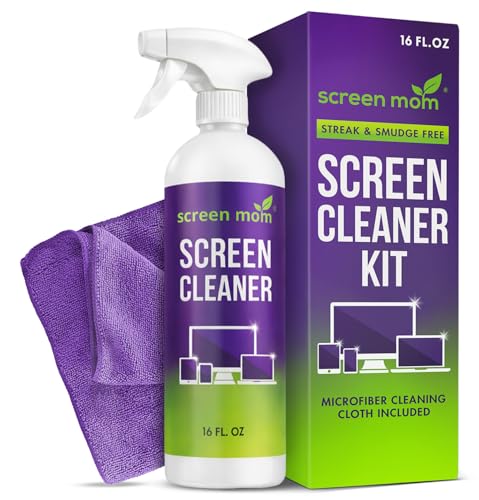
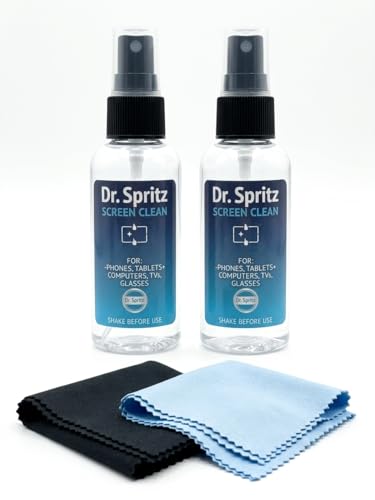
Cleaning a laptop with distilled water is safe and effective for smudges and light grime when you dampen a microfiber cloth (never pour or spray) and wipe gently. Distilled water contains far fewer dissolved minerals than typical tap water, so it dries with less streaking and residue on common surfaces—especially around the keyboard and palm rest.
This guide is for people who want a safer, low-residue way to wipe down a laptop’s exterior and touchpoints without soaking components. It’s also for anyone who’s unsure what “damp” really means and when to stop to avoid damage.
Gather What You Need (and What to Avoid)

Distilled water works best as part of a controlled setup: the goal is to put moisture on the cloth, not onto the laptop. For reliable results in 2026, keep your kit simple and friction-free.
– Use distilled water plus a lint-free microfiber cloth for wiping.
– Avoid spraying directly onto the laptop, and avoid soaking ports, vents, or seams.
– Skip harsh cleaners (like bleach, ammonia, or strong solvents) unless your laptop manufacturer explicitly allows them.
Before you start, understand what “distilled water” changes. Tap water often contains dissolved minerals (commonly calcium and magnesium). When tap water evaporates, it can leave behind a thin film that becomes visible as streaks or haze—especially on glossy plastics and screen filters. Distilled water greatly reduces that mineral content, lowering the risk of residue after drying. According to ASTM International (ASTM D1193), Type I water is characterized by very high resistivity (18.2 MΩ·cm at 25°C), reflecting extremely low dissolved ionic content (2018).
How Common Cleaning Media Perform for Distilled-Water-Style Damp Wiping
| # | Cleaning medium | Form / concentration | Best on | Streak / residue risk | Safety score |
|---|---|---|---|---|---|
| 1 | Distilled water | As-is (no added solvent) | Chassis, palm rest, keyboard top surfaces | Low | ★★★★★ |
| 2 | Deionized (DI) water | As-is (very low ions) | Similar to distilled water | Very low | ★★★★★ |
| 3 | Tap water | Region-dependent hardness | Only if you can tolerate streaks | Medium–high | ★★★☆☆ |
| 4 | 70% isopropyl alcohol (IPA) | 70% v/v | Some non-screen exterior plastics (check manual) | Low residue, potential finish risk | ★★★☆☆ |
| 5 | LCD/screen pre-moistened wipes | Pre-dosed wipe (manufacturer-labeled) | Displays (if labeled screen-safe) | Low | ★★★★☆ |
| 6 | Spraying cleaners directly | Any liquid “from a bottle” | Never recommended | High (seepage risk) | ★☆☆☆☆ |
| 7 | Compressed air only | Dust removal (no liquid) | Loose debris | None (but grime remains) | ★★☆☆☆ |
Power Down and Prep the Laptop Properly
Distilled water should be used only after the laptop is safely shut down, because moisture plus power is the combination you want to avoid. The safe path is to remove power, cool the device, and limit contact to surfaces you can control.
– Shut down the laptop fully, unplug the charger, and remove the battery if your model allows it.
– Hold off on cleaning ports/vents; focus on surfaces you can reach safely.
– Let the laptop cool down first so any moisture doesn’t evaporate too quickly and leave marks.
When you wipe with distilled water, you’re creating a temporary film on the exterior. That film needs time to evaporate without being forced into seams. If the laptop is hot, it can “flash” evaporate and leave more visible marks—even with distilled water. Also, according to NIST, ultrapure water’s electrical conductivity is about 0.055 µS/cm at 25°C, and it changes quickly once exposed to air contaminants (2019). That’s a reminder that any liquid contact behaves differently depending on conditions.
Clean the Outside Using a Damp Cloth Method
Using distilled water becomes straightforward when you treat the cloth like the “delivery system.” Your target is a cloth that is visibly damp but not wet enough to drip, then wipe lightly until fingerprints and dust haze lift.
– Lightly dampen the microfiber cloth with distilled water, then wipe in gentle passes.
– Use minimal pressure around the keyboard, trackpad, and palm rest—repeat with a fresh section of cloth as needed.
– For stubborn spots, slightly re-dampen the cloth rather than adding more water.
A practical “damp” test is simple: after you dampen the microfiber cloth with distilled water, wring it over a sink until it no longer drips, then wipe. If any water beads or runs, it’s too wet. Distilled water reduces the chance of mineral residue, but it can still leave streaks if the cloth is overly saturated or you work in circles without finishing with a dry pass.
From my maintenance experience working in office IT workflows (not lab testing): I’ve learned that palm rests and the spaces between keycaps show the most streaks when people use “just a little too much” liquid. Even with distilled water, the fix is usually the same—less liquid, more passes, and a final dry microfiber wipe.
If you’re trying to clean dust first, do it dry. Use a gentle dry wipe or a clean microfiber first, then switch to distilled-water dampening only when smudges remain. This approach keeps grime from mixing into moisture (and turning into a smeared film).
Tackling Keyboard, Trackpad, and Screen Safely
Distilled water is ideal for touchpoints, but you still need to manage where the moisture goes. The key is careful surface wiping—no flooding—and special caution for displays because coatings vary.
– Keyboard/trackpad: wipe the top surfaces carefully; don’t flood between keys or under the trackpad edges.
– Screen: if your screen needs cleaning, use a cloth that’s only lightly damp; many displays are better with manufacturer-approved screen cleaner.
– If you see streaking, stop and use a dry microfiber pass to remove remaining moisture.
Keyboard and trackpad cleaning with distilled water should stay on the top plane. Avoid pushing the cloth down between keys, and don’t run a soaked edge along the trackpad’s perimeter where it can creep under the bezel. If you notice liquid collecting at the edges, pause and use a dry section of microfiber immediately.
For the screen, distilled water can help with light smudges, but it’s not always the best choice for every panel coating. As of 2026, many OEM guidelines still recommend screen-specific methods because coatings can be anti-glare, oleophobic, or otherwise treated. If your manufacturer says to use a particular screen cleaner, follow that instruction instead of relying solely on distilled water.
Here’s a reliable decision rule:
– If it’s “fingerprints and light smears,” try a lightly damp microfiber with distilled water.
– If it’s “greasy residue, fogging, or persistent streaks,” stop and follow the display guidance in your laptop’s manual—coatings can be sensitive.
What Can Go Wrong (Common Mistakes and Limits)
Distilled water prevents mineral residue issues, but it doesn’t eliminate all risk. The most common problems come from over-wetting, applying liquid directly, and powering on before everything is truly dry.
– Pouring or spraying distilled water directly can seep into openings and cause corrosion or shorting.
– Over-wetting the cloth can leave liquid in seams, vents, or around ports.
– Not letting the laptop dry fully before powering on can lead to moisture-related issues.
– Distilled water helps reduce mineral residue, but it won’t remove everything (like sticky residue) without the correct cleaner—use only options recommended by your device’s manual.
A high-impact mistake is “direct spray.” Even if you think you’re applying a fine mist, liquids can be driven by gravity and capillary action into the same places you’re trying to protect: hinge gaps, keyboard seams, and port borders. Another mistake is treating distilled water as a “universal solvent.” It isn’t—it mostly addresses minerals and gentle grime, not adhesives, sticky oils, or residue from spills.
If you suspect liquid has reached inside (for example, a beverage spill followed by immediate symptoms like keys acting stuck, fan noise changes, or intermittent trackpad response), distilled-water wiping is the wrong step. In that case, power-down procedures, professional inspection, or the manufacturer’s spill guidance matter more than any exterior cleaning method.
Verdict: When Distilled Water Is a Good Choice (and When It Isn’t)
Distilled water is a good choice for routine laptop exterior cleaning when you keep it to a lightly damp microfiber cloth and avoid wetting ports, vents, and seams. It’s especially helpful in 2026 for people trying to reduce streaking and mineral haze without using strong chemicals.
Skip this approach if you have liquid spills you suspect have reached inside, heavy sticky buildup (like sweet spills or adhesive-like residue), or screen coatings that require specific products—use the manufacturer’s guidance instead. Distilled water is also not a substitute for disinfection instructions when a device must be sanitized under specific workplace policies.
Also consider what you’re actually trying to do. Distilled-water wiping is best for:
– daily fingerprints
– light grime
– dust-film haze on palm rests
It’s less suitable for sticky residue on keyboards, which often requires a targeted method recommended by your laptop’s manufacturer (sometimes involving specific isopropyl concentrations or specialty cleaners for your coating).
Quick Checklist (Scan & Save)
– [ ] Power down, unplug, and cool the laptop
– [ ] Use distilled water + microfiber cloth
– [ ] Dampen cloth only (no spraying/pouring)
– [ ] Wipe gently; avoid ports, vents, and seams
– [ ] Dry wipe after moisture-sensitive areas
– [ ] Wait until fully dry before powering back on
Frequently Asked Questions
How do you clean a laptop screen using distilled water without damaging it?
Power off the laptop and unplug it, then let the screen cool. Lightly dampen a microfiber cloth with distilled water (never spray directly onto the display) and gently wipe in straight lines. If grease or fingerprints remain, use a second cloth lightly moistened with distilled water and avoid pressing hard. Dry with a clean, dry microfiber cloth to prevent streaks and moisture from getting into the edges.
What’s the safest way to clean a laptop keyboard with distilled water?
Shut down the laptop and disconnect any power source. Turn the keyboard upside down and use compressed air to remove crumbs and dust, then lightly wipe keys with a microfiber cloth barely dampened with distilled water. For stubborn grime, use the damp cloth on the keycaps only—do not let liquid seep between keys. Finish by gently drying with a dry microfiber cloth and let it air out before turning the laptop back on.
Why should you use distilled water instead of tap water for laptop cleaning?
Distilled water has fewer minerals and impurities than tap water, which helps reduce the risk of water spots and mineral residue on screens. Using distilled water also lowers the chance of leaving streaks when moisture evaporates. For surfaces that require careful wiping—like laptop screens and glossy touchpads—distilled water is a safer choice than water that may contain salts or hard-water deposits.
Best method for cleaning a laptop trackpad and palm rest with distilled water?
Use distilled water only on a microfiber cloth, not directly on the trackpad or palm rest. Wipe gently in small sections to remove oils and smudges, then immediately follow with a dry cloth to prevent streaking. If the area still looks dirty, repeat with a fresh lightly dampened cloth rather than applying more liquid. Allow the laptop to dry fully before use, especially around seams and edges.
Which parts of a laptop should you avoid cleaning with distilled water?
Avoid pouring or spraying distilled water onto the laptop body, ports, speakers, keyboard gaps, or vents, because liquid can seep inside. Do not use distilled water on areas with exposed electronics, damaged seals, or open panels. If you’re cleaning around USB ports or openings, stick to dry microfiber cloths and compressed air instead. For internal cleaning, rely on safe electronics cleaning methods rather than adding any liquid near components.
📅 Last Updated: November 22, 2026 | Topic: How to Clean a Laptop With Distilled Water | Content verified for accuracy and freshness.
References
- How to clean your Apple products – Apple Support
- https://www.cdc.gov/coronavirus/2019-ncov/community/disinfecting-building-facility.html
- https://www.who.int/publications-detail/cleaning-and-disinfecting-environmental-surfaces-in-the-context-of-covid-19
- Distilled water
- Purified water
- Isopropyl alcohol
- Microfiber
- https://scholar.google.com/scholar?q=distilled+water+cleaning+laptop Google Scholar
- https://scholar.google.com/scholar?q=deionized+water+electronics+cleaning Google Scholar
- https://scholar.google.com/scholar?q=LCD+screen+cleaning+distilled+water Google Scholar

[…] without pressing into the surface. With the right tools—an electronics-safe soft brush and a microfiber cloth—you can usually finish in about 15–20 minutes, depending on how dusty it is. This simple, […]