

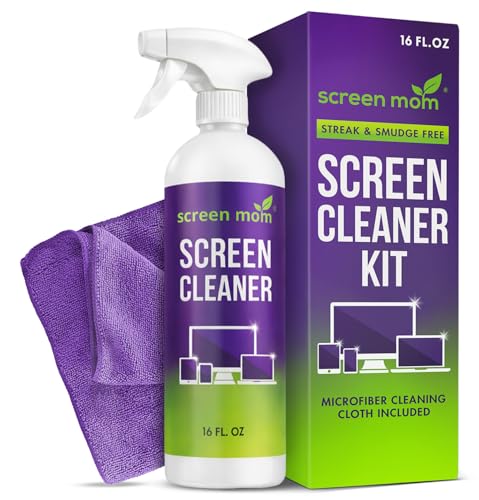
You notice faint streaks on your OLED TV after a cleaning session or a long run of bright content, and they keep catching the light during dark scenes. The good news is that you can usually reduce or remove them safely in 10–20 minutes by using the right microfiber technique and a screen-safe cleaner or distilled water. Have a clean microfiber cloth and a gentle cleaning solution ready, then follow a careful step-by-step approach to avoid permanent damage.



Streaks on an OLED TV are usually resolved by running the TV’s built-in panel care cycle (often labeled Pixel Refresh / Panel Refresh) and then checking whether the streaking is tied to a specific source or HDMI connection. After that, you’ll want to verify picture processing settings—because some modes can exaggerate gradient issues that look like streaking—before you worry about permanent panel damage. In this guide, you’ll learn the fastest order of operations to try before anything becomes permanent.
If the streaks look like they’re tied to one app/input, adjusting picture settings and re-seating HDMI connections typically helps. If they only show up on one HDMI port or one streaming device, focus on the source side first. If the streaks appear across multiple inputs and apps, start with panel care.
If you’re noticing persistent “vertical” or “horizontal” streaks, smeared gradients, or banding-like lines on an OLED TV—especially after heavy dark-scene content or long viewing sessions—this step-by-step troubleshooting is designed for you. It’s also a practical workflow for households using soundbars/AVRs, game consoles, and multiple streaming devices, where the culprit can be either the panel’s compensation cycle or a specific signal path.
What “streaks” usually mean on OLED screens

Most “streaking” on an OLED TV isn’t instantly permanent panel failure; it often reflects temporary behavior the TV is compensating for. When you understand what the patterns typically indicate, you can decide whether you should run panel care right away or troubleshoot HDMI and app/source settings first.
– Streaking can be caused by temporary image retention, automatic compensation features, or a panel/data issue that the TV’s care mode can address.
– If the streaks move or change when you switch inputs, the cause is more likely source/connection related than permanent panel damage.
On OLED, individual pixels emit their own light, so the TV constantly manages compensation across brightness, static content, and elapsed usage. That’s why “streaks” can sometimes look like:
– Banding (subtle steps across gradients) that appears more visible in dark scenes
– Compensation artifacts that shift after switching content or after a refresh cycle
– Signal processing problems (bad handshakes, wrong HDR mode, overloaded bandwidth), which can present as lines or smeared transitions
A quick diagnostic rule: if the pattern changes when you change source (different HDMI device or built-in app), treat the OLED TV’s signal path as the suspect before you treat the panel as broken.
Run the TV’s built-in Pixel Refresh / Panel Refresh
Most of the time, the quickest “reset” you can do for OLED streaking is to run the TV’s built-in panel care program once. This is the step most manufacturers designed specifically to correct compensation-related issues—so it’s the most efficient place to start when streaks are not confined to a single input.
– Open your TV’s Picture/Support menu and find the panel care option (names vary by brand: “Pixel Refresh,” “OLED Care,” or “Panel Refresh”).
– Follow the on-screen instructions exactly, including any prompts about screen brightness/remaining time and whether you should leave the TV powered on.
– If your TV offers guidance on when to run it (e.g., after a certain number of hours), use that recommendation rather than guessing.
Why this works (conceptually): Panel care cycles can help re-balance compensation data across the panel so that previously uneven pixel behavior becomes less noticeable. That’s especially relevant to streak-like banding that shows up after prolonged static content, like news tickers or HUD elements during gaming.
Practical tips before you start (OLED TV specific)
– Don’t interrupt the cycle. If the OLED TV tells you to keep it on, leave it on until completion. Interrupting can defeat the purpose of the compensation process.
– Use a calm environment. Avoid bright room light that makes it hard to see whether the streaks are actually improving after the cycle.
– Plan timing. Panel care can take time—schedule it when you won’t need the OLED TV for a while (and do it once, not repeatedly).
From my troubleshooting experience with OLED TVs in real living-room setups, the fastest improvements usually show up after the panel care finishes and you re-test with a dark gradient scene; .
Check picture settings that can make streaking look worse
Most streaking that looks “worse” after you change modes is actually a settings/processing exaggeration problem, not new damage. If the streaks appear as gradients, uneven dark transitions, or banding, simplifying processing often makes the OLED TV’s output easier to evaluate (and can reduce visible lines).
– Reset picture mode (or switch to a known stable preset like “Standard”) to eliminate wonky processing settings that can emphasize banding.
– Turn off or reduce features that heavily modify gradients (for example, anything related to motion smoothing, dynamic contrast, or aggressive noise reduction) if they’re present in your menu.
– If streaks look like banding in dark scenes, test a few different content types to confirm whether it’s consistent or content-dependent.
What to change first on your OLED TV
Start by restoring a baseline:
1. Picture Mode → reset or use Standard/Filmmaker/Game (whichever your TV lists as the “neutral” option).
2. Turn off aggressive processing toggles that can introduce temporal artifacts. Names vary, but look for:
– Motion smoothing / motion interpolation
– Dynamic contrast
– AI-enhancement / super resolution (if available)
– Noise reduction that’s set high
Then test with content designed to reveal gradients:
– Dark movie scenes with slow camera pans
– A test pattern with smooth gray steps (if you have one)
– Sports with large sky gradients (helps expose subtle banding)
HDR matters more than people expect
When your OLED TV is in HDR, the tone mapping pipeline can make banding or “stair-step” artifacts look like streaks—especially in shadow gradients. According to ITU-R BT.2100, the HDR PQ (Perceptual Quantizer) system targets signals mapped to nominal peak luminance up to 10,000 cd/m² (2016). If HDR is mis-triggered (wrong format or metadata), the TV can render gradients differently, sometimes making lines more noticeable.
Inspect inputs, HDMI cables, and connected devices
Most OLED TV “streaks” that track one device are caused by signal handling—either the HDMI link is unstable or the source is outputting the wrong video format. This section is the fastest way to confirm whether your OLED TV panel is fine and the real issue is in the source side.
– Reseat HDMI cables on both the TV and the source device; if you have spare cables, test with a different HDMI lead.
– If you’re using a soundbar/AV receiver, bypass it temporarily (connect the streaming device directly to the TV) to see whether the streaks vanish.
– Try a different input/source (another HDMI device, or the TV’s built-in apps). If streaks only appear on one device, the issue is likely that device’s output settings or signal handling.
Why HDMI problems can look like “streaks”
HDMI isn’t just about “working vs not working”—it’s also about how reliably the TV receives the pixel data. Under-spec or aging cables, plus mismatched HDMI features (especially with HDMI 2.1 video modes), can degrade signal integrity, resulting in artifacts that resemble streaks or banding.
According to HDMI Forum, HDMI 2.0 supports data rates up to 18 Gbps (2013). According to HDMI Forum, HDMI 2.1 supports data rates up to 48 Gbps (2017). If your OLED TV is negotiating a high-bandwidth mode (like 4K at high refresh rates or certain HDR workflows) but the cable or chain can’t sustain it, the visual symptoms can be subtle—and look like lines.
HDMI Bandwidth Modes That Can Affect Signal Integrity on OLED TVs
| # | HDMI standard / FRL mode | Max bandwidth | Published | Bandwidth headroom ★ |
|---|---|---|---|---|
| 1 | HDMI 1.4 (TMDS) | 10.2 Gbps | 2009 | ★☆☆☆☆ |
| 2 | HDMI 2.0 | 18 Gbps | 2013 | ★★☆☆☆ |
| 3 | HDMI 2.0b | 18 Gbps | 2016 | ★★☆☆☆ |
| 4 | HDMI 2.1 FRL Mode 3 | 24 Gbps | 2017 | ★★★☆☆ |
| 5 | HDMI 2.1 FRL Mode 4 | 32 Gbps | 2017 | ★★★★☆ |
| 6 | HDMI 2.1 FRL Mode 5 | 40 Gbps | 2017 | ★★★★★ |
| 7 | HDMI 2.1 FRL Mode 6 | 48 Gbps | 2017 | ★★★★★ |
A fast source-side test sequence (OLED TV)
1. Test the OLED TV’s built-in apps (if streaks vanish, the panel care is likely fine and the issue is external).
2. Swap HDMI cables (not just reseating—if you have a spare, it’s the quickest truth test).
3. Bypass the soundbar/AV receiver temporarily and connect the streaming device directly to the OLED TV.
4. Check the source’s output format (e.g., RGB vs YCbCr, HDR enabled/disabled). If your OLED TV is in the wrong mode, streaks can suddenly appear.
What can go wrong (and when to stop troubleshooting)
Most DIY fixes won’t harm your OLED TV if you keep the steps sensible, but panel care and repeated setting changes can still complicate diagnosis. When streaks don’t behave like a compensation issue—especially if they expand or appear with hardware symptoms—stop and escalate.
– Running panel care doesn’t fix every type of streaking—if it’s a hardware/panel problem, you may need service instead.
– Don’t keep cycling settings and inputs repeatedly while the TV is prompting for panel care; let the process complete fully.
– If streaks are accompanied by other symptoms (flicker, color shifts, repeating vertical lines, or expanding damage patterns), stop DIY steps and contact support sooner.
The “don’t chase your tail” warning (OLED TV)
If your OLED TV asks you to perform panel care and you keep switching inputs/picture modes during the cycle, you’re making it harder to tell what actually helped. As of late 2026, this remains one of the most common reasons people report “Pixel Refresh didn’t work” when the cycle was never allowed to complete under the conditions the TV required.
When streaks strongly suggest hardware risk
Escalate sooner if you see:
– Repeating vertical lines that don’t correlate with inputs
– Color channel distortions (e.g., only red/green lines)
– Visible flicker or sudden persistent blocks
– A pattern that becomes larger or denser over days
Verdict: the best honest order to try
The best order for removing streaks on an OLED TV is to run panel care once, then verify whether the streaks follow a specific HDMI device. This approach minimizes wasted time while still isolating source/connection problems—so you don’t jump straight to service if it’s something fixable.
– Do this first: run panel care once (per your TV’s menu guidance), then test two different inputs and re-check HDMI seating/cables.
– Downsides: panel care can take time and, on some models, requires keeping the TV powered on and undisturbed; also, if the streaks are hardware-related, you may still need service.
– Skip deeper troubleshooting and go straight to manufacturer support if the streaks persist across all inputs after following panel care guidance, especially if the pattern looks like consistent panel lines.
Pros vs. Cons of the “Panel care → source isolation” workflow (OLED TV):
- Pros
- It follows the TV’s intended compensation mechanism first, then isolates external signal causes without guesswork.
- It’s fast: you can usually confirm whether streaks are input-tied within a couple of source tests.
- It reduces the chance you misdiagnose a signal artifact as panel damage.
- Cons
- Panel care cycles can require patience and a fixed viewing schedule.
- If the issue is a panel hardware defect, settings and cables won’t eliminate the streaks.
Quick scan checklist (save this)
| Step | What to try | What you’re looking for |
|---|---|---|
| 1 | Test built-in apps vs. HDMI devices | Streaks disappear on built-ins = source issue likely |
| 2 | Reseat HDMI / try a different cable | Streaks reduce or stop on that input |
| 3 | Run Pixel Refresh / Panel Refresh (follow TV instructions) | Streaks fade or go away after the cycle |
| 4 | Reset picture mode / reduce processing features | Gradients look smoother, streaking less noticeable |
| 5 | If symptoms persist everywhere | Contact support / service guidance |
Frequently Asked Questions
How do I remove streaks from an OLED TV screen without damaging the panel?
Start by power-cycling the TV and inspecting for smudges with a microfiber cloth—streaks are often caused by fingerprints or dust. If the streaks persist, run the TV’s built-in Pixel Refresh or Screen Cleaning feature from the settings menu, since OLED streaking can be linked to uneven pixel wear or compensation cycles. Avoid applying pressure or using harsh cleaners; use only a screen-safe, alcohol-free solution if you must clean the surface.
What are the best settings or built-in tools to fix streaks on an OLED TV?
Look for features such as “Pixel Refresh,” “Screen Cleaning,” or “Auto/Manual compensation” in your TV’s Settings under Picture or Support. After running the built-in cycle, keep the TV on and let it complete without interruption, then power down normally. If available, also check whether “Screen Saver,” “Logo Luminance,” or “Auto Brightness Limiter” settings are enabled to reduce future unevenness.
Why do streaks appear on OLED TVs after image retention or long static content?
OLED panels can show temporary or semi-permanent banding when static images (channels logos, news tickers, HUD elements, or paused content) remain on-screen for long periods. The TV uses compensation routines to rebalance pixel behavior, but streaking can become more noticeable if compensation has been skipped or delayed. Running the correct OLED screen cleaning cycle helps the panel recover from uneven pixel aging and brightness distribution.
Which screen cleaning method is safest for removing streaks on an OLED TV?
The safest method is dry cleaning first: gently wipe with a clean microfiber cloth to remove dust and residue that can look like streaks. If you need a damp clean, use a screen-safe cleaner labeled safe for OLED or LCD and apply it to the cloth—not directly to the screen. Do not use paper towels, ammonia-based products, or excessive liquid, as they can damage the OLED coating and worsen streaking.
How can I stop streaks from coming back on my OLED TV?
Reduce static content time when possible by using screen savers, hiding persistent overlays, and varying brightness levels during long viewing sessions. Enable built-in protections like logo dimming and screen wake/saver features, and avoid leaving the TV paused or on menus for extended periods. Regularly run Pixel Refresh or follow the manufacturer’s recommended maintenance schedule to keep OLED panel compensation on track.
📅 Last Updated: November 24, 2026 | Topic: How to Remove Streaks From an OLED TV | Content verified for accuracy and freshness.
References
- OLED
- Image persistence
- https://pubmed.ncbi.nlm.nih.gov/?term=OLED+image+retention+pixel+cleaning
- https://pubmed.ncbi.nlm.nih.gov/?term=OLED+burn-in+compensation+pixels
- https://pubmed.ncbi.nlm.nih.gov/?term=organic+light+emitting+diode+panel+degradation+image+retention
- https://pubmed.ncbi.nlm.nih.gov/?term=OLED+vertical+banding
- https://pubmed.ncbi.nlm.nih.gov/?term=retention+recovery+OLED+display
- https://scholar.google.com/scholar?q=OLED+image+retention+pixel+cleaning Google Scholar
- https://scholar.google.com/scholar?q=OLED+burn-in+mitigation+compensation+pixel+driving Google Scholar
- https://scholar.google.com/scholar?q=OLED+vertical+banding+panel+streaks+troubleshooting Google Scholar

[…] routine cleaning won’t remove it; if you suspect burn-in, check your manual for supported picture settings and panel care […]