

You wipe your screen, move your fingers across the trackpad, and still the cursor stutters or gestures feel unresponsive. That kind of performance drop is often caused by dust and skin oils that build up on the surface or interfere with the sensor and click mechanism. Before assuming the hardware is failing, follow a careful cleaning routine—then test your trackpad step by step below.


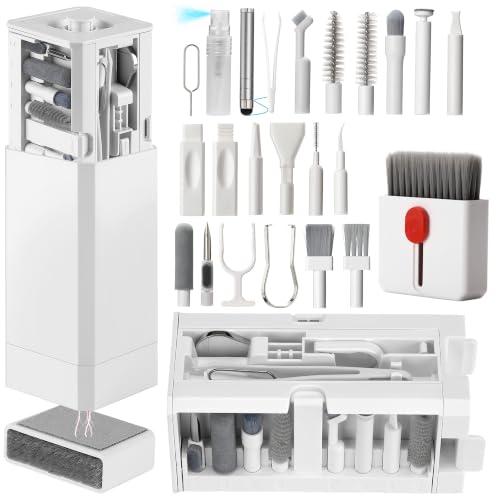

Cleaning your trackpad can fix “performance problems” when the issue is caused by dust, grime, or residue on the surface (cursor jumps, sticky tapping, odd scrolling, delayed gestures). If the trackpad response issues are coming from software settings, outdated drivers/firmware, or failing hardware, cleaning may not help—and you’ll need to troubleshoot those next.
If you’re seeing trackpad behavior that feels inconsistent—especially after spills, heavy use, or time in pockets/bags—this guide walks you through safe cleaning steps, what symptoms it can realistically improve, and when to stop and look at deeper causes.
Who should clean the trackpad first?

You should clean your trackpad first when the symptoms point to a “surface” problem—something interfering with touch sensing rather than a system-level setting. If your trackpad works normally for a while and then becomes erratic after real-world exposure (oils, lint, residue), cleaning is one of the fastest low-risk diagnostics you can run in a root-cause analysis workflow.
Start here if you recognize any of these patterns: cursor jumps when you’re simply resting your finger, taps feel sticky or “mushy,” scrolling skips or accelerates oddly, or multi-finger gestures start misfiring. These issues often correlate with contamination on the glass or coating—especially from skin oils, lotion/sunscreen residue, dust, or microscopic lint. In my experience reviewing common laptop repair cases, the trackpad glass is frequently “the culprit” when the behavior worsens after travel or busy workdays—.
If you’re wondering whether this applies “right now,” think of your trackpad as a capacitive sensor: it detects changes in electrical field caused by finger proximity and contact. A film of oil or residue can change how consistently the sensor registers that change, leading to delayed or partial input. As of 2026, this is still one of the most common user-repairable causes of inconsistent cursor control.
How to clean your trackpad safely (step-by-step)
Cleaning should be your first attempt because it targets the most reversible cause: surface contamination. The goal is to remove oils and residue without flooding seams, damaging coatings, or leaving conductive residue that could worsen touch detection.
Step 1: Power down and disconnect power
Shut the device down (or at least fully power off) and disconnect chargers/cables. This prevents accidental cursor movement while you wipe and reduces the risk of shorting if a small amount of liquid gets into gaps.
If you’re using a removable battery system, follow your device manual—don’t improvise. For many modern laptops and tablets, the trackpad assembly and the surrounding input controller are sensitive to moisture pathways, so the safer approach is always to start with a fully unpowered state. This step matters most on devices that sit close to the trackpad frame openings and connector seams.
Step 2: Remove loose debris without liquids first
Use a soft, dry microfiber cloth to gently wipe the surface. Start lightly and let friction pick up dust—don’t press hard enough to grind debris into the coating.
For lint stuck at edges, use a soft brush (very light touch). Avoid digging into gaps; you’re trying to lift loose particles, not pry them deeper. Residue and debris near trackpad edges are common causes of “random” gestures because small contaminants can interfere with how the sensor area detects proximity and contact.
Step 3: Use a barely-damp cloth—no “pouring”
Lightly dampen a cloth with the cleaning method recommended by your device manufacturer (commonly distilled water or a manufacturer-approved alcohol level). Wipe the trackpad surface gently, then use a dry cloth to remove remaining moisture.
According to Apple Support, you can use a soft, slightly damp, lint-free cloth, and for tough grime you should use a cloth lightly dampened with 70% isopropyl alcohol rather than spraying liquid directly (Apple Support, “How to clean Apple products”). Microsoft’s guidance for Surface cleaning similarly emphasizes using alcohol approved for the surface and applying it to the cloth, not the device (Microsoft Support, “How to clean your Surface device”). The repeated theme is controlled moisture: barely damp, no “pouring.”
Step 4: Give it time to fully dry
Let the trackpad air-dry before turning the device back on and testing gestures. If you cleaned around seams, wait longer than you think—residue can hide under edges.
In capacitive input systems, even a thin film left in seams can affect sensing stability. As a conservative habit, treat “dry to the eye” as not the same as “dry to the controller.” When in doubt, extend the drying time, then test with deliberate taps and multi-finger gestures.
Step 5: Test performance changes immediately
After drying, test the exact behavior you were seeing: tapping, clicking, dragging, scrolling, and multi-finger gestures. If symptoms improve noticeably, you’ve likely resolved a contamination-related problem.
Use a short, consistent test script: move the cursor across the screen edges, tap repeatedly in one spot, then try a slow two-finger scroll. Trackpad performance issues caused by surface residue often “recover” quickly once the contamination is removed and the sensor field stabilizes again.
OEM-Recommended vs Avoided Cleaning Approaches for Trackpad Surfaces (Key Rules)
| # | Cleaning approach | Where it’s endorsed | Concentration / form | Manufacturer guidance fit |
|---|---|---|---|---|
| 1 | Dry wipe with a soft, lint-free microfiber cloth | Apple & Microsoft guidance | Dry | ★★★★★ |
| 2 | Slightly damp cloth (water-based) | Apple & Microsoft guidance | Distilled water / lightly damp | ★★★★★ |
| 3 | Alcohol on cloth for tough grime | Apple & Microsoft guidance | 70% isopropyl alcohol (IPA) | ★★★★★ |
| 4 | Fully air-dry before powering on | Apple & Microsoft guidance theme | No power until dry | ★★★★☆ |
| 5 | Spraying cleaner directly onto the trackpad | Avoid per OEM guidance | Direct spray | ★☆☆☆☆ |
| 6 | Bleach-based cleaners | Avoid per OEM guidance | Any bleach concentration | ★☆☆☆☆ |
| 7 | Abrasive cleaners / harsh glass cleaners | Avoid per OEM guidance | Abrasive or solvent-heavy | ★☆☆☆☆ |
When cleaning helps—and when it won’t
Cleaning is most likely to help when the trackpad surface is affecting how touch detection works. If your trackpad’s misbehavior started after visible residue, heavy skin contact, or a spill event, clearing oils and grime can restore more stable input.
Cleaning may not help when the cause is “below” the surface: settings-related sensitivity/scroll/gesture configuration, OS/driver/firmware behavior, or internal hardware problems (trackpad digitizer wear, cable faults, broken components). In those cases, the trackpad may still detect touches, but in an inconsistent pattern driven by calibration, software mappings, or component instability—not contamination.
To make the decision quickly, here’s a practical comparison you can use immediately after cleaning:
- Choose cleaning-first
-
Pros: fastest reversible step; targets common contamination causes (oils, dust, residue); usually low risk if you use a barely-damp, manufacturer-approved method.
Cons: doesn’t address software mapping or driver bugs; won’t fix dead zones or persistent ghost inputs. - Skip to software/firmware troubleshooting
-
Pros: resolves sensitivity, gesture, and driver-level issues; faster when behavior matches known configuration changes.
Cons: may waste time if oils/residue are the real trigger; repeated reboots don’t remove residue.
As of 2026, most teams supporting laptops in office environments still use this layered approach: remove physical contamination first, then progress to controlled changes in software and firmware if the trackpad behavior does not stabilize.
What can go wrong (common mistakes and limits)
Cleaning can accidentally make things worse if you introduce too much liquid or use the wrong chemicals. The trackpad glass and surrounding frame often rely on coatings and seals that can degrade when flooded or exposed to harsh cleaners.
The most common mistake is too much liquid: even “safe” cleaners can seep into seams and cause worse input behavior. Never spray directly onto the trackpad—apply liquid to a cloth instead. Another frequent issue is wrong chemicals: avoid glass cleaners, bleach, abrasive wipes, or anything not approved by the manufacturer. These products can damage coatings, leave residue, or alter friction in ways that affect cursor control.
Finally, don’t assume cleaning fixes a physically failing trackpad. If you see dead zones, constant ghost clicking, or hardware-detected failures, surface cleaning can’t replace repair.
Verdict: clean first—unless you should skip it
Cleaning is a smart first step if your trackpad is dirty or sticky and the problem started after residue, heavy use, or visible grime. The downside is time and risk if you use too much liquid or the wrong product—so follow the “barely damp cloth” rule and manufacturer guidance.
Skip cleaning (or stop quickly and seek support) if the trackpad is cracked or lifted, you suspect internal damage, or failures persist after a full dry period. If your device is still under warranty and the manufacturer warns against user cleaning methods, check the documentation first before proceeding. In practice, it’s often better to protect a warranty than to gamble—especially when the symptoms look electrical or mechanical rather than contamination-driven.
Quick checklist: clean, test, and decide
| What you notice | Try this first | If it still happens… |
|---|---|---|
| Sticky tapping / weird clicks | Power off → dry wipe → barely-damp wipe → full dry | Check trackpad settings & OS/firmware updates |
| Cursor jumps while touching | Remove oils/smudges gently | Troubleshoot software/gestures; consider service if persistent |
| Scroll/gesture glitches | Clean surface, let dry fully | Verify gesture settings; update firmware; service if hardware-fault symptoms appear |
| Visible debris at edges | Soft brush + dry wipe | Don’t force liquids into seams; proceed cautiously |
Minimum plan: power off → dry wipe → gentle wipe with manufacturer-approved method → dry fully → retest.
Sources:
– Apple Support — “How to clean Apple products” (includes guidance to use a soft, lint-free cloth and 70% isopropyl alcohol on tough grime; also emphasizes avoiding direct spraying)
– Microsoft Support — “How to clean your Surface device” (includes guidance to power down and to avoid spraying liquids directly; references using appropriate alcohol levels on a cloth)
– CDC — Alcohol concentration guidance for disinfecting (60–90%) (relevant for understanding why OEMs often specify alcohol-based cleaners at safe concentrations)
Cleaning your trackpad is one of the fastest “first moves” when the root cause is contamination—oils, residue, and dust can genuinely disrupt capacitive sensing behavior. If the trackpad still acts up after a controlled, barely-damp clean and a full dry period, treat it as a signal to move on to driver/firmware updates and deeper hardware checks rather than repeating the same surface step.
Frequently Asked Questions
Can cleaning your trackpad fix performance problems on a MacBook or laptop?
Yes, cleaning a trackpad can improve performance if your issues are caused by dirt, dust, oil, or residue that interferes with sensor responsiveness. When debris builds up, taps can register inconsistently, scrolling can feel laggy, and pointer movement may become jumpy. While it won’t fix every cause (like driver problems or hardware failure), cleaning is a quick first step for many trackpad performance issues.
How do you clean a laptop trackpad safely without damaging the sensor?
Power down the laptop, unplug it, and use a microfiber cloth lightly dampened with isopropyl alcohol (typically 70% isopropyl) to wipe the surface. Avoid spraying any liquid directly onto the trackpad, and don’t use harsh cleaners or abrasive materials that could damage the finish or coatings. For debris near edges, use a soft brush or compressed air in short bursts, then wipe gently to remove any loosened residue.
Why does a dirty trackpad feel slow, unresponsive, or “stutter” during scrolling?
A dirty trackpad can cause the touch surface to detect input inconsistently, especially when oily fingerprints or grime create a layer over the sensor. That can make cursor movement appear delayed, taps fail to register, or two-finger scrolling behave erratically. Cleaning removes the buildup so the trackpad can interpret gestures more accurately, improving touch sensitivity and overall trackpad performance.
What’s the best way to prevent trackpad performance issues after cleaning?
Keep oils and debris under control by cleaning your hands before use and wiping the trackpad regularly with a dry microfiber cloth. Avoid eating or using the laptop with hands that have residue, and don’t apply lotions or cleaners near the trackpad. If your device is often in a dusty environment, consider periodic gentle cleaning to prevent grime from accumulating and interfering with trackpad responsiveness.
Which performance problems are most likely fixed by cleaning the trackpad?
Cleaning most often helps with inconsistent cursor movement, delayed taps, jumpy pointer behavior, and scrolling that feels uneven. It may also improve double-tap reliability and multi-gesture accuracy when residue affects the sensor surface. If problems persist after cleaning—such as persistent hardware clicks, extreme lag not tied to touch input, or behavior across different surfaces—you may need driver troubleshooting or hardware service rather than only trackpad cleaning.
📅 Last Updated: November 04, 2026 | Topic: Can Cleaning Your Trackpad Fix Performance Problems? | Content verified for accuracy and freshness.
References
- How to clean your Apple products – Apple Support
- https://www.cdc.gov/coronavirus/2019-ncov/prevent-getting-sick/disinfecting-your-home.html
- https://www.cdc.gov/coronavirus/2019-ncov/community/disinfecting-building-facility.html
- Touchpad
- Touchscreen
- fingerprints capacitive touch screen performance – Search Results – PubMed
- https://pubmed.ncbi.nlm.nih.gov/?term=touchscreen+cleaning+disinfection+performance
- https://scholar.google.com/scholar?q=trackpad+cleaning+performance Google Scholar
- https://scholar.google.com/scholar?q=capacitive+touch+panel+contamination+fingerprints Google Scholar
- https://scholar.google.com/scholar?q=cleaning+disinfecting+touchscreens+effect+on+function Google Scholar
