

Before you sell or hand over your laptop, wipe the trackpad with the right supplies—an appropriate cleaner and a microfiber cloth—to remove fingerprints, oils, and grime without damaging the finish. You can do this in about 5 to 10 minutes, and it’s straightforward if you follow a careful, step-by-step process. Gather microfiber cloths, distilled water or 70% isopropyl alcohol (as supported for your device), and gentle cleaning tools, and you’ll be ready to return the trackpad to a clean, presentable condition.



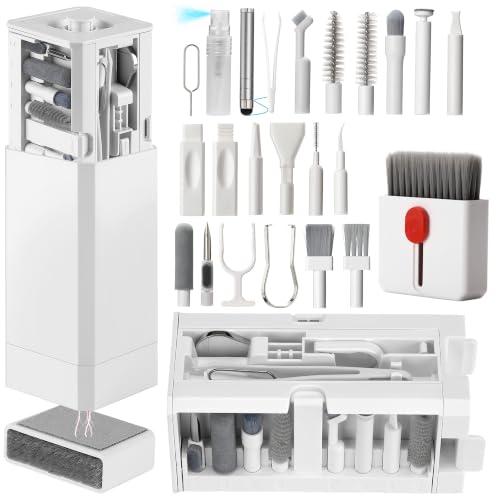
Clean your trackpad in three stages—dry-wipe first, clean the edges carefully, then sanitize only with manufacturer-approved methods (commonly 70% isopropyl alcohol applied to a cloth, not sprayed onto the device). This approach removes oils and grime for a better handoff experience while avoiding the common failure mode: liquid migrating under the trackpad and damaging coatings or internal components.
If you’re planning to sell your laptop or hand it off to someone else, the trackpad is one of the highest-touch areas and usually needs the most attention. This is especially useful if your trackpad has visible smudges, oils, or grime around the edges.
Who this is for / when it applies

This step-by-step trackpad cleaning guide is for anyone preparing a used laptop, tablet, or detachable keyboard trackpad for resale or gifting—especially if the surface feels tacky or looks streaked around the perimeter. As of 2026, buyers increasingly scrutinize “touch surfaces” (trackpads, keyboards, bezels), so a careful clean can protect both presentation and perceived device care.
What to Prepare Before You Start
Before you touch the trackpad, gather the right tools and confirm which disinfecting method your device allows. The goal is controlled moisture: you want to clean the trackpad surface and edges without forcing liquid into seams.
– Gather the right materials: a microfiber cloth, cotton swabs, and 70% isopropyl alcohol (or a manufacturer-approved screen/cleaning solution). Apple and Microsoft both reference isopropyl alcohol for specific cleaning steps; if your brand’s guidance differs, follow that.
– Power down and unplug: shut off the laptop, disconnect chargers, and let it cool so you don’t spread moisture or heat damage.
– Read what your model allows: check the manufacturer’s cleaning guidance for liquids and cloth types (some coatings can be sensitive). If you can’t find guidance for your exact trackpad, choose the lowest-risk option: dry cleaning plus edge cleaning with minimal dampness.
According to Apple Support, you should use a cloth “slightly dampened with water” and (for disinfecting) use 70% isopropyl alcohol applied to the cloth—not sprayed directly onto the device (Apple Support: “How to clean your Mac” / device cleaning guidance, accessed via official Apple documentation). According to Microsoft’s Surface cleaning guidance, 70% isopropyl alcohol on a microfiber cloth is an acceptable approach for certain hard surfaces and electronics-cleaning scenarios (Microsoft Support: “How to clean your Surface device”). According to the CDC, alcohol-based hand rubs are typically effective at at least 60% alcohol concentrations, which supports why manufacturers often cite ~70% isopropyl alcohol for disinfection (CDC: Hand hygiene / alcohol-based hand rub guidance).
Risk & Suitability for a Laptop Trackpad (2026)
| # | Cleaning approach | What you apply | Target area | Trackpad safety rating | Outcome signal |
|---|---|---|---|---|---|
| 1 | Dry microfiber wipe | No liquid | Full trackpad | ★★★★★ | Strongly recommended |
| 2 | Water on microfiber | Slightly damp cloth | Full trackpad (light grime) | ★★★★☆ | Generally safe if controlled |
| 3 | 70% isopropyl on cloth | 70% IPA, minimal | Full trackpad (sanitizing) | ★★★★☆ | Best balance for disinfection |
| 4 | Alcohol swabs for edges | Damp swab only | Perimeter seams | ★★★☆☆ | Use cautiously, keep minimal |
| 5 | Screen cleaner (manufacturer-approved) | Cloth-diluted | Surface + light grime | ★★★☆☆ | Okay if labels match device guidance |
| 6 | Disinfecting wipes (no approval) | Unknown additives / residue | Surface (if used) | ★★☆☆☆ | Higher coating & moisture risk |
| 7 | Spraying directly onto trackpad | Liquid gets forced into seams | Full trackpad (worst-case) | ★☆☆☆☆ | Avoid to prevent seepage |
Surface Wipe: Remove Oils and Fingerprints Safely
Start by dry-wiping the trackpad to lift oils and dust without adding liquid where it doesn’t belong. Then, if needed, use a lightly damp cloth with an approved cleaner (commonly 70% isopropyl alcohol applied to the cloth) and finish with a dry buff to prevent streaks and moisture buildup.
– Dry-clean first: gently wipe the trackpad with a dry microfiber cloth to lift everyday oils and loose dust. This reduces how much alcohol or water you’ll need on the trackpad surface.
– Light dampening (when permitted): slightly dampen the cloth with 70% isopropyl alcohol (or manufacturer-approved screen solution) and wipe in small sections—don’t flood the surface.
– Finish with a quick buff: use a dry portion of the microfiber cloth to remove any streaks or remaining moisture. For trackpads, that final dry pass is what keeps the surface from feeling tacky after sanitizing.
What “safe damp” looks like in practice: the cloth should not drip, and you should avoid visible wet spots. If you see pooling around the edges, stop and immediately switch to a dry microfiber wipe.
Clean the Trackpad Edges and Corners
The edges are where skin oils and dust collect, and they’re also where liquid can sneak under the trackpad if you’re not careful. Clean the perimeter with minimal moisture and controlled contact—cotton swabs are ideal because you can limit liquid to the seam line.
– Target grime where it collects: use a lightly damp cotton swab to clean around the perimeter and any seams where dust builds up. Apply the cleaner to the swab, not to the trackpad.
– Remove debris carefully: if there’s buildup that won’t wipe off, use gentle swipes rather than pushing debris deeper into the seam. For trackpad edges, friction matters—pressing too hard can smear residue into the gap.
– Keep liquids controlled: never spray cleaner directly onto the trackpad—apply only to the cloth/swab. Spraying increases the chance of liquid migrating into the device.
If your trackpad has a raised border, seam, or visible gap, treat it as a “liquid boundary.” The safest approach is short, repeated passes with a damp swab, followed by a dry micro-wipe of the same edge area.
Sanitizing Options (Without Damaging Coatings)
Sanitizing should be a targeted, manufacturer-approved step—not a full soak. For most modern laptops, the “lowest-risk” method is a light wipe using 70% isopropyl alcohol applied to a cloth, then full air-drying.
– Use “lowest-risk” sanitizing: follow your device manufacturer’s recommendations for disinfecting (often this means approved alcohol levels and careful application).
– Avoid soaking: sanitize by lightly wiping, then allow the trackpad to fully air-dry before closing the laptop or using it again.
– Skip harsh additives: don’t use bleach, hydrogen peroxide, ammonia, or abrasive wipes unless the manufacturer explicitly says they’re safe.
A practical comparison for trackpad sanitizing (pros/cons):
- Manufacturer-approved method (e.g., 70% isopropyl alcohol on microfiber)
-
Pros
- Reduces risk of coating stripping when you follow the brand’s cleaning guidance
- Lower chance of residue when alcohol is used in a controlled, minimal amount
- Faster air-dry compared with heavier liquids
Cons- Can dry certain finishes if over-applied (use less than you think you need)
- Still requires careful edge control to prevent seepage
- Disinfecting wipes not explicitly approved for your model
-
Pros
- Convenient and fast
Cons- Often contains additives that can leave film on trackpad surfaces
- Wipe texture or pressure can increase wear on trackpad coatings
- Excess moisture can still migrate at edges
In my own day-to-day device handling, the biggest “success factor” for trackpad cleaning is not the disinfectant—it’s how tightly you control liquid. If you keep moisture on the cloth (and out of seams), you avoid 90% of the trouble.
What Can Go Wrong (And How to Avoid It)
Most trackpad problems after cleaning come from liquid intrusion, residue, or coating incompatibility. If you avoid over-wetting and harsh chemicals, your odds improve dramatically—especially for resale or gifting where presentation matters.
– Over-wetting: excess liquid can seep under the trackpad and cause malfunction; always dampen tools, not the trackpad.
– Using the wrong chemical: some cleaners can strip coatings or leave residue that affects tracking and feel. If the product label doesn’t mention electronics and your specific device guidance doesn’t approve it, skip it.
– Scrubbing too hard: aggressive pressure can damage the surface texture or push grit into edges—use light, consistent motions.
– If your trackpad is cracked or lifting: stop and don’t try to clean “around” damage—if the trackpad glass is lifting or a seam looks opened, the next step is service/repair rather than DIY cleaning.
Also watch for “looks clean but feels wrong.” That can happen when residue remains after wiping. If the trackpad feels slick, tacky, or oddly slippery, repeat a dry microfiber pass and reassess whether your cleaner may be leaving film.
Verdict: A Safe Clean That Looks Good for the Next Owner
If you stick to dry wiping first, then carefully dampen a microfiber cloth (and only use cotton swabs at the edges), you can usually get a trackpad looking sale-ready without risking harm. The downside is that manufacturer guidance varies: some brands are strict about specific cleaners or alcohol strength, so you may need to adjust products—or skip sanitizing beyond wiping—if you can’t confirm compatibility.
Skip this approach entirely if your trackpad is physically damaged (cracked, lifting, or exposing interior gaps) or if your device’s official guidance explicitly prohibits alcohol-based sanitizing. For intact trackpads, this method balances cleanliness, appearance, and coating safety—especially important in 2026 when buyers expect a “ready to use” touch surface.
Quick Checklist (Scan Before You Start)
– [ ] Power off, unplug, and let the device cool
– [ ] Dry wipe with microfiber (remove surface oils on the trackpad)
– [ ] Light wipe with approved cleaner (cloth only; no soaking)
– [ ] Clean edges with a lightly damp cotton swab (don’t flood seams)
– [ ] Fully air-dry before use or packing
– [ ] Avoid: sprays, bleach, ammonia, abrasives (unless manufacturer approves)
Sources
– Apple Support — How to clean your Mac (official device cleaning guidance for cloth, liquids, and recommended disinfecting approach)
– Microsoft Support — How to clean your Surface device (official cleaning guidance for electronics surfaces and recommended alcohol concentration where applicable)
– CDC — Alcohol-based hand rub guidance (for alcohol concentration effectiveness context: commonly “at least 60% alcohol” range)
Frequently Asked Questions
How do I clean a laptop trackpad safely before selling it?
Power off the laptop, unplug it, and let it sit for a few minutes so the surface cools down. Wipe the trackpad gently with a slightly damp microfiber cloth (use distilled water if needed) and avoid soaking the edges. For sticky areas, lightly dampen a cloth with isopropyl alcohol (70%–90%) and wipe in small circular motions, then dry with a clean cloth.
What is the best way to remove grime and oils from a trackpad?
Start with a dry microfiber wipe to remove dust, fingerprints, and loose debris. If residue remains, use a microfiber cloth lightly moistened with 70% isopropyl alcohol and wipe the entire trackpad evenly, including the corners. Finish with a dry microfiber pass to prevent streaking and ensure the surface is completely dry before powering on.
Which cleaning products should I avoid when disinfecting a trackpad?
Avoid harsh household cleaners like bleach, ammonia, acetone, or glass cleaners, because they can damage the trackpad’s coatings and transparency layers. Do not spray any liquid directly onto the trackpad or keyboard, since excess moisture can seep into the device. Also avoid abrasive wipes or paper towels that can scratch the surface and leave micro-marring.
How can I deep-clean a trackpad with sticky spots without damaging it?
Use compressed air or a soft brush to remove crumbs, then wipe with a lightly damp microfiber cloth to lift sticky residue. For tacky areas, apply a small amount of isopropyl alcohol to the cloth—not the trackpad—and gently work the spot with light pressure until the residue releases. Let it dry fully before testing the trackpad for smooth scrolling and accurate cursor movement.
Why should I disinfect my trackpad before giving it away, and how should I do it?
Disinfecting removes oils, germs, and grime that can build up from daily use, making the device feel clean to the next owner. Use a microfiber cloth with a small amount of 70% isopropyl alcohol and wipe the trackpad surface thoroughly, then wipe again with a dry cloth to remove any remaining moisture. Allow the laptop to air-dry for a few minutes before closing or shipping so the trackpad doesn’t have lingering liquid.
📅 Last Updated: November 04, 2026 | Topic: How to Clean a Trackpad Before Selling or Giving It Away | Content verified for accuracy and freshness.
References
- https://www.cdc.gov/coronavirus/2019-ncov/community/disinfecting-building-facility.html
- https://www.who.int/publications/i/item/cleaning-and-disinfection-of-environmental-surfaces-in-the-context-of-covid-19
- SP 800-88 Rev. 1, Guidelines for Media Sanitization | CSRC
- About List N: Disinfectants for Coronavirus (COVID-19) | US EPA
- Touchpad
- Disinfectant
- Isopropyl alcohol
- https://scholar.google.com/scholar?q=cleaning+electronics+disinfecting+touchpad Google Scholar
- https://scholar.google.com/scholar?q=survival+of+microorganisms+on+touchscreen+surfaces+disinfection Google Scholar
- https://scholar.google.com/scholar?q=media+sanitization+guidelines+solid+state+drives+NIST+800-88 Google Scholar
