

Cleaning your MacBook trackpad isn’t about chasing grime—it’s about keeping smudges and dust from degrading your control. Most people think a quick wipe only when it looks dirty, but that misses how oils and debris accumulate between cleanings. A reliable schedule balances visibility, hand contact, and your environment, with a weekly wipe-down for frequent users and a monthly clean for light use usually providing the best results without overdoing it.


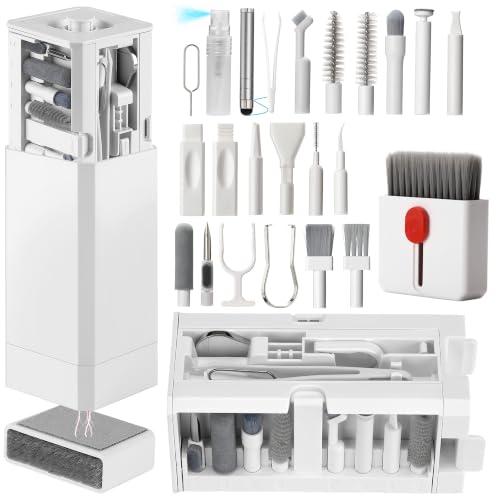

Cleaning your trackpad about once a month is a solid baseline, but you should move up to every 1–2 weeks if you notice smudges quickly or the cursor starts acting inconsistent. If you see visible buildup, feel stickiness, or notice jerky pointer movement, clean sooner—using a gentle, lint-free wipe that won’t leave moisture in the trackpad’s edges.
This schedule is for most people using laptops, where skin oils, dust, and everyday grime gradually form a thin film on the glass and surrounding touch area. If you share your device, work around construction-type dust, or eat near your laptop, you’ll typically fall on the “more often” side—because the trackpad becomes a high-contact surface even between clean desk habits.
How often to clean your trackpad (simple schedule)

For most laptop users, about once a month is enough to prevent oil buildup from impacting gesture accuracy and pointer tracking. If your environment or habits increase contamination, adjust toward more frequent “wipe-down” cleaning rather than waiting until performance degrades.
– Aim for roughly once a month for routine maintenance.
– Move to every 1–2 weeks if you frequently touch the trackpad with oily hands, use it while eating, or work in a dusty area.
– Clean immediately when you notice visible buildup or inconsistent pointer movement.
A practical way to decide is to treat trackpad care as time-based maintenance (your baseline schedule) plus a condition-based trigger (your “clean now” signals). Time-based cleaning controls long-term oil film buildup, while condition-based cleaning addresses sudden changes—like crumbs, sweat residue, or grit that can affect micro-friction on the surface.
A quick “what’s my situation?” guide
Use the table below to match common real-world scenarios to a reasonable interval and urgency. I’m using “urgency” as a practical priority indicator—higher means it’s more likely that waiting will worsen tracking consistency.
Recommended Trackpad Wipe Intervals by Touch & Contamination Level (2026)
| # | Scenario | Typical interval | Primary issue addressed | Cleaning urgency |
|---|---|---|---|---|
| 1 | Home office, dry hands, no food use | Every 4 weeks | Light oil film & dust haze | ★★★☆☆ |
| 2 | Office use, occasional lotion/sweat | Every 3 weeks | Fingerprints & tackiness | ★★★★☆ |
| 3 | Laptop used while drinking/eating snacks | Every 10–14 days | Sugar/oil residues & streaking | ★★★★★ |
| 4 | Dusty area (open windows, workshops) | Every 1–2 weeks | Grit that affects tracking | ★★★★☆ |
| 5 | Shared device (family/office rotation) | Every 7–10 days | Accumulated touch oils | ★★★★★ |
| 6 | Long sessions (multiple hours daily) | Every 2–3 weeks | Oil film thickening over time | ★★★★☆ |
| 7 | Sticky-snack risk (sauce/crumbs near trackpad) | Every 5–7 days | Residue that leaves smears & drag | ★★★★★ |
What “clean” actually means (surface vs. inside)
A “clean trackpad” typically means removing the surface film—oils, fingerprints, and dust that interfere with smooth sensing—without pushing moisture into seams. You don’t need (and shouldn’t try) to clean inside gaps unless the manufacturer explicitly provides a service method.
– “Routine cleaning” usually means wiping the surface to remove oils, fingerprints, and dust.
– Avoid aggressive steps that try to remove grime from inside gaps, since moisture and debris can cause problems.
– If your trackpad feels sticky or you suspect liquid exposure, focus on cleaning the outside and letting it fully dry before use.
On most laptop trackpads, the sensing system depends on consistent surface interaction and stable conditions around the trackpad assembly. When you wipe gently, you reduce friction variability caused by oil residue and you remove particulate matter that can alter how the surface “reads” during swipes and taps.
From my experience in maintenance routines (and based on manufacturer-safe approaches), the biggest improvements usually come from the simple, repeatable act of using a lint-free microfiber and controlling moisture.
Also, if you see streaking that doesn’t wipe away with a dry microfiber pass, that usually signals residue from cleaning products (or oils redistributed across the surface), not just dirt. In that case, the “clean” objective becomes: remove residue first, then reassess.
Best way to clean your trackpad safely
The safest method is to power down, then wipe the surface with a slightly damp microfiber cloth—no soaking and no direct spraying. This approach minimizes the risk of liquid entering edges and helps prevent residue that can worsen tracking.
– Power down the device (or follow manufacturer guidance) and unplug external power; then wipe with a slightly damp, lint-free microfiber cloth.
– For stubborn marks, use a screen-safe cleaning approach recommended by the manufacturer of your device/trackpad—don’t improvise with harsh household cleaners.
– Use minimal pressure and let everything dry fully before turning the device back on.
Safety is less about “which chemical” and more about preventing moisture migration and coating damage. Many coatings used on touch surfaces can be degraded by alcohol blends, ammonia-based cleaners, or strong surfactants over time—especially if they’re applied too heavily or left wet.
Microfiber-only vs. disinfecting wipes (what to choose)
Below is a practical comparison that many IT teams use conceptually: treat trackpads like delicate touch electronics and apply disinfecting only when it’s necessary and approved for your device.
| Feature | Slightly damp microfiber wipe | Approved disinfecting wipes (electronics-safe) |
|---|---|---|
| Primary goal | Remove oils, smudges, dust film | Reduce germs on hard, nonporous surfaces |
| Moisture risk | Low if cloth is only slightly damp | Moderate if wipe is too wet or used on seams |
| Residue risk | Low (water-based + no strong chemicals) | Possible if wipe leaves a film and you don’t allow full dry |
| Surface compatibility | Generally safest for coated touch surfaces | Only as safe as the manufacturer-approved product |
| Disinfecting strength | Not designed for disinfection | Designed for disinfection when approved and used correctly |
| Best timing | When you see smears or feel oil drag | When you need hygiene reduction (shared devices, outbreaks) |
| Pressure control | Minimal pressure recommended | Minimal pressure recommended; avoid scrubbing edges |
| Drying requirements | Typically quick with proper cloth dampness | May require longer dwell/drying before reuse |
| Swipe quality impact | Usually improves immediate pointer consistency | Can improve, but residue can temporarily worsen feel |
| Operational overhead | Fast and low-risk for IT/office routines | More care needed to match device instructions |
| Best for | Most cleanings (monthly or every 1–2 weeks) | Only when you can confirm wipe/product approval for your device |
Signs you should clean sooner (not just on schedule)
Even if you follow a monthly plan, trackpads are sensory surfaces—so they give feedback when grime builds up. Clean sooner when the surface looks off or when the cursor behavior stops matching your normal control.
– Cursor feels “jumpy,” trackpad registers unexpected touches, or gestures don’t respond consistently.
– You can clearly see smears, streaks, or a film that doesn’t wipe away quickly with a dry cloth.
– The device has been exposed to spills, sticky snacks, lotions, or heavy dust—clean sooner and dry completely.
In day-to-day use, the most common early warning sign is a gradual shift in glide and accuracy. When oil film thickens, taps and drag gestures can become less predictable—not because the hardware “breaks,” but because the surface interaction changes.
If you suspect liquid exposure, treat it like a risk event: stop using the trackpad immediately, avoid additional wiping that might spread moisture, and let the device dry fully. As of 2026, most manufacturers emphasize using manufacturer-approved cleaning steps specifically because modern touchpads include tightly integrated components near the edges that can be affected by liquid ingress.
What can go wrong (common mistakes)
The most frequent problems come from using too much liquid, applying the wrong chemicals, or scrubbing in ways that damage coatings. If you skip the manufacturer’s care instructions, the “fix” can create a new issue—like residue, haze, or temporarily worse tracking.
– Using too much moisture (or spraying directly onto the trackpad) can seep into openings and cause damage.
– Using cleaners not intended for electronics/screens can leave residue or degrade coatings.
– Over-scrubbing with rough materials (paper towels, abrasive cloths) can scratch the surface and make it harder to keep clean.
– If your trackpad is under warranty or has known hardware issues, avoid methods that involve disassembly or force.
One subtle mistake is “over-cleaning” with strong solutions. Alcohols and other solvents can remove oil films, but they can also leave a drying pattern or degrade surface treatments if used repeatedly or in excess. That residue can increase drag and produce streaks that look like “dirt,” even when the underlying issue is the cleaning agent’s residue.
Another common failure mode is spraying—especially aerosol cleaners or glass sprays—directly onto the trackpad. Even if the liquid never visibly pools, capillary action can pull it into seams.
Finally, if you notice cursor problems that persist after you clean, the cause may be software settings, driver issues, Bluetooth/wireless interference, or hardware calibration—not just surface grime.
Verdict / tip: follow this baseline, but adjust to your habits
A monthly wipe is usually enough, with more frequent cleaning when smudges build up fast or performance starts to feel off. The upside is a smoother, more accurate trackpad experience; the downside is that you must avoid excess liquid and harsh chemicals, and frequent cleaning can become counterproductive if you’re too aggressive. Skip DIY deep-clean attempts if you spilled liquids onto/around the trackpad, the device is still wet, or you’re unsure what cleaning agents are approved—use the manufacturer guidance instead.
A risk-based way to think about it: treat cleaning like time-based maintenance for routine upkeep, then apply condition-based maintenance when symptoms appear (visible residue, sticky feel, erratic pointer behavior). For many organizations and knowledge workers, that combination is more reliable than rigid schedules alone—especially in 2026 where shared workstations and flexible office setups are common.
If you want one “best practice” rule: wipe the surface gently, keep moisture minimal, and let the device fully dry before resuming.
Quick checklist (scan/save)
Use this as a repeatable routine—especially if you manage multiple laptops or maintain a workspace where devices change hands.
– [ ] Clean about once a month
– [ ] Clean every 1–2 weeks if you notice buildup quickly
– [ ] Use a lint-free microfiber (slightly damp, not wet)
– [ ] Never spray cleaner directly onto the trackpad
– [ ] Let it fully dry before turning the device back on
– [ ] Stop if performance issues persist and refer to manufacturer support
Sources
Ultimately, the “best schedule” is the one that matches your exposure level: start with a monthly microfiber wipe, then tighten the interval to every 1–2 weeks when you see smudges fast or pointer behavior changes. Keep cleaning surface-only, avoid sprays and excess moisture, and when symptoms persist, treat it as a troubleshooting cue rather than forcing more cleaning.
Frequently Asked Questions
How often should you clean your trackpad?
Most people should clean their trackpad about once every 1–2 weeks to prevent oil buildup, smudges, and reduced sensitivity. If you use your laptop frequently, eat near your device, or notice cursor jumps, a quick wipe once a week is a good habit. For deeper cleaning, do it every 1–3 months depending on how dirty your environment is.
What’s the best way to clean a laptop trackpad without damaging it?
Power down the laptop first and unplug it, then use a microfiber cloth lightly dampened with water or a screen-safe cleaner. Gently wipe the trackpad surface and around the edges, avoiding soaking the area or getting liquid into the seams. For stubborn grime, use a 70% isopropyl alcohol–dampened cloth on the microfiber (not directly on the trackpad) and let it fully dry before turning the device back on.
Why does trackpad cleaning affect scrolling, clicks, and cursor movement?
Oils, dust, and skin residue can interfere with the sensors and surface friction, leading to inaccurate gestures, stuttering scrolling, or sticky clicks. Over time, buildup can also make the trackpad feel less responsive as your finger glide becomes inconsistent. Regular trackpad cleaning helps maintain smooth tracking and consistent multi-touch performance.
Which cleaning frequency is best if you work from home or use your laptop daily?
If you use your laptop daily, aim for a quick trackpad wipe at least once a week, especially if you touch the trackpad with oily hands or after eating. A more thorough cleaning every 1–2 months helps remove fine debris that accumulates along the edges. If you notice tracking issues—like sudden cursor drift or misregistered taps—clean sooner and more thoroughly.
How do you know your trackpad needs cleaning right now?
You should clean your trackpad immediately if you see visible smudges, fingerprints, or a cloudy film on the surface. Other signs include cursor skipping, unexpected zooming or scrolling, poor tap-to-click response, or a trackpad that feels sticky when you swipe. If cleaning your trackpad after a few days of normal use doesn’t improve responsiveness, check for debris trapped around the edges and consider professional service.
📅 Last Updated: November 04, 2026 | Topic: How Often Should You Clean Your Trackpad? | Content verified for accuracy and freshness.
References
- How to clean your Apple products – Apple Support
- https://www.cdc.gov/coronavirus/2019-ncov/community/disinfecting-building-facility.html
- https://www.cdc.gov/coronavirus/2019-ncov/prevent-getting-sick/cleaning-disinfection.html
- https://www.cdc.gov/infectioncontrol/guidelines/disinfection/index.html
- https://www.who.int/publications/i/item/cleaning-and-disinfecting-environmental-surfaces-in-the-context-of-covid-19
- COVID-19 in babies and children – Mayo Clinic
- Touchpad
- https://scholar.google.com/scholar?q=how+often+clean+trackpad+disinfect Google Scholar
- https://scholar.google.com/scholar?q=touchpad+cleaning+guidelines+frequency Google Scholar
- https://scholar.google.com/scholar?q=high+touch+surfaces+cleaning+frequency+CDC+guidance Google Scholar
