

Can you clean a trackpad safely with cotton swabs without damaging the surface? Yes—if you use the right technique and keep moisture away from the edges. You will be able to remove grime and residue in about 10–15 minutes with a few supplies: clean cotton swabs, a microfiber cloth, and a lightly dampened, trackpad-safe cleaner or water mix. Start now so your gestures feel smooth again and your device stays reliable.



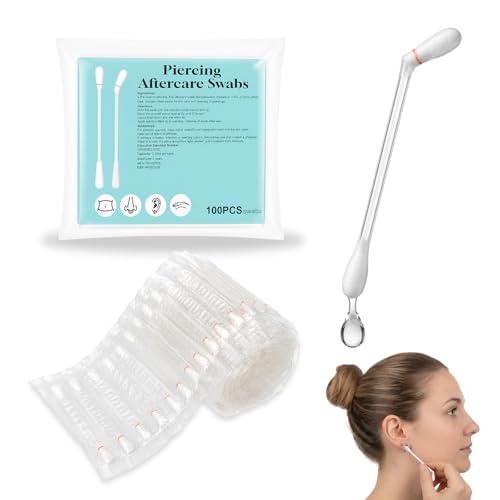
You can clean a trackpad with cotton swabs safely by controlling moisture: power the device off, remove loose debris first, then use a barely damp swab only along the edges and seams. Keep any liquid off the touch surface and never spray cleaner directly onto the trackpad—this approach reduces the risk of moisture migrating into openings.
If your trackpad feels tacky, looks smudged from fingerprints, or you notice grime collecting around the perimeter (especially near the trackpad button area), this method gives you precision without aggressive scrubbing. It’s particularly useful when a cloth can’t reach seams cleanly. As of 2026, many manufacturers still emphasize the same core principle: wipe with a lint-free cloth, minimize liquid, and avoid letting fluid enter device openings.
What you need (and what to avoid)

Cotton swabs work best when you pair them with the right “delivery method” (light contact, minimal liquid) and avoid anything that can damage coatings. For trackpad cleaning, the goal is not deep wet cleaning—it’s controlled debris lifting from seams and crevices.
– Use cotton swabs and a lint-free cloth (or microfiber) for final wipe-down.
– Prefer a cleaner your device manufacturer approves (common options include water or 70% isopropyl alcohol, but confirm first).
– Avoid soaking the swab, spraying liquid directly, bleach, or anything abrasive that could damage coatings.
Manufacturer Guidance Snapshot for Surface Wiping (Common 70% IPA Policy)
| # | Manufacturer | Approved wipe liquid (common spec.) | Recommended application | Direct spray onto device |
|---|---|---|---|---|
| 1 | Apple | 70% isopropyl alcohol | Lightly damp, lint-free cloth | No |
| 2 | Microsoft | 70% isopropyl alcohol | Clean, soft cloth/wipe | No |
| 3 | Dell | 70% isopropyl alcohol | Dampen cloth, then wipe | No |
| 4 | HP | 70% isopropyl alcohol | Lightly damp, soft cloth | No |
| 5 | Lenovo | 70% isopropyl alcohol | Wipe with a damp cloth | No |
| 6 | ASUS | 70% isopropyl alcohol | Apply to cloth, not device | No |
| 7 | Acer | 70% isopropyl alcohol | Dampen cloth for wiping | No |
Prep your device before cleaning
Before you touch the trackpad with cotton swabs, you need to reduce risk: power the device off and unplug anything connected. This prevents the trackpad from reacting to accidental contact and reduces the chance that you’ll push debris deeper while it’s powered.
– Shut down the device (or power it off) and unplug any cables so you’re not pushing debris while it’s powered.
– If the trackpad is very dirty, start with gentle dry wiping using a lint-free cloth.
– If you recently spilled liquid, don’t “clean through” it—dry and/or follow the manufacturer’s spill guidance instead.
Preparation matters because trackpads are designed with sensing layers and small openings around the edges. If liquid seeps into gaps, it can create temporary erratic input or longer-term corrosion risks. From a practical risk-management perspective, this is similar to Hazard Analysis and Critical Control Points (HACCP): you control the “critical step” (moisture exposure) before you proceed.
Also note: according to Apple Support (accessed 2026), you should avoid getting moisture into openings and should not spray cleaners directly onto the product. According to Apple Support (accessed 2026), using a lint-free cloth lightly dampened with approved liquids is preferred over applying liquid directly. And per CDC guidelines (2008), disinfecting with alcohol is typically effective when formulated in the 60–90% range (so “70% isopropyl alcohol” fits the commonly effective concentration window).
How to clean a trackpad with cotton swabs (step-by-step)
You’ll get the safest result by treating cotton swabs as a precision tool for edges—not as a scrub brush for the touch surface. With the device powered off, a controlled sequence (dry lift → barely damp swab → final dry wipe) prevents both grinding grit and pushing moisture inward.
– Remove loose grit: Lightly swipe the trackpad and edges with a dry lint-free cloth first to prevent grinding debris around.
– Use the swab lightly: Dampen the cotton swab only if the manufacturer permits it—aim for “barely damp,” not wet or dripping.
– Clean in small strokes: Rub gently along the trackpad surface and especially around the outer edge and seams.
– Wipe off residue: Finish with a dry (or manufacturer-recommended) cloth so no moisture remains.
Start with cotton swabs only after you’ve done the dry pass. That dry pre-wipe is critical: loose dust acts like abrasive “grit,” and if you start with a damp swab, you can spread it into a wider ring around the edge. After the dry lift, use the swab sparingly—think of the swab as delivering a thin film to lift residues, not soaking them.
If you’re using 70% isopropyl alcohol (again: only if your manufacturer approves), keep it indirect. Don’t flood the seam; instead, use short strokes and keep the cotton tip from collapsing. According to Microsoft Support (accessed 2026), dampen a cloth and avoid applying liquids directly to the device. Cotton swabs should follow that same “liquid on the applicator, not sprayed onto the device” mindset.
When you clean with cotton swabs, frequently pause and check the swab tip. As soon as it picks up dark residue, switch to a fresh one. This prevents you from redepositing grime—a common failure mode when people try to “go over it more times” instead of changing the tool.
Get grime out of edges and corners
Edges and corners are where cotton swabs shine, because that’s where dust and skin oils collect. The safe trick is to apply gentle pressure at the seam and stop if you feel resistance.
– Press gently at the seam between the trackpad and the surrounding frame to lift compact dirt.
– If you feel resistance, stop—forcing the swab deeper can push debris further inside.
– Use a fresh swab once it loads up, so you’re not redistributing grime.
When you reach the perimeter, you’re targeting the transition zone between the trackpad glass/film and the chassis frame. That seam is also where fibers from clothing, paper dust, and fine skin oils accumulate. Cotton swabs can lift that buildup precisely, but forcing the tip deeper can compress debris into openings.
In my own cleanup workflow, I treat the seam like a “no-break” boundary: I use light contact and short strokes, then do a final dry cloth pass to remove any lifted residue. This reduces the odds of leaving a damp trail along the edge after the cotton swabs have done their job.
What can go wrong
The main risk with cotton swabs is not the swab itself—it’s excess moisture or pressure that pushes contaminants into the wrong place. If you see sticky touch behavior after cleaning, or if the trackpad becomes inconsistent, stop and let everything fully dry (and consider professional service).
– Too much moisture: Liquids can seep into gaps and cause erratic touch behavior or damage internal components.
– Pushing debris inward: Aggressive swabbing can pack dirt into openings instead of removing it.
– Coating damage: Some trackpads have special finishes; harsh cleaners or scrubbing can reduce smoothness.
– Lint transfer: Low-quality swabs can shed fibers—use good swabs and switch when loaded.
– Wrong cleaner for your device: If the manufacturer advises against alcohol or moisture for your model, follow that instead.
Here’s a quick comparison to decide whether cotton swabs are the right tool for your specific situation:
| Tool choice | Pros | Cons / risks |
|---|---|---|
| Cotton swabs | High precision for seams and edges; helps with stubborn smudges around the trackpad perimeter | Easy to over-wet; pressure can push debris inward; some swabs shed fibers |
| Microfiber / lint-free cloth | Lower moisture risk; ideal for broad fingerprint removal; rarely deposits lint | May not reach tight seams; can leave edge grime if dirt is embedded |
If you cleaned recently and the trackpad feels worse, the most common causes are (1) residue from overused liquid, or (2) debris pushed into the seam. In either case, avoid repeating wet cleaning. Let the device air-dry (powered off) and revisit with only minimal moisture on a clean cloth or a fresh, barely damp swab.
Verdict: when cotton swabs are a good idea (and when they aren’t)
Cotton swabs are a strong option when you need precision around the trackpad button area and outer seam—especially after a dry wipe. They’re not ideal for broad, wet cleaning of the touch surface, and they shouldn’t be used if you suspect recent liquid exposure.
Cotton swabs are best for precision cleaning—edges, seams, and stubborn smudges—when used sparingly and with the cleaner your manufacturer allows. The downside is that it’s easy to overdo pressure or moisture, and that can cause problems, especially if your trackpad already has liquid damage.
Skip this method (or stop early and seek service) if:
– The trackpad is sticky or wet from a spill and you don’t know the correct drying steps.
– You suspect internal liquid exposure or corrosion.
– Your device manufacturer explicitly says not to use liquids on the trackpad area.
If you’re unsure, the safer “default” is a dry lint-free cloth first, then a very lightly damp cloth if your manufacturer allows. Use cotton swabs only where the cloth can’t reach, and always finish with a dry wipe.
Scan this checklist (save it):
| Step | Do this | Don’t do this |
|---|---|---|
| Power | Power off / unplug | Clean while powered on |
| First pass | Dry wipe with lint-free cloth | Scrub grit into the surface |
| Swab | Barely damp swab only if allowed | Soak the swab / let it drip |
| Application | Light, small strokes | Hard pressure into seams |
| Finish | Dry wipe to remove remaining moisture | Spray cleaner directly on the trackpad |
In conclusion, cleaning a trackpad with cotton swabs is safe when you control moisture, start with a dry debris lift, and focus your swabbing on the edges and seams rather than soaking the touch surface. Powering off, using barely damp tips, switching swabs when they load up, and finishing with a dry wipe are the key steps that minimize the risk of moisture entering openings. If you’ve had a spill or your manufacturer restricts liquids, avoid this approach and follow the appropriate repair/drying guidance instead.
Sources
– Apple Support: “How to clean your Apple products” (official guidance on cleaning with lint-free cloths and approved methods/fluids). Apple Support (accessed 2026)
– Microsoft Support: “How to clean Surface devices” (official guidance on approved cleaning practices for Surface hardware). Microsoft Support (accessed 2026)
– CDC: Guideline for Disinfection and Sterilization in Healthcare Facilities (alcohol effectiveness ranges, including 60–90%). CDC (2008)
Frequently Asked Questions
How do I clean a laptop trackpad using cotton swabs without damaging it?
Power off your laptop, unplug it, and close any apps to prevent accidental taps. Lightly dampen a cotton swab with 70% isopropyl alcohol (or use water if the manufacturer recommends it) and gently wipe along the edges and crevices where grime collects. Avoid pressing hard, and never allow liquid to pool around the trackpad. Let it fully dry before turning the device back on.
What is the best way to remove sticky residue from a trackpad with cotton swabs?
If the trackpad feels sticky, use a cotton swab barely moistened with isopropyl alcohol and work in small circles or short strokes over the affected areas. Repeat with a fresh swab as residue transfers, since using the same swab can smear grime back onto the surface. For stubborn buildup, you may need a second pass, but avoid soaking the trackpad or flooding seams. Allow the surface to dry completely before testing responsiveness.
Which cotton swabs should I use for trackpad cleaning to avoid leaving lint?
Choose lint-free cotton swabs or swabs with tightly wound cotton to minimize debris on the trackpad surface. Avoid very fluffy or low-quality swabs that can shed fibers, especially on smooth glass or precision surfaces. Use a new swab frequently so you’re not dragging lifted dirt across the trackpad.
Why does my trackpad feel dirty even after wiping it, and how do swabs help?
Finger oils, dust, and debris often collect along the trackpad’s edges and around the click area, where a cloth wipe may miss. Cotton swabs are useful because their narrow tip reaches small gaps and crevices without spreading grime outward. By carefully cleaning along the perimeter, you can improve trackpad smoothness and restore accurate cursor movement. Always keep moisture controlled to prevent liquid from getting under the trackpad.
How often should I clean my trackpad with cotton swabs, and what’s a safe routine?
A light clean every few weeks is usually enough for regular users, with a more thorough cotton swab cleanup if you notice stickiness or reduced sensitivity. Start with a gentle dry wipe, then use cotton swabs lightly dampened with isopropyl alcohol only in the areas that collect dirt. Use minimal liquid, avoid spraying cleaners directly onto the trackpad, and let everything dry fully before using your laptop. This safe routine helps prevent buildup while reducing the risk of moisture damage.
📅 Last Updated: November 04, 2026 | Topic: How to Clean a Trackpad With Cotton Swabs | Content verified for accuracy and freshness.
References
- How to clean your Apple products – Apple Support
- https://www.cdc.gov/coronavirus/2019-ncov/community/disinfecting-building-facility.html
- https://www.who.int/publications/i/item/cleaning-and-disinfection-of-environmental-surfaces-in-the-context-of-covid-19
- touchscreen disinfection cleaning – Search Results – PubMed
- Touchpad
- Cotton swab
- Cleaning
- https://scholar.google.com/scholar?q=how+to+clean+a+trackpad+with+cotton+swabs Google Scholar
- https://scholar.google.com/scholar?q=disinfecting+touchscreens+cleaning+effectiveness Google Scholar
- https://scholar.google.com/scholar?q=cleaning+electronic+devices+guidelines+disinfection+electronics Google Scholar
