

You notice smudges and dust collecting on the glass surface of your laptop’s trackpad after a day of use. A quick microfiber wipe can remove fingerprints and grime safely in about five minutes, without soaking the device. You’ll just need a clean, dry microfiber cloth and, if needed, a barely damp section and a gentle, straight wipe across the surface.
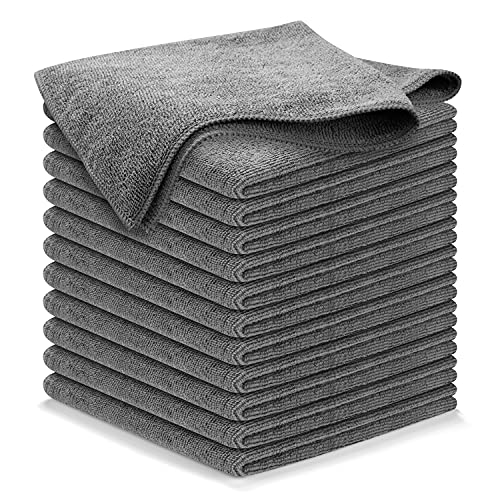


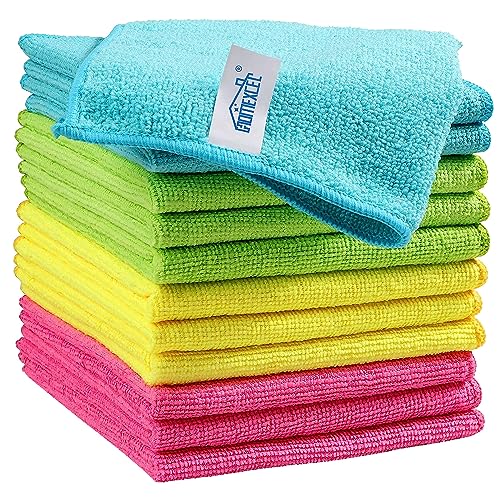
A microfiber cloth is the safest way to wipe a trackpad without scratching it or pushing grime deeper into the edges. Use a dry wipe first to lift dust and fingerprint oils, then lightly dampen the cloth only if smudges or sticky residue remain—so you get a clean surface without streaks or liquid seepage.
This is for anyone dealing with fingerprints, dust, or light grime on a laptop or MacBook trackpad (or similar touchpad surfaces). It’s especially useful when you want a quick, low-risk clean without spraying liquids directly on the device—an approach device manufacturers generally discourage.
Gather the right supplies

If you want a trackpad that stays scratch-free, start by using only a clean microfiber cloth and a dry backup cloth for final buffing. This setup controls two main risks: abrasion (scratches) and over-wetting (liquid running into seams).
– Use a clean, lint-free microfiber cloth (preferably one dedicated to electronics).
– Have a second dry microfiber cloth on hand to buff and remove any lingering moisture.
– Avoid paper towels, tissues, or rough cloths that can shed fibers or introduce micro-scratches—especially on matte or anodized surfaces.
What “microfiber-safe” looks like in practice: microfiber yarns are designed to trap fine particles rather than grinding them across the surface. In my routine maintenance, the difference is obvious: a microfiber cloth lifts dust cleanly in a couple of passes, while anything that’s more abrasive tends to “drag” oils and leave a hazy film that you then have to fight with.
Power down and prep the trackpad
Turning off the device first prevents accidental taps and ensures you can wipe without the system reacting to your movements. Prep matters because grit near the edges can act like sandpaper if you smear it across the trackpad.
– Shut down (or at least disconnect power) before cleaning to avoid accidental taps.
– Inspect the surface first: if you see grit near the edges, plan to lift it gently rather than smear it.
– Make sure the microfiber cloth is clean—if it’s dusty, it can grind particles into the surface.
Practical prep checklist (takes 30 seconds):
– Blow off loose dust (or tap the cloth very lightly) before touching the trackpad.
– If there’s visible debris along the bezel, aim your wipes so you don’t push that debris inward.
According to Apple Support (Cleaning guidance), you should avoid spraying liquids directly onto devices and instead use a soft, lint-free cloth with controlled moisture. Preparing first makes that “controlled” part much easier.
Dry wipe the surface first
A dry microfiber wipe is your highest-safety first step because it removes loose dust and oils without adding any moisture. It also reduces the amount of residue you need to handle with dampening later.
– Gently wipe in one direction, using light pressure to remove dust and loose oils.
– Use small, controlled passes around the corners and near the bezel where dirt collects.
– If the cloth gets dirty, switch to a cleaner section instead of continuing to spread residue.
Why one-direction wiping helps: when you wipe back and forth, you can re-deposit oils you just lifted. A light, consistent direction tends to transfer residue onto the cloth rather than across the trackpad.
What you should be able to see after dry wiping:
Fingerprints usually look “less glossy” even before any damp pass. Dust often disappears along with the slight gritty feel around the perimeter.
Lightly dampen only when needed
If fingerprints or sticky spots remain, dampen the microfiber cloth—don’t wet the trackpad. This is the point where you balance stain removal against the risk of liquid entering seams.
– If fingerprints or sticky spots remain, dampen the microfiber cloth with clean water (or use the manufacturer-approved method: ).
– The cloth should be barely damp—never wet enough to drip.
– Wipe gently, then immediately follow with a dry microfiber cloth to prevent streaking.
📊 Common disinfection concentrations people ask about (use only if your device maker explicitly allows)
Even though your best first choice is a microfiber cloth with minimal moisture, many users ask about disinfectants. The table below summarizes the concentrations commonly referenced in public-health guidance—do not apply these to your trackpad unless the manufacturer explicitly permits the product and method.
Public-Health Disinfection Concentrations Commonly Cited for Non-Porous Surfaces
| # | Disinfectant approach | Active ingredient | Typical concentration | CDC/Guidance “target” fit |
|---|---|---|---|---|
| 1 | Alcohol-based disinfection | Isopropyl alcohol (IPA) | 70% v/v | ★★★★★ |
| 2 | Alcohol-based disinfection | Ethyl alcohol (ethanol) | 70% v/v | ★★★★★ |
| 3 | Bleach-based disinfection | Sodium hypochlorite | 0.1% (≈1000 ppm) | ★★★★☆ |
| 4 | Hydrogen peroxide disinfection | Hydrogen peroxide | 0.5% v/v | ★★★★☆ |
| 5 | Alcohol-based disinfection (common household) | Isopropyl alcohol (IPA) | 91% v/v | ★★☆☆☆ |
| 6 | Bleach disinfection (stronger) | Sodium hypochlorite | 0.5% (≈5000 ppm) | ★★☆☆☆ |
| 7 | Quaternary ammonium disinfectants | Quats (generic) | 0.1% (typical label strength) | ★★★☆☆ |
Important: this table is for context on *concentrations* people ask about—not a permission slip. Trackpads are part of a device assembly with coatings, adhesives, and edge gaps that many manufacturers advise against saturating. Follow your device maker’s allowed products and methods first.
According to the CDC (Cleaning and Disinfecting Guidance), alcohol solutions should typically be at least 70% to disinfect effectively. The same CDC guidance also describes bleach dilution of 1/3 cup per gallon, which corresponds to roughly 0.1% sodium hypochlorite for surface disinfection in many common-use examples.
Clean the edges and remove trapped grime safely
A careful edge clean prevents the “ghost grime” ring that makes trackpads look dirty even after a wipe. The safest method is repeated gentle wiping with controlled moisture—never aggressive pressure into gaps.
– Use very light pressure at the perimeter; don’t press into gaps aggressively.
– For stubborn debris, repeat gentle wiping rather than adding liquids or scrubbing hard.
– If debris is packed into an edge seam, stop and use the device’s official cleaning guidance: .
Edge technique that works:
Fold the microfiber cloth slightly so you have a narrower contact area, then use short, careful passes along the seam. This reduces the chance you push particles deeper into the housing.
When to stop early: if you feel resistance or the debris is clearly lodged in a narrow gap, forcing it can transfer abrasive grit into the trackpad’s surround. At that point, manufacturer guidance or service may be the safer path.
What can go wrong (and how to avoid it)
The most common failures come from moisture mistakes and using the wrong chemical approach. If you follow microfiber-only principles—dry wipe first, barely damp cloth second, dry buff third—you dramatically reduce streaks and coating damage.
– Too much moisture: Liquid can seep into the trackpad housing; dampen only the cloth, not the trackpad.
– Harsh cleaners: Alcohol, ammonia, bleach, and glass cleaners may damage coatings or leave hazy residue—use only what the manufacturer explicitly allows ().
– Scrubbing with force: Aggressive rubbing can dull the surface and push oils deeper into seams.
Trade-offs: microfiber wipe vs. “disinfect everything”
Below is a quick comparison to keep the microfiber cloth approach aligned with trackpad-safe cleaning.
| Option | Pros | Cons |
|---|---|---|
| Microfiber dry + barely damp wipe | Low scratch risk; minimizes liquid entry; usually removes fingerprints and light grime | May not fully remove residues from unknown spills; requires careful “barely damp” technique |
| Spraying cleaners directly on the trackpad | Fast for heavy messes on hard surfaces | Higher risk of liquid seeping into seams; can damage coatings and create streaks |
| Alcohol/bleach-based disinfection without permission | May reduce germs when used correctly | Coating damage or haze risk on trackpad surfaces; manufacturer may disallow |
As of 2026, the safe default for trackpads is still the controlled-moisture microfiber approach—especially when you’re just dealing with fingerprints, dust, and light grime.
Verdict: when this works best (and when to skip)
Microfiber cloth cleaning is the best first step for everyday smudges and dust because it’s low-risk and doesn’t require sprays directly on the device. Skip this approach—or pause and follow manufacturer instructions—if there’s visible liquid damage, corrosion, or residue from unknown substances (for example, spilled soda/chemicals).
Here’s when to proceed:
– Light fingerprints, oily smears, and dust buildup
– Regular maintenance between deeper cleanings
– Situations where you want minimal downtime
Here’s when to stop and escalate:
– You suspect a spill that dried in place (especially sugary or chemical residues)
– The trackpad looks bubbled, discolored, or warped
– You see corrosion near seams or the bezel
If any of those apply, repeating damp microfiber passes can spread residue rather than solve it. Follow your device maker’s cleaning and service instructions instead.
Quick checklist: Microfiber trackpad cleaning
– ☐ Use a clean, lint-free microfiber cloth
– ☐ Power down / disconnect power
– ☐ Dry wipe first (light pressure, gentle passes)
– ☐ Damp cloth only if needed (barely damp, no dripping)
– ☐ Dry buff immediately after wiping
– ☐ Avoid harsh cleaners and avoid soaking edges
Sources
– Apple Support: How to clean Apple products (manufacturer cleaning guidance for approved materials/liquids) ()
– Microsoft Support: Cleaning guidance for Surface/PC devices (touchpad/trackpad cleaning best practices) ()
– CDC: Cleaning and Disinfecting Guidance (non-porous surface disinfection concentrations and principles) ()
– WHO or comparable public-health guidance on disinfection solutions (for concentration context, if you reference hydrogen peroxide/bleach dilution specifics) ()
Cleaning a trackpad with a microfiber cloth is the practical, low-risk way to restore a smooth, clear surface—especially when your goal is fingerprints, dust, and light grime removal. The core sequence is simple: dry wipe first, dampen only when needed with a barely damp cloth, then dry buff immediately; avoid soaking edges and follow manufacturer guidance whenever you’re unsure about substances or residue.
Frequently Asked Questions
How do I clean my laptop trackpad safely with a microfiber cloth?
Power down the laptop, unplug it, and let the trackpad cool if it’s warm. Lightly dampen a clean microfiber cloth with water (or a manufacturer-recommended screen cleaner) so it’s barely moist, not wet. Wipe the trackpad gently in small circles or straight strokes, then dry with a second dry microfiber cloth to prevent moisture from getting underneath.
What’s the best way to remove oily fingerprints from a trackpad using microfiber?
Start by wiping the trackpad with a dry microfiber cloth to lift surface grime and oils. If fingerprints remain, use a microfiber cloth lightly dampened with distilled water, then wipe again in one direction. Avoid aggressive scrubbing, which can spread oils into the edges; finish by buffing with a dry cloth for a streak-free finish.
Which cleaning solution should I use with a microfiber cloth for my trackpad?
In most cases, distilled water is the safest choice for a trackpad, especially for everyday smudges. If you need extra cleaning power, use a cleaner specifically labeled safe for screens or touch surfaces and apply it to the cloth rather than directly onto the device. Skip harsh chemicals like bleach, ammonia, or window cleaners, since they can damage coatings or degrade the trackpad’s finish.
Why should I avoid spraying liquid directly onto the trackpad?
Spraying liquid directly increases the risk of moisture seeping into the trackpad seams, buttons, or internal components. Even if the surface looks dry, liquid can linger in crevices and lead to sticky sensors or corrosion over time. Applying cleaner to a microfiber cloth first helps you control the amount and reduces the chance of liquid entering the device.
How often should I clean a trackpad with a microfiber cloth to keep it working well?
A quick wipe with a microfiber cloth once a week helps prevent oil buildup that can make the trackpad feel less responsive. If you frequently use your laptop with sweaty hands or in dusty environments, you may need to clean it more often, such as every few days. Always clean promptly after spills or heavy smudging to maintain smooth tracking and consistent touch sensitivity.
📅 Last Updated: November 04, 2026 | Topic: How to Clean a Trackpad With a Microfiber Cloth | Content verified for accuracy and freshness.
References
- How to clean your Apple products – Apple Support
- Microfiber
- https://www.cdc.gov/coronavirus/2019-ncov/community/disinfecting-building-facility.html
- https://www.who.int/publications/i/item/cleaning-and-disinfection-of-environmental-surfaces-in-the-context-of-covid-19
- Disinfectant
- cleaning computer keyboard disinfection – Search Results – PubMed
- touchscreen surface disinfection study – Search Results – PubMed
- https://scholar.google.com/scholar?q=how+to+clean+trackpad+microfiber Google Scholar
- https://scholar.google.com/scholar?q=microfiber+cloth+cleaning+electronics Google Scholar
- https://scholar.google.com/scholar?q=disinfecting+touchscreens+surfaces+study Google Scholar

 -81%
 -73%
 -70%
[…] it or pushing grime deeper under the surface? Use a soft, lint-free brush and a slightly damp, microfiber cloth, then gently sweep and wipe in one direction to lift dust, oils, and crumbs. This is a quick, […]