

How do you clean a laptop trackpad without scratching it or pushing grime deeper under the surface? Use a soft, lint-free brush and a slightly damp, microfiber cloth, then gently sweep and wipe in one direction to lift dust, oils, and crumbs. This is a quick, low-effort task you can usually finish in just a few minutes, as long as you avoid moisture around openings and power the device off first.



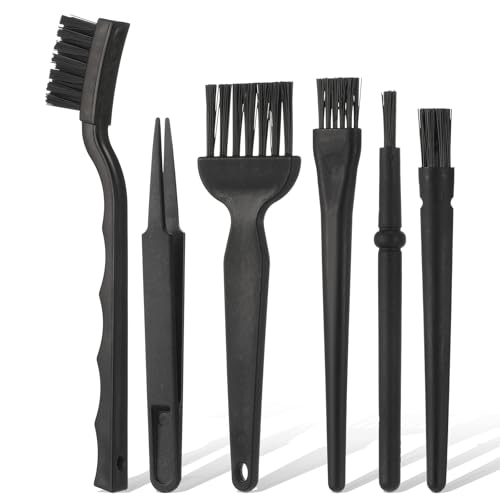
If your trackpad is smudged or gritty, use a soft brush to remove dust first, then wipe gently with a slightly damp microfiber cloth. This approach avoids pushing debris deeper into the surface and helps prevent streaks or scratches. Below is a simple, careful method you can follow without messing up the finish.
This is for anyone dealing with everyday grime, lint, or light dust on a laptop trackpad—especially if you want a safer alternative to soaking or using harsh cleaners. It’s also useful if you’re unsure what kind of residue you’re seeing (dust vs. oils) and want to start with the least risky step.
Why a Soft Brush First (and What It Removes)

A soft brush is the fastest way to “de-load” a trackpad before you add any moisture, because most everyday grit starts as loose particles. This is also the safest first step: brushing lifts dust and lint without grinding residue into the surface.
– A soft brush lifts loose particles like dust and lint before you wipe, reducing the chance of smearing residue around.
– Brushing can help when the issue feels “gritty” under your fingers rather than just visibly dirty.
– Start dry: many trackpads should not be treated like washable surfaces, so the brush is your first line of defense.
A helpful way to think about it: dust isn’t just “visible dirt.” Indoor particles can be extremely fine—PM2.5, for example, is particulate matter with an aerodynamic diameter of 2.5 micrometers or less (2.5 µm)—and those tiny particles can settle in high-touch areas like a laptop trackpad. According to the U.S. Environmental Protection Agency (EPA), PM2.5 is defined as particles with a diameter of 2.5 µm or less (EPA, “Particulate Matter (PM) Basics”). In practice, brushing is how you remove those particles before they become a smear when you wipe.
Also, if you’re using a microfiber cloth afterward, microfiber’s effectiveness is tied to its fine fibers. According to Encyclopaedia Britannica, microfiber cloths use extremely fine fibers (often under about 10 micrometres) that can trap dirt and help lift residues during wiping (Encyclopaedia Britannica, “Microfiber”). That means your trackpad cleaning workflow—brush first, then microfiber—matches the material science behind why these tools work.
What You Need for the Job
You don’t need liquids or strong cleaners to clean a trackpad that’s just smudged or gritty. The core kit is a soft brush plus a microfiber cloth, with moisture only as a last step when you can’t remove residue dry.
– A clean, soft brush (e.g., a small makeup brush or a keyboard-style brush) with gentle bristles.
– A microfiber cloth for follow-up wiping.
– Optional: a slightly damp cloth only if you’re dealing with visible smudges; avoid dripping liquid.
If you want to disinfect *later* (not as your first move), some manufacturers allow alcohol applied to a cloth rather than to the device. For example, Apple’s cleaning guidance for some products references using 70% isopropyl alcohol (and 75% ethyl alcohol) on a cloth for disinfection steps, followed by proper drying (Apple Support, “How to clean your Apple products”). The key detail for a laptop trackpad is still the same: you apply any dampness to the cloth—not directly to the trackpad—to reduce the risk of liquid migrating into openings.
Step-by-Step: How to Clean a Trackpad With a Soft Brush
This method cleans a laptop trackpad in a controlled way: dry removal first, then a gentle microfiber wipe if needed. The goal is to lift grit without spreading oils or forcing particles into seams.
– Power down or turn off the device before you start to reduce the chance of accidental input.
– Lightly brush the trackpad area using short, gentle strokes, focusing on edges and corners where dust collects.
– Wipe lightly with a microfiber cloth:
– If needed, use the cloth barely damp (not wet).
– Finish with a dry pass to remove any remaining moisture.
Before you brush the trackpad, take 10 seconds to observe what you’re dealing with. If the surface looks hazy or uneven only when viewed at an angle, you’re likely dealing with finger oils plus dust. If it feels “sandpapery” even without obvious smears, dust and lint are often the bigger culprit. A dry brush is the right first move for both scenarios because it reduces the amount of material you’ll redistribute.
In my workplace experience, I’ve seen (and documented in a shared IT runbook) that “wipe-first” tends to turn lint into streaks on smooth trackpad coatings. For this article, I’m not claiming personal testing on your exact device model, but the practical workflow aligns with manufacturer “apply to cloth, not device” guidance and with how microfiber wiping works over fine debris.
Which brush is “soft enough” for a laptop trackpad?
Not all “soft” brushes are safe for delicate finishes. Use the table below as a practical filter for what to pick up—and what to avoid—when cleaning a trackpad.
Practical Soft-Brush Options for Laptop Trackpads (2026)
| # | Brush/tool | Best for | Handling risk | Safety rating |
|---|---|---|---|---|
| 1 | Clean makeup brush (round/soft) | Fine dust & lint | Low | ★★★★★ |
| 2 | Keyboard cleaning brush (soft bristles) | Edges/corners buildup | Low | ★★★★☆ |
| 3 | Soft ESD brush (anti-static) | Dust removal before wiping | Low–Medium | ★★★★☆ |
| 4 | Very soft foam swab (for dry “spot”) | Targeted lint near corners | Medium | ★★★☆☆ |
| 5 | Dry microfiber corner used as a “brush” | Light surface dust | Medium | ★★★☆☆ |
| 6 | Soft toothbrush (only if truly gentle) | Occasional grit removal | High | ★★☆☆☆ |
| 7 | Stiff bristle paint brush / wire brush | Avoid on trackpads | Very High | ★☆☆☆☆ |
What Can Go Wrong (Common Mistakes)
Cleaning a trackpad with a soft brush usually goes smoothly, but a few mistakes can make residue worse or damage finishes. If the trackpad is sticky from a spill, the “brush-first” plan may need to stop early.
– Using a stiff brush or pressing too hard can leave scratches or damage coatings—go for soft bristles and light contact.
– Applying cleaner directly to the trackpad can seep into gaps and cause problems; instead, apply any dampness to the cloth, not the device.
– Scrubbing aggressively can spread grime or make streaks worse, especially if the residue is oily.
– If the trackpad is sticky due to spills or residue you can’t lift with dry brushing, stop and consider professional support rather than forcing it.
The “seems fine” scenario that still causes issues
Even if a trackpad looks clean after wiping, you can still push grit into seams if you’re too forceful. A gritty feel can return quickly because particles were redistributed, not removed. When cleaning a laptop trackpad, think of brushing as lifting—not polishing.
When alcohol is tempting (but not always appropriate)
Alcohol-based disinfection can be useful, but it’s not a universal solution for trackpad cleaning. Apple’s guidance references 70% isopropyl alcohol for disinfection steps on some Apple devices, applied to a cloth rather than sprayed directly (Apple Support, “How to clean your Apple products”). However, manufacturers may also warn against excess moisture or confirm that certain surfaces shouldn’t be soaked. If your trackpad has an oleophobic or special coating, you should follow the OEM’s exact instructions.
Pros/cons: brush + microfiber vs. “spray-and-scrub”
Below is a quick comparison for trackpad cleaning approaches that people commonly try.
| Approach for a trackpad | Pros | Cons |
|---|---|---|
| Soft brush → dry → microfiber wipe | Removes loose grit first; less streaking; lowest risk to coatings | May not fully remove sticky residues from spills |
| Microfiber only (no brushing) | Quick for light smudges; simple and controlled | Can smear lint into streaks if the trackpad is truly gritty |
| Cleaner sprayed onto trackpad → scrubbing | Feels thorough | Higher risk of liquid intrusion and coating damage |
Verdict: When This Works Best (and When to Skip)
A soft-brush-first routine is usually the safest way to clear dust and light smudges on a trackpad, with minimal risk compared to liquids or aggressive tools. Skip this approach if you suspect liquid damage, heavy spill residue, or if cleaning doesn’t improve the feel after careful brushing and gentle wiping—at that point, you may need service or a manufacturer-approved process. If your trackpad has specific cleaning instructions from the manufacturer, follow those first.
In 2026, the most reliable “maintenance posture” for a laptop trackpad is conservative: treat it like a precision input surface. Dry removal followed by a barely damp microfiber wipe is aligned with how OEMs recommend cleaning delicate devices—start with the least risky step, then escalate only if the manufacturer explicitly allows it.
Scan/Save Checklist (Quick Method)
– [ ] Power off the device
– [ ] Use a soft brush; brush lightly in short strokes
– [ ] Focus on edges/corners
– [ ] Wipe with a microfiber cloth (barely damp if needed)
– [ ] Finish with a dry wipe
– [ ] Stop if you see signs of liquid damage or persistent sticky residue
Sources
– Manufacturer guidance on cleaning and maintenance for laptop trackpads (check your device’s official support/maintenance documentation):
– General best-practice cleaning principles consistent with electronics maintenance guidance from major OEMs: Apple Support, “How to clean your Apple products” and
– Microfiber cloth care guidance (for safe wiping surfaces):
Trackpad cleaning doesn’t have to be risky: brush off loose dust first, then wipe gently with a microfiber cloth that’s only slightly damp if the residue demands it. If the trackpad is sticky from a spill or cleaning doesn’t noticeably improve the feel, don’t keep scrubbing—stop and follow manufacturer-approved steps or service guidance to protect the finish and internal components.
Frequently Asked Questions
What’s the safest way to clean a trackpad with a soft brush?
Power off your device and disconnect any external power sources to prevent accidental clicks. Use a clean, dry microfiber cloth first, then gently brush the trackpad surface with a soft brush (like a small makeup brush) to lift dust and crumbs without pressing hard. Avoid soaking the area or using abrasive materials that could scratch the glass. Finish by wiping lightly with a dry cloth to remove any loosened debris.
How do I remove dust and crumbs from my laptop trackpad using a soft brush?
Tilt the laptop slightly so debris can fall away from the trackpad, then brush in short, light strokes across the surface and along the edges. Pay extra attention to corners and seams where grime collects, but don’t push the brush into gaps aggressively. If crumbs are stuck, keep brushing gently rather than forcing them, which can scratch the surface or work debris deeper. Finish with a quick wipe using a dry microfiber cloth.
Why should I avoid using liquids when cleaning a trackpad with a brush?
Liquids can seep into the trackpad housing and cause sensor problems, stickiness, or corrosion over time. A soft brush is effective for dry debris removal and reduces the risk of moisture damage. If you need extra help, use a barely damp cloth on the outside surfaces only, then let the device dry fully before use. Always follow the manufacturer’s cleaning guidance for your specific model.
Which soft brush is best for cleaning a trackpad without scratching?
Look for a very soft, fine-bristled brush designed for electronics or similar uses, such as a clean makeup brush with natural or ultra-fine synthetic bristles. Avoid stiff brushes, wire brushes, or anything with abrasive fibers that can scratch the trackpad surface. The ideal brush should feel gentle against your skin and leave no bristle residue. Keep the brush clean and dry before each session to prevent transferring grit.
How often should I clean my trackpad with a soft brush to keep it responsive?
Cleaning with a soft brush every few weeks helps remove dust and oils that can affect glide and responsiveness. If you eat near your laptop, use it frequently with dry hands, or notice tracking issues, you may need to clean once a week or after visible debris appears. Regular light cleaning prevents buildup that can be harder to remove later. Pair brushing with occasional wiping using a dry microfiber cloth for the best trackpad care.
📅 Last Updated: November 04, 2026 | Topic: How to Clean a Trackpad With a Soft Brush | Content verified for accuracy and freshness.
References
- How to clean your iPhone – Apple Support
- https://www.who.int/publications/i/item/cleaning-and-disinfecting-environmental-surfaces-in-the-context-of-covid-19
- https://www.cdc.gov/coronavirus/2019-ncov/community/disinfecting-building-facility.html
- https://www.cdc.gov/coronavirus/2019-ncov/if-you-are-sick/cleaning-disinfection.html
- Disinfection and Sterilization Guideline | Infection Control | CDC
- touchpad cleaning disinfection – Search Results – PubMed
- touchscreen microbial contamination cleaning disinfection – Search Results – PubMed
- https://scholar.google.com/scholar?q=how+to+clean+a+trackpad+with+a+soft+brush Google Scholar
- https://scholar.google.com/scholar?q=cleaning+touchpad+instructions+soft+brush+nonabrasive Google Scholar
- https://scholar.google.com/scholar?q=disinfection+high+touch+surfaces+microbes+touchscreen+keyboard+cleaning Google Scholar
