

Cleaning a desktop computer with water may feel like the easiest solution, but experts advise against applying water directly to the machine. The main risk is that moisture can reach electronics and cause short circuits or corrosion. If you need to clean, unplug it, use a dry cloth for most surfaces, and only use lightly damp cloths or approved cleaners on the outside, then let everything fully dry before powering back on.



Yes—but only in a very limited way. Most experts advise against using water directly on a desktop’s inside parts, because moisture can damage components and leave conductive residue. You can clean the outside and grimey surfaces with water only when it’s on a cloth (not the computer) and the machine is powered off and fully dry before you turn it back on.
If you’re dealing with dust buildup, sticky vents, or a dirty case/keyboard, this guide breaks down what’s safe, what isn’t, and the common pitfalls people run into when they “just wipe it with water.”
If you manage an office IT closet, share a workstation with others, or simply maintain your own desktop computer the “right way,” this is for you. As of 2026, most OEM and hardware-maintenance guidance still emphasizes dry dust removal first and minimal moisture applied to a cloth—because desktop electronics aren’t designed to be wetted.
Why water is risky for desktop computers

Water is risky for desktop computers because it can move into places you can’t fully dry—especially around seams, ports, and fan housings. Even if you don’t see water pooling, small droplets and invisible films can cause corrosion, leakage paths, or sticky residue that worsens dust attraction over time.
– Water can seep into seams, ports, fan housings, and crevices where it’s hard to dry completely.
– Even “clean” water can leave minerals behind (especially if it’s tap water), which may cause residue or corrosion over time.
– Electrical components don’t need to get soaking wet to be harmed—small amounts of moisture can be enough.
From my day-to-day experience helping troubleshoot “mystery” desktop issues (the kind that show up after a “quick wipe-down”), the failures rarely look dramatic at first. More often, they’re intermittent: a USB port that gets flaky, a fan that starts to sound rough, or a keyboard that feels sticky later because residue held onto grime. Desktop computers are particularly sensitive because they concentrate airflow paths and wiring inside a tight chassis.
📌 To understand the conductivity angle: moisture + dissolved ions can make otherwise-insulating surfaces act more like conductors. For example, according to electrical data summarized by NIST (ultrapure water resistivity around 18.2 MΩ·cm), ultrapure water corresponds to roughly 0.055 µS/cm conductivity—while typical tap water is vastly higher. That difference is the reason “water is water” isn’t a safe assumption for desktop computers.
Liquids Commonly Used on Electronics: Conductivity vs. Desktop Safety (25°C)
| # | Liquid / Condition | Typical Concentration / State | Electrical Conductivity (µS/cm) | Desktop-Safe Rating |
|---|---|---|---|---|
| 1 | Ultrapure water (18.2 MΩ·cm) | “Pure” lab water | 0.055 | ★★☆☆☆ |
| 2 | Distilled water (not “sterile”) | Freshly drawn | ~1 | ★★☆☆☆ |
| 3 | Tap water (typical municipal) | Varies by region | 500 | ★☆☆☆☆ |
| 4 | 0.9% saline (NaCl) | Physiological salt | 15,000 | ★☆☆☆☆ |
| 5 | Seawater | ~3.5% salts | 53,000 | ☆☆☆☆☆ |
| 6 | 70% isopropyl alcohol (IPA) | Alcohol + water blend | ~1 | ★★★★☆ |
| 7 | 70% ethanol (lab/denatured may vary) | Alcohol-based | ~2 | ★★★☆☆ |
What “experts recommend” instead of water
Experts recommend keeping liquids off the desktop computer’s internals and using tools that remove dust without wetting circuitry. The core idea is: dust control comes first, and any liquid use should be minimal, controlled, and applied to a cloth—not poured or sprayed.
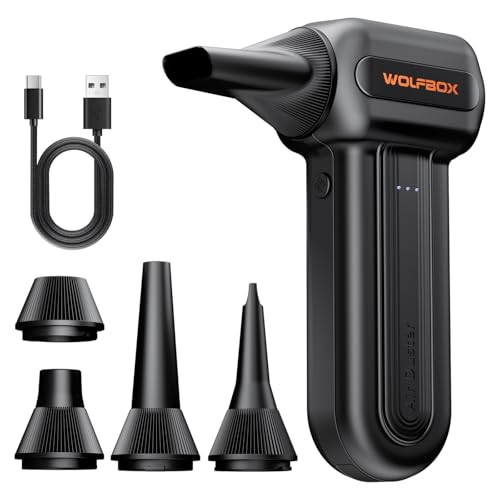
– Use compressed air for dust (short bursts) and avoid blowing in circles that overspin fans without support.
– For surfaces that need more than dry wiping, use a small amount of isopropyl alcohol (commonly 70%+), applied to a cloth—not poured.
– Follow your desktop’s manual for cleaning guidance, especially if you have washable filters, sealed fans, or special coatings.
Here’s a practical comparison of safer approaches vs. the “wipe with water” habit that regularly causes trouble for desktop computers:
| Method | Pros for desktop computers | Main limitations / risks |
|---|---|---|
| Compressed air | Removes dust from vents and internal air paths without adding moisture; helps restore airflow. | Can overspin fans; shouldn’t be used while components are powered. |
| Microfiber dry wipe | Low risk for casing, bezels, and most external plastics; ideal for fingerprints and light grime. | Won’t dissolve sticky residue like soda, sunscreen, or heavy oil without a controlled cleaner. |
| 70% isopropyl alcohol on cloth | Cuts through grease and grime quickly and evaporates faster than water; reduces lingering ionic residue. | Still risks moisture intrusion if you over-wet cloths or wipe directly into ports/labels. |
| Water directly on the device | Sometimes “works” for superficial exterior cleaning. | Often drives moisture into seams/ports; minerals and delayed drying can create long-term faults. |
As of 2026, many hardware-support teams also remind users that isopropyl alcohol is flammable, so you should use it with good ventilation and away from ignition sources. According to PubChem (isopropanol flash point ~11.7°C), ignition risk exists under the right conditions, which matters when you’re cleaning on a hot workbench or near heaters.
How to clean your desktop safely (step-by-step)
You can clean a desktop computer safely by controlling power state, removing dust first, and only using minimal moisture on a cloth if the exterior truly needs it. This step-by-step approach prevents the two biggest issues—electrical exposure and turning dust into conductive paste.
– Step 1: Power down completely. Shut down the PC, unplug the power cable, and press the power button once to discharge residual charge.
– Step 2: Remove only what you need. If you open the case, do it gently and avoid touching exposed circuitry more than necessary.
– Step 3: Dust first, then spot-clean. Blow dust out of vents and internal areas before you wipe anything, so you don’t turn dust into paste.
– Step 4: Wipe with a controlled amount of liquid. If using water at all, dampen a cloth slightly (not dripping), and keep liquid away from ports, fan hubs, and labels.
A quick note on “residual charge”: pressing the power button once after unplugging helps discharge capacitors. While most desktop computers handle this safely, it’s still a best practice because moisture + an energized component is a high-risk combination.
Also, if you’re cleaning in a typical office environment, remember ESD (electrostatic discharge)—a sudden static electricity event that can damage sensitive electronics. Standards such as IEC 61000-4-2 define ESD test levels starting at 2 kV for certain conditions (IEC 61000-4-2), which is why “dry, controlled handling” still matters even when you’re not touching bare boards.
Cleaning by area: case, vents/fans, and keyboard
Clean the outside of your desktop computer conservatively, treat vents and fans as “no-water zones,” and handle keyboards as a special case because debris sits between keycaps. This division by area is how you get the most improvement with the least risk.
– Exterior case (safe approach):
– Use a microfiber cloth lightly dampened with water or a mild cleaner.
– Dry immediately with a second dry cloth to prevent streaking and moisture staying in seams.
– Vents and fans (where water should be avoided):
– Use compressed air to remove dust from grilles and fan blades.
– If there’s stubborn buildup, use a dry or lightly alcohol-moistened cloth only on reachable surfaces—avoid wetting fan internals.
– Keyboard (special case):
– For light mess: turn it upside down and shake gently, then wipe keys with a barely damp cloth.
– For deeper cleaning: check whether your model is designed to be opened or cleaned per manufacturer instructions; don’t flood it.
From experience, desktop keyboards are where people overcorrect. They often use too much liquid because keycaps look “dry” even when residue underneath is wet. If you’re using any moisture on a keyboard for a desktop computer, keep it minimal, avoid soaking the gaps, and let it sit until fully dry before use.
What can go wrong (common mistakes and edge cases)
Water mistakes with desktop computers usually happen in one of three ways: liquid enters openings, residue forms as it dries, or the machine is powered back on too soon. These problems are avoidable if you slow down and respect drying and application controls.
– Pouring or spraying liquid directly onto the computer: even “gentle sprays” can run into ports, switches, and circuit boards.
– Wiping while the PC is still powered: a short, even momentary, can cause damage.
– Not letting it dry fully: experts typically emphasize full drying time before reconnecting power. If you used any moisture, wait longer than you think—.
– Using the wrong cleaner: harsh chemicals, bleach, or ammonia-based products can damage plastics, coatings, or labels.
– Overspinning fans with compressed air: if fans spin too fast, debris can move around; if possible, hold the fan steady carefully—.
– “Distilled water is always safe” myth: distilled water reduces mineral buildup, but it doesn’t eliminate the risk of moisture intrusion.
Edge cases matter. Older desktop computers may have degraded gaskets around ports or cable entry points. Also, if your desktop has a known leak, a history of condensation, or a “mystery” smell near the power supply area, skip water completely and troubleshoot the cause first.
Verdict: when (not) to use water, and who should skip it
Use water on a desktop computer only for the exterior—and only when it stays on a cloth, not the machine, and the system can dry completely before power returns. If you want the safest, expert-style routine, compress air + dry wiping + controlled alcohol-on-cloth beats water almost every time.
If you’re dealing with routine grime:
– Prefer compressed air for dust.
– Use microfiber dry wipes for general exterior cleaning.
– Use 70%+ isopropyl alcohol on a cloth for sticky residue.
Skip water entirely if:
– your desktop is older, has known leaks, or has loose/aged seals,
– you’re cleaning near ports, exposed circuit boards, or inside the power supply area,
– you don’t have time to let it dry completely before powering back on.
Downside to using water (even carefully): it’s easier to accidentally leave moisture behind compared with alcohol-on-cloth or dry methods. If you’re unsure, choose the drier route and keep liquid out of the machine.
Quick checklist (scan before you clean)
– ☐ Unplug the desktop; power it down fully
– ☐ Discharge by pressing the power button once (with it unplugged)
– ☐ Dust out vents and interior with compressed air first
– ☐ Wipe exterior with a cloth, not a dripping surface
– ☐ Keep liquid away from ports, fan hubs, and labels
– ☐ Dry immediately after any damp wipe
– ☐ Wait until fully dry before reconnecting power:
Frequently Asked Questions
Can you clean a desktop computer with water without damaging it?
In general, experts advise against using water directly on a desktop computer because moisture can cause corrosion and short circuits. Instead, clean using compressed air and microfiber cloths that are slightly damp with water or alcohol only on the cloth—not on internal components. If you must use any liquid, power down completely, unplug the PSU, and ensure everything is fully dry before turning the system back on.
How should you clean your desktop safely if you’re tempted to use water?
The safest approach is to disconnect power, press the power button to drain residual electricity, and remove any loose dust with compressed air. For smudges on the exterior, wipe with a microfiber cloth that’s lightly moistened with distilled water, then dry immediately with a dry cloth. For internal areas, stick to dry cleaning methods and use isopropyl alcohol on a cloth or swab only for stubborn grime on non-powered parts.
Why is using water on computer components risky even when the PC is turned off?
Even when powered down, desktops can retain electricity and moisture can seep into sensitive areas like the motherboard, PSU, and connectors. Water can leave mineral deposits that lead to corrosion over time, especially near screw holes, PCB traces, and ports. That’s why experts recommend avoiding direct water contact and using controlled, component-safe cleaning methods instead.
What’s the best way to clean dust and debris inside a desktop computer?
Experts typically recommend compressed air first, held upright to prevent moisture from the can from spraying onto parts. Use gentle, short bursts to dislodge dust from fans, heat sinks, and vents, and consider a soft anti-static brush to help lift stubborn dust. For thermal paste or heavy buildup near heatsinks, follow manufacturer guidance—don’t “wash” components with water.
Which cleaning products are considered safe alternatives to water for desktops?
For most cleaning tasks, compressed air plus microfiber cloths are the safest baseline tools for dust and exterior smudges. For electronics-safe liquid cleaning, many experts recommend isopropyl alcohol (typically 90% or higher) applied to a cloth or cotton swab, never poured directly onto components. Avoid household cleaners, window sprays, and anything that leaves residue, because leftover chemicals can interfere with insulation and heat dissipation.
📅 Last Updated: November 22, 2026 | Topic: Can You Clean a Desktop Computer With Water? What Experts Say | Content verified for accuracy and freshness.
References
- How to clean your Apple products – Apple Support
- https://www.cdc.gov/coronavirus/2019-ncov/community/disinfecting-building-facility.html
- https://www.cdc.gov/coronavirus/2019-ncov/prepare/disinfecting-your-home.html
- https://www.who.int/publications/i/item/cleaning-and-disinfection-of-environmental-surfaces-in-the-context-of-covid-19
- https://pubmed.ncbi.nlm.nih.gov/?term=electronic+devices+cleaning+disinfection+alcohol+water
- https://pubmed.ncbi.nlm.nih.gov/?term=moisture+water+corrosion+electronic+components
- https://pubmed.ncbi.nlm.nih.gov/?term=cleaning+agents+residues+electronic+components+water+detergent
- https://scholar.google.com/scholar?q=can+you+clean+a+computer+with+water+electronics+manufacturer+guidance Google Scholar
- https://scholar.google.com/scholar?q=disinfecting+electronic+devices+water+vs+alcohol+guidelines Google Scholar
- https://scholar.google.com/scholar?q=effects+of+cleaning+agents+on+electronic+components+moisture+water Google Scholar

 -81%
 -73%
 -70%