

Trying to disinfect a laptop with bleach probably feels like the fastest way to get rid of germs. Experts say you should not clean a laptop with bleach, because it can harm protective coatings and may cause corrosion inside the device. For a safer, effective result, use a manufacturer-approved electronics cleaner or a lightly damp cloth with distilled water, not bleach, and avoid any liquid getting into ports.


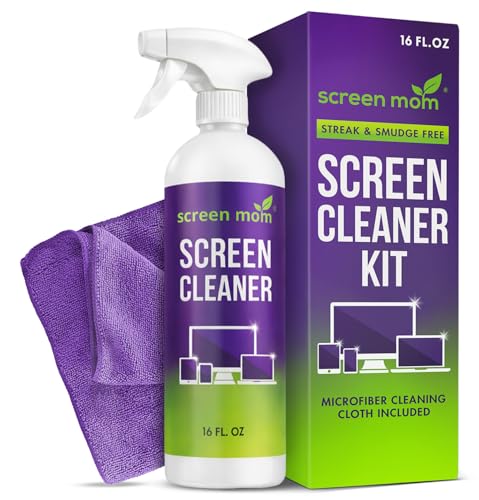

Bleach is not recommended for cleaning a laptop. It can damage protective coatings, corrode metal parts, and leave chemical residue that’s difficult to fully remove—especially on screens, keyboard seams, and ports. Experts generally recommend electronics-safe, manufacturer-approved cleaning and disinfecting methods instead.
If you’re dealing with germs after illness, using public spaces, or cleaning up spills, this guide walks through what to do (and what to avoid) to protect your laptop’s screen, keyboard, ports, and exterior—without risking permanent damage.
Why bleach is risky for laptops

Bleach is risky because it’s a harsh oxidizer and its chemistry isn’t designed for delicate laptop coatings or tight electronic tolerances. Even when bleach “works” for killing microbes, it can still damage surfaces and create long-term issues.
– It can eat away at coatings and finishes used on lids, palm rests, and around keys.
– It may cause corrosion on internal metal components or in small gaps and seams.
– Residue and fumes can linger and may worsen wear over time, especially if not fully rinsed (which laptops usually can’t handle).
At the chemistry level, household bleach is typically sodium hypochlorite in water. Sodium hypochlorite can be effective at inactivating many pathogens, but it doesn’t differentiate between “germs” and the polymers, anti-glare layers, and lubricants used in consumer electronics. When bleach gets into seams, it can sit in place, slowly reacting with materials or leaving salts behind.
There’s also a practical issue: laptops aren’t built to be rinsed. Most disinfectants require either a thorough wipe-off or a controlled dwell/contact time. With laptop internals—vents, speakers, port openings, and fan intakes—moisture control becomes critical. As of 2026, both major OEM guidance (Apple, Dell, HP, Lenovo) and mainstream electronics repair advice consistently treat bleach as off-limits for device cleaning.
To make this more concrete, here’s how common disinfecting approaches compare for laptop-surface compatibility:
Disinfectant & Cleaner Approaches vs Laptop-Surface Compatibility (Practical Guidance)
| # | Approach | Active ingredient | Typical concentration / use | Laptop-surface compatibility |
|---|---|---|---|---|
| 1 | Microfiber + water wipe | Water only | Lightly damp (not dripping) | ★★★★★ |
| 2 | Mild detergent (for grease) | Neutral soap/surfactants | Very diluted in water | ★★★★☆ |
| 3 | Electronics-safe 70% isopropyl | Isopropyl alcohol | ≥70% (lightly applied) | ★★★☆☆ |
| 4 | Electronics-safe 70% ethanol | Ethanol alcohol | ≥70% (lightly applied) | ★★★☆☆ |
| 5 | Bleach dilution (disinfection math) | Sodium hypochlorite | ~0.1% (from CDC-style mixes) | ★☆☆☆☆ |
| 6 | Household bleach straight | Sodium hypochlorite | Typically 5–6% | ☆☆☆☆☆ |
| 7 | Quat-based disinfecting wipe | Quaternary ammonium | Varies by EPA product | ★★★☆☆ |
Safer alternatives to clean and disinfect
Safer alternatives are the ones that clean visible grime first and disinfect with electronics-safe products—without pooling liquid in ports or under the keyboard. If you want the lowest risk, start with manufacturer-approved guidance, then use controlled, minimal moisture.
– Manufacturer guidance first: check your laptop’s manual or support page for approved cleaners/disinfectants. If you can’t find it, use a conservative approach: mild cleaning plus careful disinfecting.
– Electronics-safe wiping methods: use a microfiber cloth and a cleaner/disinfectant that’s explicitly intended for electronics screens/finished surfaces.
– Use targeted cleaning for hard areas: compressed air for dust (short bursts) and a slightly damp cloth for grime are usually safer than liquid-heavy approaches.
Here’s the key idea experts repeat across industries: cleaning and disinfecting are different. Cleaning removes soils and reduces the “load” of germs; disinfection inactivates microbes. This matches the widely taught clean-then-disinfect workflow used by public health guidance and many facility protocols.
A practical comparison: what’s safer than bleach?
If you’re deciding between common disinfectant categories, this quick comparison helps you keep risk low on laptop materials (matte finishes, anti-glare screens, and key coatings).
| Option (typical) | Pros for laptops | Cons / cautions |
|---|---|---|
| Microfiber + water | Lowest chemical risk; good for visible dirt and fingerprints. | Does not reliably disinfect on its own. |
| 70% isopropyl (controlled) | Commonly recommended concentration for disinfection; evaporates faster than water-heavy methods. | Repeated use can dry some coatings; can damage screen coatings if overused or applied too wet. |
| Electronics-safe screen wipes (approved) | Designed for sensitive optics; usually lower residue when used correctly. | Not all wipes are compatible—check your laptop’s manual and the wipe’s intended surfaces. |
| Quats (if labeled for electronics) | Broad disinfecting category; some wipes are formulated to limit corrosion risks compared with bleach. | Some products leave residue or require follow-up wipe; residue can attract more dust. |
| Bleach | Powerful disinfectant in many settings. | High risk to coatings and corrosion pathways; not generally recommended for laptop screens or internals. |
The numbers behind “disinfectant strength”
Health agencies use bleach and alcohol because they have proven antimicrobial action—but those instructions are typically written for hard, non-porous surfaces, not laptop coatings.
– According to Centers for Disease Control and Prevention (CDC), household bleach disinfection for general surfaces is often prepared as 1/3 cup per 1 gallon of water (for common household bleach strengths) and used for disinfection workflows.
– According to CDC, alcohol solutions with at least 70% concentration are commonly recommended for disinfection of many surfaces.
– According to CDC, bleach solutions should be prepared fresh daily for reliable disinfection performance.
Even with the right concentration, bleach remains a high-risk choice for laptops because the device isn’t a lab bench—it has seams, vents, plastics, and protective layers that a “correct” disinfectant mix can still damage.
In my own maintenance routine, I treat bleach as a hard “no” on laptops and keep a microfiber kit plus electronics-safe products that are explicitly intended for screens and finished surfaces.
How to clean a laptop without bleach (step-by-step)
You can clean a laptop effectively without bleach by using minimal moisture, isolating sensitive areas, and following a clean-to-disinfect order. The steps below are designed to reduce the two biggest risks: coating damage and liquid intrusion.
– Power down completely: shut off the laptop, unplug the charger, and remove any external devices.
– Prevent liquid from entering: lightly dampen the cloth (don’t pour or spray directly onto the laptop), and avoid openings like ports, speakers, and vents.
– Work from clean to disinfect:
– Wipe the exterior surfaces with a suitable cleaner for the finish.
– Clean the keyboard and trackpad with a cloth designed for electronics, and remove debris gently.
– For the screen, use only a screen-safe microfiber and products your manufacturer approves (do not scrub).
Step 1: eliminate electricity and attachments
When disinfecting, the first direct answer is simple: switch the laptop off and unplug it. This reduces the chance of shorting from moisture and prevents accidental key presses. If you’re using a docking station, remove it too—ports are specifically where liquid can wick inward.
Step 2: control moisture like a safety procedure
A good rule is “cloth-wet, laptop-dry.” Don’t spray chemicals onto the device. Instead, apply the disinfectant to the microfiber cloth, then wipe gently. Avoid soaking the fabric—if the cloth can drip, it’s too wet.
This matters most for areas around keys, hinge gaps, and along bezels (the screen border). Even “safe” disinfectants can cause problems if they pool and migrate.
Step 3: start with grime, then disinfect
Experts generally recommend a clean-then-disinfect sequence because disinfectants work best on surfaces that aren’t covered in soil. Wipe the exterior casing first. Then tackle keyboard and trackpad areas where skin oils and touch residue build up.
For debris (crumbs, dust clumps), use gentle removal methods before disinfecting. Compressed air in short bursts can remove loose particles—long blasts can spin fans and redistribute dust.
Step 4: screen cleaning—slow, light, and approved
For laptop screens, the direct answer is: use only screen-safe microfiber plus products your manufacturer approves. Don’t scrub. Scrubbing can break anti-glare/anti-smudge coatings and create permanent haze.
If you don’t have approved guidance, use dry microfiber cleaning first (gentle pressure only), then consider a minimal amount of a screen-labeled solution—never bleach and never household glass cleaners.
Step 5: dry time before power-on (don’t rush)
After wiping, allow the laptop to dry fully before powering on. In 2026, many manuals still emphasize this exact caution because disinfecting products can evaporate unevenly around seams.
What can go wrong if you try bleach anyway
Bleach can cause visible harm quickly and hidden damage later. Even if a laptop “seems fine” right away, corrosion and coating degradation can show up over time.
– Screen damage: bleach can harm anti-glare/anti-smudge layers, causing spotting, haze, or uneven discoloration.
– Sticky or streaky residue: if bleach isn’t removed properly, it can leave marks that attract more dirt.
– Moisture intrusion: bleach or any strong liquid can seep into seams, key gaps, fans, and ports—leading to corrosion or failures.
– Chemical incompatibility: different laptop materials and coatings react differently, so even “small” amounts can have outsized effects.
Here are common “edge case” scenarios where bleach tends to create disproportionate problems:
1. Bleach mist from sprays: If you spray cleaning solution into the air near the laptop, fine droplets can settle around vents and ports. Even tiny amounts can become a concentrated salt film as they dry.
2. Repeated micro-exposure: One accidental swipe may not be catastrophic, but repeated exposure can slowly weaken coatings, especially around hinge lines and keyboard edges.
3. Unsealed anti-glare coatings: Many laptop screens have layered coatings. Bleach can unevenly attack those layers, leaving areas that look like “stains” even after the device dries.
As of 2026, repair technicians and OEM guidance generally treat bleach as a avoid-at-all-cost chemical for device exteriors and screens, precisely because “cleanup later” isn’t always sufficient to undo coating chemistry.
Verdict: what experts would do instead
Skip bleach entirely. Use manufacturer-approved, electronics-safe cleaning/disinfecting products and keep liquids off the device as much as possible.
Don’t attempt bleach-based cleaning if you care about preserving the screen coating, if the laptop has known wear/gaps, or if you can’t clean thoroughly afterward without getting moisture into ports/vents. If you tell us your laptop model, we can help you identify what to look for in the manual—.
Also, remember the trade-off: some disinfection methods may be safe short-term but not ideal for repeated use. Over time, alcohol-heavy routines can dry certain finishes, and some wipes can leave residue. The goal is “safe enough disinfection with minimal material stress,” not maximum chemical strength.
Quick checklist (save this)
| Area | What to do | What to avoid |
|---|---|---|
| Screen | Use microfiber + screen-safe product per manual | Bleach, harsh chemicals, soaking, abrasive wiping |
| Keyboard/trackpad | Gentle wipe; remove debris carefully | Pouring liquid, aggressive scrubbing, bleach |
| Exterior case | Light wipe with electronics-safe cleaner | Bleach, heavy spraying, letting liquid drip into seams |
| Ports/vents | Use dry methods (e.g., brief compressed air) | Liquids, bleach, long blasts that can spin fans |
| After cleaning | Let fully dry before powering on | Rebooting while damp |
Frequently Asked Questions
Can you clean a laptop with bleach, and is it safe for the device?
No—bleach is generally not safe for laptop cleaning because it can damage laptop materials like the display coating, keyboard plastics, rubber feet, and seals. Bleach is also highly corrosive and can leave residue that may harm internal components over time. Most experts recommend avoiding bleach entirely and using manufacturer-approved cleaning solutions instead.
How do experts recommend cleaning a laptop without bleach?
Experts typically suggest powering the laptop off, unplugging it, and letting it cool before cleaning. Use a microfiber cloth lightly dampened with 70% isopropyl alcohol (or a screen-safe cleaner) for non-porous surfaces, and avoid letting liquid seep into ports or vents. For keyboards and crevices, use gentle compressed air and a dry microfiber cloth rather than strong disinfectants like bleach.
Why is bleach risky for laptop screens and keyboards?
Bleach contains harsh chemicals that can strip protective coatings on screens and accelerate wear on keyboard keycaps and surrounding plastics. It may also cause discoloration, cracking, or a cloudy finish, especially on matte or anti-glare surfaces. Since keyboards have many entry points, bleach residue can also migrate into areas you can’t easily clean.
What is the best way to disinfect a laptop keyboard and high-touch areas?
The best approach is to use a disinfectant designed for electronics or 70% isopropyl alcohol applied to a cloth (not directly sprayed). Wipe keycaps and high-touch areas gently, then allow the laptop to fully dry before closing the lid or turning it back on. If your laptop has removable keycaps or special coatings, follow the manufacturer’s guidance to avoid damaging finishes.
Which cleaning products should you use instead of bleach on laptops?
Look for electronics-safe wipes, screen-safe cleaners, or 70% isopropyl alcohol for cleaning non-screen surfaces when used sparingly and carefully. Avoid bleach, ammonia, and abrasive cleaners, as these can damage coatings and materials. For best results, check your laptop manufacturer’s cleaning instructions and use microfiber cloths to reduce streaking and physical wear.
📅 Last Updated: November 22, 2026 | Topic: Can You Clean a Laptop With Bleach? What Experts Say | Content verified for accuracy and freshness.
References
- How to clean your Apple products – Apple Support
- https://www.cdc.gov/coronavirus/2019-ncov/prevent-getting-sick/cleaning-disinfection.html
- https://www.cdc.gov/coronavirus/2019-ncov/community/disinfecting-building-facility.html
- https://www.cdc.gov/disasters/disinfecting-your-facility.html
- https://www.who.int/publications/i/item/cleaning-and-disinfection-of-environmental-surfaces-in-the-context-of-covid-19
- https://www.epa.gov/coronavirus/disinfectants-coronavirus-covid-19
- Checking your browser – reCAPTCHA
- https://scholar.google.com/scholar?q=bleach+sodium+hypochlorite+electronics+corrosion+laptop Google Scholar
- https://scholar.google.com/scholar?q=disinfecting+electronics+guidelines+isopropyl+alcohol Google Scholar
- https://scholar.google.com/scholar?q=chlorine+bleach+material+compatibility+metals+plastics Google Scholar

[…] from your laptop screen, but you should not use vinegar to clean it. Its acidity can break down protective coatings and seep into openings, leaving streaks or corrosion where you least want […]