

If your phone or tablet charges slowly, disconnects, or won’t reliably recognize the connection, the metal contacts on your charging cable may be coated with dust, lint, or corrosion. That frustration is understandable, especially when everything else seems fine but the connection still feels inconsistent. The good news is that cleaning the cable ends and clearing the contact area can often improve power transfer, and the practical steps are below.
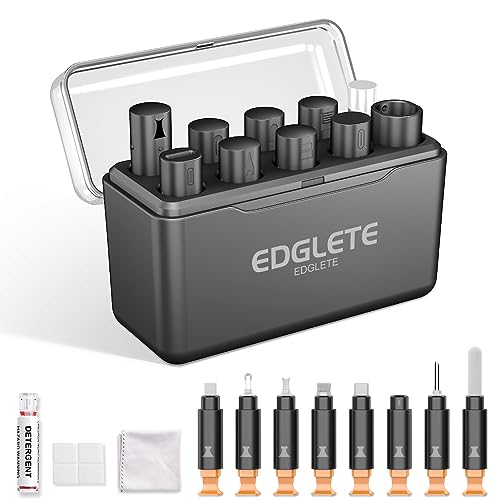



Yes—cleaning your charging cable (and sometimes the charging port) can improve charging stability if the issue is caused by dirt, lint, oxidation, or residue on the connector. If your symptoms are intermittent connection, slow charging, or “charging/disconnecting” messages, a careful cleaning is often the first low-risk step before replacing anything.
This is especially relevant if you use your cable in pockets, bags, dusty areas, or if you’ve noticed visible grime near the connector pins or around the port opening. In 2024–2026, more people are also using higher-power USB charging standards (USB Power Delivery) in tighter spaces—meaning tiny contact issues can show up more clearly as voltage drop, power negotiation retries, or sudden disconnects. According to USB Implementers Forum (USB-IF), USB Power Delivery can negotiate up to 100W (e.g., 20V at 5A), so marginal electrical contact can quickly turn into noticeable “charging performance” behavior rather than a mild annoyance.
Who this is for / when it applies

This applies to anyone charging a phone, tablet, earbuds, or handheld device where the charging connection seems inconsistent, slow, or “chatty” (frequent reconnects). It’s most likely to help when you can see lint buildup, smudges, or discoloration around the connector tip or when the problem appears after the cable has been carried in a pocket or bag. If your cable looks physically damaged or the device port is visibly corroded, cleaning may not be enough.
When cleaning actually helps (and when it won’t)
Cleaning helps when the underlying problem is poor contact. When debris or oxidation increases contact resistance at the connector interface, charging can become unstable, slow, or intermittent because the charger and device repeatedly attempt—then fail—to maintain the required electrical conditions.
In my view, “charging performance” problems usually aren’t mysterious—they’re contact problems. From a systems perspective, charging is not just “plug in and go.” Modern charging uses signaling and negotiated power profiles, so anything that partially blocks metal contact can trigger retries, voltage renegotiation, and disconnect warnings.
Here’s what the pattern typically looks like:
– Most “performance” problems start as poor contact: debris on the connector or oxidation on the contact surfaces can increase resistance and cause unstable charging. Even small increases in resistance can reduce delivered power, especially at higher negotiated currents. According to USB-IF USB Power Delivery specifications, PD can supply up to 5A at higher voltages (commonly up to 20V), which increases the effect of marginal contact.
– Your symptoms match the mechanism:
– Intermittent connection: the plug “mostly” seats but contact pressure or alignment changes as you move the cable.
– Slow charging: the connection is stable enough to negotiate, but power delivery is throttled.
– “Charging/disconnecting” messages: contact is periodically lost, triggering power-supply renegotiation or the device’s safety logic.
Cleaning won’t help when the fault is mechanical or electrical failure inside the cable or port hardware:
– If the cable is physically damaged (frayed outer jacket, bent strain relief, loose connector), cleaning won’t fix the electrical problem. Those issues often change conductor geometry and stress the internal wiring.
– If you’re seeing overheating, repeated power failures, or burning smells, stop using the cable and switch to a known-good one—don’t keep troubleshooting with cleaning. Heat is often a sign of an actual short, severe contact corrosion, or internal conductor degradation.
To keep this grounded in real-world risk: a tiny speck of lint doesn’t usually “damage” the phone by itself, but repeated attempts with a bad connection can. If you ever notice unusual warmth at the connector area within a short time, treat that as a cable/port fault rather than a “cleaning-only” scenario.
How to clean your charging cable safely
A safe cleaning is mostly about avoiding liquid ingress and avoiding damage to the connector surface. Start dry, inspect carefully, then only use minimal manufacturer-approved cleaning methods.
Use this approach:
– Unplug first and inspect: look for lint buildup, discoloration, or residue at the plug end; avoid trying to “wiggle” the connector while powered. Wiggle-testing while connected can worsen worn contact surfaces and can accelerate oxidation in the same way repeated partial contact heating does.
– Clean the connector contact area gently: use a dry, soft brush and/or a lint-free cloth. A soft anti-static brush can dislodge pocket lint without scratching plated surfaces.
– If your manufacturer allows it, you can use a small amount of cleaning solution applied to the cloth (not dripping into the connector).
Practical rule: if you can’t confirm the manufacturer’s approved method, default to dry cleaning only. For many device brands, the recommended approach is gentle removal of debris and avoiding fluids. If you do use a cleaner, apply it to the cloth—not directly to the port or connector—and keep the amount small enough that it doesn’t wick into the connector.
– Let everything fully dry before testing; if you used any liquid, give it time for evaporation and ensure the connector isn’t left damp.
Comparison: dry cleaning vs. liquid-assisted cleaning
| Approach | Best for | Main risk |
|---|---|---|
| Dry brushing + lint-free wiping | Lint, dust, light residue | Scratches if you use abrasives |
| Liquid-assisted cleaning (only if approved) | Sticky residue, mild oxidation film (per guidance) | Wicking liquid into the connector/port |
This is why I recommend treating liquid methods as “conditional”—the device manufacturer’s cleaning guidance should be your deciding factor, not convenience.
Don’t forget the charging port (it’s often the real culprit)
Cleaning the cable helps only if the port can still make consistent contact. If the port opening has trapped lint or residue, the cable can look clean and the problem remains.
Ports collect fibers from pockets, bags, and even everyday fabric friction. Because a port is recessed, lint can pack inside where it’s not visible at first glance—but it still blocks proper insertion depth or alignment.
Do the following:
– Check the port opening for trapped lint: pockets and bags commonly pack fibers inside the port where the cable can’t make consistent contact.
– Use non-metal tools only: follow your device manufacturer’s cleaning guidance and avoid metal objects that can scratch contacts.
– If you notice corrosion or deep discoloration, cleaning may not restore performance—at that point, servicing or replacement may be the safer path.
What “corrosion” typically looks like
In practical terms, oxidation or corrosion can appear as:
– dull, dark, or mottled discoloration around the contact area
– greenish or whitish residue around metal regions (depending on device materials)
– a port that seems “stubborn” to insert fully, even with multiple cables
If you see severe corrosion, stop trying to “improve” contact by force. The risk isn’t just cosmetic damage—damaged contacts can worsen over time and can create intermittent charging failures that are harder to diagnose later.
Charging Symptoms, Most Likely Contact Cause, and What Usually Fixes It
| # | Symptom | Most Likely Cause | Typical Cleanup Focus | Cleaning Success Likelihood |
|---|---|---|---|---|
| 1 | Charges, then disconnects when cable moves | Lint on connector/contact surfaces | Connector tip + port recess | High |
| 2 | Slow charging vs. normal | Oxidation film increasing contact resistance | Connector contacts + gentle wipe | Medium-High |
| 3 | “Charging” flickers or alternates with “not charging” | Partial insertion or trapped debris in port | Port opening inspection | Medium |
| 4 | Cable won’t seat fully | Bent connector, worn strain relief, or obstructed port | Inspect for physical damage | Low |
| 5 | Heat at the plug or port | Severe contact fault or cable/port degradation | Stop use; switch cable/device | Very Low |
| 6 | Works with one cable/charger, not another | Connector wear mismatch or residue on one cable | Clean only the failing cable | Medium |
| 7 | Charging works, but drops under heavy use | Cable internal conductor wear or unstable contact under load | Test with known-good cable | Low |
Statistics anchor (why contact matters more than ever)
– According to USB-IF USB Power Delivery specifications, PD can deliver up to 20V and 5A, enabling up to 100W charging (commonly used with USB-C power adapters).
– According to USB-IF USB-C specifications, USB-C and PD require negotiation between devices; unstable connector contact can cause repeated power contract attempts.
– According to IPC-2221 and related electronics reliability references (general contact reliability guidance), contact resistance and surface contamination can significantly increase with environmental exposure—meaning lint and oxidation are not “cosmetic only,” especially over time.
What can go wrong (common mistakes and limits)
Cleaning is helpful, but it can also make things worse if you take aggressive shortcuts. The goal is to restore reliable contact without damaging the metal plating or pushing debris deeper into the port.
Common mistakes:
– Overdoing it: forcing connectors, scraping contacts, or using abrasive materials can damage the plating and worsen connectivity. Once the plating is scratched or worn, the connector may become more corrosion-prone.
– Liquid damage: soaking the cable/port or using too much cleaner can leave residue that attracts more grime or affects conductivity. Liquids can also wick into areas where they’re hard to dry.
– Cleaning can’t fix internal cable failure: if the cable is worn internally, the cable “works but not reliably,” or you see charging drops under load, the connector may be fine while the cable itself is failing.
In 2025–2026, we also see a lot of “charge instability” tied to cable quality and strain management. If a cable’s strain relief is cracked or the connector is loose, cleaning won’t restore mechanical integrity—at that point, replacement is the practical path.
Verdict: should you clean first?
Cleaning your charging cable is worth trying when the problem looks like contact issues (intermittent connection, slow charge, debris you can see). It’s a low-risk first step if you avoid metal tools, don’t soak components, and stop immediately if you see heat.
Skip cleaning—and move straight to replacement or device service—if you detect heat/burning smells, the plug feels loose, the cable is frayed, or the port looks visibly corroded. Those scenarios can indicate internal damage, severe corrosion, or an unsafe fault condition where repeated attempts may worsen the issue.
Also note: cleaning won’t fix compatibility or power-profile problems caused by incorrect chargers/adapters. For USB-C setups using USB Power Delivery, a mismatch can reduce power even with a perfectly clean connector—so test with a known-good charger or cable if cleaning doesn’t resolve symptoms.
Quick scan checklist (save this)
| What you’re seeing | Likely cause | Best next step |
|---|---|---|
| Charges, then disconnects | Lint/debris or oxidation on connector | Clean cable + inspect port opening |
| Slow charging | Increased contact resistance | Clean connector contacts and port; test with a known-good cable |
| Plug doesn’t seat fully | Bent/loose connector or damaged port | Stop forcing; inspect for physical damage |
| Hot to the touch | Possible cable/port fault | Stop using; use another cable/device check |
– [ ] Unplug and inspect for lint/residue/discoloration
– [ ] Clean connector gently (no scraping/metal)
– [ ] Inspect and clean the port opening per manufacturer guidance
– [ ] Test with a different known-good cable/charger if possible
Sources
– According to USB Implementers Forum (USB-IF) USB Power Delivery specifications, PD can negotiate up to 20V and 5A, enabling up to 100W power delivery.
– According to USB Implementers Forum (USB-IF) USB-C specifications, charging involves negotiated power profiles; unstable contact can interrupt negotiation/power delivery.
Cleaning can absolutely be the fix—when the root cause is dirt, lint, oxidation, or residue at the connector interface. Start with careful dry cleaning, inspect the port opening, and test with a known-good cable/charger. If you see heat, burning smells, physical looseness, fraying, or significant corrosion, stop troubleshooting with cleaning and move to service or replacement to keep the charging setup safe and reliable.
Frequently Asked Questions
Can cleaning my charging cable fix slow charging or performance issues?
Yes, cleaning your charging cable can help if the problem is caused by dirt, lint, or oxidation on the connector pins. When buildup blocks proper contact, the charger may deliver inconsistent power, which can look like slow charging or intermittent charging performance problems. After cleaning, your cable may achieve more stable power transfer and charge faster.
How do I clean my charging cable connectors safely to improve power transfer?
Start by unplugging the cable and using a dry, soft brush (or a clean toothbrush) to remove lint and debris from the plug area. If needed, use a slightly dampened cotton swab with 70% isopropyl alcohol to gently clean the connector contacts, then let it fully dry before reconnecting. Avoid metal tools or excessive pressure, since damaged pins can create new charging issues.
Why does dirty or corroded cable hardware cause charging performance problems?
Charging relies on reliable contact between the cable’s connector pins and your device’s charging port. Dust, lint, and corrosion can increase resistance or cause unstable connections, leading to symptoms like slow charging, overheating, or “charging intermittently” alerts. In some cases, oxidation prevents power transfer entirely, so cleaning can restore effective contact.
What is the best way to clean a charging cable without damaging the connectors?
The best approach is gentle, contact-safe cleaning: use compressed air or a soft brush for loose debris, followed by a cotton swab lightly moistened with isopropyl alcohol for residue. Allow complete drying time before testing the cable. Never scrape the pins aggressively or use harsh cleaners, as this can permanently worsen charging performance problems.
Which signs mean I should clean the cable versus replace it?
Clean the cable first if you notice lint buildup in the connector, a slightly dull or dirty-looking plug, or intermittent charging that improves when reseated. Replace the cable if the connector feels loose, shows bent or missing pins, has frayed wires, or causes heat even after cleaning. These physical damages often won’t be solved by cleaning and may create ongoing charging performance problems.
📅 Last Updated: November 01, 2026 | Topic: Can Cleaning Your Charging Cable Fix Performance Problems? | Content verified for accuracy and freshness.
References
- If you can’t download or update apps on your iPhone or iPad – Apple Support
- Electrical contact
- Corrosion
- Fretting
- electrical contact resistance oxidation – Search Results – PubMed
- connector contamination electrical contact – Search Results – PubMed
- electrical contact cleaning corrosion mitigation – Search Results – PubMed
- https://scholar.google.com/scholar?q=cleaning+charging+port+contamination+performance Google Scholar
- https://scholar.google.com/scholar?q=electrical+connector+contamination+oxidation+contact+resistance Google Scholar
- https://scholar.google.com/scholar?q=electrical+contact+cleaning+corrosion+mitigation Google Scholar
