

Paper towels should not be used to clean a laptop screen or keyboard. A paper towel’s rough fibers and loose lint can scratch delicate surfaces and leave debris in ports, which is more likely to cause problems than remove them effectively. Experts generally recommend using a manufacturer-approved microfiber cloth lightly dampened with the right cleaner or plain water for the safest, most controlled wipe.
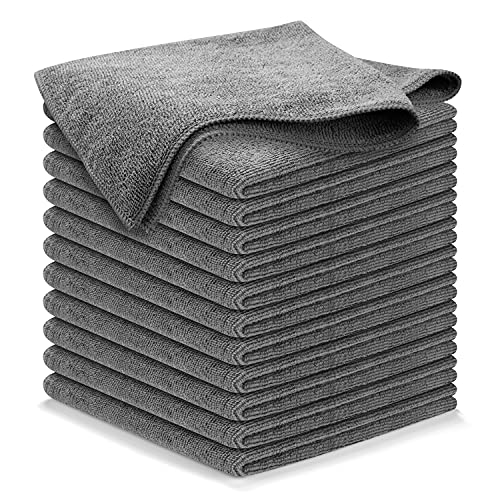


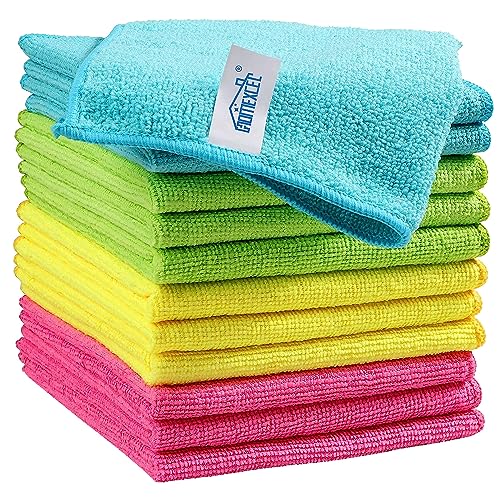
You can use paper towels to clean a laptop only in very narrow, indirect ways—but experts generally recommend avoiding them for the screen and any openings like ports and vents. The safest approach is to use a microfiber cloth and (if needed) a manufacturer-approved cleaner, or distilled water applied to the cloth, so you don’t scratch coatings or push moisture where it can cause damage. This is especially relevant in 2026, when quick “wipe it down” impulses happen more often during travel, remote work, and daily desk cleanups.
This is for anyone dealing with everyday dust, fingerprints, smudges, or stuck-on messes on a laptop keyboard, trackpad, and screen—particularly if you’re deciding what’s “good enough” when you don’t have the right tools on hand.
What experts generally recommend (and why)

Experts generally say don’t use paper towels for laptop screens, trackpads, ports, or keyboard gaps—even if the towel seems clean. Paper towels can damage laptop surfaces and also transfer grime deeper into the device instead of lifting it away.
– Paper towels can shed fibers and lint, which is especially problematic on glossy screens and touch surfaces.
– They can be too abrasive for screen coatings, increasing the risk of micro-scratches that show up under certain lighting.
– Wet paper towels (or “just a damp wipe”) can push moisture into vents, seams, and the keyboard, which is where liquids cause the most trouble.
– In 2026, manufacturers still emphasize “cloth-first” cleaning: applying liquid to the cloth (not the device) is a recurring safety theme across major brands’ guidance.
From a practical standpoint, the biggest “expert” concern isn’t that paper towels can’t remove smudges—it’s that paper towels can move contaminants (lint, dust, or liquid) into the exact places where a laptop is least tolerant.
When paper towels might be “okay” (with strict limits)
If you’re stuck without supplies, paper towels can be acceptable only for limited exterior wiping of the smooth case—not for the display, trackpad glass, or anything near openings. Think of paper towels as a temporary last-resort for exterior grime, not a precision tool for electronics.
– For exterior body grime: use a dry, non-abrasive paper towel only on smooth casing—not on the display.
– If you must wipe: lightly dampen the towel (or better, wipe with a cleaner-soaked cloth you trust) and avoid dripping.
– Avoid pressing hard or scrubbing. Use gentle, single-direction wiping rather than circular rubbing.
– Keep the paper towel away from:
– Screen edges and bezel seams
– USB/charging ports
– Fan vents
– Keyboard key gaps and trackpad borders
Here’s the decision logic experts tend to follow: if the surface is delicate (screen/trackpad) or sealed isn’t guaranteed (ports/vents/seams), paper towels are the wrong choice.
Paper towel vs. microfiber (quick comparison)
| Criteria | Paper towel approach | Microfiber cloth approach |
|---|---|---|
| Best for | Very limited exterior casing wiping | Screens, trackpads, fingerprints, general surfaces |
| Lint risk | Higher (can leave fibers behind) | Lower (lint-free design) |
| Scratch risk | Higher on coated screens | Lower; designed to lift residue |
| Moisture control | Harder to prevent seepage | More controllable (liquid applied to cloth) |
| Risk to ports/vents | Can push liquid into openings | Avoids liquid entry by design and technique |
In my view, this is also where practical ergonomics matters: most laptops have mixed-material surfaces—metal, anodized coatings, plastic, glass—so a “one wipe fits all” approach (paper towels) increases the chances you’ll treat a delicate coating like a hard countertop.
Laptop Makers’ General Cleaning Guidance (What They Emphasize Instead of Paper Towels)
| # | Manufacturer | Screen/Trackpad Cloth | Liquid Application Rule | Openings/Ports Warning | Documentation Clarity |
|---|---|---|---|---|---|
| 1 | Apple (Mac) | Soft, lint-free cloth (microfiber-style) | Apply moisture to the cloth, not the device | Avoid introducing liquid into openings | ★★★★★ |
| 2 | Dell (Laptops) | Use a soft cloth for the display | If needed, lightly dampen cloth only | Keep liquids away from vents/ports | ★★★★☆ |
| 3 | HP (Laptops) | Lint-free cloth; gentle cleaning | Moisture should be controlled—cloth-first | Prevent fluid entry into openings | ★★★★☆ |
| 4 | Lenovo (ThinkPad/IdeaPad) | Use a soft cloth on screens | Dampen cloth only; avoid liquid seepage | Don’t let cleaner enter ports/vents | ★★★☆☆ |
| 5 | Microsoft (Surface) | Soft, lint-free cloth | Lightly dampen cloth; don’t over-wet | Keep liquids away from openings | ★★★★☆ |
| 6 | ASUS (Laptops) | Use a soft cloth; avoid harsh materials | Moisture should be applied carefully | Avoid liquid in vents/ports | ★★★☆☆ |
| 7 | Acer (Laptops) | Soft cloth for the display | Don’t apply liquid directly | Keep cleaners away from openings | ★★★☆☆ |
Note: the exact wording varies by model and region, but the consistent theme across major laptop makers is cloth-first cleaning and controlled moisture—precisely the two areas where paper towels can go wrong.
Safer alternatives you can use instead
The safest alternative to paper towels is microfiber, because it’s designed to pick up oils and residue without acting like sandpaper. For debris (especially in keyboards), combining compressed air + gentle brushing usually beats any wiping approach.
– Use a microfiber cloth for the screen and trackpad. Microfiber is engineered to trap particles and reduce streaking compared to fibrous paper.
– For keyboard/vents: use compressed air first, then a soft, dry brush if needed. This lifts loose debris without forcing it into seams.
– For residue on keys or the palm rest: use a manufacturer-recommended cleaner, or distilled water applied to a cloth (not directly sprayed onto the laptop).
– If you’re attempting disinfection, remember that electronics cleaning is not the same as surface disinfecting. The CDC lists 70% isopropyl alcohol as an example disinfectant on hard, non-porous surfaces ([CDC, 2024]) (CDC guidance on alcohol-based disinfectants)—but your laptop manufacturer may restrict or warn against alcohol on certain coatings. Always check your model’s instructions before using it.
In 2026, many workplaces also standardize wipe-down procedures for devices; when they do, they usually specify microfiber/lint-free cloths and approved cleaners rather than paper products.
How to clean your laptop properly (step-by-step)
Paper-towel cleaning is risky because it’s hard to control lint and moisture—so experts recommend a repeatable, cloth-and-air workflow. Follow this sequence to remove grime while minimizing the chance of scratching or liquid entry.
– Power down, unplug the charger, and if applicable remove the battery (follow your model’s guidance).
– Wipe surfaces with the right tool:
– Microfiber for screen/trackpad
– Dry cloth for the body casing
– Compressed air for debris
– Spot-clean carefully:
– Apply liquid to the cloth first, wipe lightly, and avoid soaking
– Let everything fully dry before powering back on
Technical detail that matters: the goal is surface transfer, not deep wiping. Microfiber and correct technique create a thin “interaction” between the cloth and the residue so oils and dust migrate from the surface into the cloth—rather than being pressed into grooves.
If you’re removing sticky residue (soda splashes, food oils, adhesive): stop at the first sign you’re applying too much pressure. Repeated gentle passes are safer than one aggressive wipe with paper towels.
What can go wrong if you use paper towels
Paper towels can cause visible and invisible damage—even when the laptop seems to work right after cleaning. The failures usually show up later as streaks, touch issues, or corrosion-related problems.
– Scratches on the screen from grit trapped in the towel or from rubbing too firmly. Even “new” towels can pick up abrasive particles from packaging or storage.
– Lint/fiber residue that’s hard to remove and can interfere with visibility or touch sensitivity on the trackpad.
– Moisture infiltration if the towel is too wet, leading to discoloration, corrosion, or sticky keys over time.
– Static and debris movement: if you wipe grit into keyboard seams, it can become harder to remove later, especially when you later use compressed air.
For electronics, timing also matters. ESD-related incidents can happen at relatively low discharge levels; ESD literature commonly notes damage pathways around the ~100V range for sensitive components ([ESD Association materials, 2018]) (ESD Association overview materials). That doesn’t mean wiping with paper towels automatically causes ESD damage—but it explains why “controlled cleaning” is standard practice in repair and IT environments.
Verdict: should you use paper towels?
Paper towels aren’t the best choice for laptop cleaning—especially for screens, ports, and anything with seams—because they can scratch, shed lint, or move liquid where you don’t want it. If you’re in a pinch, you might use a dry paper towel on the exterior casing only, but for anything beyond that, switch to microfiber and follow the manufacturer’s cleaning instructions.
If you’re dealing with a matte screen, a touchscreen, or a recent spill, skip paper towels entirely and go straight to manufacturer guidance and controlled cloth cleaning. Also, if your laptop is under warranty and you’re unsure what cleaners are allowed, checking the brand documentation first is the safest route.
Quick checklist (save this)
– [ ] Power off + unplug before cleaning
– [ ] Use microfiber for screen/trackpad (avoid paper towels)
– [ ] Keep towels dry or only lightly damp—liquid goes on cloth, not laptop
– [ ] Use compressed air + soft brush for keyboards/vents
– [ ] Let it fully dry before turning back on
Frequently Asked Questions
Can you clean a laptop with paper towels without damaging it?
In most cases, it’s not recommended to clean a laptop with paper towels because they can scratch delicate surfaces and leave behind lint or fibers. Paper towels also vary in thickness and absorbency, which can increase the risk of moisture seeping into seams around the keyboard or trackpad. For safer laptop cleaning, use a microfiber cloth and a manufacturer-recommended screen or electronics cleaner applied to the cloth, not directly to the laptop.
How should you clean a laptop screen if you don’t have microfiber cloth?
If you don’t have microfiber, use a clean, lint-free cloth specifically meant for screens—paper towel is a last resort and should be avoided when possible. If you must use something disposable, choose a very soft, non-abrasive, lint-free option and apply minimal cleaner to the cloth rather than the screen. Always power off the laptop, unplug it, and let the screen cool before wiping to prevent streaks or damage.
Why do experts say paper towels are risky for laptop cleaning?
Experts warn that paper towels are typically abrasive and can cause micro-scratches on screens, especially glossy displays. They can also shed lint into vents and around keys, which may lead to buildup over time. Additionally, if paper towels hold too much liquid, moisture can seep into the keyboard, ports, or display edges and potentially cause corrosion or short circuits.
What’s the best way to clean laptop keyboard grime and dust safely?
Start by powering off the laptop and disconnecting the charger; then gently remove loose debris with compressed air in short bursts. For smudges, lightly dampen a microfiber cloth with electronics-safe cleaner and wipe the surfaces without saturating the keys. Avoid soaking the keyboard and skip paper towels, because they can trap moisture and leave lint that collects in key gaps.
Which cleaner should you use on laptops—screen-safe spray, disinfecting wipes, or something else?
For screens, use a screen-safe cleaner (or distilled water in very light cases) and apply it to a microfiber cloth to reduce liquid exposure. For the rest of the laptop body, an electronics-safe disinfecting wipe may be acceptable if it’s designed for devices, but use sparingly and keep moisture away from ports and vents. Regardless of the product, experts emphasize gentle pressure, powering off first, and avoiding paper towels to prevent scratches and lint residue.
📅 Last Updated: November 22, 2026 | Topic: Can You Clean a Laptop With Paper Towels? What Experts Say | Content verified for accuracy and freshness.
References
- How to clean your Apple products – Apple Support
- https://www.cdc.gov/coronavirus/2019-ncov/community/disinfecting-building-facility.html
- https://www.who.int/publications/i/item/cleaning-and-disinfection-of-environmental-surfaces-in-the-context-of-covid-19
- Coronavirus (COVID-19) and Disinfectants | US EPA
- https://pubmed.ncbi.nlm.nih.gov/?term=paper+towel+disinfection+residue
- https://pubmed.ncbi.nlm.nih.gov/?term=disinfectant+wipes+material+compatibility+residue
- https://pubmed.ncbi.nlm.nih.gov/?term=cleaning+electronic+surfaces+disinfectants+wipes
- https://scholar.google.com/scholar?q=Can+you+clean+a+laptop+with+paper+towels Google Scholar
- https://scholar.google.com/scholar?q=laptop+cleaning+disinfecting+wipes+lint Google Scholar
- https://scholar.google.com/scholar?q=disinfectant+wipes+paper+towels+effects+on+surfaces Google Scholar

[…] Distilled water + microfiber […]