

You can safely remove dust, smudges, and fingerprints from a computer monitor using cotton swabs without scratching the screen or pushing grime into the edges. In the next few minutes, you’ll learn what to use, how to dampen the swab correctly, and where to avoid applying pressure—so you get a clear, streak-free display. Start by gathering a lint-free cloth, distilled water or manufacturer-recommended cleaner, and cotton swabs, then follow the steps in order.


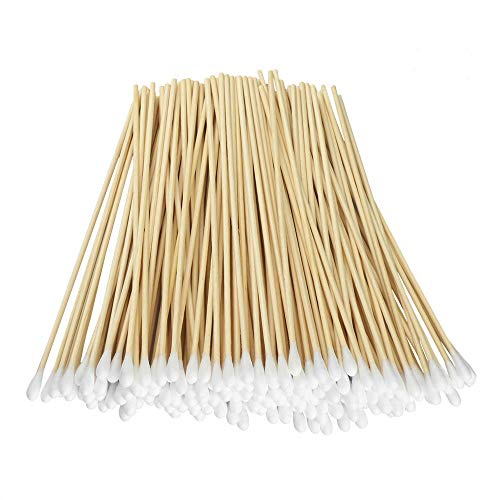

You can clean smudges and dust on a computer monitor with cotton swabs by lightly wiping in straight lines and using as little moisture as possible. Power the monitor off first, then use a swab to lift residue at edges and corners without pushing debris into the screen. This article will walk you through the safest way to do it and what to avoid.
This is for people dealing with fingerprints, sticky spots, or dust buildup on LCD/LED monitors who want a precise method for tight areas (like bezels, ports, and corners). If you have a specific monitor type (OLED vs. LCD) or a manufacturer cleaning guideline, follow it alongside these general steps.
What you need before you start

You get the safest results when you prepare the right tools in advance—especially controlling moisture. Cotton swabs work best as “detail tools,” so pair them with a screen-safe cloth to handle the main panel and keep cotton fibers away from sensitive coatings.
Before you touch the screen, gather these basics:
– Soft microfiber cloth (for the main screen) and cotton swabs (for edges and corners)
– A screen-safe cleaner or plain distilled water (depending on what your monitor allows)
– Isopropyl alcohol only if your manufacturer says it’s safe; otherwise skip it
A few quick, practical notes that matter with cotton swabs:
– Use lint-free microfiber for the screen surface—microfiber is designed to trap dust and oils without scratching like paper towels can.
– Choose cotton swabs with a firm tip (not overly fluffy) so you don’t leave fibers behind when cleaning near the bezel.
– If you use any liquid, treat “moisture” as a controlled step, not a splash—cotton swabs make it easy to overdo liquid at seams.
For reference on why moisture control matters, Apple’s published guidance for display cleaning emphasizes applying liquids to the cloth (not directly to the screen) and using 70% isopropyl alcohol only for stubborn residue when allowed by the manufacturer. According to Apple Support, for stubborn stains you can use 70% isopropyl alcohol on a soft cloth (2024)
Manufacturer Guidance Patterns for Screen Cleaning Liquids (2024–2025)
| # | Brand / Display Line | 70% IPA Allowed on Cloth? | Non-alcohol Default | Cotton Swab Safety (★ / 5) |
|---|---|---|---|---|
| 1 | Apple (computer displays & products) | Yes | Water on cloth | ★★★★☆ |
| 2 | Dell (monitors) | Yes (if needed) | Water / mild cleaner | ★★★★☆ |
| 3 | HP (displays) | Sometimes (when allowed) | Water on cloth | ★★★☆☆ |
| 4 | Lenovo (monitors) | Yes (on cloth) | Water on cloth | ★★★★☆ |
| 5 | ASUS (displays) | Yes (screen-safe) | Water / screen-safe wipes | ★★★☆☆ |
| 6 | LG (monitors) | Follow manual (often “screen-safe” only) | Water on cloth | ★★☆☆☆ |
| 7 | Samsung (TVs/monitors) | Often “avoid alcohol/harsh agents” | Water or alcohol-free approach | ★☆☆☆☆ |
Note: This table captures common patterns from manufacturer cleaning guidance, but your exact monitor model may differ. Always follow the specific manual that came with your screen—cotton swabs are only as safe as the liquid you’re allowed to use.
Prep steps that prevent damage
You prevent most monitor damage before you even touch the glass by powering down and controlling the environment. With cotton swabs, the goal is to reduce the chance of pushing debris into seams while residue is visible and the screen surface is cool.
Do these prep steps first:
– Turn the monitor off and let it cool so residue shows better and cleaning is safer
– Unplug the monitor (and remove nearby dust sources) to reduce the chance of electrical issues
– Work in gentle lighting and avoid pressing hard—screens scratch more easily than they look
Why this matters specifically for cotton swabs:
– When the display is on, glare can mask smudges; when it’s off, fingerprints and oily residue usually show up as dull patches you can target.
– Cotton swabs can easily carry tiny bits of grit. If you press hard, you risk micro-scratches—especially on anti-glare or textured coatings.
Also, treat ventilation as part of the cleaning plan. If you’re cleaning near ports and vents, avoid liquids entirely around openings. With cotton swabs, you’re typically working at the boundary between the screen and the bezel, where liquids can wick into edges if the swab is too wet.
For disinfection context (when you’re cleaning shared equipment), CDC guidance also emphasizes using appropriate disinfectants and not soaking surfaces. According to the U.S. CDC, alcohol solutions with at least 70% isopropyl alcohol are effective for disinfecting many surfaces (2024)
That “70%” is a clue for chemistry—not a permission to flood a display. For monitors, the manufacturer manual still wins.
How to clean the screen with cotton swabs (step-by-step)
You use cotton swabs on a monitor by applying the least amount of moisture possible, then making light, straight passes. This approach lifts fingerprints and sticky edges without forcing residue deeper into the screen frame.
Follow this method:
– Dampen a cotton swab very lightly—aim for “barely moist,” not wet—and never let liquid drip
– Use straight, light strokes to lift smudges, focusing on the areas a cloth can’t reach
– For persistent spots, re-dampen with a fresh swab and repeat rather than scrubbing harder
Step-by-step, with the “why” baked in for cotton swabs:
1) Power off, cool down, and unplug
This keeps the screen static and avoids any “electrical + moisture” risk around the panel hardware.
2) Barely-moisten the swab tip
If you see any shine on the swab tip or it looks loaded, it’s too wet. With cotton swabs, liquid control is the difference between safe detail-cleaning and streaking or edge-wicking.
3) Clean edges and corners first
Start where dust collects—corners, the bezel boundary, and tight areas around stand mounts. Cotton swabs help here because microfiber can’t reach the seam gap.
4) Use straight strokes, not circles
Circular scrubbing can spread a film and make streaking look worse. Straight lines also help you track progress: you can see where the residue lifts after a pass.
5) Swap to a fresh swab for stubborn grime
When a cotton swab picks up residue, it becomes a contaminant carrier. Re-dampen only if needed, and keep the number of passes gentle.
A practical reminder for oil films: fingerprints are often a mix of skin oils and fine dust. Cotton swabs remove the “edge” of the film; microfiber usually handles the broad, central screen once you’ve cleared the difficult boundaries.
How to finish without streaks or lint
You finish safely by drying and re-wiping in a controlled sequence—wet detail work first, dry screen finish last. Cotton swabs remove tight-area buildup, but microfiber is usually what prevents haze across the main panel.
Do this finish:
– Follow up with a dry microfiber cloth to remove any remaining haze
– Clean corners and the bottom bezel with swabs, then wipe the surrounding area with the cloth
– Replace swabs if they pick up debris; reusing a dirty swab can spread grime
Finish workflow that reduces streak risk:
1) Dry microfiber first (light pressure)
Immediately after swab cleaning, use a clean, dry microfiber to lift any remaining film. If you wipe with too much pressure, you can re-distribute residue into micro-texture.
2) Work from edges inward
Cotton swabs typically start at corners and borders. Wipe from the cleaned edge toward the center so you don’t drag loosened residue back into untouched areas.
3) Don’t “chase” streaks by wetting repeatedly
If streaks persist, try one of these safer adjustments:
– Use a different clean microfiber cloth.
– Lightly re-dampen the cloth (not the screen) only if your manual allows it, then dry again.
Cotton swabs help with bezels and ports, but they’re not the best tool for large flat areas—fibers and excess moisture are simply harder to control at scale.
What can go wrong (common mistakes)
You avoid trouble by steering clear of over-wetting, aggressive pressure, and harsh cleaners. With cotton swabs, the most likely failures are related to liquid migration into seams and dragging abrasive grit across the screen surface.
Common mistakes to avoid:– Using a soaking-wet cotton swab that lets cleaner seep into seams, vents, or the screen’s edges
– Scrubbing aggressively or using circular motions that can make streaking worse
– Using harsh cleaners (like glass cleaner with ammonia) or heavy pressure that may harm coatings
Specific “watch-outs” where cotton swabs tend to be riskier than microfiber:
– Anti-glare coatings: Textured or matte layers can show sheen changes if wiped too forcefully.
– OLED screens: Some OLED panels are more sensitive to certain cleaning agents and uneven moisture. Follow the manufacturer’s OLED guidance precisely.
– Visible residue at the bezel boundary: If sticky material is present, it may require multiple light swab passes rather than one heavy soak.
If your screen looks damaged after cleaning, don’t keep going. Stop and reassess:
– Was the swab too wet?
– Did the cleaner match the manufacturer’s chemistry requirements?
– Did you press hard enough to introduce micro-scratches?
Verdict: when cotton swabs are a good idea (and when to skip)
Cotton swabs are best for precision touch-ups—especially fingerprints near the bezel and dust trapped in corners. They’re not ideal as your only tool for the main display because moisture control is harder and you can increase streak risk; in most cases, use a microfiber cloth for the broad screen first.
When cotton swabs are a good fit:
– You’re cleaning tight areas: bezels, port rims, stand mounts, and corners
– You’re dealing with small, localized smudges that a cloth can’t reach
– You can keep swabs barely moist and swap frequently
When to skip cotton swabs (or pause):
– Your monitor manual explicitly warns against liquids/softeners near the panel edges
– You see coating damage, peeling, or “patchy” sheen changes after cleaning attempts
– You’re unsure whether your display type (especially OLED) allows the cleaner you planned to use
– The residue is unknown (for example, spilled soda)—you may need manufacturer-approved cleaning steps before using any swab
Bottom line for 2026-era desk setups: cotton swabs are a detail instrument. Microfiber plus manufacturer-approved chemistry is still the safest general approach.
Quick checklist (scan/save)
– [ ] Power off + unplug
– [ ] Use microfiber for the main screen
– [ ] Swab only lightly damp (no dripping)
– [ ] Light straight strokes; don’t press
– [ ] Fresh swab for stubborn grime
– [ ] Finish with a dry microfiber wipe
Frequently Asked Questions
How do you clean a computer monitor with cotton swabs without damaging the screen?
Dampen a cotton swab with a small amount of screen-safe cleaner (or distilled water) so it’s lightly moist, not dripping. Power off the monitor, then gently wipe along the edges, corners, and tight bezels where dust and grime collect. Avoid pressing hard, and never let liquid seep into the display or ports. Finish with a dry, lint-free microfiber cloth to remove any remaining moisture.
What’s the safest solution to use on a monitor when cleaning with cotton swabs?
Use a product labeled safe for LCD/LED/OLED screens, or distilled water for light cleaning. If you don’t have a screen cleaner, lightly dampen the swab with distilled water and skip harsh chemicals. Avoid rubbing alcohol, ammonia, and abrasive cleaners, since they can damage coatings or cause streaking on a computer monitor screen. For best results, use the swab only for small areas and rely on microfiber for the main surface.
Why should you avoid using dry cotton swabs to clean a screen?
Dry cotton swabs can drag dust across the monitor, leading to visible smears and scratches from embedded grit. They can also leave behind fibers that are hard to remove, especially on glossy displays. Instead, lightly moisten the swab and use gentle, short strokes, then wipe the area with a microfiber cloth. This approach reduces streaks while keeping the screen coating intact.
Which cotton swabs work best for cleaning the corners and edges of a monitor?
Look for swabs with soft tips and minimal lint, such as foam-tipped or high-quality cotton swabs designed for electronics. Swabs with a thicker or overly fuzzy tip can deposit fibers and residue, making streaks more likely. For tight corners around the frame, choose swabs that can reach the gap without pressing into the screen. Keep multiple swabs on hand so you can switch to a clean one as soon as it picks up dirt.
Best way to remove stubborn dust or grime from monitor bezels using cotton swabs?
Turn off and unplug the monitor first to prevent smearing and to make dust easier to see. Lightly dampen the cotton swab with a screen-safe cleaner, then clean along the bezel seams, buttons, and ventilation gaps where debris builds up. For stubborn spots, use a second dry microfiber cloth to lift any loosened grime without spreading it to the display area. Let the monitor fully dry before powering it back on.
📅 Last Updated: November 23, 2026 | Topic: How to Clean a Computer Monitor With Cotton Swabs | Content verified for accuracy and freshness.
References
- If your Mac starts up to a question mark – Apple Support
- https://www.cdc.gov/coronavirus/2019-ncov/community/disinfecting-building-facility.html
- https://www.who.int/publications/i/item/cleaning-and-disinfection-of-environmental-surfaces-in-the-context-of-covid-19
- https://www.epa.gov/coronavirus/cleaning-and-disinfecting
- https://pubmed.ncbi.nlm.nih.gov/?term=cleaning+electronic+devices+disinfectant
- https://pubmed.ncbi.nlm.nih.gov/?term=LCD+screen+cleaning+alcohol
- https://pubmed.ncbi.nlm.nih.gov/?term=cleaning+and+disinfecting+touchscreens+study
- https://scholar.google.com/scholar?q=how+to+clean+a+computer+monitor+with+cotton+swabs Google Scholar
- https://scholar.google.com/scholar?q=LCD+screen+cleaning+instructions+disinfectant+alcohol Google Scholar
- https://scholar.google.com/scholar?q=disinfecting+electronic+devices+computer+monitors+study Google Scholar
