

If you notice a thick layer of gray dust on the CPU heatsink fins or the inside of your case, that is a direct sign your gaming PC needs more than routine dusting. Dust blocks airflow, which can make fans work harder and increase temperatures, leading to stutter, louder noise, or unexpected shutdowns. Spotting these indicators early helps you protect performance and keep components running within their intended cooling limits.


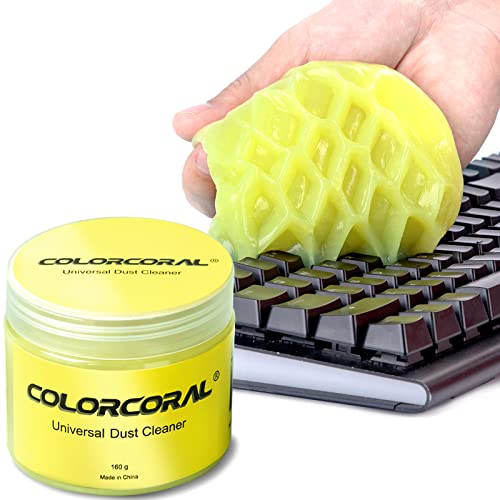

A gaming PC deep clean is usually the right move when you see rising CPU/GPU temperatures, louder—or more erratic—fan behavior, and performance instability that tracks with heat. If surface cleaning isn’t fixing the pattern, dust is likely clogging airflow paths inside the case and forcing components into throttling.
If you’ve noticed gradual changes during gaming, streaming, or even idle time, these symptoms can point to clogged airflow. It’s especially common after months of use in dusty rooms, with pets, or if your PC is near carpeting/vents—conditions that steadily reduce intake airflow and make a gaming PC deep clean more urgent.
Increased temps during gaming or idle

A gaming PC deep clean is likely needed if temperatures climb faster than they used to under the same game settings, because clogged cooling fin stacks and blocked intakes trap hot air. This isn’t just about “high temps”—it’s about the trend and whether both CPU and GPU are affected, which strongly suggests airflow restriction rather than a single failing component.
– Watch for CPU/GPU temperatures climbing higher than usual for the same game/settings. Compare against your recent baseline (even if it was only from a couple of weeks ago), and look for consistent spikes rather than one-off blips.
– If your PC runs hot even at idle, dust and restricted airflow inside the case are likely culprits. Idle heat often points to blocked intakes, a clogged radiator/heat sink (AIO or air cooler), or a case filter that’s suffocating the normal airflow path.
– Confirm with quick checks: monitor CPU package temp, GPU hotspot (if your tool shows it), and fan RPM together. When a gaming PC deep clean is due, temps typically keep rising while fan RPM stays “stuck” in the higher part of the curve to compensate.
According to Intel ARK, the Core i9-13900K has a maximum operating/junction temperature (Tjmax) of 100°C (2022). If your gaming PC repeatedly approaches or hits that ceiling during normal play, dust-related airflow restriction becomes a top suspect.
Loud fans and “ramp up” behavior
A gaming PC deep clean is the correct diagnosis when fans become louder more often—or their ramp pattern feels irregular—because dust increases thermal resistance and reduces airflow efficiency. Fan curves react to temperature; when dust blocks heat transfer, the system “works harder,” and you hear it.
– Fans that suddenly spin up more often (or sound scratchier) often indicate dust on fan blades or heat buildup. Scratchy sound is a big clue: dust grit changes blade aerodynamics and can cause higher bearing load.
– Persistent high fan RPM can be a sign your system is fighting restricted cooling. If your CPU or GPU temperatures hover near thresholds (even if they never fully “max out”), the fan controller will keep pushing RPM to maintain stability—classic deep-clean territory.
– Check both intake and exhaust behavior. If only one direction (intake fans) gets noisy or high RPM while exhaust remains comparatively stable, you likely have a clogged intake filter or obstructed front/bottom intake path—exactly the kind of restriction a gaming PC deep clean targets.
Performance drops, stutters, or unexpected throttling
A gaming PC deep clean is worth prioritizing when stutters and throttling track with high temperatures, because airflow issues reduce thermal headroom and trigger performance-limiting behavior. When throttling kicks in, you may see frame rate swings that feel like “lag spikes,” even if your network and game settings are unchanged.
– Sudden frame drops, stutters, or “lag spikes” can happen when airflow can’t keep components within safe operating limits. Thermal throttling doesn’t just reduce raw performance—it can also make GPU clocks fluctuate, which manifests as inconsistent frame pacing.
– If you see performance issues paired with high thermals, prioritize cleaning before changing software. Driver updates and game settings can matter, but they won’t fix a physically blocked intake or a dust-packed heatsink fin stack.
– Use a simple correlation method: record (a) FPS or frame time, (b) CPU/GPU temps, and (c) fan RPM during a 10–15 minute gameplay segment. If the worst stutters line up with the temperature ramp and fan “climb,” a gaming PC deep clean is the most direct fix.
According to NVIDIA, GeForce “GPU Boost” behavior targets a specific temperature to balance performance and power draw, with a commonly referenced default target of 83°C for GPU Boost 2.x behavior (2014). When dust reduces heat transfer, the GPU tries to recover by changing clocks—and you feel it as throttling-related inconsistency.
More crashes, shutdowns, or game reboots
A gaming PC deep clean can directly improve stability when thermal stress causes instability under load. Dust-driven overheating can push components toward power limits or protection states, leading to crashes, driver resets, or full system shutdowns if the PSU or VRM cooling is also affected.
– Thermal stress can contribute to instability, including application crashes or system reboots under load. The pattern matters: stability that degrades only after several minutes of heavy gaming often points to heat saturation.
– If issues started after a long period without cleaning (and temps are elevated), dust buildup becomes more likely. “Long period” is relative, but if the gaming PC deep clean hasn’t happened in months (or longer, depending on your environment), it’s a credible cause.
– Distinguish heat-related shutdowns from power faults: if the PC dies cleanly with no “spiky” electrical behavior and fans are running hard right before it, temperatures are a prime suspect. If you get repeating shutdowns with normal temps, focus on PSU health, RAM issues, or BIOS settings instead.
Visual dust buildup and clogged filters
A gaming PC deep clean is usually justified when you can see dust at intake points, because visible blockage often correlates with reduced airflow in the critical path (case intakes → heatsinks/radiators → exhaust). This is the most direct “confirmation” indicator: dust doesn’t have to be dramatic to choke performance.
– Check intake areas: dust on the case front, bottom intake, or mesh filters is a direct warning sign. Even a moderately clogged filter can raise restriction enough that CPU coolers and GPU fans spend more time at higher RPM.
– If filters are visibly clogged or airflow feels weaker, a deep clean is often the next step—not just a quick wipe. Try the “fan feel” check (with the system powered off): can you easily feel air movement from front/bottom intake pathways compared with an unblocked section?
– Inspect radiator or heatsink surfaces for dust “matting.” On many systems, dust accumulates between fins and is hard to remove without careful cleaning and brushing—surface dusting won’t fix the thermal transfer problem.
According to AMD, the Ryzen 7 5800X lists a maximum operational temperature (Tctl/Tdie) of 90°C (2020). If your gaming PC’s CPU frequently approaches that limit during normal gaming, clogged cooling surfaces and restricted airflow are more than “annoying”—they’re a stability risk.
Thermal Limits Commonly Approached When a Gaming PC Needs a Deep Clean
| # | Component | Type | Thermal limit / target | Cleaning urgency |
|---|---|---|---|---|
| 1 | Intel Core i9-13900K | CPU | 100°C (Tjmax) | High headroom |
| 2 | Intel Core i7-13700K | CPU | 100°C (Tjmax) | High headroom |
| 3 | AMD Ryzen 9 7950X | CPU | 95°C (Tctl/Tdie) | Moderate |
| 4 | AMD Ryzen 7 7700 | CPU | 95°C (Tctl/Tdie) | Moderate |
| 5 | AMD Ryzen 7 5800X | CPU | 90°C (Tctl/Tdie) | Higher risk sooner |
| 6 | NVIDIA GeForce (GPU Boost 2.x target) | GPU | 83°C target | Higher fan pressure likely |
| 7 | AMD Ryzen 5 7600 | CPU | 95°C (Tctl/Tdie) | Moderate |
As of 2026, most gaming PC monitoring apps still show temps in °C and correlate fan RPM with thermal limits—so if your CPU/GPU temps are steadily climbing toward these limits, a gaming PC deep clean is no longer optional.
What can go wrong (and when to stop)
A gaming PC deep clean can go wrong if you push dust deeper, handle components while powered, or damage thermal interfaces. If you don’t feel confident opening your case or you can’t follow your model’s disassembly guidance, stop and use professional service—restoring safe thermals matters more than “finishing the job.”
– Don’t blow dust deeper into the case: aggressive compressed-air use can scatter debris onto components. Use controlled bursts and hold fans still if your method requires it; the goal is to lift dust off surfaces without turning the inside of the gaming PC into a dust storm.
– Avoid cleaning errors like using the wrong liquid, scraping heatsinks, or moving cables while the PC is powered. Liquids can harm plastics and connectors; scraping can damage heatsink flatness or loosen contact.
– Skip “deep cleaning” if you’re uncomfortable opening the case, and don’t force removal of fans/heatsink parts—.
– If you reach the point where you’d need to remove an M.2 heat spreader, detach an AIO radiator carefully, or reapply thermal paste, pause. A bad re-mount can create worse temperatures than the dust problem you started with.
Verdict: When a deep clean is worth it
A gaming PC deep clean is worth doing when you see a combination of rising temps, louder fans, and performance instability—especially if it’s been a long time since a thorough cleaning. If symptoms are limited to a single game or started after a recent software change, try troubleshooting drivers/settings first, because you may be chasing a non-hardware issue.
Downsides: a deep clean takes time, requires careful hardware handling, and can be risky if you’re not comfortable removing components (or if your thermal setup depends on precise mounting pressure). If you’re prone to static damage, work in a highly dry environment without ESD precautions, or you don’t have guidance for your exact build—consider a technician.
Quick checklist: “Deep clean” signals to look for
– [ ] CPU/GPU temps higher than normal for the same game
– [ ] Fans louder than usual or constantly spinning up
– [ ] Stutters, frame drops, or throttling under load
– [ ] Crashes/reboots occurring during gaming
– [ ] Visible dust on intake filters/mesh and inside the case
– [ ] Restricted or “wimpy” airflow from intake fans
Frequently Asked Questions
What are the most common signs your gaming PC needs a deep clean?
If you notice louder fan noise, higher CPU/GPU temperatures, or frequent thermal throttling, dust buildup is often the cause. Performance issues like unexpected stuttering, random shutdowns, or games taking longer to load can also happen when airflow is restricted. You may even see visible dust on fan blades, heatsinks, or inside the PC case window.
How can you tell if dust is clogging your gaming PC fans or heatsink?
Check whether fans spin freely and listen for grinding or clicking sounds, which can indicate dust buildup or debris imbalance. Use software like HWMonitor or MSI Afterburner to compare idle and gaming temperatures—sudden temperature spikes often point to clogged heatsinks. Visually inspect the CPU cooler fins, GPU heatsink, and intake filters for thick dust mats that block airflow.
Why do increased temps and throttling mean your PC needs a deep clean?
Dust acts like insulation on CPU and GPU heatsinks, reducing heat transfer and forcing your components to run hotter. When temperatures rise, modern gaming PCs automatically throttle performance to stay within safe limits, leading to reduced FPS and micro-stutter. A deep clean removes accumulated dust so your cooling system can restore stable airflow and gaming performance.
Which components should you inspect first during a deep clean for gaming performance?
Start with intake fans and dust filters, since they collect the majority of particulate entering the case. Next, inspect the CPU cooler heatsink fins, GPU heatsink, and fan hubs/blades for compacted dust that restricts airflow. Finally, check cable clutter areas around the GPU and the power supply intake, because blocked airflow paths can worsen thermals even if the fans look clean.
Best practices for knowing when to deep clean versus doing light maintenance?
If temperatures have gradually increased over weeks or months, or you’ve started seeing throttling, it’s a good sign that a deep clean is needed rather than just wiping surfaces. Light maintenance (like cleaning accessible filters) helps when dust is minimal, but it won’t remove buildup trapped in heatsink fins or on GPU components. As a rule of thumb, clean intake filters regularly and schedule a deeper clean every 6–12 months, or sooner if you have pets, carpets, or a dusty environment.
📅 Last Updated: November 22, 2026 | Topic: Signs Your Gaming PC Needs a Deep Clean | Content verified for accuracy and freshness.
References
- https://pubmed.ncbi.nlm.nih.gov/?term=dust+accumulation+heat+sink
- https://pubmed.ncbi.nlm.nih.gov/?term=dust+computer+cooling+thermal+performance
- How to clean your Apple products – Apple Support
- Computer cooling
- Thermal design power
- Electrostatic discharge
- Dust
- https://scholar.google.com/scholar?q=computer+dust+overheating+fan+noise+thermal+throttling Google Scholar
- https://scholar.google.com/scholar?q=dust+accumulation+heat+sink+thermal+performance Google Scholar
- https://scholar.google.com/scholar?q=electrostatic+discharge+ESD+electronics+cleaning+compressed+air Google Scholar

 -81%
 -73%
 -70%