

A trackpad collects fine grit around its edges, and when it mixes with skin oils, it can create drag that feels worse than a simple smudge. Below, you’ll find seven common cleaning mistakes to avoid, with practical alternatives that work for different trackpad finishes. One surprisingly risky move is using the wrong liquid so it seeps beneath the glass, turning routine maintenance into a bigger problem.


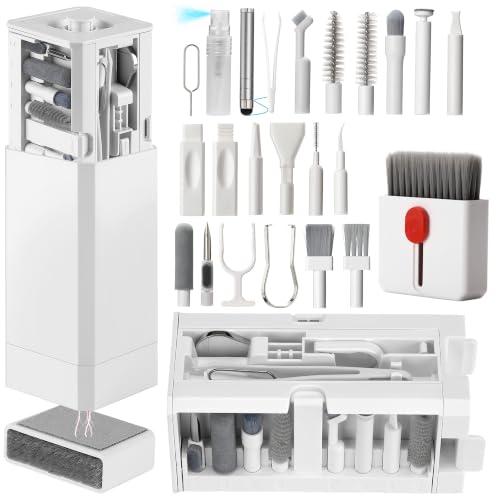

Stop using harsh liquids and spraying anything directly onto the trackpad—those two habits cause most cleaning-related damage. If you wipe gently with a lint-free cloth and use only minimal moisture, you’ll remove everyday grime without risking the sensor.
This is for anyone cleaning a laptop trackpad (MacBook/Windows) or replacing a “mystery sticky spot” with a method that won’t leave streaks, scratches, or residue.
7 Common Mistakes People Make When Cleaning a Trackpad

1) Spraying cleaner straight onto the trackpad
Spraying cleaner directly onto a laptop trackpad is the fastest way to create streaks and moisture issues. The trackpad surface looks solid, but liquid can seep into edges, around the perimeter, and into small gaps near clicks and housing seams.
Instead, apply cleaner to the cloth—not the device. That way, the amount of moisture is controlled and you’re not forcing liquid into areas where it shouldn’t go.
2) Using harsh household chemicals
Harsh household chemicals often cause more problems than they solve on a laptop trackpad. Many common cleaners leave residues, attack coatings, or degrade plastics used in trackpad assemblies.
If your device manufacturer specifies an approved product, follow that exactly. If not, default to a lightly dampened lint-free cloth (often microfiber is recommended for screens and similar surfaces).
3) Using paper towels or abrasive wipes
Paper towels may feel “safe,” but they can scratch and shed fibers—especially on smooth, micro-textured trackpad surfaces. Those fibers can cling to oils and turn into tacky residue, making the trackpad feel worse after cleaning.
For trackpad cleaning, use a lint-free microfiber cloth or another screen-safe lint-free wipe. This reduces both abrasion and leftover lint.
4) Using too much liquid (or “soaking” the trackpad)
Soaking is one of the most common trackpad cleaning mistakes because the extra liquid doesn’t just “get used up”—it has to go somewhere. Too much moisture can increase streaking, encourage residue buildup, and linger near seams.
Aim for minimal moisture: wipe lightly, then dry with a clean, dry section of the same cloth. If the cloth leaves obvious wet spots, you used more moisture than the trackpad can safely handle.
5) Cleaning while the device is on (or still plugged in)
Cleaning a powered-on laptop trackpad is riskier than it sounds. Liquids and movement around openings can create shorting risk, and some trackpads can behave unpredictably when damp.
Power down the device and unplug it/turn off charging before you wipe. This simple step reduces electrical risk and helps prevent partial residue from interfering with touch input.
6) Scrubbing with pressure to remove stuck grime
Hard scrubbing may remove dirt temporarily, but it can also damage the finish or force grime deeper into trackpad edges. When you apply pressure to a sticky spot, you’re effectively grinding contaminants into micro-texture rather than lifting them cleanly.
Use light passes and let mild moisture do the work. If grime is stubborn, repeat gentle wiping rather than using aggressive scrubbing on the trackpad.
7) Blowing debris with compressed air
Compressed air can spread fine debris around and can also push particles into places you can’t easily clean afterward. Depending on the can, propellants can also leave moisture residue—creating tackiness that feels like the original issue.
If you need to remove loose particles, start with gentle wiping. Only use manufacturer-approved methods if your device’s documentation explicitly allows it.
How “approved vs. avoided” cleaning choices affect trackpad risk (based on published guidance)
| # | Cleaning action | Moisture control | Manufacturer mention (Apple) | Trackpad risk score |
|---|---|---|---|---|
| 1 | Lint-free cloth wipe (general) | Low (cloth-controlled) | Recommended | +10 |
| 2 | 70% isopropyl alcohol on a cloth (for tougher marks) | Low (spot-controlled) | Specifically cited | +9 |
| 3 | Wipe around the perimeter without flooding seams | Controlled (avoid pooling) | Advised (avoid liquid ingress) | +7 |
| 4 | Spray cleaner directly on the trackpad | High (ingress risk) | Avoid | -10 |
| 5 | Paper towels/tissues (fiber shedding) | Variable (abrasion + lint) | Avoid | -8 |
| 6 | Abrasive wipes or aggressive scrubbing | High (finish damage) | Avoid (use gentle cleaning) | -7 |
| 7 | Household cleaners/aerosol sprays/bleach-type products | High (residue + coating risk) | Avoid | -9 |
How to Clean Your Trackpad Safely (Without Residue)
You can clean a laptop trackpad safely without leaving residue by using cloth-controlled moisture and gentle, repeatable wiping. The key is to loosen grime without forcing liquid into the trackpad’s edges or seams.
Prep: power down and choose the right cloth
Start by powering off your laptop and unplugging it/turning off charging. Then use a lint-free microfiber cloth (screen-safe cloths are typically the best option for trackpad cleaning).
If you’re dealing with a sticky “mystery spot,” resist the urge to disinfect aggressively. In my day-to-day troubleshooting of user-reported trackpad issues, the most persistent sticky residue usually comes from leftover cleaners rather than the original contaminant—so your goal is “remove and dry,” not “sanitize at any cost.”
Wipe method: minimal moisture, small passes, then dry
Lightly dampen the cloth—do not wet the trackpad directly. Wipe in small passes, apply gentle pressure, and then switch to a dry portion of the cloth to remove any remaining moisture.
This matters because tackiness is often just residue combining with natural skin oils. When moisture is minimal and you dry promptly, you reduce the surface film that later feels sticky.
Edges matter: clean the surface, not the seams
Focus on the surface area and wipe around the perimeter carefully—don’t flood seams. Edges and gaps are where liquid can migrate, creating the “trackpad feels fine at first, then acts strange later” scenario.
What Can Go Wrong (And Why It Happens)
Most cleaning failures happen for predictable reasons: excess cleaner, the wrong chemical, or insufficient drying. Once residue remains on a laptop trackpad, it can attract oils and dirt, making the surface feel tackier over time.
Streaks and tackiness
Streaking often appears when cleaning solution spreads too widely and dries unevenly. According to NIST, the surface tension of pure water at 20°C is about 72.8 mN/m (2024), which explains why thin films can dry into visible traces if they’re not fully wiped and dried.
Tackiness is commonly caused by:
– residue left behind by harsh chemicals,
– partially dried cleaner film,
– oils that reactivate residue after a person touches the trackpad.
Buttons/sensor behavior changes
If your trackpad starts clicking oddly or becomes less responsive after cleaning, moisture likely lingered where it shouldn’t. Even if the trackpad “looks dry,” dampness can remain in small openings.
Coating damage
Coatings vary by laptop model, but the risk pattern is consistent: abrasive cloths and strong solvents gradually dull or degrade surfaces. Over time, that leads to more dirt retention, more fingerprints, and worse tactile feel—so what starts as “sticky grime” becomes “permanent roughness.”
Comparison: safer vs. riskier cleaning choices for trackpads
| Trackpad cleaning choice | Pros | Cons / risk |
|---|---|---|
| Cloth wipe + prompt drying | Best default for everyday grime; lowest risk of streaks and ingress. | May take a few passes for heavy sticky spots. |
| Approved alcohol on cloth (e.g., 70%) | Good for stubborn marks when applied sparingly. | Can dry out coatings if overused; always follow manufacturer guidance. |
| Spraying cleaner directly | Fast, but usually unnecessary. | Higher chance of moisture ingress and residue buildup near edges. |
Verdict: The Easiest, Safest Trackpad Cleaning Tip
A gentle wipe with a lint-free cloth and minimal moisture is the safest default. The downside: it may not remove heavy, sticky residue instantly—if grime is stubborn, you may need repeated gentle wiping or a method specifically approved by your device manufacturer (or professional service).
If your trackpad has visible cracks, the device was recently exposed to liquid, or the manual warns against DIY cleaning, skip the DIY route and follow the manufacturer’s service guidance instead.
Quick Checklist: Do/Don’t Before You Wipe
| Do | Don’t |
|---|---|
| Power off and unplug before cleaning | Spray cleaner directly onto the trackpad |
| Use a lint-free microfiber cloth | Use paper towels, tissues, or abrasive wipes |
| Use only minimal moisture | Soak or flood around edges/seams |
| Wipe gently, then dry | Scrub aggressively to “force it off” |
| Check your device manual for approved cleaners | Use harsh chemicals if not specified |
Frequently Asked Questions
What are the most common mistakes people make when cleaning a trackpad?
The most common mistakes include using harsh cleaners, soaking the trackpad, wiping too aggressively, and forgetting to unplug or power down before cleaning. Many people also miss the edges and grooves where dust and oils build up, which can lead to sticky scrolling or inaccurate cursor movement. Avoid abrasive cloths and cleaners that contain alcohol or ammonia unless the manufacturer explicitly approves them.
How do you clean a trackpad without damaging the surface?
Power down the device and disconnect any accessories, then use a microfiber cloth lightly dampened with water or a manufacturer-approved screen cleaner. For stubborn grime, apply the cleaner to the cloth (not directly to the trackpad) and wipe gently in one direction, focusing on fingerprints and smudges. If the trackpad has crevices, use a soft, dry brush or compressed air briefly from a safe distance to remove debris.
Why is it a mistake to use disinfectant wipes or too much liquid on a trackpad?
Disinfectant wipes often contain alcohol, chemicals, or additives that can degrade coatings and leave streaks on touch surfaces. Excess liquid can seep into the trackpad seams or under the bezel, potentially causing malfunction or corrosion over time. If you need disinfecting, use a cleaner specifically recommended for electronics or screens and keep moisture minimal and controlled.
Which cleaning method works best for removing sticky residue and oily fingerprints?
For sticky residue, start with a dry microfiber wipe to lift surface oils, then follow with a lightly damp cloth using water or an electronics-safe solution. Let the trackpad air-dry fully before using it, so any remaining moisture doesn’t affect sensor performance. If residue persists, repeat with gentle passes rather than scrubbing hard, which can wear down the trackpad finish.
Best way to clean a trackpad without leaving streaks or lint behind?
Use a clean, lint-free microfiber cloth and a small amount of screen-safe cleaner to avoid residue buildup. Wipe using light pressure and consistent strokes, then finish with a dry section of the same cloth to remove haze. Avoid paper towels and rough materials, because they shed fibers and can scratch the trackpad’s protective layer, making fingerprints and smudges more visible afterward.
📅 Last Updated: November 04, 2026 | Topic: 7 Common Mistakes People Make When Cleaning a Trackpad | Content verified for accuracy and freshness.
References
- How to clean your Apple products – Apple Support
- https://www.cdc.gov/coronavirus/2019-ncov/community/disinfecting-building-facility.html
- https://www.who.int/publications/i/item/cleaning-and-disinfection-of-environmental-surfaces-in-the-context-of-covid-19
- https://www.epa.gov/coronavirus/cleaning-and-disinfecting-your-facility
- Touchpad
- Isopropyl alcohol
- Microfiber
- https://scholar.google.com/scholar?q=cleaning+touchpad+microfiber+isopropyl+alcohol Google Scholar
- https://scholar.google.com/scholar?q=disinfecting+electronic+devices+touchscreens+guidance Google Scholar
- https://scholar.google.com/scholar?q=sanitizing+touchscreen+surface+damage+study+isopropyl+alcohol Google Scholar
