How to Clean Your Golf Simulator Screen Effectively
Cleaning your golf simulator screen is essential for maintaining clarity and performance. To clean it effectively, you should use a soft microfiber cloth and a gentle cleaning solution specifically designed for screens. This article will guide you through the best practices to ensure your screen remains in top condition.
Understanding the Importance of a Clean Screen

A clean screen enhances visual clarity and accuracy during gameplay, which is crucial for improving your skills and enjoying your time on the simulator. Dust, fingerprints, and smudges can distort the images and data you see, leading to a less immersive experience. Regular maintenance not only prevents damage but also prolongs the lifespan of your simulator. Over time, neglecting to clean your screen can result in scratches and permanent marks that could affect performance and viewing quality.
Moreover, a clear screen allows for better tracking of shots and feedback, which is vital for golfers aiming to refine their technique. Investing the time to keep your screen clean can significantly enhance your practice sessions and overall enjoyment of the game.
Choosing the Right Cleaning Supplies
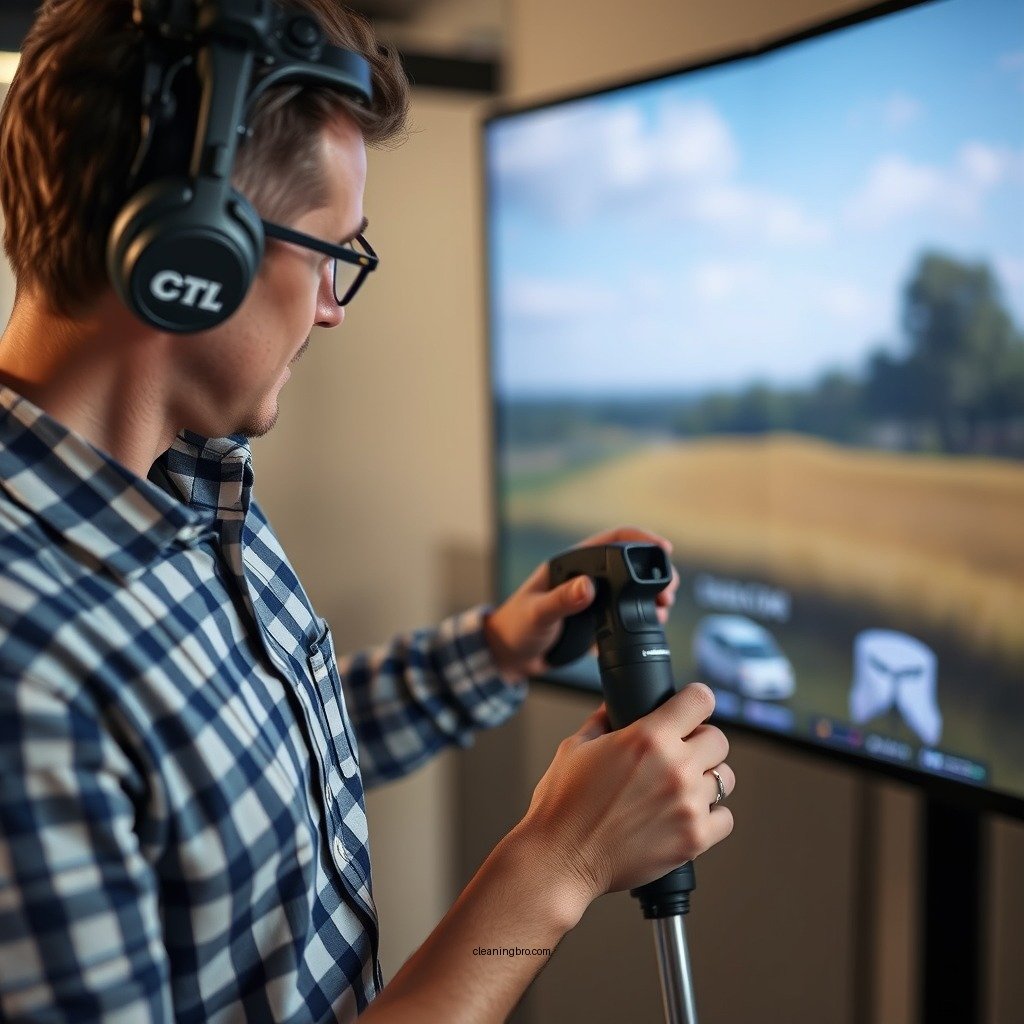
Selecting the right cleaning supplies is crucial for effectively cleaning your golf simulator screen without causing damage. Here are the essentials:
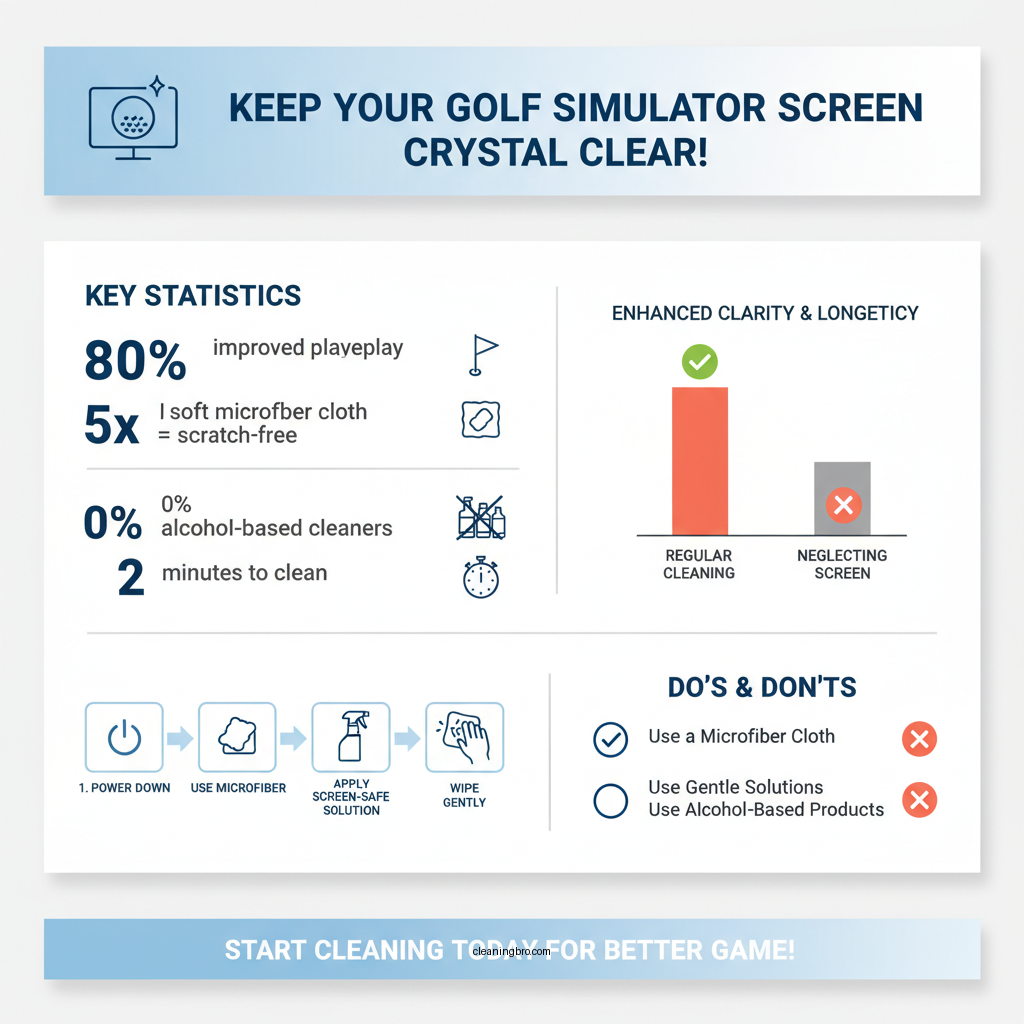
– Microfiber Cloth: This is the best option for cleaning screens because it is soft and non-abrasive, reducing the risk of scratches. Microfiber cloths are designed to trap dust and oils, making them highly effective for this purpose. Avoid using paper towels or rough fabrics which can leave scratches or lint on the screen.
– Screen-Safe Cleaning Solution: Look for a non-abrasive cleaning solution that is specifically formulated for electronic screens. Avoid using alcohol-based products, as they can strip away protective coatings. Instead, opt for a gentle solution designed to clean without damaging the screen’s surface.
– Water: In cases where you prefer a more natural approach, distilled water can be used alongside a microfiber cloth for light cleaning. However, for tougher grime, a dedicated screen cleaner is recommended.
Step-by-Step Cleaning Process
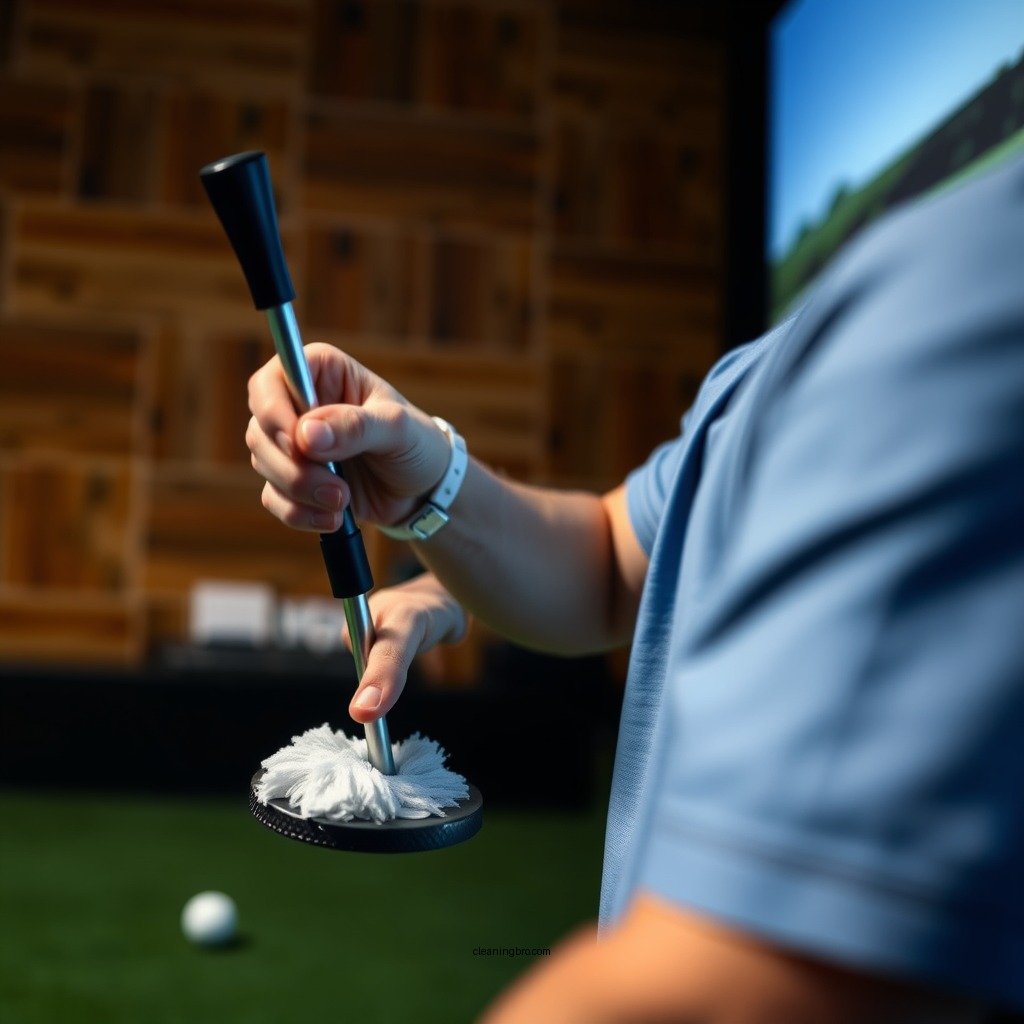
Here’s a detailed step-by-step process to clean your golf simulator screen effectively:
1. Power Down the Simulator: Before you begin cleaning, it’s important to power down the simulator. This not only prevents accidental damage but also allows you to see smudges and dirt more clearly once the screen is off.
2. Prepare the Cleaning Solution: If you’re using a commercial cleaning solution, follow the manufacturer’s instructions. If you are using distilled water, you may want to lightly dampen your microfiber cloth with it.
3. Dampen the Cloth: Lightly dampen the microfiber cloth with your cleaning solution. Ensure that the cloth is not soaking wet, as excessive moisture can seep into the edges of the screen and cause damage.
4. Wipe the Screen: Gently wipe the screen in circular motions, starting from the center and working your way outwards. This method helps to lift dirt and smudges without pushing them further into the screen.
5. Dry the Screen: If necessary, use a dry microfiber cloth to gently buff the screen and remove any moisture. This will help eliminate streaks and ensure a clear view.
6. Final Check: Inspect the screen for any remaining dirt or streaks. If needed, repeat the process until the screen is clean.
Popular Cleaning Solutions for Golf Simulator Screens
| # | Product Name | Type | Price ($) | Rating |
|---|---|---|---|---|
| 1 | Screen Cleaner Pro | Liquid | 15.99 | ★★★★☆ |
| 2 | Microfiber Magic | Cloth | 9.99 | ★★★★★ |
| 3 | EZ Screen Cleaner | Foam | 12.49 | ★★★★☆ |
| 4 | SafeScreen Cleaner | Liquid | 14.99 | ★★★★☆ |
| 5 | ScreenWipe Wipes | Wipes | 7.99 | ★★★★☆ |
| 6 | ClearView Spray | Spray | 11.49 | ★★★★☆ |
| 7 | Screen Clearer 3000 | Liquid | 16.99 | ★★★★☆ |
Tips for Avoiding Damage
Maintaining your golf simulator screen requires caution to avoid damage during the cleaning process. Here are some essential tips:
– Avoid Paper Towels: Do not use paper towels or any rough fabrics to clean the screen. They can cause micro-scratches that accumulate over time and degrade the screen’s quality.
– Never Spray Directly on the Screen: Always apply the cleaning solution to the cloth rather than spraying it directly onto the screen. This prevents moisture from seeping into the edges of the screen, which can lead to internal damage.
– Use Gentle Pressure: When wiping the screen, apply gentle pressure. Avoid scrubbing too hard, as this can scratch the surface or damage the screen’s coating.
– Storage: When your simulator is not in use, consider covering the screen with a soft cloth to protect it from dust and accidental scratches.
How Often Should You Clean the Screen?
The frequency of cleaning your golf simulator screen depends on usage and environmental factors. Here are some guidelines:
– Regular Maintenance: Ideally, you should clean the screen after every few uses. If you frequently use the simulator or notice a buildup of dust, more frequent cleaning may be required.
– Deep Cleaning: Conduct a deep clean at least once a month. This involves not just wiping the screen but also checking for any build-up of grime around the edges and ensuring that the entire screen surface is spotless.
– Environmental Considerations: If your simulator is located in a dusty area or near an open window, you may need to clean it more often to prevent dust from accumulating.
Troubleshooting Common Screen Issues
Despite best efforts, you may encounter some common issues with your golf simulator screen. Here’s how to troubleshoot them:
– Streaks or Smudges: If you notice streaks or smudges after cleaning, it may be due to using too much cleaning solution or not drying the screen properly. Repeat the cleaning process, ensuring you use a lightly dampened cloth and follow up with a dry cloth.
– Persistent Marks: If marks remain after cleaning, consider using a specialized cleaning product designed for stubborn stains. In some cases, professional cleaning services may be necessary if the screen appears damaged.
– Pixel Issues: If you observe any pixel issues or color discrepancies, it may be related to the simulator’s software or hardware rather than the physical screen itself. Check for updates or consult with the manufacturer for further assistance.
Maintaining Your Simulator Setup
Beyond cleaning the screen, maintaining the overall setup of your golf simulator is crucial for optimal performance. Here are some tips:
– Dust the Surrounding Area: Regularly dust the area around your simulator to minimize dirt buildup on the screen. A clean environment makes a significant difference in maintaining clarity.
– Inspect for Damage: Regularly check your screen for any signs of wear or damage. If you notice scratches or discoloration, address these issues promptly to avoid further deterioration.
– Organize Cables and Accessories: Keep cables and accessories organized to prevent them from tangling or falling onto the screen, which could cause scratches or other physical damage.
– Temperature and Humidity Control: Ensure the simulator is kept in a controlled environment, avoiding extreme temperatures and humidity levels that could affect both the screen and electronic components.
Cleaning your golf simulator screen doesn’t have to be a daunting task. By following these steps and tips, you can keep your screen in pristine condition, ensuring an enjoyable and high-quality golfing experience every time you play. Make cleaning a regular part of your maintenance routine for optimal performance.
Frequently Asked Questions
What is the best way to clean a golf simulator screen without damaging it?
The best way to clean a golf simulator screen is to use a microfiber cloth and a gentle screen cleaner specifically designed for delicate surfaces. Avoid using paper towels or harsh chemicals, as these can scratch or degrade the screen material. Lightly dampen the cloth with the cleaner and gently wipe the screen in circular motions to remove dirt and fingerprints.
How often should I clean my golf simulator screen to maintain its quality?
You should clean your golf simulator screen at least once a month, or more frequently if you notice dust, smudges, or stains. Regular cleaning helps maintain the screen’s clarity and ensures optimal projection quality during your practice sessions. Additionally, consider using a protective cover when the simulator is not in use to minimize dust accumulation.
Why is it important to clean the golf simulator screen regularly?
Regular cleaning of the golf simulator screen is important because it prevents buildup of dust, dirt, and oils that can distort the image quality and affect your gameplay experience. A clean screen enhances visibility and accuracy, allowing you to practice more effectively. Furthermore, neglecting to clean the screen can lead to permanent damage over time, impacting the longevity of your equipment.
Which cleaning products are safe to use on a golf simulator screen?
Safe cleaning products for a golf simulator screen include distilled water mixed with a few drops of mild dish soap or a dedicated screen cleaner that is ammonia-free and alcohol-free. Avoid using window cleaners or any abrasive materials, as these can cause scratches or leave residues that interfere with the display. Always check the manufacturer’s recommendations for specific cleaning product guidelines.
How can I prevent dust from accumulating on my golf simulator screen?
To prevent dust accumulation on your golf simulator screen, consider using a protective screen cover when the simulator is not in use. Additionally, keeping the area around the simulator clean and dust-free will help minimize particles settling on the screen. Regularly vacuuming the room and using an air purifier can also reduce dust levels, ensuring a clearer view while you play.
References
- https://www.golfdigest.com/story/how-to-clean-your-golf-simulator
https://www.golfdigest.com/story/how-to-clean-your-golf-simulator - Google Scholar Google Scholar
https://scholar.google.com/scholar?q=how+to+clean+golf+simulator+screen - Google Scholar Google Scholar
https://scholar.google.com/scholar?q=golf+simulator+maintenance - Google Scholar Google Scholar
https://scholar.google.com/scholar?q=cleaning+simulator+screens - https://www.nytimes.com/2020/07/02/sports/golf/golf-simulator.html
https://www.nytimes.com/2020/07/02/sports/golf/golf-simulator.html - https://www.bbc.com/news/magazine-35603301
https://www.bbc.com/news/magazine-35603301 - https://www.sciencedirect.com/topics/sports-science/golf-simulator
https://www.sciencedirect.com/topics/sports-science/golf-simulator - how to clean golf simulator screen – Search results
https://en.wikipedia.org/wiki/Special:Search?search=how+to+clean+golf+simulator+screen - https://www.ncbi.nlm.nih.gov/search/research-articles/?term=how+to+clean+golf+simulator+screen
https://www.ncbi.nlm.nih.gov/search/research-articles/?term=how+to+clean+golf+simulator+screen