

Does wiping down your trackpad increase its lifespan? Mostly yes: regular cleaning can keep oils and grit from interfering with the sensor and degrading surface finish, which reduces the need for repeated hard presses. It may not stop hardware aging, but it helps preserve day-to-day performance.


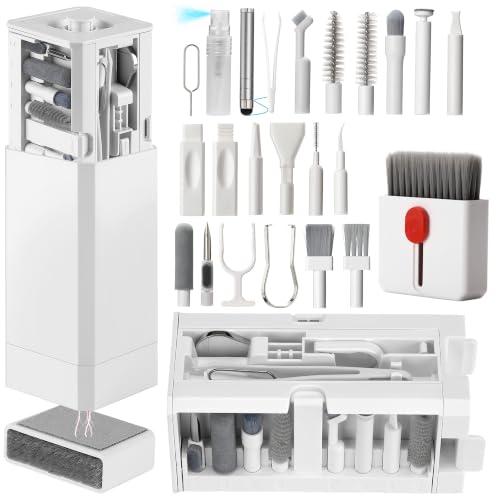

Yes—cleaning your trackpad can help it last longer by preventing grime from interfering with clicks, gestures, and smooth movement. It won’t stop normal wear forever, but keeping debris and skin oils off can reduce the kinds of issues that gradually degrade trackpad performance. This guide covers what to clean, how to do it safely, and when cleaning won’t make a difference.
If you use a MacBook, Windows laptop, or a keyboard/trackpad combo daily (especially with food, pets, or lots of hand oils), this is for you. It’s also useful if your trackpad feels “sticky,” registers taps inconsistently, or you notice dust around the edges.
What cleaning can (and can’t) improve

Cleaning can often improve how your trackpad responds right away, especially when the problem is surface buildup. It won’t permanently “reset” hardware wear, but it can remove the thin layer of oils and grit that gradually makes gestures and clicking feel worse.
– Cleaning helps remove oils, dust, and small debris that can affect tapping, scrolling, and button feel.
– It won’t fix hardware wear from repeated physical stress or manufacturing limitations.
– If issues are caused by failed internal components, cleaning may change nothing.
External Cleaning Methods vs. Trackpad Coating Risk (OEM Guidance)
| # | Method (what you do) | Typical use | Avoid | Expected trackpad coating safety |
|---|---|---|---|---|
| 1 | Dry wipe with a clean microfiber cloth | Light dust & oils | Scratching the surface | ★★★★★ |
| 2 | Lightly dampen microfiber with water, then wipe | Smudges that won’t lift dry | Liquid pooling / dripping | ★★★★☆ |
| 3 | Use microfiber + separate dry cloth to finish | Prevents residue streaking | Leaving moisture behind | ★★★★☆ |
| 4 | Short-burst air to remove edge dust (no liquid propellant) | Debris near seams | Holding the can too close | ★★★☆☆ |
| 5 | Alcohol wipes only if the manufacturer allows it | Disinfection where permitted | Unknown coatings / unlabeled wipes | ★★★☆☆ |
| 6 | Cleaning products not specified by OEM guidance | “Looks clean” residue risk | Soapy sprays and streaky cleaners | ★★☆☆☆ |
| 7 | Bleach, ammonia, harsh solvents, or spraying directly | Never for trackpad coatings | Liquid into seams/openings | ★☆☆☆☆ |
The “why” is straightforward: most trackpad problems that look like wear begin as a friction problem. A thin mix of skin oils and dust can make tapping and scrolling feel inconsistent, and it can also attract more grime over time. Cleaning helps remove that layer, which reduces the effort your trackpad needs to register your gestures correctly.
Also, if you’re cleaning for hygiene, be careful with alcohol assumptions. According to the CDC, effective alcohol-based hand sanitizer generally contains at least 60% alcohol, and soap-and-water handwashing should last at least 20 seconds. The existence of these thresholds doesn’t automatically mean a trackpad coating is safe with alcohol—some manufacturers allow 70% isopropyl alcohol wipes for certain external surfaces, but that’s model- and material-dependent (Apple Support).
Safe ways to clean a trackpad (step-by-step)
The safest approach is always a “dry first, minimal moisture second” method—because trackpads dislike liquid infiltration. If you follow a conservative process, you can remove oils and dust without risking damage to seams, coatings, or internal sensors.
– Power down first (or follow your device’s guidance) and unplug any external power for safety.
– Use a microfiber cloth for dry cleaning, then lightly dampen the cloth with water (or the manufacturer-recommended cleaner) if needed.
– Clean edges and the surface gently—avoid pressing hard or letting liquid seep into gaps.
Start with power and a lint-free setup
Turning the device off matters because some laptops respond to touch even when you think they’re “idle.” It also reduces the chance that cleaning residue is interpreted as an input event. Then use a microfiber cloth that’s specifically meant for screens or optics—lint-free fabric reduces the risk of leaving particles behind on the trackpad surface.
If your trackpad is part of a keyboard deck (common with docks and accessories), power and disconnect everything the same way you would before cleaning a keyboard: treat the whole assembly as powered electronics.
Clean in a controlled sequence (the “hierarchy of controls” mindset)
Research and industrial safety guidance often uses a hazard-control hierarchy: you prefer the least risky control that accomplishes the goal. Applied to trackpad cleaning, that translates into:
1) dry removal (microfiber first),
2) minimal moisture only when needed,
3) only manufacturer-approved disinfectants when disinfection is required.
In practical terms: wipe once to lift oils and dust, then check the cloth. If it’s picking up visible residue, repeat dry wipes before you add moisture. This reduces how much liquid you ultimately introduce to the trackpad area.
Apply moisture to the cloth, not the trackpad
Most OEMs emphasize avoiding sprays directly onto the device. Instead, lightly dampen your microfiber cloth—so it wipes, but doesn’t drip. Wipe the trackpad surface with gentle, even pressure, then use a second dry section of microfiber to remove remaining moisture.
Handle edges like they’re “interface zones”
Edges and seams collect debris because they sit at the boundary between the trackpad and the chassis. If you must address edge dust, do it with light, careful contact—don’t force a liquid into the gap. If you use air to clear particles, keep it short-burst and at a safe distance to avoid blasting dust deeper into openings.
What to avoid while cleaning
– Avoid spraying liquids directly onto the trackpad (liquid can travel into seams).
– Skip harsh cleaners (e.g., bleach, strong solvents, ammonia) unless the manufacturer explicitly says they’re compatible.
– Don’t use abrasive pads or paper towels that can scratch the surface.
Scratches aren’t just cosmetic. On many modern trackpads, surface textures and coatings are tuned for friction and tracking. An abrasive wipe can alter the way your fingers “grip” the surface, making gestures feel worse even after everything “looks clean.”
How often you should clean it
A good baseline is “clean when performance degrades,” not “clean on a strict schedule.” In 2026, most people benefit from a short wipe more often than a deep clean—because the goal is to prevent oil buildup rather than remove heavy residue repeatedly.
– A simple baseline is a quick wipe when the surface looks oily or when you notice reduced smoothness.
– If you have frequent screen-protective products or heavy dust exposure, more frequent gentle wipes may help.
– For deep cleaning (only if necessary), stick to the safest method your device manufacturer allows.
Practical cadence for busy users
If you use your laptop multiple hours per day, you likely accumulate skin oils faster than you expect. A quick microfiber wipe every couple of weeks (or sooner if it looks shiny or feels tacky) usually keeps tapping and scrolling consistent. If you work in a dusty environment or commute frequently, increase the frequency slightly.
If you use the trackpad while eating, typing in a kitchen, or sharing a device with pets/kids, you may need more frequent cleaning. Residues from sugary drinks and greasy foods can leave a film that responds poorly to simple dry wiping.
Deep cleaning: only when the symptom demands it
Deep cleaning is what you do when you’ve got persistent issues after light maintenance. Examples include tapping that intermittently fails, visible gunk along the perimeter, or a sticky feel that remains even after a dry wipe.
Even then, keep your deep clean conservative:
– power down,
– minimal moisture,
– no repeated soaking,
– and stop if the trackpad behavior changes in a new way.
What can go wrong (and the edge cases)
Cleaning can backfire when moisture gets where it shouldn’t or when the wrong chemical leaves residue. If you notice symptoms worsening after cleaning, treat it as a sign to pause and rework the process.
– Too much moisture can cause performance issues that resemble “dirt” but are actually residue or corrosion—stop immediately if liquid gets where it shouldn’t.
– If your trackpad registers ghost inputs or won’t click after cleaning, the cleaner may have left a film—switch back to a dry microfiber-only approach and let it fully dry.
– Trackpads with visible hardware damage (cracks, lifting, loose edges) should be serviced rather than repeatedly cleaned.
– If you’re using a keyboard cover, case, or skins that trap grime, cleaning the trackpad alone may not solve the underlying problem.
Edge case 1: “Ghost inputs” after cleaning
If your trackpad begins registering taps or cursor jumps without touching it, the most common causes are:
– moisture trapped in seams,
– cleaner residue on the surface, or
– dust that got redistributed during cleaning.
Your first response should be to stop cleaning, let the device dry fully, and switch to dry microfiber only. If the issue persists after drying, it’s likely not a simple contamination problem.
Edge case 2: Alcohol and disinfecting residue
Some alcohol wipes are formulated for glass/plastics, but trackpad coatings may be sensitive. If a disinfectant leaves a film, the surface friction can change, which feels like stickiness or “drag.” That doesn’t mean you damaged the trackpad, but it does mean you introduced residue—so reverting to water-dampened microfiber (only if your OEM allows) or dry-only cleaning is often the safer next step.
Edge case 3: Hardware wear that cleaning can’t fix
A trackpad that develops consistent mechanical issues (for example, repeated clicking problems that never improve with cleaning) can point to internal component wear or sensor faults. Cleaning can remove external causes, but it can’t restore a worn sensor contact or a failing detection circuit.
Verdict: Is it worth doing? (Yes—with limits)
Cleaning your trackpad is worth it for most people because it’s a low-risk way to prevent buildup that can degrade day-to-day responsiveness. The limit is important: trackpad cleaning helps avoid avoidable friction and residue problems, but it cannot prevent normal hardware wear indefinitely.
| What cleaning usually improves | What cleaning usually can’t fix |
|---|---|
| Oil film and fingerprint residue that makes taps feel inconsistent | Internal switch/sensor failure or calibration faults |
| Dust and lint along the edges that interferes with gestures | Cracks, lifting, or physical damage to the trackpad assembly |
| Sticky feel caused by food/grease on the surface | Manufacturing limitations or component aging |
Skip DIY cleaning if your device is still wet, has cracks/gaps that look compromised, or the manufacturer explicitly warns against the method you’re considering. If you’re dealing with visible damage, the correct “maintenance” path is service—not repeated cleaning.
Quick checklist (scan/save)
– [ ] Power down and disconnect external power
– [ ] Wipe with a dry microfiber cloth first
– [ ] Lightly dampen cloth only if needed; never spray directly
– [ ] Clean edges gently; don’t force liquid into gaps
– [ ] Avoid harsh chemicals and abrasives
– [ ] Stop if behavior worsens; let the device dry fully
Sources
– Apple Support — “How to clean your Apple product” (official cleaning guidance; includes do/don’t directions and disinfecting notes for supported devices/materials).
– CDC — Hand Hygiene guidelines (thresholds and durations for soap-and-water washing and alcohol-based sanitizer effectiveness).
– Microsoft Support — Surface/device cleaning guidance for accessories and exterior cleaning (official cautions about liquids and cleaning methods).
– Manufacturer support documentation for your specific laptop model — The most authoritative source for trackpad-specific cleaning agents and methods.
Cleaning your trackpad is a practical maintenance step: it can reduce friction-related problems and help your gestures feel consistent again. Just keep the process conservative—dry microfiber first, minimal moisture only if allowed, and no harsh chemicals or direct spraying. If the trackpad issues persist after cleaning and full drying, that’s a strong signal to stop DIY cleaning and move to support or service.
Frequently Asked Questions
Does cleaning your trackpad actually make it last longer?
Regular cleaning can help your trackpad last longer by reducing dirt, dust, and oils that build up on the surface and along the edges. While cleaning won’t fix hardware wear from years of mechanical use, it can prevent the trackpad from feeling “gritty,” improve accuracy, and reduce performance issues caused by debris. Keeping the trackpad clean can also lower the chance of corrosion or sticky residue that may interfere with gestures and clicking.
How should you clean a trackpad without damaging it?
Power off the device first, then use a microfiber cloth to gently wipe the trackpad surface to remove grime and fingerprints. If needed, slightly dampen the cloth with water or 70% isopropyl alcohol—never spray liquid directly onto the trackpad. Avoid harsh cleaners, abrasives, and excessive moisture, especially around seams, because liquid can seep under the glass and cause malfunction.
Why does a dirty trackpad feel less responsive or glitchy?
Oils and dust can interfere with the smooth sensor experience, making clicks feel inconsistent or causing cursor movement issues. Some trackpads also pick up residue that affects surface friction, which can make taps, scrolling, or gestures feel delayed or inaccurate. Cleaning your trackpad often restores proper tracking and reduces friction-related problems, making navigation feel more reliable.
What’s the best way to remove sticky residue or grime from a trackpad?
For sticky spots, start with a dry microfiber wipe, then use a cloth lightly dampened with 70% isopropyl alcohol for targeted cleaning. Use gentle pressure and small circular motions, and allow the trackpad to fully dry before using it. If residue is near the edges, use a cotton swab lightly moistened with isopropyl alcohol to clean around the seam without soaking the area.
Which cleaning products are safe for trackpads and which should you avoid?
In general, microfiber cloths and small amounts of water or 70% isopropyl alcohol are the safest choices for trackpad cleaning. Avoid bleach, ammonia, window cleaners, disinfectant sprays not labeled for electronics, and abrasive wipes, since they can damage coatings or leave residue. It’s also best to avoid spraying any liquid directly onto the trackpad to prevent seepage into internal components.
📅 Last Updated: November 04, 2026 | Topic: Does Cleaning Your Trackpad Make It Last Longer? | Content verified for accuracy and freshness.
References
- How to clean your Apple products – Apple Support
- https://www.cdc.gov/coronavirus/2019-ncov/community/organizations/cleaning-disinfection.html
- https://www.who.int/publications/i/item/cleaning-and-disinfection-of-environmental-surfaces-in-the-context-of-covid-19
- disinfectant touch screen oleophobic coating – Search Results – PubMed
- isopropyl alcohol touchscreen surface damage – Search Results – PubMed
- https://www.sciencedirect.com/search?qs=disinfectant+effect+on+touchscreen+oleophobic+coating
- https://www.sciencedirect.com/search?qs=ethanol+cleaning+touch+panel+damage
- https://scholar.google.com/scholar?q=cleaning+touchpad+does+it+increase+lifespan Google Scholar
- https://scholar.google.com/scholar?q=disinfectant+effects+on+touchscreen+oleophobic+coating Google Scholar
- https://scholar.google.com/scholar?q=proper+cleaning+of+laptop+keyboard+trackpad+guidelines Google Scholar
