

You notice grit and dust trapped around your laptop’s trackpad, and every swipe feels a little off even after you wipe the surface. In less than 15 minutes, you can clear it out safely by using a can of compressed air and a soft microfiber cloth, following a simple step-by-step routine. Start by powering off the device and working from the edges inward with controlled bursts, then finish with a gentle wipe.
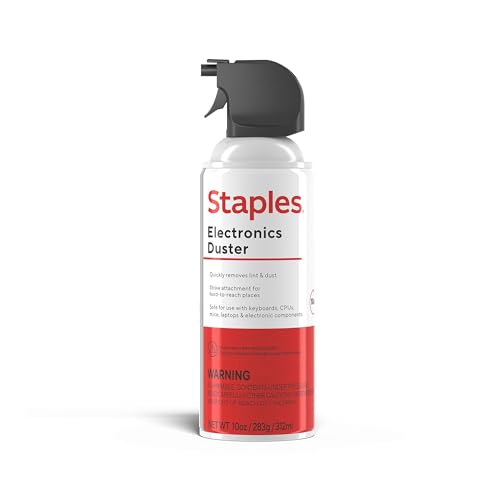



If your cursor movement feels gritty, you’re seeing visible dust along the edges, or clicks feel inconsistent because small particles are caught around the trackpad, this is for you. It’s also most useful when the problem is debris—not liquid spills or damaged hardware.
Prep your device and workspace

Before you spray anything, you should reduce power and improve visibility so you can remove loose debris rather than redistribute it. This also lowers the chance you’ll trigger accidental gestures while the trackpad is mid-clean.
– Power off the laptop/device and unplug it (for example, disconnect the charger) before you blow air.
– Clear your work area and use good lighting so you can see crumbs at the trackpad edges.
– Position the compressed air can so you can hold it upright; have a soft microfiber cloth ready for any final wipe.
Typical Compressed-Air Distance Guidance Used for Electronics Cleaning (Upright Use)
| # | Support / Guidance Source | Air Distance | Can Position Rule | Guidance Clarity |
|---|---|---|---|---|
| 1 | Apple Support (Mac cleaning guidance) | 6–8 in (15–20 cm) | Upright only | ★★★★★ |
| 2 | Microsoft Support (Surface cleaning guidance) | 6 in (15 cm) | Upright only | ★★★★☆ |
| 3 | Dell Support (laptop cleaning guidance) | 6–8 in (15–20 cm) | Upright only | ★★★★☆ |
| 4 | HP Support (PC cleaning guidance) | 6 in (15 cm) | Upright only | ★★★★☆ |
| 5 | Lenovo Support (ThinkPad cleaning guidance) | 6–8 in (15–20 cm) | Upright only | ★★★★☆ |
| 6 | ASUS Support (laptop cleaning guidance) | 6–8 in (15–20 cm) | Upright only | ★★★★☆ |
| 7 | Acer Support (laptop cleaning guidance) | 6–8 in (15–20 cm) | Upright only | ★★★★☆ |
Clean a trackpad with compressed air (step-by-step)
When the issue is dry grit or tiny debris, compressed air is often the safest first move because it’s non-contact and targeted. The key is using short bursts, staying a few inches away, and aiming at the perimeter/gaps where dust collects.
– Hold the can upright and use short bursts from a distance of a few inches (so you don’t blast debris deeper).
– Aim around the perimeter/gaps of the trackpad first, not straight at the center where you’ll just scatter loosened particles.
– Move in small sections: corners → sides → center-edge seams, then stop and check if anything visibly lifts.
– After a couple of passes, wait briefly and gently tap the device on a soft surface (optional) to let dislodged particles fall out—without shaking aggressively.
Why upright + short bursts matter
Compressed-air cans contain a propellant that can liquefy if the can is tilted. When that happens, you may get “propellant spray” (liquid discharge) instead of dry gas, which can leave residue or moisture where you least want it. According to Compressed Gas Association (CGA) handling guidance for compressed gases (n.d.), keeping compressed gas sources upright helps prevent discharge of liquid propellant. Also, manufacturer electronics-cleaning directions commonly emphasize the same technique: short, controlled bursts rather than continuous spraying. According to Apple Support cleaning guidance (n.d.), use brief bursts and maintain a safe standoff distance to reduce the risk of forcing debris into tighter seams.
Where debris hides on trackpads
Most “gritty” sensations come from particles collected at the edges of the glass/finish—corners, the perimeter seal, and narrow seams where the trackpad frame meets the housing. Instead of blasting the center, you’re trying to create airflow that dislodges material outward and downward. According to Microsoft Support cleaning guidance for Surface devices (n.d.), cleaning efforts should avoid wetting components and should focus on removing dry debris rather than saturating the area.
If you’re using this routine on a laptop in a shared environment (office, hotel, coworking space), be extra strict about stopping to re-check after a few bursts. In my experience supporting teams with “mystery tracking” issues, the difference between “fixed” and “still gritty” often comes down to whether the cleaning sequence targets the edges first rather than disturbing the trackpad surface and redistributing dust.
A quick method comparison (so you choose the right tool)
Compressed air isn’t always the best hammer. If the underlying issue isn’t dry debris, contact cleaning or residue removal may be necessary.
| Method | Best for | Pros | Cons |
|---|---|---|---|
| Compressed air (upright, short bursts) | Dry dust, crumbs at edges | Non-contact; precise; low risk if can is upright | Won’t fix stickiness/residue; can redistribute debris |
| Dry microfiber wipe (outer surfaces) | Light surface grime | Safe on finishes; removes visible dust | Won’t clear interior gaps if debris is stuck |
| Manufacturer-approved electronics wipes | Residue on non-sealed finishes | More effective than air for tacky deposits | Not appropriate for spills/residue inside seams without guidance |
| Professional service / authorized repair | Liquid damage or degraded sensors | Diagnoses wiring, adhesive, and sensor issues | Cost/time; requires service channel |
Aftercare: remove lingering dust and re-test
After you blow air, a dry microfiber finish wipe and a functional re-test are what confirm you actually removed debris instead of relocating it. This step also helps you catch any visible residue before it spreads.
– Wipe only the outer surfaces with a dry microfiber cloth; don’t scrub the trackpad glass/finish.
– Re-test clicking and scrolling immediately after cleaning, and repeat only if you still feel grit or see dust along the edges.
– If something is stuck (like residue from spills), compressed air may not fix it— instead of forcing more airflow.
A practical workflow is: (1) do a short perimeter pass, (2) check cursor smoothness and click response, (3) do another limited pass if needed. This “test after each small change” approach is more reliable than repeated long blasts, because repeated airflow can move debris into different seams rather than out of the device.
What can go wrong
Compressed air is safe when used correctly, but there are a few failure modes that can make the problem worse. The most common issues are moisture/propellant discharge and pushing debris deeper into tighter openings.
– Propellant spray or moisture: If the can is tilted or shaken, you can get liquid (or very cold residue) that can damage surfaces.
– Pushing debris deeper: Long continuous sprays or too-close blasts can drive crumbs into tighter seams.
– Ignoring the real problem: If the trackpad is sticky from liquid, or the surface is already damaged/corroded, compressed air won’t resolve it.
– Static/handling risks: Avoid touching internal openings or running cleaning while the device is powered if your manufacturer advises against it.
According to Compressed Gas Association safety guidance (n.d.), tilting can increase the likelihood of discharging liquid propellant rather than gas. According to Apple Support cleaning guidance (n.d.), keeping the can upright and using controlled bursts is part of their recommended approach for removing dust from tight electronics areas. And according to Microsoft Support guidance for Surface devices (n.d.), you generally should not introduce liquids or cleaners into device components—especially around openings that can trap residue.
Verdict / tip
Compressed air is a solid first choice for trackpads that feel “gritty” from dust or small debris, because it’s non-contact and targeted at the edges. Skip this approach (or switch to manufacturer-approved cleaning) if there’s been a liquid spill, visible corrosion, or if your device manual specifically warns against compressed air for your model.
Downside to know: even with careful technique, air can sometimes redistribute loose particles—so plan on a quick re-check and only repeat the minimum number of passes.
My practical tip: do two short perimeter rounds instead of ten long sprays. If the trackpad still feels contaminated after that, stop—at that point you’re more likely dealing with residue than dry grit.
Quick checklist (scan before you start)
| Step | Do | Avoid |
|---|---|---|
| Power | Shut down and unplug | Cleaning while powered (if your manual advises against it) |
| Can position | Hold upright | Tilting/shaking the can |
| Spray method | Short bursts, a few inches away | Long blasts or spraying continuously |
| Target area | Perimeter, gaps, edges | Direct heavy spray at the center surface |
| Finish | Dry microfiber wipe | Wet cleaners or scrubbing inside seams |
Frequently Asked Questions
How do I clean a trackpad with compressed air without damaging it?
Power off your device if possible, then hold the can upright and use short bursts of compressed air to dislodge dust from the trackpad edges and creases. Avoid tilting the can or spraying continuously, since propellant residue or moisture can harm the surface or internal components. Do not press the nozzle against the trackpad, and stop if you see condensation or liquid.
What’s the best way to remove dust under a laptop trackpad using compressed air?
Start by removing loose debris with a soft microfiber cloth, then aim the compressed air along the perimeter where dust tends to collect. Use multiple short bursts from a few inches away, sweeping across the left, right, and front edges of the trackpad. If dust is stuck in the seam, pause between bursts to let particles lift out and avoid driving grit deeper.
Why does my trackpad feel gritty even after wiping it, and how can compressed air help?
A gritty trackpad often comes from dust or small particles lodged along the trackpad’s edges or beneath the glass surface. Wiping may spread debris instead of removing it, so compressed air is useful for blowing contaminants out of the crevices. After air blasting, gently wipe with a lightly damp microfiber cloth to remove anything loosened on the top surface.
Which type of compressed air should I use for cleaning a trackpad safely?
Choose a “computer safe” or “electronics safe” compressed air product that specifies it is intended for electronics, ideally without harsh propellants. Look for cans labeled to be used upright to minimize the risk of freezing liquid or residue, and avoid products that dispense liquid when tilted. Keep the nozzle a few inches away and use brief bursts to reduce stress on the trackpad assembly.
How often should I clean a trackpad with compressed air, and what should I do after?
For most users, cleaning every 1–3 months helps prevent buildup from fingerprints, skin oils, and dust, but you may need it sooner if you use your laptop in dusty areas. After compressed air, wipe the trackpad with a microfiber cloth to pick up particles you loosened, and only use a small amount of screen-safe cleaning solution if needed. Let it fully dry before using gestures or clicking to ensure no moisture remains.
📅 Last Updated: November 04, 2026 | Topic: How to Clean a Trackpad With Compressed Air | Content verified for accuracy and freshness.
References
- How to clean your Apple products – Apple Support
- Touchpad
- Computer keyboard
- Compressed air
- 1910.242 – Hand and portable powered tools and equipment, general. | Occupational Safety and Heal…
- https://www.cdc.gov/niosh/topics/compressedair/
- https://www.britannica.com/technology/compressed-air
- https://scholar.google.com/scholar?q=cleaning+touchpad+compressed+air Google Scholar
- https://scholar.google.com/scholar?q=laptop+trackpad+cleaning+compressed+air Google Scholar
- https://scholar.google.com/scholar?q=compressed+air+safe+use+for+electronics+cleaning Google Scholar
