

To clean the edges of a trackpad safely, use a slightly damp microfiber cloth and a gentle, non-abrasive cleaner (or isopropyl alcohol diluted with water) to lift grime without wicking into the seals. With the right supplies and careful, light pressure, you can usually finish in about 5–10 minutes. If you also have cotton swabs, compressed air, and a soft brush, you can clear buildup along the perimeter precisely and avoid scratching the surface.
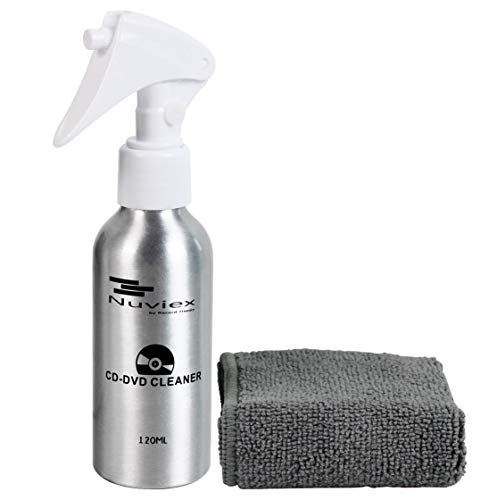



Wipe the trackpad edges with a dry microfiber first, then loosen stuck debris with gentle compressed air or a soft brush. For remaining grime, use a cotton swab lightly dampened with a device-approved cleaner (often 70% isopropyl alcohol), and never let liquid pool at the seam. This approach works when you notice dust, hair, or sticky residue collecting around the trackpad border (including the “click” area) and your pointer feels less smooth; if you’ve had a spill, stop and follow your device’s spill-cleaning guidance instead of trying this method.
What you need to clean trackpad edges safely

The safest way to clean trackpad edges is to use non-abrasive materials plus a cleaner that the manufacturer explicitly allows. The goal is simple: remove debris from the perimeter seam without pushing moisture or particles into the device.
Before you start, choose tools that won’t scratch or leave lint—especially because the border is where grit can accumulate and where excess liquid is most likely to seep. In 2026, many laptops use textured coatings and multi-layer touch assemblies, so “gentle” isn’t just a style choice; it’s a damage-prevention strategy for the trackpad edges.
– Microfiber cloth (dry, lint-free) to remove surface dust without scratching
Use a clean microfiber designed for electronics (lint-free). Avoid paper towels or rough shop cloths that can drag grit across the trackpad border and increase residue buildup along the trackpad edges.
– Compressed air or a very soft brush to lift debris from the seam
Compressed air helps dislodge hair and dust at the perimeter without touching the surface. A very soft, clean brush can also work for loose lint, but you should avoid bristles that shed or feel stiff.
– Cotton swabs and a cleaner that’s explicitly safe for electronics/your device coating (use )
Many manufacturer cleaning guides approve 70% isopropyl alcohol for wiping external, hard, non-porous surfaces. For example, Apple states to use 70% isopropyl alcohol wipes on appropriate exterior surfaces (Apple Support: How to clean your Apple products). Microsoft likewise advises using 70% isopropyl alcohol on Surface devices (Microsoft Support: Cleaning your Surface). As a supporting benchmark for why alcohol concentration matters, the CDC notes alcohol-based hand sanitizers are formulated with 60%–95% alcohol for effectiveness (CDC: Hand Sanitizers).
Isopropyl Alcohol (IPA) Concentrations Commonly Used for External Cleaning
| # | IPA concentration (v/v) | Typical use in cleaning | Alcohol content | Relative “dry-out” tendency |
|---|---|---|---|---|
| 1 | 70% IPA | Manufacturer-approved wipes | 70% | High |
| 2 | 75% IPA | Spot-wiping when allowed | 75% | High |
| 3 | 80% IPA | External hard-surface wipe (only if approved) | 80% | Medium-High |
| 4 | 91% IPA | More aggressive drying when used carefully | 91% | Medium-High |
| 5 | 95% IPA | Only if your manual allows it | 95% | High |
| 6 | 50% IPA | Higher water content—riskier for pooling | 50% | Lower |
| 7 | Water only (0% IPA) | Avoid for seam areas | 0% | Lowest |
Step-by-step: cleaning the edges on a trackpad
The quickest way to avoid damage is to remove loose debris first (dry), then use minimal moisture only at the seam. If you follow that order, you greatly reduce the chance of grit turning into paste or liquid migrating under the trackpad.
Also, do this with the device powered down so you don’t accidentally “push” debris across a live sensor or register erratic gestures. In my experience, many trackpad edge problems start as hair/lint in the border seam; if you treat it like surface cleaning only, the symptoms return quickly ().
– Power down: Shut the laptop down (or fully disconnect power) so particles don’t get pushed around when the trackpad is active.
For best results, completely power off the system (not sleep) and disconnect any external power source so you can clean without unintended cursor jumps.
– Start dry: Lightly wipe the entire perimeter with a microfiber cloth, focusing on the edge where the trackpad meets the body.
Use light pressure and move in one direction. This step targets loose dust around the trackpad border, including the click area, where sticky residue often spreads thinly over time.
– Loosen debris: Use short bursts of compressed air at the seam, or brush gently along the border.
Keep the nozzle a safe distance away and use brief bursts—think “lift,” not “blast.” Compressed air can scatter fine particles, so do short bursts and wipe again afterward with the microfiber.
– Clean the seam: Dip a cotton swab very lightly in your approved cleaner, then run it along the edges—don’t press hard and don’t flood the gap.
“Lightly dampened” is the key phrase. If your cleaner is 70% isopropyl alcohol, that concentration is commonly referenced in manufacturer guidance for appropriate surfaces (Apple Support: How to clean your Apple products; Microsoft Support: Cleaning your Surface). Still, even approved cleaner should be applied to the swab—not poured near the seam.
– Let it dry: Wait until everything feels completely dry before powering back on and testing movement/click.
Give extra time if the area feels cold or damp to the touch. This protects the trackpad edges and interior components from moisture-related failures.
Tackle stubborn grime along the perimeter
If the edge feels sticky or visibly tacky, repeat the minimal-moisture swab approach instead of increasing liquid. Sticky residue often requires patience because it can be a mix of oils (skin contact), dust, and cleaning residue.
Trackpad edges are also where coatings meet the device frame, so harsh solvents or soaking can dull finishes or leave micro-residue that attracts more dust. As a rule for 2026 maintenance routines: the more you fight the seam with liquid, the more you risk creating a new “magnet” for dirt.
– Sticky residue: If the edge feels tacky, repeat the swab pass with minimal cleaner rather than switching to a wetter cloth.
Use a fresh swab or rotate to a cleaner tip to avoid smearing loosened grime back across the trackpad border.
– Texture/coating concerns: Some trackpads have coatings that can dull or wear down with harsh solvents—stick to what your manufacturer says is safe.
For example, alcohol guidance often covers hard, non-porous exterior surfaces, but your trackpad’s specific topcoat may have different tolerance levels. If you’re unsure, follow your device’s cleaning policy for trackpad surfaces.
– Hair and lint: For long fibers, remove them with tweezers only if they’re loose and you can grab without scratching the surface ()
Avoid digging. If fibers don’t lift easily, use compressed air first and then re-try—digging increases scratch risk on the trackpad edges and click area.
To make the decision easier, here’s a practical comparison of cleaning approaches for the trackpad edges:
| Approach | Best for | Key risk to avoid |
|---|---|---|
| Dry microfiber wipe | Surface dust and early perimeter buildup | Dragging grit into the seam |
| Compressed air / soft brush | Loose hair and lint at the trackpad border | Blasting too long or scattering particles deeper |
| Cotton swab + approved cleaner | Sticky residue and persistent grime along edges | Flooding the seam or over-wetting the border |
| Service / manufacturer support | After spills, internal debris, or repeated symptoms | DIY attempts when liquid damage is possible |
What can go wrong
The most common failures happen when people add too much liquid or use the wrong cleaning agent. Once moisture reaches the seam, it can cause delayed issues—so it’s better to under-clean than to flood.
Trackpad edges are a sensitive junction: the border can have small openings, adhesive areas, or layered materials that don’t behave like the top surface. If you’re dealing with sticky residue, it’s tempting to switch to wipes or heavier cleaning steps, but that’s often the point where residue spreads or liquid seeps.
– Using too much liquid: Excess cleaner can seep under the trackpad and cause issues later—if you notice pooling, pause immediately and let it dry fully.
If pooling happens, stop applying cleaner, switch back to dry microfiber, and wait longer before powering on.
– Applying alcohol/wipes indiscriminately: Certain cleaners and “wet” wipes can leave residue or damage finishes (especially if your device manual warns against them).
Manufacturer guidance typically covers specific cleaners and “apply to cloth” or “lightly dampen” instructions; bypassing those instructions is how trackpad edges get damaged.
– Scratching the seam: Metal tools, abrasive cloths, or aggressive scrubbing can leave marks that collect more dirt.
Scratches create micro-texture that traps lint over time—so the pointer feels less smooth again sooner.
– Ignoring warranty/spill rules: If you spilled liquid, use your device’s official spill guidance; don’t “fix it later” with repeated wet cleaning.
Liquid spills can require immediate shutdown and specialized drying steps—those differ from routine trackpad edge cleaning.
Verdict: a good method—if you stay gentle
This approach is a solid, low-risk way to clean trackpad edges because it starts dry, limits moisture, and avoids pushing liquid into seams. It’s especially effective for dust, hair, and light sticky buildup that collect along the border seam and interfere with smooth pointer movement.
The downside is that it may not resolve heavy buildup that has worked under the border or residue that followed a spill. In those cases—particularly where liquid damage is possible—skip DIY seam cleaning and use manufacturer-supported service. If your device manual explicitly prohibits isopropyl alcohol or specific cleaners, skip that step and follow the approved alternative ().
Quick checklist (save this)
| Step | What to do | What to avoid |
|---|---|---|
| 1 | Power down and unplug | Cleaning while powered on |
| 2 | Dry wipe around the edges | Scrubbing hard with rough fabric |
| 3 | Lift debris with compressed air/soft brush | Long bursts or shaking debris deeper |
| 4 | Lightly swab the seam with approved cleaner | Pouring liquid or soaking cotton swabs |
| 5 | Wait fully to dry, then test | Powering back on while damp |
Frequently Asked Questions
What’s the safest way to clean the edges of a trackpad without damaging it?
Power off your device if possible and unplug it to avoid any liquid contact with internal components. Lightly dampen a microfiber cloth with isopropyl alcohol (70% or less) and wipe only the trackpad edges, avoiding seams where liquid could seep underneath. Finish by drying immediately with a dry microfiber cloth to prevent streaking and moisture buildup.
How do I clean grime and dust buildup along the trackpad edge?
Start by gently removing loose debris with a soft, dry brush (like a clean makeup brush) or compressed air held at a slight distance. Then wipe the trackpad edges using a microfiber cloth lightly dampened with isopropyl alcohol, working in small sections. For stubborn residue, use a cotton swab moistened with alcohol and carefully clean the gap around the border without soaking it.
Why does my trackpad edge feel sticky, and what’s the best method to clean it?
Sticky edges are often caused by oils from skin, spilled beverages, or adhesive residue from cases and covers. Use a microfiber cloth with a minimal amount of isopropyl alcohol and gently wipe around the trackpad perimeter until the surface feels smooth again. If the stickiness came from a spill, allow extra drying time before using the trackpad, and avoid harsh cleaners that can damage coatings.
Which cleaning products are safe for trackpad edges?
In most cases, 70% isopropyl alcohol and plain distilled water applied to a cloth are safe choices for trackpad edge cleaning. Avoid soaking the trackpad, and skip harsh chemicals like bleach, ammonia, or abrasive cleaners that can remove protective coatings. If you use wipes, choose alcohol-based electronics wipes and make sure they’re not overly wet.
How should I deep-clean the trackpad edges after long-term use or after a spill?
First, power down and disconnect accessories, then dry-brush the edges to lift dust and particles. Use a slightly damp microfiber cloth with isopropyl alcohol to clean the border, followed by careful cotton-swab work for crevices where grime collects. After cleaning, let the trackpad fully dry for several minutes (or longer if exposed to liquid) before turning the device back on.
📅 Last Updated: November 04, 2026 | Topic: How to Clean the Edges on a Trackpad | Content verified for accuracy and freshness.
References
- How to clean your Apple products – Apple Support
- https://www.cdc.gov/coronavirus/2019-ncov/community/disinfecting-building-facility.html
- https://www.cdc.gov/coronavirus/2019-ncov/prevent-getting-sick/disinfecting-your-home.html
- https://www.who.int/publications/i/item/cleaning-and-disinfection-of-environmental-surfaces-in-the-context-of-covid-19
- touchscreen disinfection isopropyl alcohol wipes – Search Results – PubMed
- high-touch surfaces cleaning and disinfection – Search Results – PubMed
- https://pubmed.ncbi.nlm.nih.gov/?term=virus+survival+on+touchscreens+surfaces
- https://scholar.google.com/scholar?q=clean+touchpad+edges+how+to+clean+trackpad Google Scholar
- https://scholar.google.com/scholar?q=disinfect+electronic+devices+touch+surfaces+alcohol+wipes Google Scholar
- https://scholar.google.com/scholar?q=effect+of+disinfectants+on+touchscreens+materials+durability Google Scholar
