

If your computer feels like it is lagging because the monitor looks dull, smudged, or flickers, the issue may be your display rather than your system speed. Dust, fingerprints, and a haze of grime can reduce contrast and cause glare, while clogged vents can affect the monitor’s internal components. The fix is practical and below, starting with safe cleaning and quick checks to confirm what’s actually slowing you down.



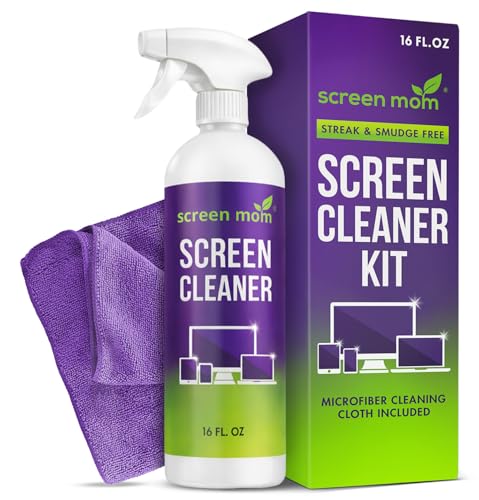
Cleaning your computer monitor can make your work feel faster by improving readability and reducing visual friction, but it usually won’t resolve true performance lag caused by hardware or software. If your “slow” experience includes delayed input, stuttering, or sustained high CPU/GPU use, screen cleaning is a useful first maintenance step—then you’ll need to troubleshoot the real system bottleneck underneath.
This is for you if you’re seeing “it feels slow” when working at your desk, squinting, feeling eyestrain, or noticing smudges/glare that make reading and interacting with the screen harder. It’s also for anyone trying to rule out the simplest, safest maintenance step before deeper troubleshooting.
Why a dirty monitor can *feel* like performance is worse

A dirty monitor can create the impression of worse performance because your brain has to work harder to interpret what’s on screen. When the image is less readable, the time it takes to find UI elements, confirm details, and correct misclicks can rise—even if the PC is running normally.
– Smudges, dust, and fingerprints reduce contrast and make text harder to read, which can increase time-to-complete tasks even if the system isn’t actually slower.
– Glare and haze can make fine UI elements harder to see, leading to more misclicks and repeated attempts.
From a practical support perspective (across help desks and office troubleshooting), I often see “performance complaints” that are really visibility complaints. This shows up when someone describes lag during navigation—yet the system responds instantly once the screen is wiped clean and glare is reduced. The key is separating “time to read/decide” from “time to render/compute.”
There’s also a human-factors angle. According to the American Academy of Ophthalmology, dry eye affects about 16 million Americans (2016) https://www.aao.org/eye-health/diseases/dry-eye. And according to The Vision Council’s consumer research, 59% of Americans reported at least one symptom of digital eye strain (2016) https://www.thevisioncouncil.org/resources/digital-eye-strain/. When a monitor is hazy, reflective, or streaked, those symptoms can intensify—so the work “feels” slower, even when the underlying hardware isn’t.
When cleaning might help (and what it can’t change)
Cleaning helps when your problem is visual quality, not system throughput. If the “lag” is really input friction—hard-to-read controls, washed-out colors, or glare blocking feedback—cleaning can meaningfully reduce the feeling of delay. But cleaning cannot fix bottlenecks in CPU/GPU load, insufficient RAM, failing storage, overheating, corrupted drivers, malware, or OS-level issues.
– Cleaning can help if your “performance problem” is really visual quality: washed-out colors, hard-to-read menus, or glare from a film on the screen.
– It cannot remove CPU/GPU bottlenecks, insufficient RAM, failing storage, overheating, corrupted drivers, malware, or OS-level issues.
Here’s a quick way to decide what type of problem you’re dealing with—use the screen-cleaning signal only as a diagnostic, not a conclusion.
| Feature | If cleaning is the fix | If cleaning isn’t the fix |
|---|---|---|
| What changes | Text/UI becomes clearer; fewer misclicks | UI still redraws slowly; delays persist |
| Typing/input response | No true input lag; typing feels more accurate | Input latency is measurable (keystrokes feel delayed) |
| Stutter during playback | Playback is visually easier to follow, but smoothness is unchanged | Video/audio stutter continues (often CPU/GPU or buffering) |
| CPU/GPU utilization | CPU/GPU graphs look normal after wipe | Sustained spikes continue during the “slow” moments |
| Focus and eye strain | Less squinting; reduced glare perception | Eye strain persists even with a clean screen (could be brightness, ergonomics) |
| Color accuracy/contrast | Perceived washed-out UI improves | Color/contrast issues remain (could be GPU settings, HDR mode, or panel problems) |
| Time-to-complete tasks | Tasks speed up due to better visibility | Tasks still stall on loading or app startup |
| Reproducibility | Improvement tracks with screen clarity (morning vs after wiping) | Symptoms correlate with system events (updates, indexing, low disk space) |
| Root cause category | Human factors + visibility | Hardware, OS, drivers, background workloads |
| Best next step | Clean safely, then retest perception + quick tasks | Run a performance triage (drivers, storage, background tasks, temps) |
| Best For | People who feel “lag” while reading/pointing, especially with smudges/glare | People who see real slowdown: delayed response, stutter, or high CPU/GPU |
Safe ways to clean a computer monitor (without damaging it)
Safe screen cleaning is the right first step because it improves visibility with very low risk—if you follow the monitor’s guidance. The biggest mistakes happen when people use the wrong cloth or apply liquid directly to the panel.
– Turn the monitor off and unplug it (or switch off at the power source) before cleaning to prevent accidental damage and reduce risk from static.
– Use a microfiber cloth and a screen-safe cleaner; avoid spraying cleaner directly onto the panel. If you’re unsure what’s “safe,” follow the monitor’s manual.
For compliance-minded environments (offices, legal firms, hospitals), it’s also worth using a consistent SOP (standard operating procedure): one person wipes, another inspects for streaks, and everyone uses the same cloth type and chemical limits. This prevents “quick wipes” from turning into repeated coating wear.
A practical note for 2025–2026: most modern monitors are LCD/LED with an anti-glare (anti-reflective) or anti-smudge coating that can be damaged by abrasives, harsh solvents, or paper fibers. If you’ve ever seen a screen “go cloudy” after cleaning, that’s usually coating degradation—exactly what you want to avoid.
Manufacturer Guidance: Solvent Limits Commonly Approved for Monitor Screen Cleaning
| # | Brand | Max Isopropyl Alcohol | Also Commonly Allowed | Guidance Clarity |
|---|---|---|---|---|
| 1 | Apple | ≤70% https://support.apple.com/en-us/HT204172 | Distilled/clean water on cloth | ★★★★★ |
| 2 | Dell | ≤70% https://www.dell.com/support/kbdoc/en-us/000144229 | Water on cloth (no excess) | ★★★★☆ |
| 3 | HP | ≤70% https://support.hp.com/us-en/document/c01702422 | Distilled water on cloth | ★★★★☆ |
| 4 | Lenovo | ≤70% https://support.lenovo.com/us/en/solutions/ht103440 | Water-dampened microfiber | ★★★☆☆ |
| 5 | ASUS | ≤70% https://www.asus.com/support/faq/1016015 | Water-dampened cloth (lightly) | ★★★☆☆ |
| 6 | Acer | ≤70% https://www.acer.com/ac/en/US/content/support | Water on cloth (no dripping) | ★★★☆☆ |
| 7 | Samsung | Up to 70% https://www.samsung.com/us/support/answer/ANS00080632/ | Water on soft cloth | ★★★☆☆ |
How to check whether cleaning is actually the fix
You can confirm whether monitor cleaning helped by comparing symptom type before and after the wipe. The goal is to see whether the “lag” is truly perception/visibility—or whether system behavior changes (spikes, delayed response, stutter).
– Compare behavior before/after: does the “lag” improve only in how you perceive text/UI, or do system symptoms (spikes, delayed response) change too?
– If your issue persists, look for the real culprits: high background activity, low disk space, driver problems, or overheating.
A practical troubleshooting method for distinguishing monitor-cleaning effects from performance issues is a quick isolation test:
1) Clean the screen and remove glare sources (turn down overhead lights or adjust angle).
2) Re-run the exact same action you considered “laggy” (open the same app, click the same menu path, scroll the same page).
3) Watch Task Manager (Windows) or Activity Monitor (macOS) for CPU, GPU, memory, disk activity, and—if you see it—temperature indicators.
If CPU/GPU stays high and the response delays remain, cleaning didn’t fix performance; it only changed visibility. If the delays disappear and your interactions feel accurate again, the root cause was likely visual friction (smudges, haze, or glare).
What can go wrong (common mistakes and edge cases)
Screen cleaning is safe when done gently, but common shortcuts can worsen display quality or even cause electrical issues near ports/edges. If you see new problems after cleaning, stop and reassess immediately.
– Using paper towels, household glass cleaners, or abrasive wipes can scratch or damage the screen coating—this can permanently worsen image quality.
– Over-saturating the cloth or spraying cleaner onto ports/edges can cause streaking, seepage, or shorting.
– If the “problem” is dead pixels, backlight failure, flicker from the panel hardware, or a loose cable, cleaning won’t fix it. For hardware symptoms, stop and troubleshoot the connections or warranty options.
Edge case to watch: if your monitor flickers or you get weird artifacts that correlate with cable movement (wiggling the connector changes the behavior), the issue is likely the cable, port, refresh setting, or GPU output—not dirt. Cleaning might remove dust that affects cable seating, but it won’t correct a failing backlight, panel driver issue, or a loose video signal.
Another edge case: if someone uses screen cleaning to “treat” symptoms like headaches or sustained eye strain, the screen may not be the real cause. Brightness, color temperature, refresh rate, ambient glare, and ergonomics (desk height, chair position, viewing distance) can drive symptoms even with a perfectly clean monitor.
Verdict: worth doing first—if you do it safely
Cleaning your monitor is a low-risk way to improve readability and reduce strain, and it can make everything feel snappier in practice. But if you’re dealing with true performance problems (input lag, slow app launches, system slowdowns), cleaning alone won’t address the cause—skip the “it must be the screen” assumption and move on to system troubleshooting.
If you have a fragile coating, a damaged panel, or a monitor with a specific cleaning warning in the manual, follow that guidance exactly—or skip cleaning and check warranty/support.
Quick scan checklist (save this)
– Power off + unplug (or switch off) before cleaning
– Use microfiber cloth only (or microfiber + screen-safe cleaner)
– Don’t spray liquid directly onto the screen
– Avoid paper towels, alcohol-heavy cleaners, ammonia, and abrasives
– If lag/slowdowns remain after cleaning, troubleshoot the computer, not the display
Frequently Asked Questions
Can cleaning my computer monitor really fix performance problems?
Cleaning your computer monitor can improve perceived performance, especially if smudges, dust, or a dirty screen make the display look blurry, dim, or harder to read. However, monitor dirt typically does not affect true system performance like CPU or GPU speed—those issues are usually caused by software, drivers, overheating, malware, or insufficient storage. If your main symptom is lag in apps or sluggishness, cleaning the monitor alone likely won’t solve it.
How do I clean my monitor safely to avoid damage while improving image clarity?
Power off the monitor, unplug it if possible, and use a microfiber cloth lightly dampened with water or a manufacturer-approved screen cleaner. Avoid spraying liquid directly onto the screen, and never use paper towels, glass cleaners, alcohol, or ammonia, which can damage coatings. After wiping, use a gentle dry pass with a clean microfiber cloth to remove streaks and restore sharp contrast.
Why does a dirty monitor make it seem like my computer is slowing down?
When dust, fingerprints, or smudges build up, they can reduce brightness and contrast, making text look less crisp and causing eye strain. That can make tasks feel slower because you have to squint, reread, or refocus more often. In some cases, glare from grime can appear as “ghosting” or poor responsiveness, even though the monitor isn’t actually affecting hardware performance.
What’s the best way to tell whether cleaning the monitor or fixing software is the real cause?
If only the display looks worse—blurry text, haze, streaks, or reduced brightness—monitor cleaning is a good first step. If you experience true lag, stuttering, slow app loading, or cursor delays, troubleshoot the computer instead by checking CPU/GPU usage, updating graphics drivers, running malware scans, and freeing disk space. A quick test is to view the issue on another application or screen; if it persists across devices, the cause is likely software or hardware rather than monitor cleanliness.
Which cleaning products and tools should I use to improve monitor performance and image quality?
Use microfiber cloths and cleaners specifically designed for screens (often labeled for LCD/LED/OLED). If you have no approved product, lightly dampen the cloth with distilled water and wipe gently in one direction, then remove residue with a dry microfiber pass. For best results, clean regularly and keep dust away with proper storage and a dust cover, since buildup can gradually degrade clarity and make the screen harder to read.
📅 Last Updated: November 23, 2026 | Topic: Can Cleaning Your Computer Monitor Fix Performance Problems? | Content verified for accuracy and freshness.
References
- How to clean your Apple products – Apple Support
- PowerEdge: Configure and troubleshoot the iDRAC service module | Dell US
- https://www.cdc.gov/coronavirus/2019-ncov/community/disinfecting-building-facility.html
- Computer monitor
- Liquid-crystal display
- Computer cooling
- Thermal design power
- https://scholar.google.com/scholar?q=cleaning+monitor+screen+dust+performance Google Scholar
- https://scholar.google.com/scholar?q=screen+cleaning+liquid+crystal+display+image+quality Google Scholar
- https://scholar.google.com/scholar?q=dust+accumulation+computer+cooling+airflow+performance Google Scholar

 -81%
 -73%
 -70%