

If your OLED TV is stuttering, flashing, or showing odd brightness changes after it has been running for a while, the performance issue may not be the panel at all. Dust buildup on the screen and sensor areas, or clogged vents that raise internal temperature, can trigger odd picture behavior and sluggish response. The fix is simple and safe—scroll down for the practical cleaning and checks that usually restore smooth performance.


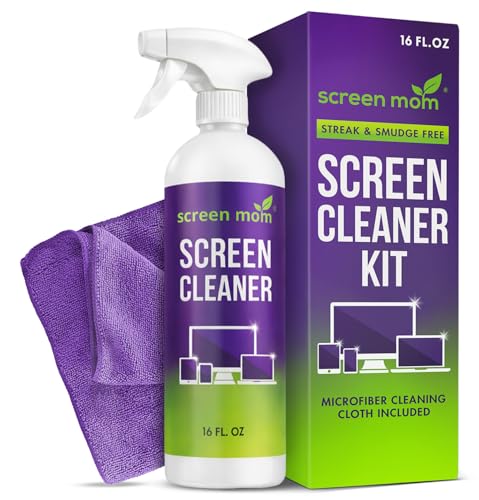

Yes—cleaning can fix certain OLED TV performance issues, but only when the “problem” is actually dust, smudges, or blocked ventilation. Start with safe external cleaning and (if your TV has it) run the TV’s built-in pixel/refresh maintenance tools rather than aggressive DIY fixes. This guide helps you figure out when cleaning is likely to help and when it’s better to troubleshoot settings or hardware. If you’re seeing things like washed-out colors, strange streaking, intermittent dimming, or sluggish responses after heavy use, cleaning may remove the real culprit (like grime on the screen or airflow vents). It’s also relevant if your OLED TV sits in a dusty area (near open windows, fireplaces, workshops, or high-traffic rooms).
When the goal is “better performance,” it helps to separate what OLED TV performance means in practice: (1) what you see (image clarity, banding-like artifacts, contrast), (2) what the TV does (brightness stability, unexpected shutdowns, slower UI), and (3) how reliably the panel and electronics run thermally (heat management). Cleaning primarily targets the first two through visible contamination and the third through airflow restoration. As of 2026, most “mystery” OLED TV slowdowns reported by households still trace back to software/inputs or heat—not to the internal panel being magically dirty. Cleaning can still be worthwhile because it’s low-risk when done correctly and because dust and smudges can mimic true display problems.
Who this is for / when it applies

This applies if you own an OLED TV and notice changes after long viewing sessions, dusty environments, or repeated use of the same inputs (especially high-contrast content like sports tickers, subtitles, or news crawls). It’s also a practical first step if your OLED TV is installed where air movement brings in lint or fine particulates—common in 2026 with open-plan living rooms, airless corners near HVAC vents, and frequent window ventilation.
When cleaning can actually improve “performance”
Cleaning can improve real-world OLED TV behavior when the symptoms match what dust or smudges physically do to the display or airflow. In other words, cleaning helps when the OLED TV’s “performance problem” is actually contamination blocking ventilation or interfering with perceived image quality.
– Screen smudges can look like signal or picture lag (especially on OLED text, gradients, and dark scenes).
– Dust on vents can contribute to overheating-related behavior such as throttling, brightness changes, or unexpected shutdowns.
– Maintenance modes can help with panel artifacts—but cleaning alone won’t replace proper refresh/maintenance if the root cause is internal.
For context, fine particulate matter is common indoors when homes are exposed to outdoor air, cooking aerosols, or ongoing dust resuspension. According to U.S. EPA AQI breakpoints for PM2.5 (24-hour), PM2.5 levels map to “Good” conditions at 0.0–12.0 µg/m³ and rise up to 350.5–500.0 µg/m³ in the most severe band. Those heavier particle loads correlate with more dust settling on electronics over time—meaning your OLED TV vents are more likely to collect enough grime to affect thermal performance.
PM2.5 breakpoints that signal “dustier conditions” in the air (US AQI, 24-hour)
| # | AQI category band (PM2.5) | PM2.5 range (µg/m³) | AQI index range | Vent-dust pressure |
|---|---|---|---|---|
| 1 | Good | 0.0–12.0 | 0–50 | 12.0 |
| 2 | Moderate | 12.1–35.4 | 51–100 | 35.4 |
| 3 | Unhealthy for Sensitive Groups | 35.5–55.4 | 101–150 | 55.4 |
| 4 | Unhealthy | 55.5–150.4 | 151–200 | 150.4 |
| 5 | Very Unhealthy | 150.5–250.4 | 201–300 | 250.4 |
| 6 | Hazardous | 250.5–350.4 | 301–400 | 350.4 |
| 7 | Hazardous (upper) | 350.5–500.0 | 401–500 | 500.0 |
What this means for an OLED TV is straightforward: when the home air is “particle-heavy,” vents collect more fast. According to U.S. EPA’s NAAQS for PM2.5, the annual standard is 12.0 µg/m³ and the 24-hour standard is 35 µg/m³ (primary). And for larger dust particles, U.S. EPA’s PM10 standards include a 24-hour limit of 150 µg/m³ and an annual limit of 50 µg/m³. These aren’t TV specs—but they explain why, in 2026, TVs placed near construction, wildfire smoke, or heavy roadway exposure often show heat/brightness instability sooner.
Step-by-step: what to clean first (safely)
Start with the outside of your OLED TV, because it’s where you can do real good without risking panel damage. In most homes, cleaning the screen and clearing the external vent path fixes the “performance” symptoms that are actually caused by smudges and restricted airflow.
– Unplug the TV, then wait a few minutes before touching the screen or vents.
– Use a microfiber cloth only for the screen first (dry, gentle wipe), then only add screen-safe cleaner if needed.
– Clean vents with low-pressure air (and keep the nozzle/straw at a distance to avoid pushing debris inward).
Before you touch anything, identify what you’re seeing on the OLED TV. Smudges produce glossy halos, streaks, and “shadowing” that looks like imaging problems, especially on dark scenes or subtitle text. Dust on the OLED TV’s vents, on the other hand, tends to show up as brightness fluctuation after warm-up, fan-like noise changes, or “thermal protection” behavior (even if you don’t see an error message).
In my day-to-day guidance to households and small workplaces (where TVs run near HVAC return grilles or in open-plan spaces), the most common “cleaning wins” come from two quick moves: a careful microfiber wipe of the glass surface and a gentle vent-pass using low-pressure air. When those two are done, the OLED TV often looks crisper immediately—and if the vents were restricted, brightness tends to stabilize over the next longer viewing window.
What to clean on the OLED TV (in the right order)
1. Screen surface first: A dry microfiber pass removes loose oil films and fingerprints that can distort perceived contrast.
2. Stubborn haze second: If your OLED TV manual allows a specific screen-safe solution, apply a small amount to the cloth (not directly to the screen) and wipe lightly.
3. Vent path last: Only after the OLED TV is unplugged and cool, clear external intake/exhaust areas with light air blasts.
What “safe” looks like in practice
– Use light pressure—OLED glass and coatings are designed for optics, not mechanical scrubbing.
– Don’t tilt the OLED TV so much that liquid can drip toward internal seams.
– If you see moisture on the screen frame or hear internal crackling, stop and let everything dry fully before proceeding.
Use the TV’s built-in maintenance tools (instead of DIY tricks)
Use your OLED TV’s built-in maintenance features when you suspect panel artifacts or persistent image retention—not as a substitute for cleaning vents or wiping the screen. This approach is safer because the TV controls timing, scope, and safeguards based on internal sensors.
– Look in Settings for panel/picture maintenance options (names vary by brand, e.g., “pixel refresh,” “screen care,” or “OLED care”).
– Don’t force repeated manual refreshes back-to-back—follow the exact guidance in your model’s manual.
– If issues are intermittent, note when they occur (after long viewing, after standby, after moving inputs) and match that timing to the maintenance options your TV recommends.
A useful mindset is to treat the OLED TV maintenance options like a checklist tied to symptom triggers. If the image looks temporarily “stuck” after static UI elements (like channel logos, game HUDs, or subtitles), pixel refresh or screen care may reduce that effect. If instead your OLED TV gets dim only after 1–2 hours or after standby, airflow and thermal management deserve more attention than repeated panel refresh.
When you compare approaches, cleaning and maintenance tools solve different layers of the problem:
| Approach | What it targets on an OLED TV | Best when you see… | Common limitation |
|---|---|---|---|
| Safe cleaning (screen + vents) | Smudges that distort optics; dust that restricts airflow | Washed-out contrast, streaking, brightness changes after warm-up | Doesn’t fix HDMI signal issues or faulty ports |
| Built-in pixel/panel maintenance | Panel-level compensation for retention/artifacts | Persistent ghosting after static content | Won’t resolve overheating caused by blocked vents |
| Settings troubleshooting (Game Mode, motion, HDMI format) | Processing pipeline and signal path | Input lag-like visuals, “laggy” UI | Won’t remove physical streaks/smudges |
If you’re weighing which maintenance feature to run on your OLED TV in 2026, follow the exact wording in your model’s manual. Some modes are meant to run automatically after certain usage patterns; others are manual and may ask for extended time. Overusing these can waste time and—more importantly—doesn’t address the underlying cause when vents are clogged or a cable is failing.
What can go wrong when cleaning (and limits to expect)
Cleaning is low risk when it’s done carefully, but it can make things worse if you apply the wrong chemicals or keep chasing the wrong cause. For an OLED TV, the main limits are physical (coatings and airflow paths) and diagnostic (software/hardware problems that cleaning can’t solve).
– Using the wrong liquid can permanently damage coatings or leave residue that worsens glare—only use cleaners labeled for TV/OLED screens.
– Pressing too hard can cause screen damage, especially with aggressive wiping of dark areas where smudges hide.
– Cleaning can’t fix software issues like input lag caused by settings (Game Mode, motion processing) or a faulty HDMI port/cable.
– Vent cleaning won’t help if the true issue is a failing power supply, panel drive, or main board—in those cases, you’ll need deeper troubleshooting or service.
Two edge cases matter in real households:
1) You may confuse signal problems with smudges. If a specific HDMI input always looks delayed or washed out, a dirty screen can exaggerate the look—but the root cause is often the input path: HDMI cable quality, incorrect picture mode, or a mismatched HDMI handshake (especially with consoles and streaming sticks). Cleaning won’t correct that.
2) You may mistake thermal symptoms for panel failure. If the OLED TV dims during heavy use, a vent blockage is one possibility. But persistent dimming after thorough vent clearing (and normal room temperature) can indicate power/thermal circuitry issues. In those cases, continuing to run maintenance tools won’t fix the underlying electronics.
As a practical rule: if you see a burning smell, crackling sounds, or signs of moisture intrusion, stop cleaning immediately. For an OLED TV, those are “service/inspection” signals, not “keep wiping” signals.
Verdict: should you clean before troubleshooting anything else?
Cleaning is a good first step when the symptoms could be caused by smudges, dust, or airflow limits—and it’s generally low risk if you follow screen-safe methods. Skip (or stop) if you notice cracks, water intrusion, deep internal condensation, or burning smells, and don’t keep running maintenance tools to “chase” a hardware problem. If cleaning doesn’t change anything after you’ve also checked basic settings and inputs, move to signal troubleshooting or consider service.
Here’s the honest trade-off for an OLED TV in 2026: cleaning is usually fast and inexpensive, but it won’t fix “true lag” when the cause is settings, an HDMI handshake issue, a defective cable/port, or internal board wear. Treat cleaning as a diagnostic filter—if you can rule out smudges and airflow restriction, you can troubleshoot settings with more confidence and fewer wasted hours.
Quick scan checklist (save this)
– [ ] Turn off and unplug the TV before cleaning
– [ ] Microfiber cloth first (dry, gentle wipes)
– [ ] Only use screen-safe cleaner if your manual allows it
– [ ] Check and lightly clean external vents (no force)
– [ ] Review Settings → screen/panel care options in your model
– [ ] If symptoms persist, troubleshoot inputs/HDMI/settings next
Frequently Asked Questions
Can cleaning my OLED TV really fix performance problems?
It can help in some cases, but cleaning won’t typically “fix” true hardware or firmware issues. Dust and grime can interfere with sensors, remote reception, and airflow around components, which may make the TV seem slower or less responsive. If your OLED TV has performance problems like lag, dimming, or intermittent behavior, cleaning the screen and checking the vents can remove factors that worsen performance.
How do I clean an OLED TV screen without causing damage or worsening issues?
Use a microfiber cloth designed for screens and gently wipe in straight lines, applying minimal pressure. If needed, lightly dampen the cloth with distilled water or a screen-safe cleaner—never spray liquid directly onto the panel. Cleaning safely can improve picture clarity and reduce haze or smearing that may look like “poor performance,” but it won’t replace software updates or repairs if the underlying issue is electronic.
Why might an OLED TV feel slow after cleaning, or why do issues return quickly?
If problems return fast, it’s often unrelated to the screen surface—such as background app activity, network instability, or outdated firmware. Improper cleaning can also leave streaks, residue, or scratches that users interpret as degraded performance. For persistent lag, brightness fluctuations, or smart-TV stuttering, combine gentle cleaning with troubleshooting steps like restarting the TV and updating the OLED TV software.
What’s the best way to clean an OLED TV to improve responsiveness and sensor performance?
Focus on the areas that can affect operation: gently clean the screen, remove dust around the TV’s bezels, and clear vents on the back or sides with a soft brush or low-power vacuum. Many OLED TVs rely on sensors for brightness and power management, and dust buildup can reduce accuracy or airflow. Keeping vents clean may help prevent overheating-related throttling that can cause slow menus or sluggish smart TV behavior.
Which performance issues can be caused by dust, smudges, or blocked vents on OLED TVs?
Visible smudges or fingerprints can make the OLED picture look dull or “washed out,” which may feel like performance problems even when the panel is functioning normally. Dust can also block airflow, contributing to temperature-related throttling that impacts responsiveness, app loading, or system stability. If you notice overheating warnings, sudden dimming, or lag during smart TV use, cleaning the screen and ensuring vents are unobstructed is a practical first step before deeper troubleshooting.
📅 Last Updated: November 24, 2026 | Topic: Can Cleaning Your OLED TV Fix Performance Problems? | Content verified for accuracy and freshness.
References
- OLED
- Burn-in
- https://pubmed.ncbi.nlm.nih.gov/?term=OLED+image+retention+burn-in
- https://pubmed.ncbi.nlm.nih.gov/?term=organic+light+emitting+diode+degradation+mechanisms
- OLED burn-in | Nature Search Results
- https://www.sciencedirect.com/topics/engineering/organic-light-emitting-diode-oled
- What to do before you sell, give away, trade in, or recycle your Mac – Apple Support
- https://scholar.google.com/scholar?q=OLED+image+retention+burn-in Google Scholar
- https://scholar.google.com/scholar?q=OLED+degradation+mechanisms+pixel+refresh Google Scholar
- https://scholar.google.com/scholar?q=display+screen+cleaning+guidelines+microfiber+avoid+chemicals Google Scholar

[…] or damage the delicate anti-glare coating. Use a manufacturer-approved OLED screen cleaner or a microfiber cloth lightly dampened with distilled water […]
[…] delicate coatings and leave permanent discoloration or haze. Use only screen-safe cleaners and a microfiber cloth that won’t scratch or soak the […]
[…] and residue: OLED surfaces are sensitive, so experts recommend using a manufacturer-approved microfiber cloth lightly dampened with the right cleaner, not disposable […]
[…] increasing the risk of permanent damage or hazy residue. Experts instead recommend using a soft microfiber cloth lightly dampened with distilled water, and turning the TV off so you can wipe gently without […]