

A trackpad that feels slightly tacky when your fingertips glide or looks streaked with fingerprints tells you it needs attention. How often you should clean it depends on how much skin oil, dust, and debris your daily use transfers—more in shared spaces or with frequent handwashing, less when you keep hands clean and dry. Regular, gentle cleaning helps maintain precise cursor control and prevents grime from dulling the surface coating.



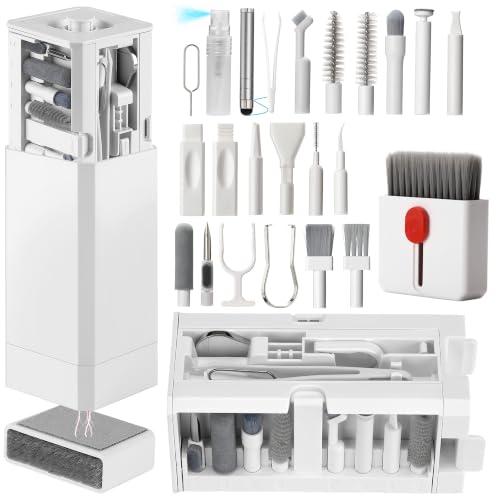
For most people, you should clean the surface on your trackpad about every 1–2 weeks, and wipe it immediately if it looks smudged or gets sticky. If you’re using your trackpad a lot with sweaty or oily hands (or you eat at your desk), you may need to do it more often. In this guide, you’ll get a practical schedule, what to use, and how to avoid damaging the coating.
If you share your laptop, work in a dusty environment, or notice reduced glide from grime buildup, this is the right time to tighten up your cleaning routine. The steps below focus on safe cleaning practices that won’t push liquid into the trackpad.
How often to clean your trackpad surface (simple schedule)

A good baseline answer is: clean on a predictable cadence—then “correct” sooner when your hands and workspace demand it. In practice, trackpads collect skin oils, dust, and everyday residue that don’t always show up as obvious dirt, but they absolutely affect friction (“glide”) over time.
– Every 1–2 weeks: A quick wipe is usually enough to remove skin oils and everyday dust.
– This interval works well for typical office use: writing, browsing, meetings, and general mouse replacement.
– Right away when needed: Clean immediately if you notice fingerprints, tackiness, or visible smears.
– “Sticky” usually indicates a buildup of skin oils, lotion residue, or food oils from accidental contact.
– Monthly “reset” (when it’s high-use): Do a slightly more thorough wipe on a regular basis, especially if you use your laptop all day.
– High-use scenarios include frequent touchpad gestures, shared desk setups, or working near construction/ongoing HVAC dust.
To ground the schedule in hygiene reality (not just appearance): according to the WHO, alcohol-based hand rubs generally use 60–80% ethanol or 70–95% isopropyl alcohol for effectiveness (2009). WHO, “WHO Guidelines on Hand Hygiene in Health Care” (2009) That’s why oils from your skin matter—because they’re the main “carrier” of residue that cleaners can’t fully fix after the fact.
What to use (and what to avoid) when cleaning
The direct answer here is simple: use a microfiber cloth that’s dry or only slightly damp, and avoid spraying anything onto the device. That approach protects the trackpad’s surface coating and reduces the risk of moisture getting into edges or openings.
What you should use
– Use a soft, lint-free microfiber cloth that’s either dry or slightly damp (never wet).
– If you need a disinfecting step, many official device-cleaning guides allow 70% isopropyl alcohol on appropriate surfaces when applied to the cloth rather than sprayed directly.
– Apple’s guidance emphasizes using a cloth that’s “slightly damp” and not spraying liquid into openings. Apple Support, “How to clean your Apple products”
– Microsoft’s cleaning guidance similarly cautions against excessive moisture and stresses applying cleaner appropriately. Microsoft Support, “How to clean your Surface device”
What you should avoid
– Avoid sprays directly on the trackpad. Instead, apply any moisture to the cloth first to reduce the risk of liquid getting inside.
– Spraying increases the odds that liquid travels toward seams, edges, and internal components.
– Skip harsh cleaners: Don’t use bleach, abrasive wipes, or anything that can strip the surface coating.
– Abrasives can create micro-scratches that trap oils and make grime “stick” more quickly afterward.
Trackpad Surface Compatibility by Cleaning Method (Based on Apple & Microsoft safety guidance)
| # | Cleaning approach | Moisture level | Allowed on trackpad surface? | Surface risk |
|---|---|---|---|---|
| 1 | Dry microfiber wipe | Dry only | Yes | ★★★★★ |
| 2 | Slightly damp microfiber (water) | Slightly damp | Yes | ★★★★☆ |
| 3 | Slightly damp microfiber (70% isopropyl alcohol) | Slightly damp | Yes (when applied to cloth) | ★★★★☆ |
| 4 | Pre-moistened disinfecting wipes (used sparingly) | Wipe, don’t soak | Mixed—depends on wipe ingredients | ★★☆☆☆ |
| 5 | Spraying disinfectant directly onto trackpad | Direct liquid application | No | ☆☆☆☆☆ |
| 6 | Bleach / chlorine-based cleaners | Chemical exposure | No | ☆☆☆☆☆ |
| 7 | Paper towels / abrasive wipes | Scratch & lint | No | ☆☆☆☆☆ |
Factors that change the frequency
The quick answer is that your cleaning interval should track your residue risk: more sweat, more food contact, more shared use, and more dust all justify cleaning sooner. When trackpads feel “glazy” or slow to glide, frequency is usually the fastest fix.
– Your hand condition: If you deal with sweat, lotion, or frequent hand sanitizer use, smudges build up faster.
– Sanitizers can leave a film (even after drying), which increases tackiness.
– Your environment: Dusty workspaces, pets, or frequent transport can push you toward weekly cleaning.
– Dust doesn’t just look dirty—combined with skin oils, it forms a thin residue layer that feels “gritty.”
– How you use the device: If you rest food/snacks near the laptop or frequently touch the trackpad between tasks, clean more often.
– Even if you don’t spill anything, oils from hands and crumbs from brief contact can accumulate along trackpad edges first.
One practical note for 2025 workflows: currently, many teams emphasize return-to-office routines, shared desks, and “touch-heavy” work (shared meeting spaces, co-working, field work). If your laptop environment changes from quiet office to busier settings, treat it like a frequency trigger—not as a one-off.
What can go wrong (common mistakes and edge cases)
A direct answer: the most common problems happen when people add too much moisture, use the wrong materials, or clean so aggressively that they damage the coating. When that happens, the trackpad can feel worse instead of better.
Here are the real failure points to watch for:
– Applying liquid directly: Spraying cleaner or using a dripping cloth can allow moisture to seep into edges.
– This can lead to reduced responsiveness, persistent grime “staining,” or long dry times.
– Over-scrubbing: Pressing too hard can wear down protective layers over time.
– The goal is to lift oils, not grind the surface.
– Using the wrong material: Paper towels and rough cloths can leave scratches or lint.
– Scratches increase the surface area that holds oil residue.
– Trackpad sensitivity changes: If your trackpad suddenly feels “off” after cleaning, stop and re-check that you didn’t leave residue or over-wet the surface.
– Many “sudden” problems are actually temporary—moisture on sensors or residue in the finish can alter glide for a short period.
Edge case to consider: disinfection vs. cleaning. If you’re trying to sanitize (not just remove oils), you’ll usually need to follow your laptop manufacturer’s exact disinfecting guidance. CDC emphasizes cleaning dirt and debris before disinfection for effective results on surfaces. CDC, “Cleaning and Disinfecting Your Facility” If you skip the cleaning step and only disinfect, residue can interfere with disinfectant performance.
Pros/cons comparison: cloth choice and liquid approach
| Approach | Pros | Cons |
|---|---|---|
| Dry microfiber wipe | Lowest risk; removes dust and light oils fast | Doesn’t fully address sticky residue |
| Slightly damp microfiber (water) | Safe for routine grime; minimal residue risk | Not ideal for sticky/oily films without multiple passes |
| Slightly damp microfiber (70% isopropyl alcohol) | Helps cut through oil film when applied sparingly | Overuse can dry coatings over time if you repeatedly over-wet |
| Pre-moistened wipes | Convenient for shared spaces | Some wipes leave residue or contain ingredients that manufacturers don’t recommend for touch surfaces |
| Spraying liquids directly | Fast at first | Higher risk of liquid migrating toward seams and internal components |
Verdict / tip (what I recommend, plus who should skip this)
My recommendation is straightforward: wipe your trackpad every 1–2 weeks, and clean sooner if it looks dirty or feels sticky. Stick to a dry or lightly damp microfiber cloth, and always avoid spraying chemicals straight onto the device.
From a practical desk workflow perspective in 2025, I recommend tying trackpad cleaning to a habit you already do (like wiping your keyboard during weekly workstation resets). If your hands are frequently sweaty or you regularly touch the trackpad with lotion or sanitizer residue, your “1–2 weeks” interval will feel too long—shorten it.
There are clear downsides and “don’t do this” cases:
– Downside: Over-cleaning with alcohol or frequent wet wiping can eventually make some finishes look dull or reduce the smooth feel.
– Skip or adjust if: you’re dealing with active spills, visible liquid intrusion, or manufacturer-specific surface coatings you’re unsure about—in those cases, follow the device’s official cleaning guidance first (or contact support) rather than experimenting.
If you’re cleaning a shared device or corporate fleet in the real world, align with your IT/security policy—many orgs require specific disinfectant compatibility procedures.
Quick checklist: scan-and-save cleaning routine
| When | What you’ll notice | What to do |
|---|---|---|
| Every 1–2 weeks | Light smudges, fingerprints | Wipe with dry or slightly damp microfiber |
| Immediately | Sticky feel, visible grime | Stop and gently clean with minimal moisture |
| High-use/monthly | Build-up starts returning quickly | Repeat routine; ensure cloth isn’t too wet |
| After sanitizer/lotions | Greasy film | Wipe sooner; avoid residue buildup |
Frequently Asked Questions
How often should you clean the surface on your trackpad?
For most users, wipe your trackpad surface every 1–2 weeks to remove oils, dust, and everyday grime. If you use your laptop frequently, work in a dusty environment, or notice smudges and streaks, clean it weekly. If you have pets, allergies, or share devices, more frequent cleaning helps maintain hygiene.
What is the best way to clean a trackpad surface without damaging it?
Power off the device or disconnect it before cleaning, then use a microfiber cloth lightly dampened with distilled water or a 70% isopropyl alcohol solution. Avoid soaking the cloth and never spray liquid directly onto the trackpad. For stubborn residue, gently wipe in small circles and let the surface fully dry before powering back on.
Why does cleaning your trackpad regularly improve accuracy and scrolling?
Dirt, oil, and debris can interfere with finger detection and cause “sticky” swipes or inconsistent cursor movement. Regular trackpad cleaning reduces buildup that can blur sensors and affect smooth scrolling gestures. Keeping the surface clean can make gestures feel more responsive and reliable, especially when using multi-touch actions.
How should you clean a glass or haptic trackpad if it gets smudged quickly?
If your trackpad shows fingerprints often, use a clean microfiber cloth first, then follow with a slightly damp cloth using distilled water or isopropyl alcohol. Wipe gently across the entire surface to avoid leaving streaks, and dry with a dry microfiber cloth if needed. For glass trackpads, avoid abrasive cleaners and confirm the solution is safe for electronics to prevent coating damage.
Which cleaning products are safest for trackpad surfaces, and which should you avoid?
Safest options are a microfiber cloth plus distilled water or 70% isopropyl alcohol applied to the cloth (not sprayed onto the trackpad). Avoid harsh chemicals like bleach, ammonia, acetone, or glass cleaners that can damage coatings and degrade materials. Also skip paper towels and abrasive wipes, since they can scratch the surface and make smudges reappear faster.
📅 Last Updated: November 04, 2026 | Topic: How Often Should You Clean the Surface on Your Trackpad? | Content verified for accuracy and freshness.
References
- Download Apple Music, Apple TV, Apple Devices, and iTunes for Windows – Apple Support
- https://www.cdc.gov/coronavirus/2019-ncov/community/disinfecting-building-facility.html
- https://www.cdc.gov/coronavirus/2019-ncov/prevent-getting-sick/cleaning-disinfection.html
- https://www.who.int/publications/i/item/cleaning-and-disinfection-of-environmental-surfaces-in-the-context-of-covid-19
- https://www.cdc.gov/infectioncontrol/guidelines/disinfection/index.html
- environmental surface cleaning frequency disinfection effectiveness – Search Results – PubMed
- https://pubmed.ncbi.nlm.nih.gov/?term=touchscreen+disinfection+cleaning+study+high-touch+surface
- https://scholar.google.com/scholar?q=how+often+clean+touchpad+trackpad Google Scholar
- https://scholar.google.com/scholar?q=high-touch+surface+cleaning+frequency+guidelines+CDC+WHO Google Scholar
- https://scholar.google.com/scholar?q=keyboard+mouse+touchscreen+contamination+survival+and+disinfection Google Scholar

[…] if you follow a careful, step-by-step process. Gather microfiber cloths, distilled water or 70% isopropyl alcohol (as supported for your device), and gentle cleaning tools, and you’ll be ready to return the […]