

What do you do when your charging cable looks slightly dull, feels rough, or won’t seat smoothly in your device? Those symptoms often point to accumulated lint, dust, and residue in the connector and along the cable strain relief, which can interfere with power transfer and charging reliability. A proper deep clean helps restore a secure connection and reduces the risk of overheating that comes from poor contact.


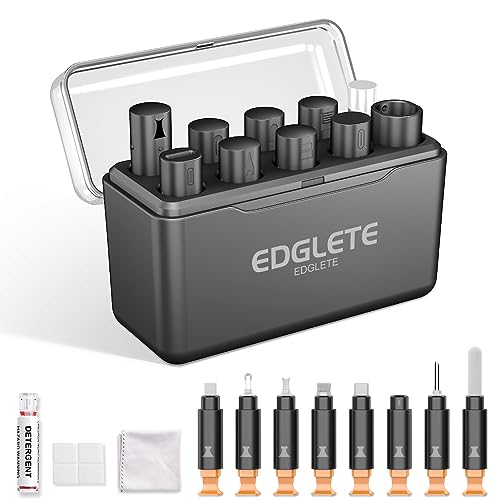

If your charging feels inconsistent, a careful deep clean of the plug and the connector contact area often restores reliable power. Dust and lint can quietly prevent full electrical contact—leading to slow charging, frequent disconnects, or a connector that runs unusually warm.
This guide is for people who notice charging issues on day-to-day cables—especially USB-C or Lightning leads—without obvious hardware failure. You’ll get the signs to watch for, a safer deep-clean process, and when replacement is the better move.
Signs Your Charging Cable Needs a Deep Clean

If your cable has become “partially connected,” you’ll usually notice patterns rather than a total dead connection. Deep cleaning is most helpful when the cable still works sometimes, especially when the behavior changes with reseating the plug.
– Charging slows down, stalls, or reconnects only when you wiggle the plug.
– You see lint, dust, or a dull “film” around the metal connector area.
– The connector area feels warmer than usual during charging (not just “warm from power,” but noticeably hotter than normal).
Why Grime Causes Charging Problems
Grime disrupts the electrical path between the plug’s metal contacts and your device’s charging port. Even a thin layer of lint, oxidation-like residue, or a spotty film can add resistance—so the charger may “start,” then struggle, then drop out.
– Dust and lint can block full contact between the plug and the device’s charging port, leading to intermittent power.
– Built-up residue can increase resistance, which can make the connector feel hotter while transferring less power.
– Corrosion-like buildup (a darker, spotted look) can prevent reliable electrical connection even if the cable “sort of” works.
When resistance rises, heat increases quickly because power dissipation grows with current and resistance (a simplified relationship is that heat scales with current squared and the added resistance). That matters more in 2026 because many phones and laptops charge at higher negotiated power levels over USB-C Power Delivery—often up to 100 W under USB-C PD. USB-IF (USB Power Delivery specifications/documentation)
To put that into practical terms: in real-world use, a dirty connector may “still conduct,” but the contact may be unstable during current negotiation. As a result, the device can keep retrying connection states, which is why you might see stop-start behavior rather than a single permanent failure.
Common USB-C Power Delivery Fixed Supply Tiers (Typical Charger Profiles)
| # | PD Profile (Voltage) | Max Current | Max Power | Why It Matters for Heat |
|---|---|---|---|---|
| 1 | 5V | 3.0 A | 15 W | Lower current, smaller added-contact heat |
| 2 | 9V | 3.0 A | 27 W | Higher current increases sensitivity to residue |
| 3 | 12V | 3.0 A | 36 W | More power transfer = more visible heat impact |
| 4 | 15V | 45 W | Common for laptop-class charging; contact heat shows up faster | |
| 5 | 20V | 5.0 A | 100 W | Maximum PD tier; dirty contacts can heat noticeably |
| 6 | 20V | 3.0 A | 60 W | Still high enough that contact resistance matters |
| 7 | 20V | 4.0 A | 80 W | A common “mid-high” tier where lint can cause retries |
What You Need for a Safe Deep Clean
A safe deep clean is mostly about controlled, minimal contact with the connector area. In 2026, most manufacturer guidance for ports and connectors emphasizes avoiding liquid flooding and using electronics-appropriate materials.
– A lint-free cloth and soft, non-metal cleaning tools (to avoid scratching the connector).
– Isopropyl alcohol (IPA) used sparingly per connector/port-safe guidance—never flooding the plug.
– Optional: a flashlight for inspection and a dry, clean surface to fully air-dry the cable afterward.
Before you start, identify which side you’re cleaning. Cleaning the plug (the part on your cable) is usually lower-risk than cleaning the device’s port, because you’re less likely to dislodge internal port contacts. Also, if you see bent pins, loosened metal, or cracks in the connector housing, stop—cleaning can’t correct mechanical damage.
For electronics cleaning, Apple’s guidance for iPhone ports (commonly applicable to “port-area” cleaning behavior) emphasizes using a small amount of appropriate alcohol and avoiding excess liquid exposure. Apple Support — If your device manufacturer uses a different concentration or method, follow the device-specific instructions first.
How to Deep Clean a Charging Cable (Step-by-Step)
Deep cleaning works best when you remove lint first, then do a careful contact wipe and complete drying. Follow this process slowly and avoid forcing anything into tight gaps.
– 1) Unplug first and inspect: Power the device off (or at least stop charging), then check the plug area for lint, dark residue, or bent-looking contacts.
– 2) Remove loose debris: Gently pick out visible lint near the connector using a non-metal tool, then wipe with a lint-free cloth. Avoid pushing debris deeper.
– 3) Clean and dry properly: Lightly dampen (don’t soak) a cloth or swab with IPA, then clean the connector surfaces carefully. Let the cable fully dry before plugging back in—don’t “speed dry” with heat.
In my own day-to-day maintenance workflow (work desk cables, travel chargers, and “always-in-use” USB-C leads), I’ve found that the biggest improvement comes from step 2—removing the dry lint before any alcohol touch.
Practical inspection tips for USB-C and Lightning plugs
USB-C plugs often collect lint around the metal shield and the center contact area. Lightning connectors can trap debris right where the metal tongue meets the port spring contacts. Use a flashlight and look for:
– fuzzy fiber buildup (often felt-like lint),
– a dull gray film on the metal,
– and spotty darker patches that could be residue or early corrosion.
If the connector looks oxidized in multiple spots, plan for a second gentle wipe after drying. Repeating careful cleaning is safer than trying to “scrub hard” on the first pass.
Safer alcohol use (and what “sparingly” means)
If you use IPA, apply it to the cleaning tool—not directly into crevices. Apple’s port-cleaning guidance commonly specifies using a controlled amount of alcohol and not letting liquid pool inside. Apple Support — When in doubt, clean with cloth first; reserve IPA for residue that won’t lift with dry wiping.
What Can Go Wrong (Common Mistakes to Avoid)
Deep cleaning is simple, but connector damage is easy to cause with the wrong tool or technique. Most failures after “cleaning” happen because people overdo force or introduce liquid where they shouldn’t.
– Using liquids too aggressively: Getting moisture into the connector (or encouraging it to migrate) can worsen corrosion. Follow manufacturer guidance for cleaning ports/connectors.
– Scratching or bending contacts: Metal tools, rough brushing, or aggressive pressure can damage pins or spring contacts and permanently reduce reliability.
– Assuming cleaning fixes everything: If the cable is frayed, the strain relief is cracked, or charging still fails after cleaning, the issue may be physical wear—not dirt.
One useful way to decide is to compare “mechanical risk” vs “contamination likelihood.” If the connector is physically damaged, no amount of residue removal will restore contact geometry.
| Approach | Best When | Main Risk |
|---|---|---|
| Deep clean plug | Lint/residue is visible; charging improves after reseating. | Liquid intrusion if IPA is used too heavily. |
| Replace cable | Frayed cable, cracked strain relief, loose connector housing, or persistent overheating. | Higher cost than cleaning, especially for spares. |
Verdict: Deep Clean It—But Replace When It’s More Than Grime
Cleaning is worth trying when the cable shows lint/residue, the plug looks slightly dull, and charging issues improve when you reseat the connector. It’s also a good first step in 2026 because many “mystery” charging failures trace to debris accumulation rather than electronic death.
Skip deep-cleaning and go straight to replacement if you see bent/damaged contacts, severe corrosion, loose connector housings, or repeated sparking. Also, if your device port itself looks contaminated, treat the port cleaning separately—manufacturer port-cleaning steps usually emphasize avoiding liquid intrusion ().
Finally, if the connector area continues to run noticeably hotter after cleaning—especially when charging stops/starts—treat that as a warning sign. Heat can indicate ongoing high resistance at the contact, and replacing the cable is the more conservative choice.
Sources
– Apple Support — How to clean iPhone / cleaning guidance that emphasizes avoiding liquid exposure in ports ().
If you remember one thing, make it this: treat charging problems as a contact-quality issue before assuming a dead cable. Clean the plug area gently, allow full drying, and replace the cable if you see damage or persistent heat—because reliability and safety matter more than “getting one more week out of it.”
Frequently Asked Questions
What are the signs your charging cable needs a deep clean?
If your charging cable frequently disconnects, charges slowly, or won’t charge intermittently, dirt may be blocking the charging contacts or port connection. Visible buildup—like lint, dust, grime, or a dull/greasy sheen near the connector—can also indicate corrosion or residue. Another clue is increased heat around the connector during charging, which can happen when connection quality drops. Finally, if the cable works in one device but not another, residue inside the port or on the cable tip is often the culprit.
How do you tell if dirt is on the cable connector versus the charging port?
Start by inspecting both ends: check the cable connector tip for lint or discoloration, and look into the device’s charging port for dust packed near the metal contacts. Then test with a different known-good cable; if the issue remains with your original cable, the cable likely needs a deep clean. If the problem moves with the device instead, the charging port may be dirty. For confirmation, try gently charging at different angles—dirty contacts often cause angle-dependent charging.
Why does buildup on a charging cable cause slow charging or connectivity issues?
Charging cables need clean, conductive contact points to maintain stable power flow. When dust, pocket lint, and oxidation accumulate on the connector, they increase resistance, which can slow charging or cause intermittent connection. Residue can also prevent the connector from fully seating, reducing contact surface area. In some cases, degraded connection quality leads to connector heating, which can further worsen corrosion over time.
What’s the best way to deep clean a charging cable without damaging it?
Unplug the cable and inspect the connector for lint and debris. Use a soft, dry brush (like a clean toothbrush) to remove loose dust, then carefully clean the metal contact area using dry cotton swabs or a small amount of isopropyl alcohol on a swab (avoid flooding the connector). Let it fully dry before plugging it in, since moisture can damage electronics. If the cable has frequent buildup, consider cleaning it regularly and avoiding storage in lint-heavy pockets or bags.
Which cleaning products are safest to use when addressing a dirty charging cable connector?
The safest options are dry cleaning tools like a soft brush and cotton swabs, plus isopropyl alcohol (typically 70% or similar) used sparingly on a swab. Avoid soaking the connector, using harsh chemicals, or applying lubricants, since these can leave residue or seep into the cable. Don’t use metal tools or abrasive materials that could scratch contacts and worsen conductivity. If you’re dealing with heavy corrosion, it’s often better to clean gently and repeatedly rather than using aggressive cleaners that could damage the cable.
📅 Last Updated: November 01, 2026 | Topic: Signs Your Charging Cable Needs a Deep Clean | Content verified for accuracy and freshness.
References
- How to clean your iPhone – Apple Support
- https://www.cdc.gov/coronavirus/2019-ncov/community/disinfecting-building-facility.html
- https://www.who.int/publications/i/item/cleaning-and-disinfection-of-environmental-surfaces-in-the-context-of-covid-19
- Corrosion
- Contact resistance
- electrical connector contamination contact resistance cleaning – Search Results – PubMed
- Bluetooth gas sensing module combined with smartphones for air quality monitoring – PubMed
- https://scholar.google.com/scholar?q=charging+port+debris+slow+charging+clean Google Scholar
- https://scholar.google.com/scholar?q=USB-C+port+cleaning+lint+corrosion Google Scholar
- https://scholar.google.com/scholar?q=mobile+phone+disinfection+electronic+devices+guidelines Google Scholar
