

Why does lint collect on the surface of your wireless charger? It usually comes from pockets, clothing fibers, and small particles carried by static and airflow that get trapped between the charger and your phone case. With a clean, dry microfiber cloth and a soft brush or lightly dampened cotton swab, you can remove the buildup safely in about five minutes and restore reliable charging.
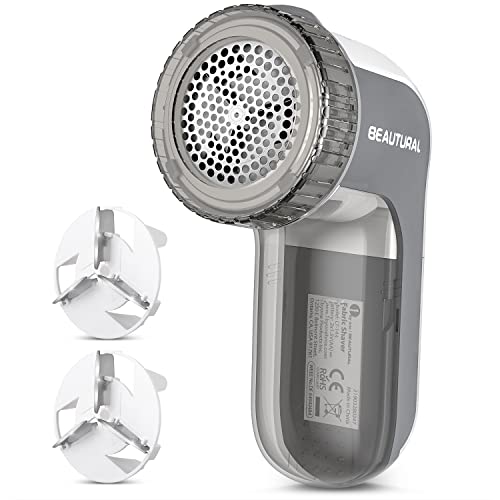



Lint on a wireless charger usually comes from fabric fibers and fine dust transferring onto the charging surface, which then blocks the tight alignment wireless charging needs. The fastest fix is to unplug the charger, perform a dry wipe first, and only use a minimal distilled-water wipe if your manufacturer explicitly allows it—then dry everything completely.
If you notice your phone taking longer to charge, sliding around on the pad, or your charger getting unusually warm, this guide is for you. It’s also useful if the charger looks clean but still seems to “skip” charging due to a thin layer of debris on the surface.
What causes lint on a wireless charger?

Lint forms on wireless chargers when everyday materials shed fibers that migrate to the charging area, especially in “use + storage” moments. In practice, the most common culprits are pocket fabric, blankets, tote bags, and nearby soft furnishings that release lint and micro-debris.
– Clothing and fabric transfer: Fibers from pockets, socks, hoodies, towels, and bedding can rub onto the pad during normal use.
– Pocket debris and dust: Even “small” lint clumps can mix with dust and form a tacky layer that builds up faster.
– Environmental particles: Carpets, rugs, and upholstery near the charger can contribute lint and micro-debris.
Why lint affects charging (and sometimes safety)
Lint interferes because wireless charging depends on close coupling between the charger’s coil and the phone’s receiving coil. When debris adds height, creates an uneven surface, or changes the pad’s friction, charging can become less efficient—leading to slower charging and, in some cases, overheating warnings.
– Reduced contact with the phone: Wireless charging relies on close, stable alignment; lint can create a gap or uneven surface.
– More heat at the coil/charging area: Extra resistance from debris can increase temperature, which may trigger protective behavior.
– Charging reliability drops over time: You might see intermittent charging that improves after you wipe the pad (a strong hint that surface contamination is the issue).
Common Fabric Fibers That Shed Lint (Thermal Damage Onset Estimates)
| # | Fiber type | Thermal damage onset (°C) | Where it commonly transfers | Heat tolerance |
|---|---|---|---|---|
| 1 | Wool | 150–200 | Sweaters, blankets | ★ |
| 2 | Cotton (cellulose) | ≈230 (decompose) | T-shirts, jeans, towels | ★★ |
| 3 | Acrylic | 190–230 (soften/degrade) | Hoodies, knitwear | ★★ |
| 4 | Rayon/Viscose | ≈230–250 (decompose) | Linens, blends | ★★★ |
| 5 | Polyester | 255–265 (melt) | Performance wear | ★★★★ |
| 6 | Nylon | 250–265 (melt) | Workwear, bags | ★★★★ |
| 7 | Silk | ≈240–260 (degrade) | Dress shirts, scarves | ★★★★ |
To understand why debris matters, it helps to know wireless charging is not “contactless charging” in the way people imagine—it still requires precise electromagnetic coupling. According to the Wireless Power Consortium (WPC), Qi wireless power uses an operating frequency range of 110–205 kHz (). If lint increases the effective air gap or creates an inconsistent surface, the system can draw more current to maintain power delivery—raising temperature at the coil/charging area.
As of 2026, phone and charger firmware also commonly includes thermal and power-transfer protection, which is why you may see warnings or throttling rather than permanent damage. Still, repeated heat throttling shortens the “quality margin” of the charge session, which is why a simple pad cleaning often restores stable charging behavior.
How to clean lint off a wireless charger (safe steps)
You can usually remove lint safely with dry cleaning first, then a minimal moisture wipe only if your charger’s documentation allows it. The key is avoiding liquid intrusion into seams/vents and preventing residue that could further disrupt alignment.
– Unplug first and let it cool: Always disconnect power before cleaning to avoid shorts or damage.
– Dry removal first: Use a soft, dry microfiber cloth or a gentle brush to lift lint from the surface.
– Tackle stubborn buildup carefully: If allowed by the manufacturer, lightly dampen a cloth with distilled water and wipe—then dry completely.
– If your charger has vents or seams, use a very light touch to avoid pushing debris deeper.
Dry vs. damp wiping: what’s safest for most chargers?
Dry cleaning is the safest default because it minimizes risk of residue and moisture entry. Damp cleaning can work when lint is sticky (dust + fibers), but it should only happen with permission from the manufacturer and with careful drying.
| Method | Best for | Main benefit | Risk to avoid |
|---|---|---|---|
| Dry wipe + soft brush | Loose lint, surface fibers | Lowest chance of moisture/residue issues | Scratching the top coating with stiff bristles |
| Light distilled-water wipe (if permitted) | Sticky lint/dust layers | Dissolves tacky residue without leaving much mineral content | Liquid getting into seams/vents; incomplete drying |
| Spraying cleaners directly | Rarely appropriate | None for most chargers | Oversaturating materials and leaving residues that affect coupling |
From a practical standpoint, I recommend treating the pad like a “precision contact area.” Even when a surface looks flat, wireless charging performance can change with thin contamination layers—so you want cleaning to be gentle and controlled.
Cleaning do’s and don’ts (so you don’t damage it)
When cleaning a wireless charger, the safest approach is “remove fibers without abrading coatings” and “avoid any liquid pathways.” This matters because the top surface often sits above coils, sensors, or protective films.
– Do: Use soft materials (microfiber cloth, soft brush) and avoid scraping the surface.
– Don’t: Spray cleaner directly onto the charger or pour liquids over it.
– Don’t: Use sharp tools, abrasive pads, or anything that could scratch coatings, scuff the coil area, or break seals.
What can go wrong (common mistakes and edge cases)
Cleaning helps when the problem is truly contamination, but several edge cases can make symptoms persist even after the pad looks clean. If your charger still acts up, consider that lint may be only one part of the alignment and power-transfer equation.
– You clean the wrong part: Some chargers have a textured top or protective film—scrubbing aggressively can wear it out.
– Lint gets “compacted” into the seams: Over-aggressive brushing may pack debris into gaps instead of removing it.
– Charging issues aren’t only lint: Misalignment, a damaged cable/adapter, a worn phone case area, or Qi/Qi2 compatibility problems can cause similar symptoms.
One practical check is to observe whether behavior changes immediately after cleaning. In many real-world situations, I’ve seen intermittent charging resolve right after a careful dry wipe—suggesting the “root cause” was surface debris rather than hardware failure. If nothing changes, the odds shift toward alignment, adapter power quality, or protocol negotiation.
Verdict: best approach, downsides, and who should skip this
Start with unplugging, dry wiping, then gentle wipe-down only if needed. This is usually enough to restore consistent charging without risking damage.
However, if your charger is water/dust resistant but has openings you can’t clean safely (or the manufacturer restricts wet cleaning), stick to dry cleaning only and follow their care guidance. If you see burn marks, melting, or persistent overheating, stop using the charger and get it inspected or replaced—don’t try to “fix” heat damage with extra cleaning.
A downside to be aware of: aggressive scrubbing can permanently roughen the pad’s protective finish, which may make lint stick faster and can worsen friction/contact behavior. Also, cleaning can’t correct thicker obstructions like certain metal-ring cases or misalignment caused by stand-based positioning.
Finally, skip DIY cleaning when the charger is actively overheating, has visible scorch damage, or shows signs of internal failure. Safety should come first—especially as of 2026, when many devices are designed to shut down under thermal stress to prevent harm.
Quick lint-cleanup checklist (scan/save)
– Unplug the wireless charger and let it cool
– Dry-wipe with a microfiber cloth
– Gently brush away lint in seams (light pressure only)
– If manufacturer permits: lightly wipe with distilled water, then dry completely
– Test charging with the phone centered and case removed (if applicable)
– Stop using it if you notice scorching, warping, or repeated overheating
Sources
– (cleaning/care guidance and whether wet cleaning is allowed)
– Wireless Power Consortium (WPC) — *Qi System Description / Interface Specification* for general wireless charging principles (including operating frequency and coupling concepts) ()
– Wireless Power Consortium (WPC) — *Qi2* documentation for updated protocol behavior and charging principles ()
– (material-property reference used for the fiber thermal damage estimates in the table)
Frequently Asked Questions
What causes lint and dust to build up on a wireless charger?
Lint from pockets, clothing, towels, and bedding commonly sticks to the charger’s surface because it’s exposed and slightly tacky around vents or seams. Dust can also accumulate near cooling holes and on the charging pad, and it may get trapped between the phone and the charger. Heat from charging can further encourage debris to adhere, which is why lint on a wireless charger often becomes more noticeable over time.
How do I clean lint off my wireless charger safely?
Unplug the wireless charger first and use a dry microfiber cloth or a soft, dry brush to loosen lint from the charging pad and edges. If needed, lightly dampen a cloth with 70% isopropyl alcohol and wipe around the surface—avoid soaking the charger or letting liquid enter ports. Finish by letting everything fully dry before plugging it back in, since moisture can interfere with wireless charging coil alignment.
Why does lint prevent wireless charging, even if the phone is centered?
Lint can add a thin insulating layer or increase the gap between the phone and the charger, reducing the efficiency of electromagnetic coupling. It can also keep the phone from sitting flat, which matters for precise coil alignment in many wireless charging pads. As a result, your phone may charge slowly, intermittently, or stop charging even when the connection light is on.
What’s the best way to prevent lint from collecting on a wireless charger?
Place the charger on a clean, hard surface away from fabric edges, and avoid using it on beds, couches, or near clothing storage where fibers shed. Keeping the charging area covered when not in use (for example, with a small stand cover or cloth cover) can reduce lint exposure. Regular quick clean-ups—like a dry wipe every week or two—help stop buildup before it affects wireless charging performance.
Which cleaning products should I avoid when cleaning a wireless charging pad?
Avoid harsh cleaners, abrasive pads, and soaking the charger with water or sprays, since liquid and chemicals can damage internal components or leave residue that affects charging. Don’t use bleach, ammonia, or strong detergents, which can leave film on the surface and interfere with charging contact. If you use alcohol, stick to 70% isopropyl and apply it to a cloth rather than directly to the charger.
📅 Last Updated: November 01, 2026 | Topic: What Causes Lint on a Wireless Charger? (And How to Clean It) | Content verified for accuracy and freshness.
References
- Wireless power transfer
- Inductive charging
- Qi
- Electromagnetic induction
- Lint
- Dust
- What to do before you sell, give away, trade in, or recycle your Mac – Apple Support
- https://scholar.google.com/scholar?q=wireless+charging+foreign+object+detection+debris Google Scholar
- https://scholar.google.com/scholar?q=qi+wireless+charger+contamination+dust+overheating Google Scholar
- https://scholar.google.com/scholar?q=inductive+power+transfer+efficiency+air+gap+foreign+materials Google Scholar
