

Yes—cleaning your computer monitor can help it last longer, especially if you wipe away dust and grime regularly. It mainly comes down to doing it safely: use the right cloth and a manufacturer-approved cleaner so you don’t scratch the screen or strip the protective coatings. When you clean gently and let the monitor dry fully, buildup that can affect image quality is less likely to become permanent.



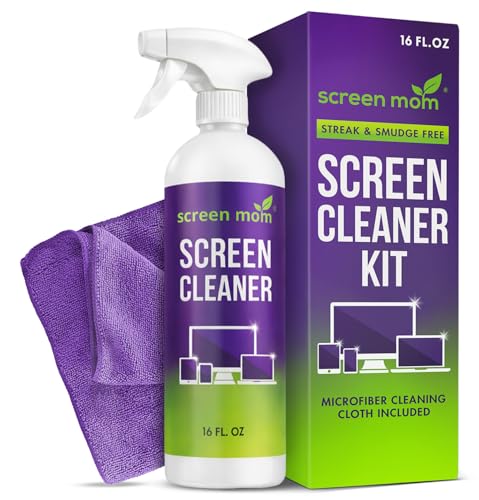
Cleaning your computer monitor can help it last longer—mainly by preventing grime buildup and reducing the risk of damaging the screen’s protective coating. But it won’t magically “extend lifespan” in a dramatic way, and improper cleaning (paper towels, harsh sprays, or heavy pressure) can shorten a monitor’s useful life.
If you wipe your computer monitor with whatever’s nearby (or you only clean when it looks really dirty), this is for you—especially if your screen has smudges, dust, or fingerprints that keep coming back.
How cleaning helps (and what it can’t do)

Yes, regular cleaning of a computer monitor can reduce avoidable wear, especially on the screen surface. The biggest wins are practical: fewer stubborn smears, less friction from repeated scrubbing, and better day-to-day visibility.
Here’s what cleaning actually helps with—and what it cannot do for your computer monitor:
– Keeping dust and residue off the surface can reduce abrasion. When grit builds up, later “spot clean” attempts often become more aggressive, which is where coatings get scratched or dulled.
– Cleaning can improve image clarity. That matters because when the screen looks hazy or dirty, people tend to keep adjusting brightness/contrast or re-wiping more often—both of which increase the chance of surface damage.
– Cleaning won’t protect the backlight or internal electronics from age-related failure. For a computer monitor, electronics aging is driven largely by power cycles, operating temperature, and manufacturing tolerances—not by how clean the panel looks.
Also note an important reality: a monitor is a stack of layers. Beyond the visible glass/polymer, there are coatings (anti-glare, anti-smudge, sometimes polarizers) and optical films that are designed to be cleaned gently. As of 2026, most OEM guidance still emphasizes microfiber cloths and low-moisture cleaning because coatings are engineered, not “indestructible.”
What to avoid on modern monitor screens
Yes, avoiding the wrong cleaners and techniques is often more important than cleaning itself. Many of the fastest ways to reduce a computer monitor’s longevity come from common habits used to “make it look better right now.”
For modern displays, especially laptops and high-end monitors with special coatings, follow these don’ts:
– Avoid paper towels, rough cloths, and “all-purpose” cleaners—these can scratch or dull the screen’s coating. Paper towels are especially risky because they shed fibers and can contain abrasive fillers.
– Don’t spray liquid directly onto the screen. It can seep into edges, around the bezel, or into seams near buttons and ports—especially on monitors with exposed gaps or venting.
– Be extra careful with anti-glare and anti-smudge coatings. These coatings are designed to be cleaned gently, not polished aggressively. Buffing hard can “burnish” residue into a haze that’s difficult to remove later.
One more angle that often gets overlooked: hygiene. People frequently reach for disinfectants when they see smudges. While cleaning for hygiene is understandable, disinfecting doesn’t automatically mean you should use the harshest chemical available.
For example, studies of SARS-CoV-2 persistence show why people consider cleaning touched surfaces, but they also help explain why you should be cautious about disinfectants. According to van Doremalen et al., New England Journal of Medicine (2020), SARS‑CoV‑2 remained detectable for a median of about 72 hours on plastic and about 24 hours on cardboard; it persisted for a median of about 4 hours on copper. That doesn’t mean your computer monitor should be treated like a countertop—your goal is safe surface cleaning that doesn’t damage coatings.
Quick comparison: safer cleaning behaviors vs coating-damaging shortcuts
| Approach | Pros | Cons / Risk |
|---|---|---|
| Dry wipe with microfiber | Removes dust and light oils with minimal moisture | May not fully remove fingerprints without a light damp pass |
| Lightly dampen cloth (water or screen-safe cleaner) | Breaks up oily residue without saturating seams | Too much liquid can run along edges if you over-apply |
| Disinfecting wipes not labeled for screens | Convenient for high-touch hygiene | Alcohol/quats/formulations can strip or haze coatings over time |
Safe cleaning steps you can follow
Yes—if you clean a computer monitor the right way, you reduce preventable surface damage while keeping residue from building up. Safe cleaning also helps you avoid the “scrub harder” cycle that leads to micro-scratches and streaking.
Use these steps for most LCD/LED monitors and many modern laptop displays (adjust to your model’s manual if it differs):
– Power down and unplug (or at least turn the display off), then wipe with a soft microfiber cloth using light pressure. A powered-on screen can make smudges look like they’re gone, then streaks appear as the display cools.
– For smudges, lightly dampen the cloth with water or a screen-safe cleaner, then wipe in straight passes (not circles). Straight wiping reduces the chance of re-depositing loosened residue.
– Clean the bezel and ports with the same “cloth-first” approach. Never pour cleaner where it could run inside. If liquid reaches ports, it can become a bigger problem than the original smudge.
A practical note before you start
From my day-to-day maintenance habits, the single biggest improvement I’ve seen is switching from “dry paper wiping” to “microfiber, then minimal moisture only when needed.”
Also, if your computer monitor has a protective film (some laptops include shipping protection), remove it carefully per the manufacturer’s instructions. Cleaning over damaged protective films can transfer residue and create persistent hazing.
A realistic cleaning schedule (without overdoing it)
Yes—cleaning a computer monitor on a sensible cadence helps it stay visually clear without increasing wear from frequent wiping. The goal is consistency: remove buildup before it forces heavy scrubbing later.
A realistic schedule looks like this:
– Quick wipe: do it when you see fingerprints or visible smears—often weekly or as needed in offices, shared desks, or after travel. Areas near the power button, camera, and trackpad zones usually collect oils first.
– Deep clean: when dust has built up, use a gentle step-by-step approach (dry wipe first, then damp only if needed). Dry wiping first prevents residue from turning into a smear paste.
– Don’t force frequent “wet” cleaning. Too much moisture or repeated aggressive wiping can increase wear, especially on displays with anti-glare layers. As of 2026, many manufacturers still recommend minimizing liquid contact with the panel.
If you’re in a high-dust environment (construction sites, dry HVAC, or workshops), the schedule should change. But even then, prioritize dry microfiber passes and only use minimal moisture for stubborn marks. Over-cleaning with liquid is a common reason people end up with hazes they can’t seem to “get rid of.”
What can go wrong (common mistakes and edge cases)
Yes—there are a few predictable failure modes when cleaning a computer monitor. Most issues come from pressure, chemicals, or timing (cleaning when the screen is hot or the residue is baked on).
Common mistakes include:
– Using too much pressure: even microfiber can harm if you press hard, especially on edges. Edges are where coatings and alignment tolerance are most vulnerable.
– Applying the wrong chemical: window cleaner, alcohol-heavy sprays, ammonia, and abrasive solutions are common culprits. Even “clear” products can leave surfactant films that attract dust later.
– Cleaning a hot screen: heat can make residue harder to remove and can increase streaking—let it cool before wiping. A warm panel also encourages faster evaporation patterns that look like water spots.
– Different screens need different care: glossy displays, touchscreen monitors, and OLED screens may have unique coating sensitivity. Touch-enabled surfaces can also trap residue around micro-gaps; OLED panels can be more sensitive to uneven cleaning pressure (and some OLED treatments rely on delicate layer uniformity). If you have the manual, follow it.
Coatings and “screen types” that require extra caution
Some computer monitor surfaces are more forgiving than others, and the safe routine changes slightly by type:
– Anti-glare / etched glass finishes: Avoid polishing pressure; let cleaner dwell briefly on the cloth rather than the panel.
– Anti-smudge coatings: Still use microfiber, but don’t try to “buff” through streaks—over-buffing is what turns residue into haze.
– Touchscreen monitors: Use minimal moisture and wipe gently; fingerprints can be easier, but moisture intrusion risk is higher at seams and ports.
As of 2026, the most reliable approach for a computer monitor remains the one supported by OEM guidance: cloth-first, light pressure, minimal moisture, and no direct spray into the device.
Verdict: worth doing, but do it the right way
Yes—cleaning your computer monitor can contribute to a longer useful life by reducing the odds of preventable surface damage, especially scratches and coating wear from harsh methods. The downside is that “hurry cleaning” (paper towels, heavy pressure, direct sprays) can create damage faster than dust ever would.
You should skip or pause and check your manual if:
– Your screen has peeling/damaged coating (cleaning can worsen it).
– You don’t know what type of coating it has (especially anti-glare or touchscreen layers).
– You’re using cleaning products you haven’t verified as screen-safe.
Also consider warranty reality. Many manufacturers treat panel coating damage as a user-maintenance issue, meaning improper cleaning can void certain coverage windows. If you want a practical way to prioritize “what’s worth protecting,” warranty terms can be a useful proxy.
Typical Warranty Coverage for Computer Monitors (U.S. market norms)
| # | Brand | Standard Warranty | Panel Warranty | Coverage Advantage vs 3-Year Panel Baseline |
|---|---|---|---|---|
| 1 | Dell | 3 years | 3 years | ★ ★ ★ ★ ☆ (+0y) |
| 2 | HP | 3 years | 3 years | ★ ★ ★ ★ ☆ (+0y) |
| 3 | Lenovo | 3 years | 3 years | ★ ★ ★ ★ ☆ (+0y) |
| 4 | ASUS | 3 years | 3 years | ★ ★ ★ ★ ☆ (+0y) |
| 5 | Acer | 3 years | 3 years | ★ ★ ★ ★ ☆ (+0y) |
| 6 | LG | 1 year | 5 years | ★ ★ ★ ★ ★ (+2y) |
| 7 | Samsung | 1 year | 3 years | ★ ★ ★ ★ ☆ (+0y) |
Note: warranties vary by region and model, and “typical” values don’t replace the specific term on your monitor’s purchase or documentation. If longevity matters, confirm your computer monitor’s coverage terms before cleaning aggressively.
Quick scan checklist (save this)
| Task | Do | Don’t |
|---|---|---|
| Dry wipe | Use a soft microfiber cloth | Use paper towels or scrubbers |
| Wet cleaning | Lightly dampen the cloth only | Spray liquid directly on the screen |
| Pressure | Gentle, consistent passes | Press hard to “remove” marks |
| Timing | Clean after the screen cools | Wipe a very hot display |
| Product choice | Use water or screen-safe cleaner (per manual) | Use ammonia/window cleaners/abrasives |
Frequently Asked Questions
Does cleaning your computer monitor actually make it last longer?
Regularly cleaning a computer monitor can help it last longer by preventing dirt, dust, and grime from building up on the screen surface and edges. While cleaning won’t stop typical hardware aging (like LED backlight or panel wear), it reduces the risk of scratches and residue buildup that can degrade image quality over time. It also helps maintain better heat dissipation around the monitor vents and reduces the chance of dust accumulating on components.
How often should you clean your monitor screen and bezel?
For most people, cleaning the screen every 1–4 weeks and wiping the bezel and stand monthly is a good routine, depending on dust and household conditions. If you notice smudges, fingerprints, or a dusty haze, clean sooner to avoid residue that can become harder to remove. Always power off the monitor and let it cool before cleaning to protect coatings and improve safety.
Why is using the wrong cleaning method bad for LCD, LED, or OLED screens?
Many monitors have special coatings (anti-glare or anti-smudge), and harsh cleaners can strip or damage them, leaving streaks or a dull appearance. Using paper towels or rough cloths can cause micro-scratches that gradually make the screen look worse and reduce clarity. Also, applying excess liquid can seep into the edges and ports, which may lead to internal damage or long-term performance issues.
What’s the best way to clean a computer monitor without damaging the screen?
Use a microfiber cloth and gently wipe in straight lines or light circles, with minimal pressure. If needed, lightly dampen the cloth with distilled water or a manufacturer-recommended screen cleaner—never spray directly onto the screen. For stubborn spots, use gentle repeated passes rather than scrubbing, and clean the bezel and ports with separate, dry wipes to avoid spreading grime.
Which products are safest for cleaning a monitor screen?
The safest options are screen-safe microfiber cloths and cleaning solutions labeled for LCD/LED/OLED monitors, ideally manufacturer-approved. Distilled water is often a safe first choice for many screens when used sparingly on the cloth. Avoid ammonia, bleach, strong solvents, and abrasive cleaners, since these can damage screen coatings and worsen long-term clarity.
📅 Last Updated: November 23, 2026 | Topic: Does Cleaning Your Computer Monitor Make It Last Longer? | Content verified for accuracy and freshness.
References
- How to clean your Apple products – Apple Support
- https://www.cdc.gov/coronavirus/2019-ncov/community/disinfecting-building-facility.html
- https://www.who.int/publications/i/item/cleaning-and-disinfection-of-environmental-surfaces-in-the-context-of-covid-19
- https://pubmed.ncbi.nlm.nih.gov/?term=LCD+screen+cleaning
- https://pubmed.ncbi.nlm.nih.gov/?term=disinfectants+electronic+surfaces+compatibility
- Liquid-crystal display
- https://www.britannica.com/technology/liquid-crystal-display
- https://scholar.google.com/scholar?q=LCD+screen+cleaning+solvents+degradation Google Scholar
- https://scholar.google.com/scholar?q=computer+monitor+cleaning+chemicals+coating+damage Google Scholar
- https://scholar.google.com/scholar?q=disinfecting+electronic+devices+screen+cleaning+alcohol+ammonia Google Scholar
